Entering VRChat on Mobile
1. Access VRChat
"VRChat" is one of the platforms used as a venue for Virtual Market. Even if you don't own VR equipment, you can visit using a Windows PC or iOS/Android mobile devices.
This page explains registration and visit methods for mobile devices.
Note: Mobile visitors can access only some worlds. Mobile use also requires a compatible device — see VRChat's Mobile System Requirements for details.
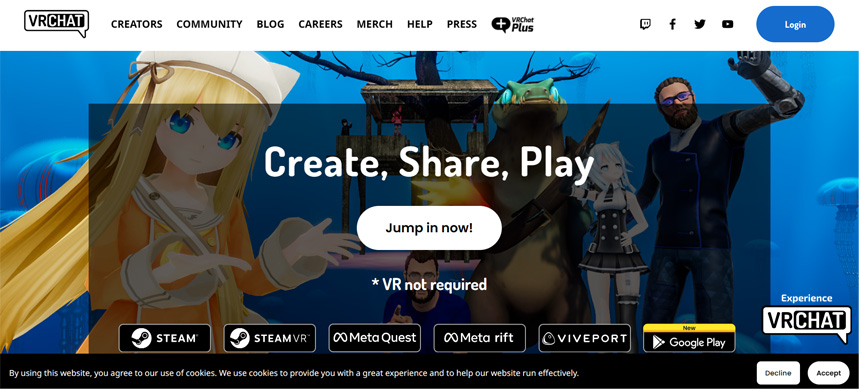
Access VRChat
2. Create a VRChat Account
To use VRChat you need an account. Account creation is free.
Click "Login" in the upper right corner of the VRChat website to open the login page.
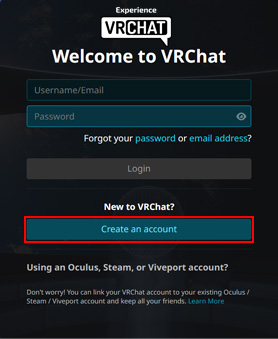
If you don't have an account yet, click "Create an account" and fill in the required fields.
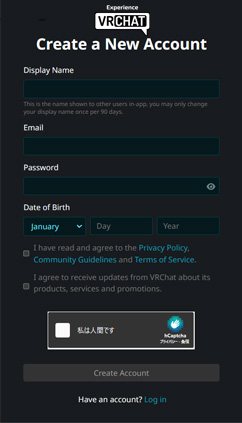
Display Name
This is the name shown in VRChat. Very short or duplicate names may be rejected.
Email
Enter an email address you will use to log in. A verification email will be sent.
Password
Enter a password for login. Short passwords may be rejected.
Date of Birth
Enter your date of birth.
Review VRChat's terms and policies, then click "Create Account".
You may also see options such as "I have read and agree to the Privacy Policy, Community Guidelines and Terms of Service" and an option to receive updates from VRChat.
Complete any human verification shown on screen.
3. Verify your email address
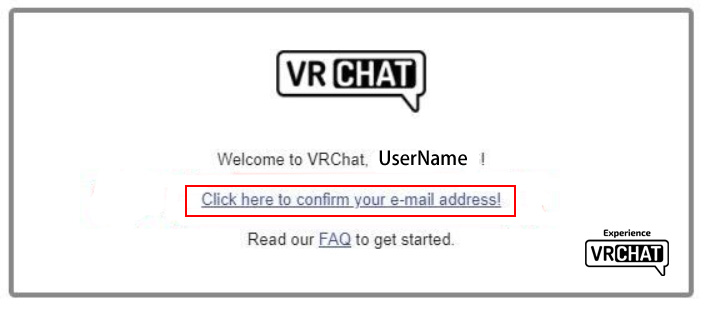
After registering, VRChat will send a verification email to the address you provided. Click the verification link in that email to complete account setup.
1. Install the app
Install the VRChat mobile app from your device's app store. Installation is free.
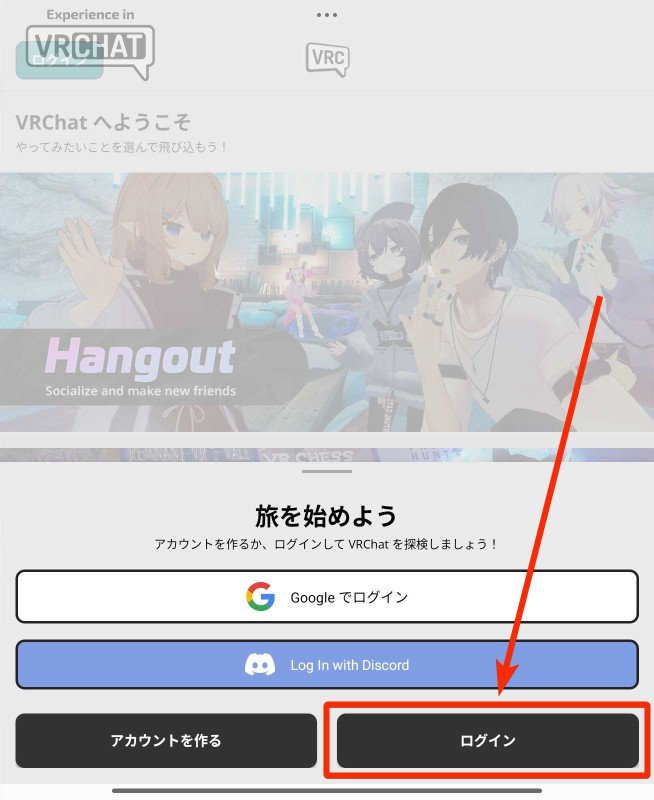
After installation, launch the app and tap "Login". Log in with the VRChat account you created.
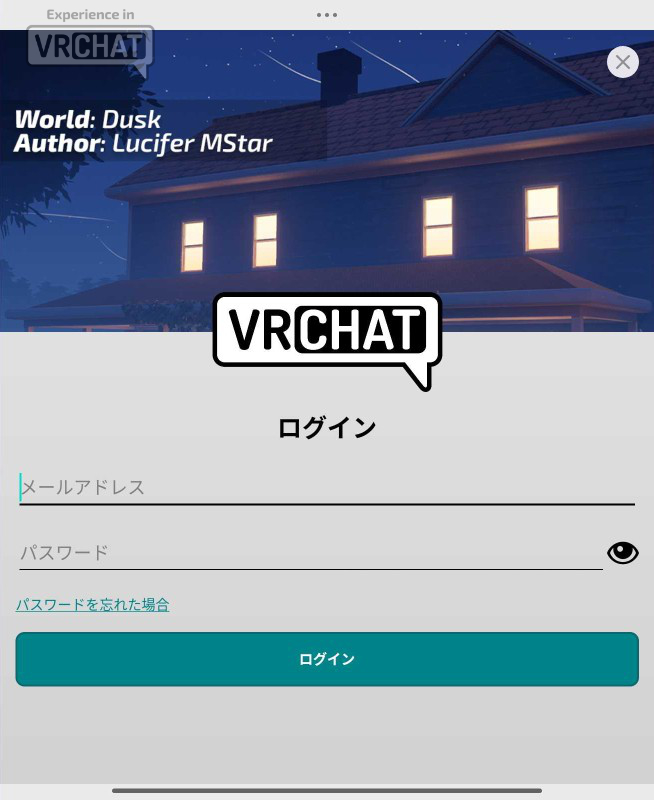
Enter your account information and tap "Login".
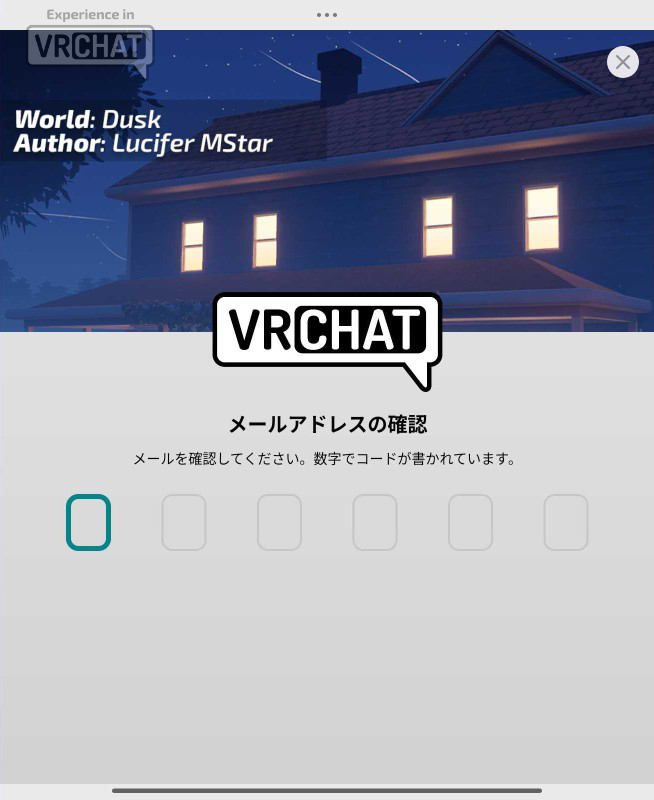
A verification code may be sent to your email; enter it to complete login.
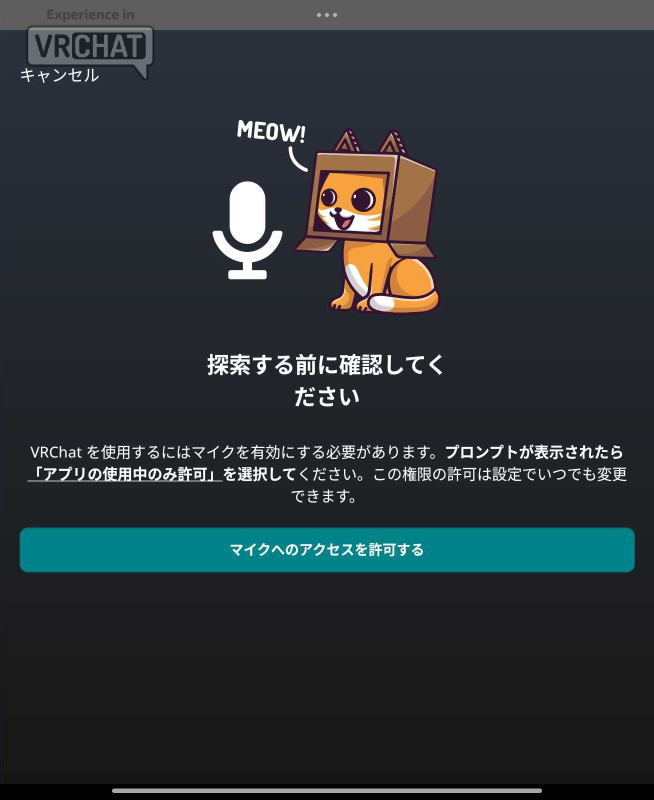
You may be prompted to allow microphone access — tap "Allow" if prompted.
1. Visit via World Search
After launching and logging in, access the Virtual Market venue.
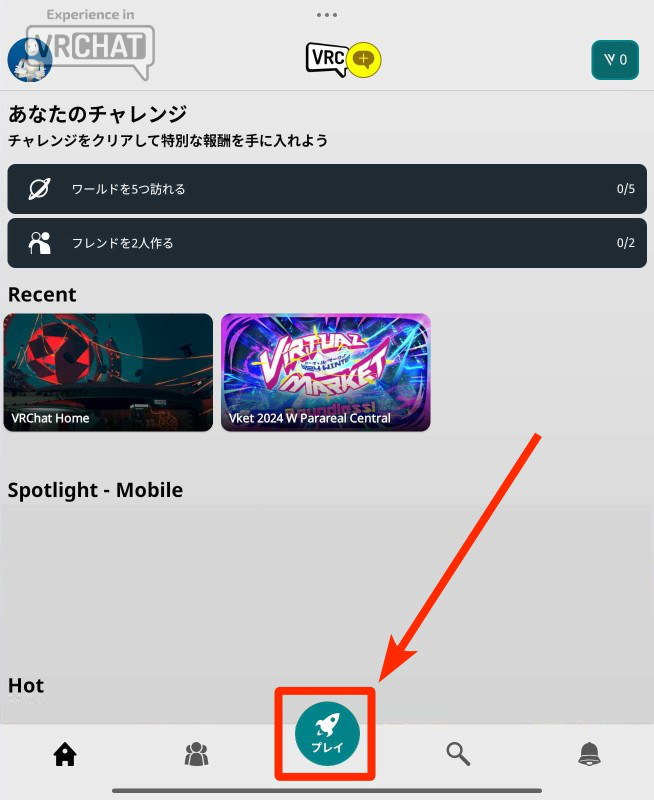
Tap the "Play" button at the bottom of the screen.
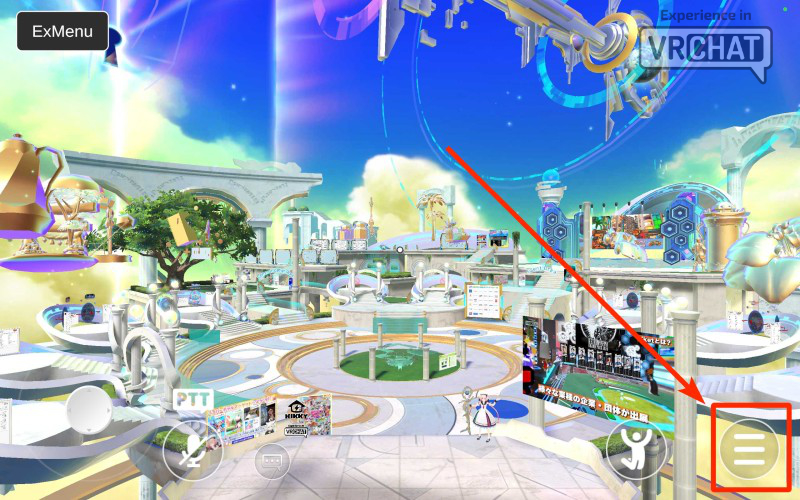
When a world has loaded, open the menu (menu button in the lower right).
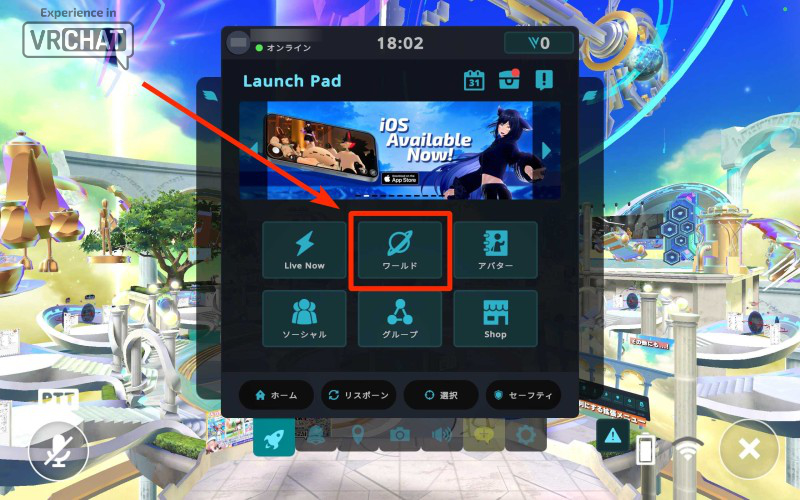
Tap "Worlds" in the menu.
Tap the "Search Worlds" field.
During the Virtual Market event, a Vket tab may appear in the "Featured Worlds" section.
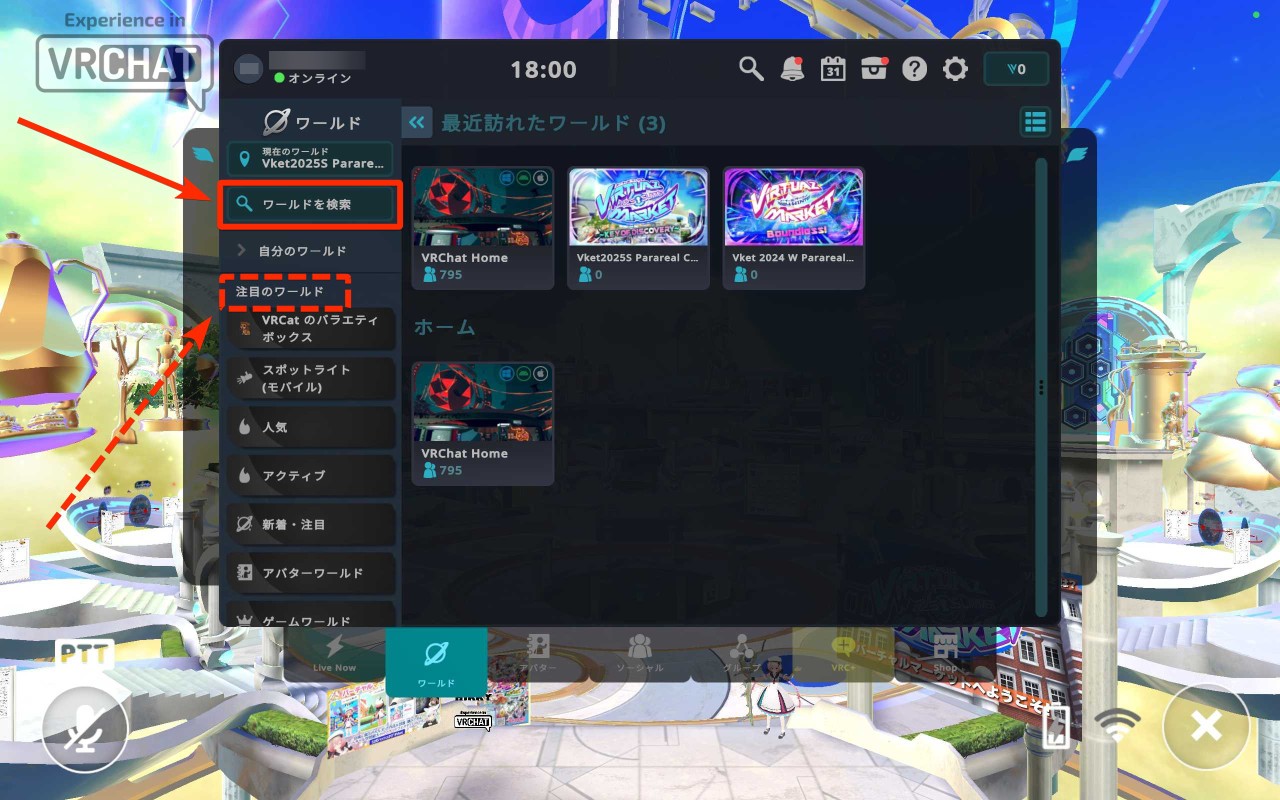
Enter "Vket" or "vket2025" and run the search.
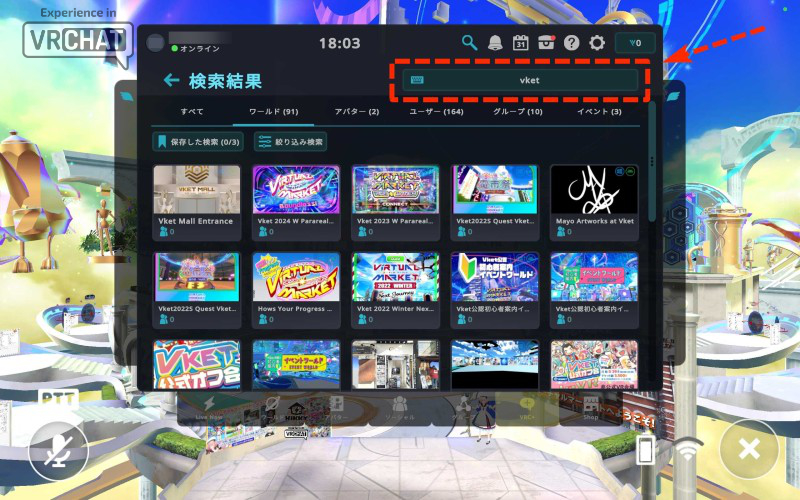
Select a Vket world from the results and tap "Join" to enter.
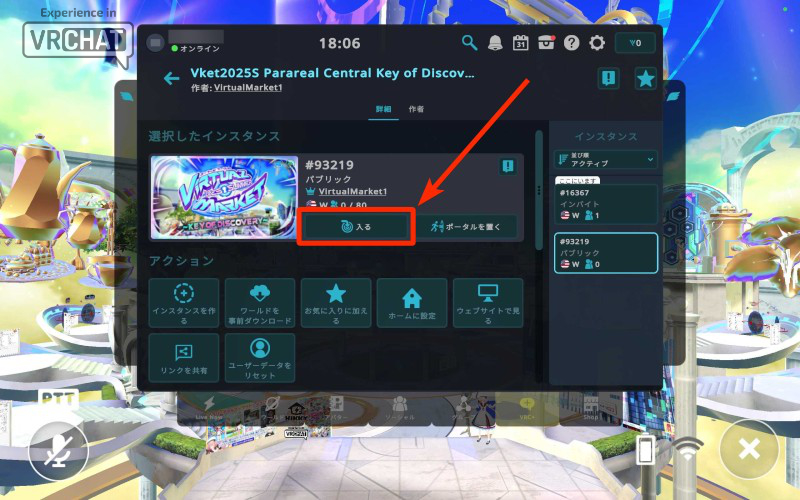
Note: Images are for illustration only. Loading times may vary with network conditions.
2. Visit via World Link with "Invite Me"
You can also use world links from the catalog or this page. First, be logged into VRChat on your mobile device.
Clicking a world link in your browser opens a page showing available instances and player counts.
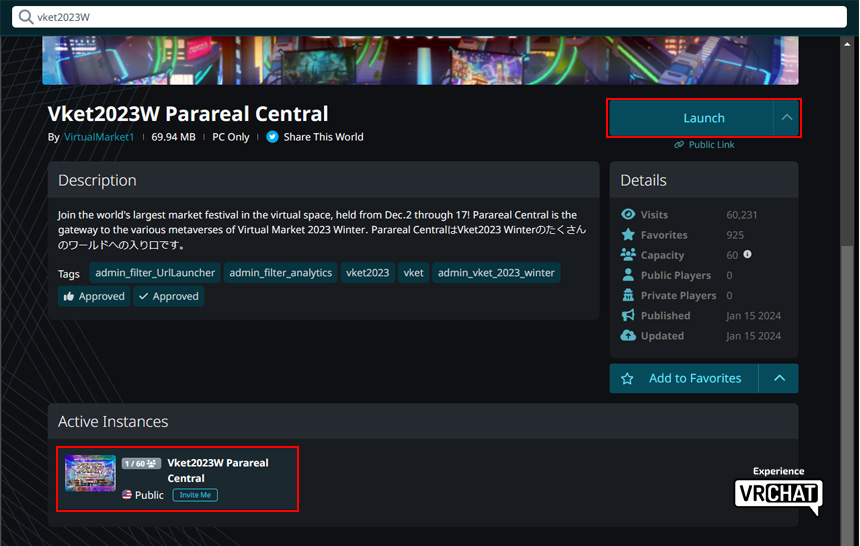
In the lower left, all instances you can enter and the number of people in them are displayed. Click the instance you want to go to.
Alternatively, you can create your own instance from the Launch button on the right.
"Friends+" allows only VRChat friends or friends of friends to enter.
"Invite+" is more restrictive, allowing only those who have received an invite to enter.
This will open a screen like the one below.
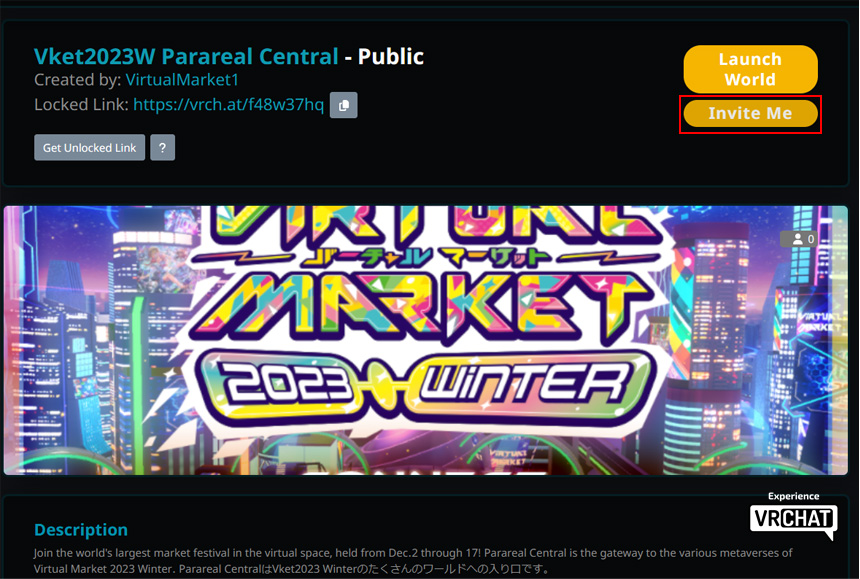
Click "INVITE ME" on this screen to send an invite to this world to yourself within VRChat.
On the VRChat side, tap the hamburger menu in the lower right to open the Launch Pad, and the invitation notification will be displayed.
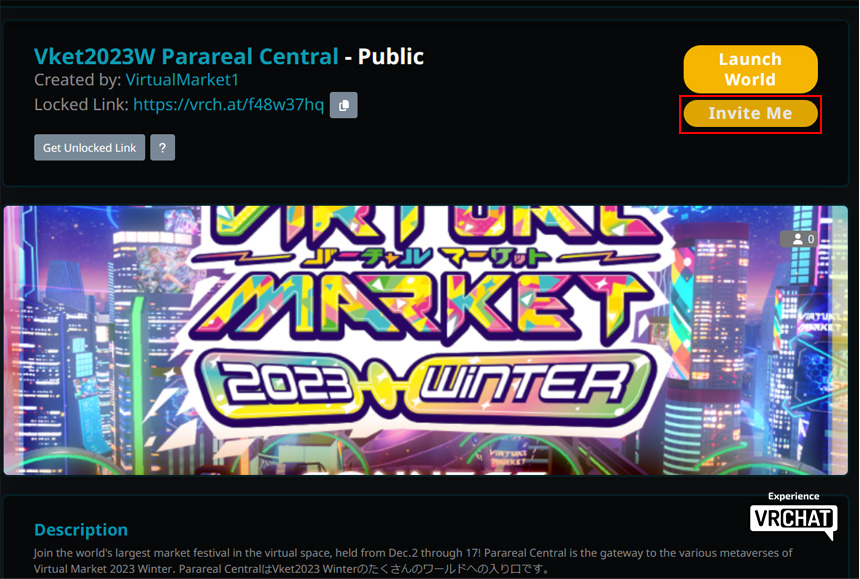
Click this and press the "check" mark to move to the target world instance.
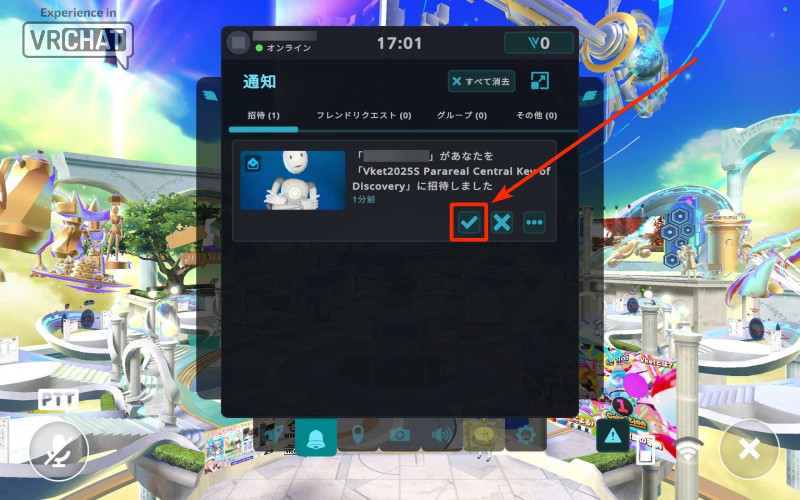
Note: Images are for illustration only.
- Photography and streaming by individuals and media is permitted. Please be aware you may appear in these recordings. If you prefer not to appear, use a private VRChat instance.
- Do not attend using illegal or unlicensed avatars, or avatars that violate public order and morals.
- Please refrain from trolling or other disruptive behavior.