Enter with PC VRChat
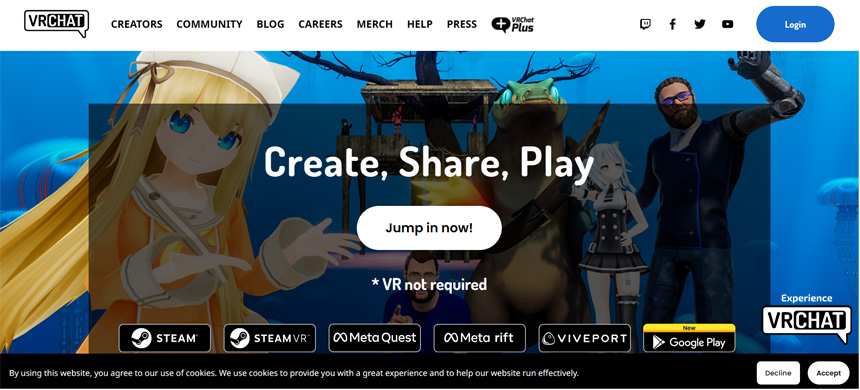
1.Access VRChat website
VRChat is one of the platforms hosting Virtual Market venues. Even if you don’t have VR devices, the platform is accessible with a Windows desktop PC.
Open VRChat website
2.Create a VRChat account
Playing VRChat requires an account. Here are instructions on how to create a VRChat account.
*You can create an account for free!
After accessing VRChat, click “Login” to open the login page:
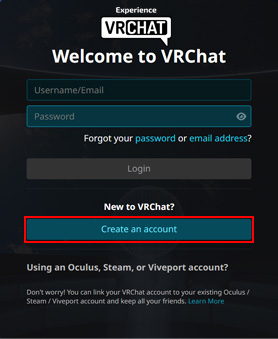
If you don’t have an account yet, click “Create an Account”.
Then, fill in the required information:
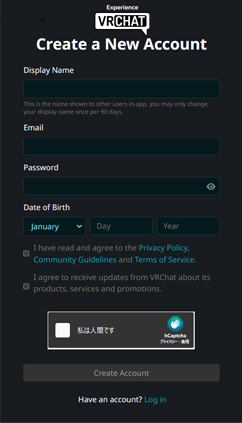
Display Name
This is the username that will be displayed in VRChat. Please note that names that are too short or identical to other users will not be accepted.
Email
Enter the email address you will use to log in to VRChat. You will receive an authentication email later.
Password
Enter the password you will use to log in. If your password is too short, it will not be accepted.
Date of Birth
Enter the date of birth.
Read through and confirm the VRChat Terms of Use, complete the hCaptcha challenge, then click “Create Account”.
3.Verify your email address
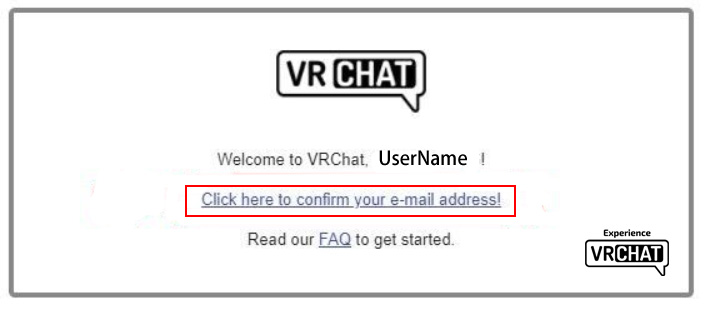
After completing the VRChat registration, you will receive an authentication email to the email address you entered.
Click on the URL in the verification email, and your account registration with VRChat is complete.
1.Access Steam
Install the Steam platform on your computer so that you can use VRChat application.
*Installation is free of charge!
Open Steam
2.Install Steam
Click “INSTALL STEAM” to download the file (SteamSetup.exe).
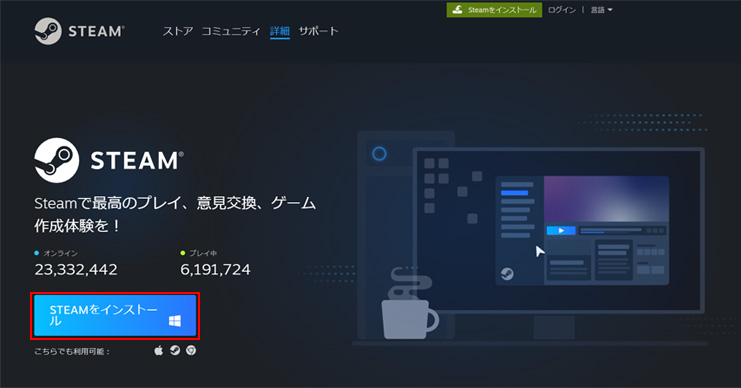
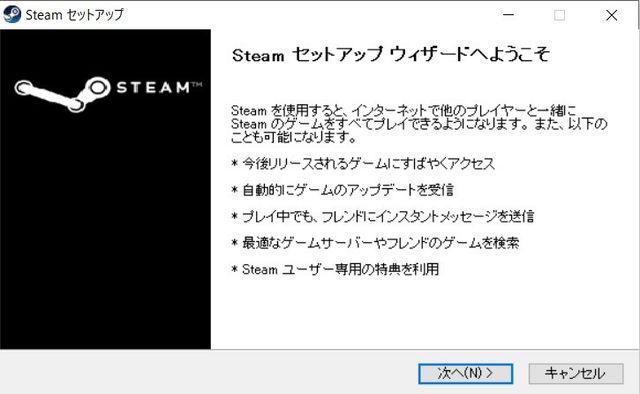
Once the download is complete, launch the downloaded file and follow the on-screen instructions to install Steam.
3.Installing Steam / Creating a Steam Account
Create a Steam account to use Steam services.
*You can create an account for free.
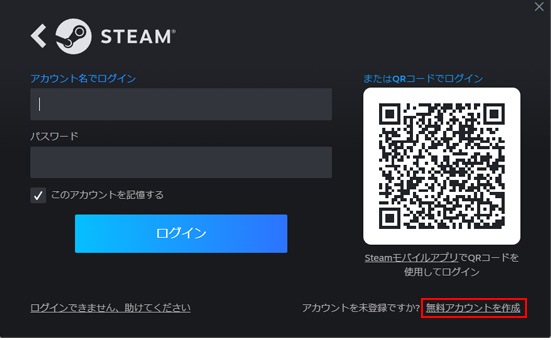
When you launch the installed Steam application, the login screen will appear, as shown in the image. Click on “CREATE A NEW ACCOUNT”.
Enter the email address you want to use to log in to Steam.
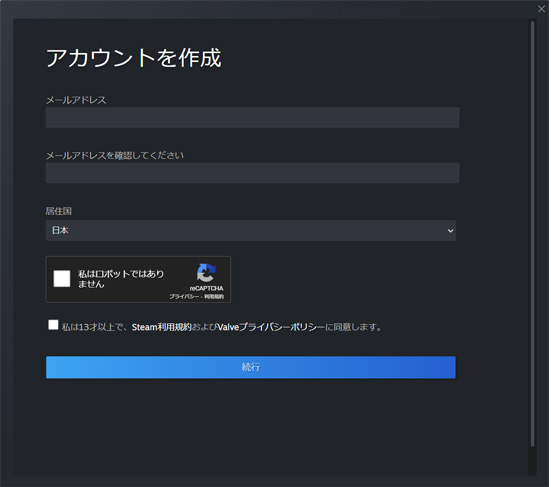
An email will be sent to the email address you’ve just entered. Click “VERIFY MY EMAIL ADDRESS”.
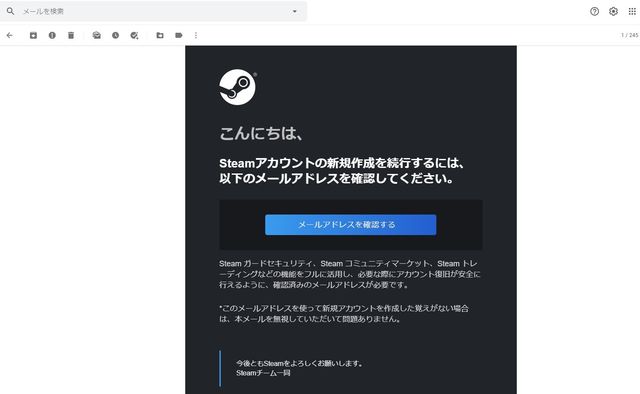
When the account creation screen appears, enter your Steam account name and password, and click “Done”.
1.Install VRChat using Steam
VRChat application can be installed and launched using Steam, a platform for various PC games! VRChat can be installed via Steam.
*Installation is free of charge.
Start Steam and enter “VRChat” in the search field. Click the VRChat card that appears just below the search window.
*If it does not appear, press enter and do the search. Click VRchat on the result screen.

Scroll down to the bottom and click on “Play Game” to proceed with the installation.

2.Launch VRChat
After completing the installation, click on “Library” at the top of the screen.
Click on the VRChat item in the sidebar, and press the green “play” button.
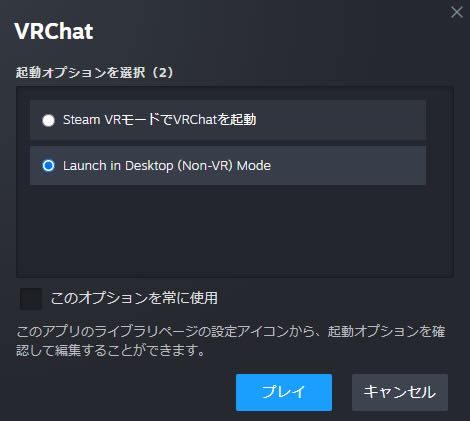
You will be asked if you want to launch VRChat in VR mode or desktop mode.
If you are using a VR device, select “Launch VRChat in Steam VR mode” above.
If you don’t have a VR device, select “Launch in Desktop (Non-VR) mode” below and press play.
3.Log in to VRChat with your VRChat account
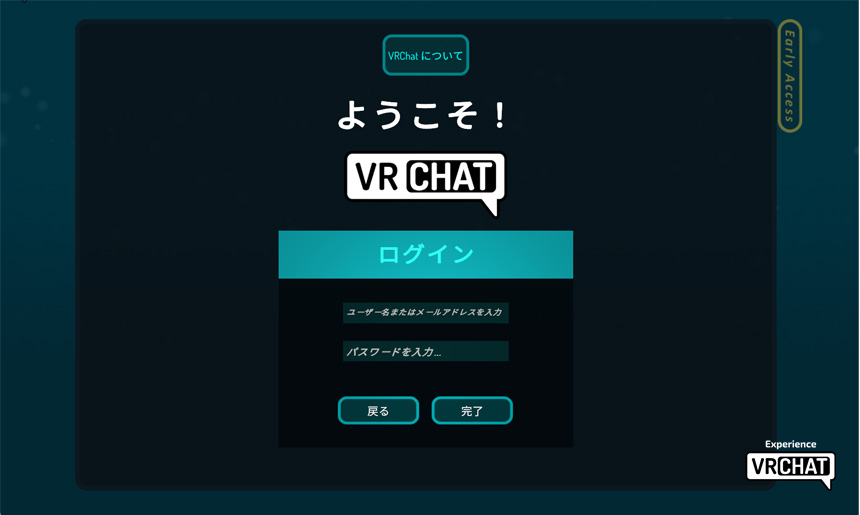
Once VRChat is launched, select the language, and the account you want to log in to.
For this instance, the VRChat account previously created will be used to log in, so select “VRChat”.
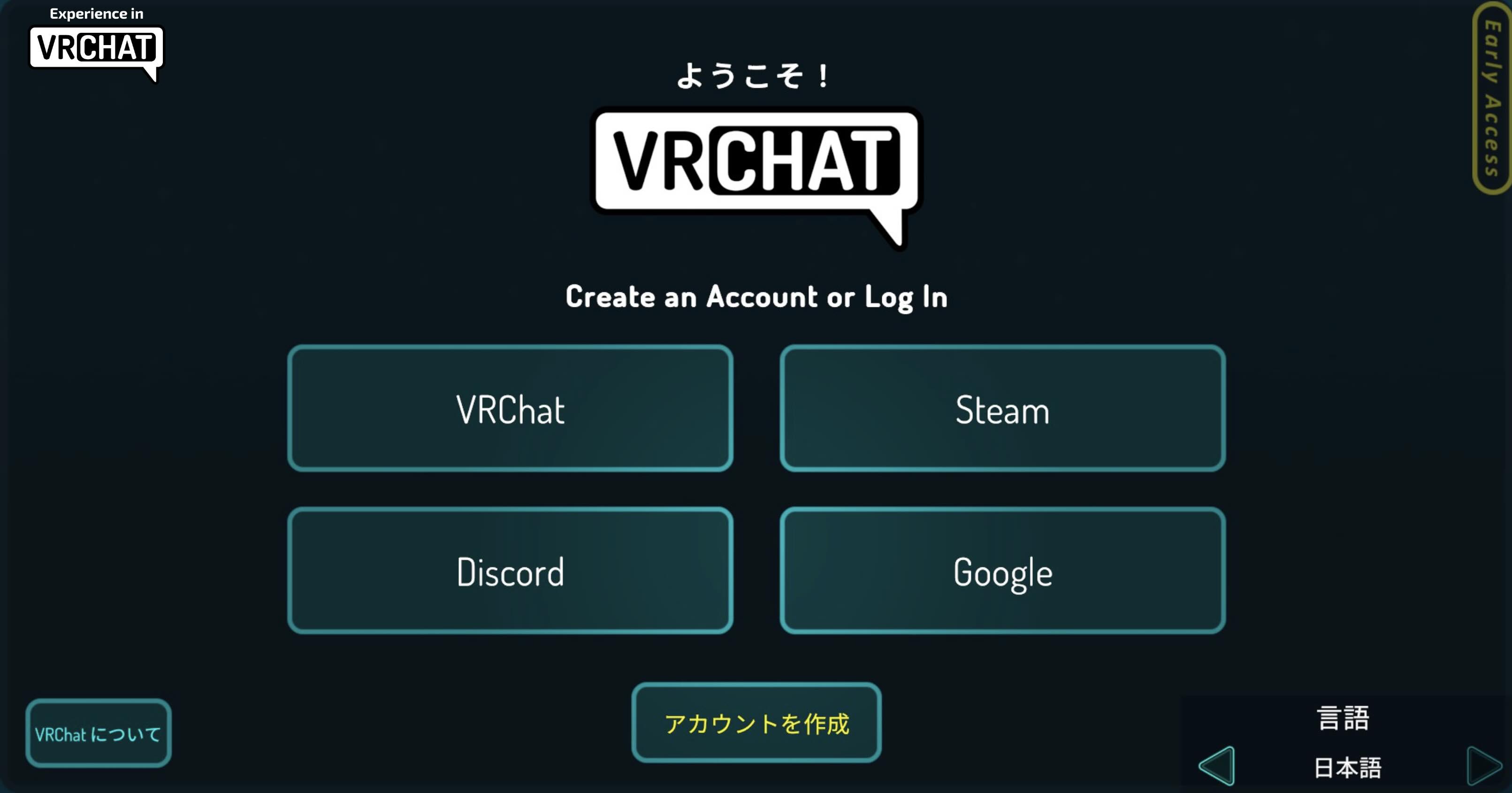
Enter the username and password that you registered when you created your VRChat account. After entering the information,
click the “Done” button to log in.
If you see the tutorial, please go through the tutorial. After completing the tutorial, you will arrive at the VRChat Home!
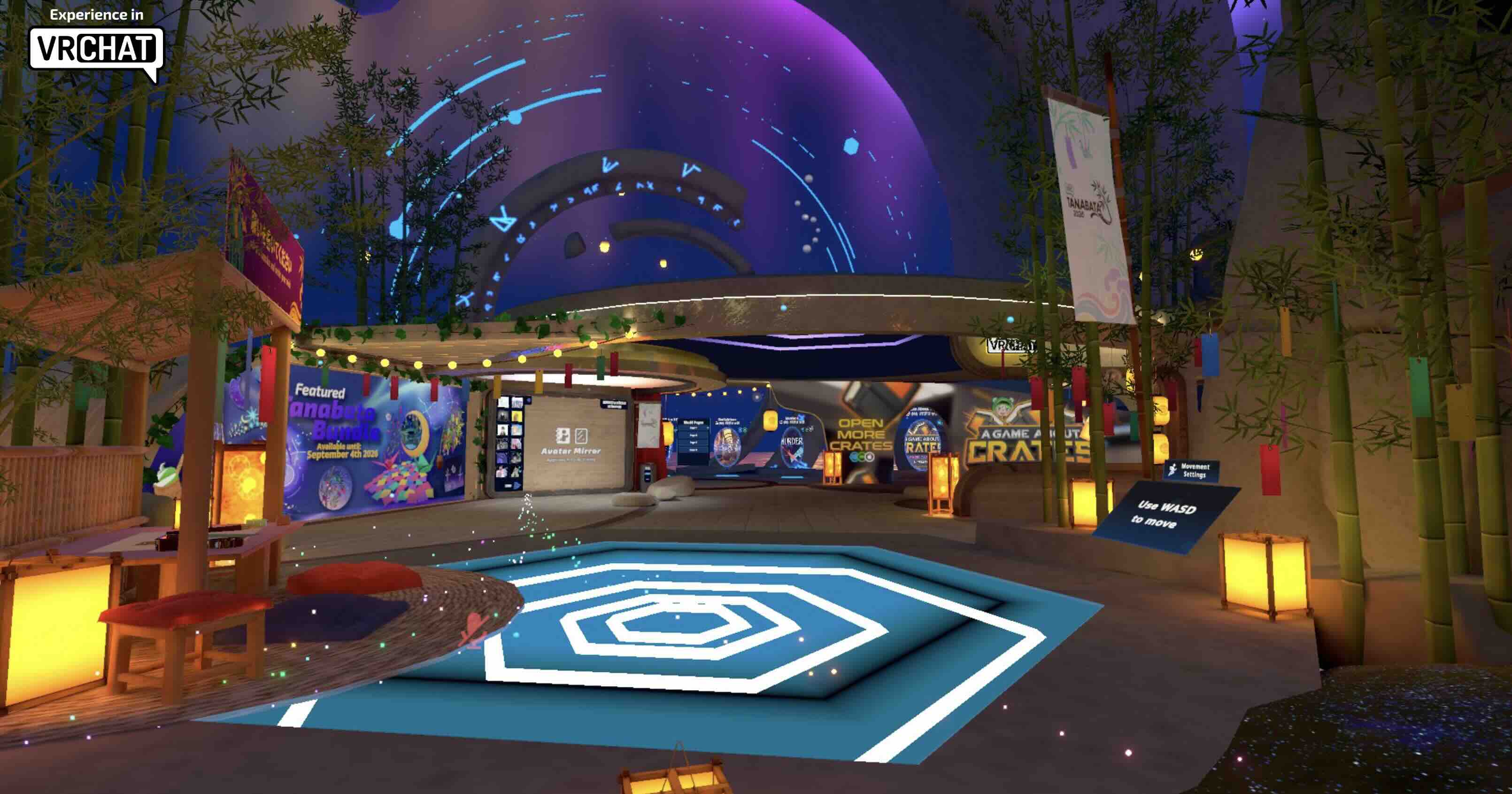
1.Searching Venue World
Now’s the time to start your journey to the Virtual Market venues!
Try accessing the Virtual Market venues!
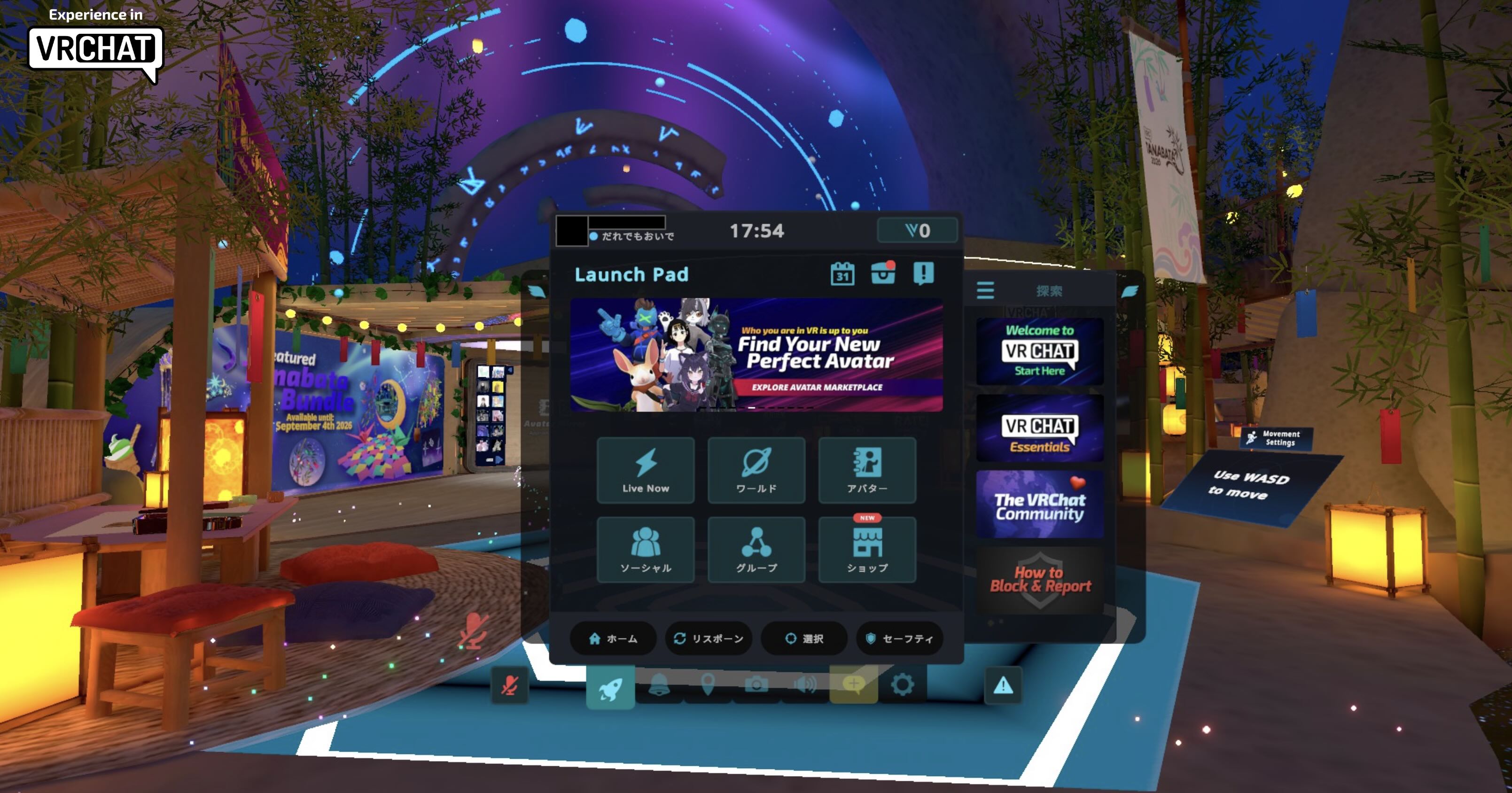
Press the “ESC” key on Desktop (or the B or Y button for the Quick Menu in VR) to open the menu. When the menu opens, click on “Worlds” in the Launch Pad.
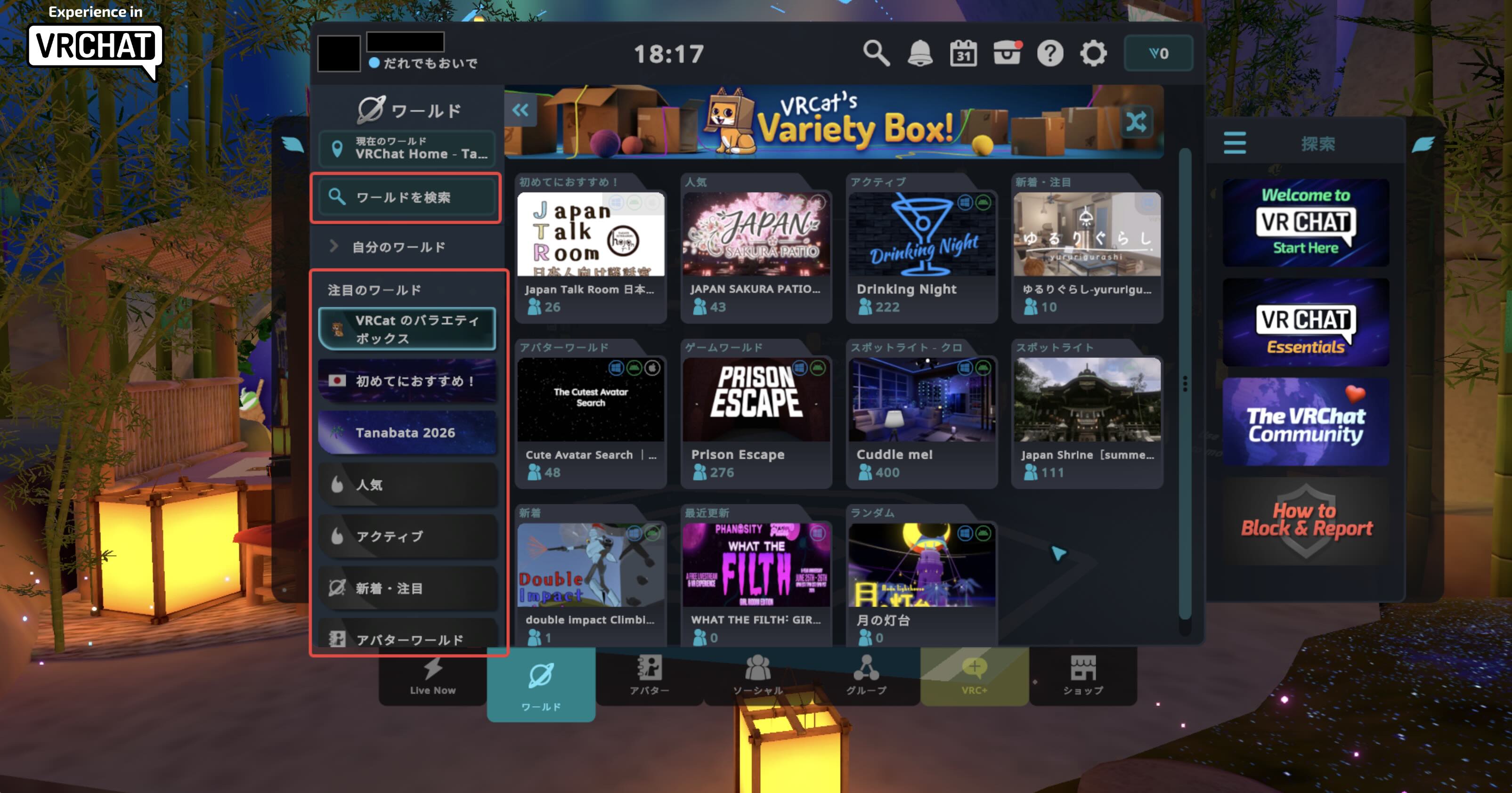
Click the “Search World” button in the upper right corner.
*During the Virtual Market event period, a special tab for Vket worlds will be added in the VRChat World menu! Please use this tab for quicker access.
Enter “Vket” or “Vket 2026 S” in the Input field and click the Submit button.
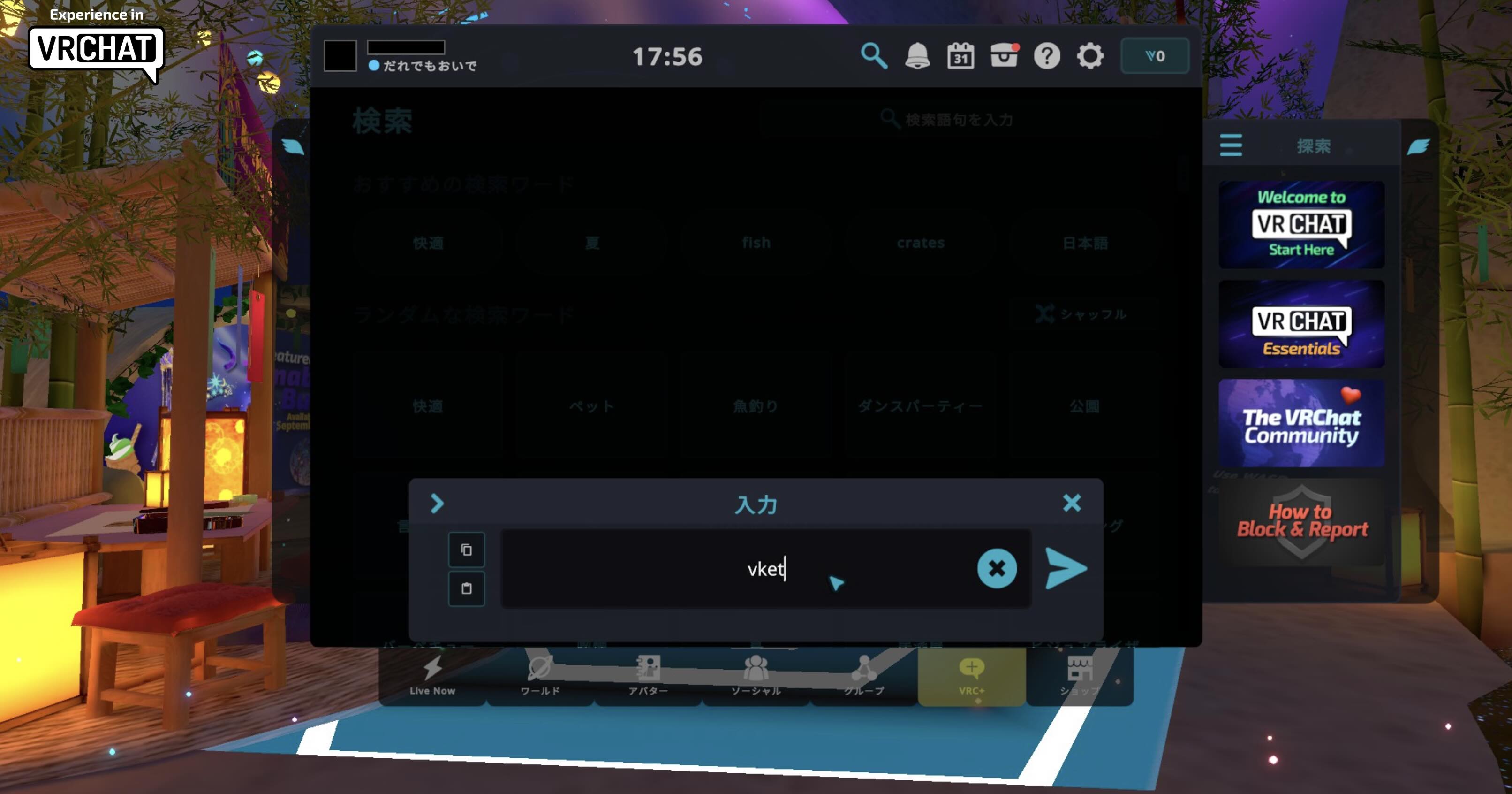
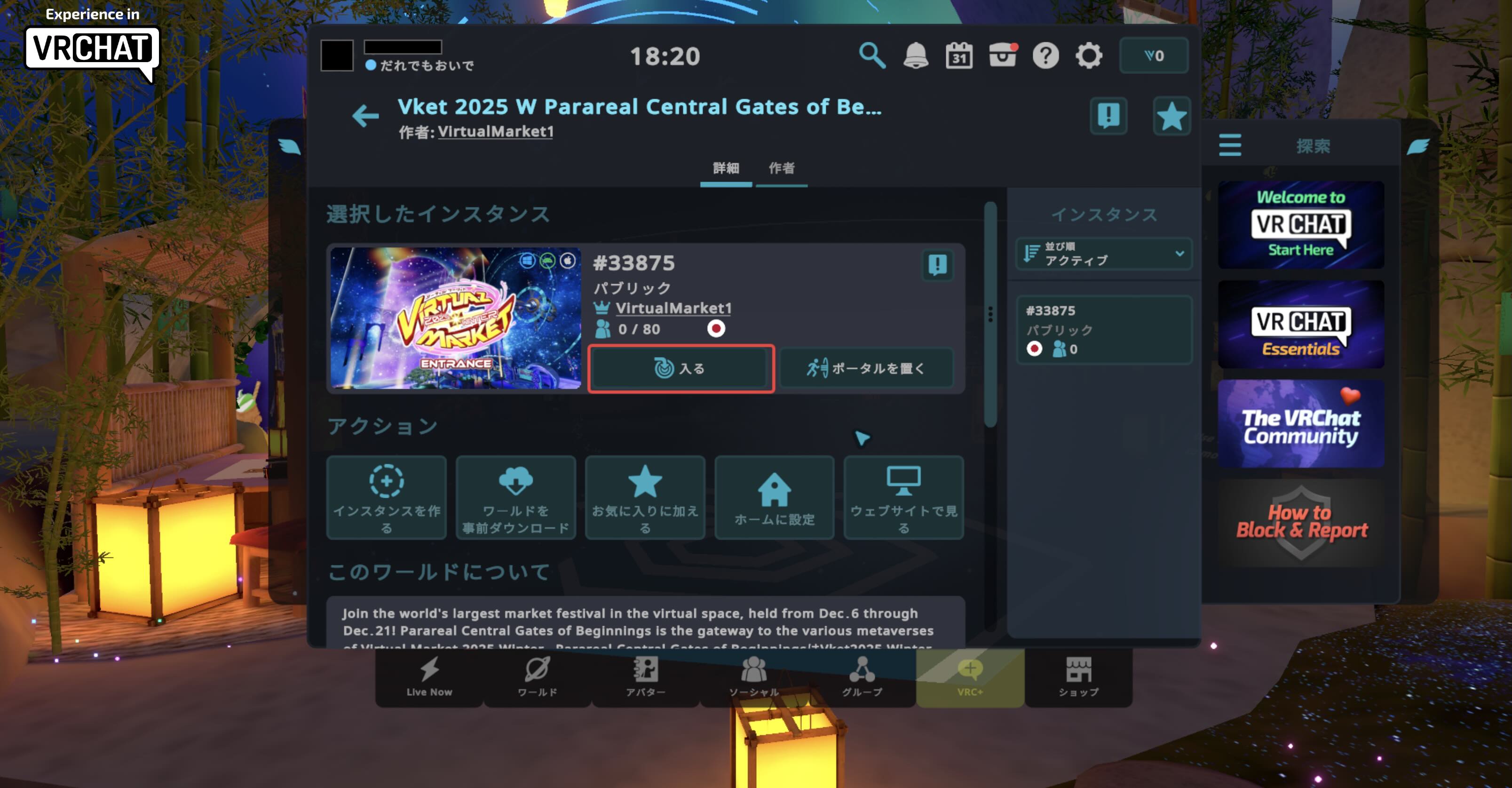
You will find the list of Virtual Market worlds. Select the world that you want to visit.
Click the “Join” button to visit each venue worlds.
2.Using World Links and Invite Me
You can also visit Virtual Market from the world link on the catalog pages or on the top of this page.
Firstly, get inside the VRChat by following the steps explained above.
Then, click the world link on your browser to open a window like below:
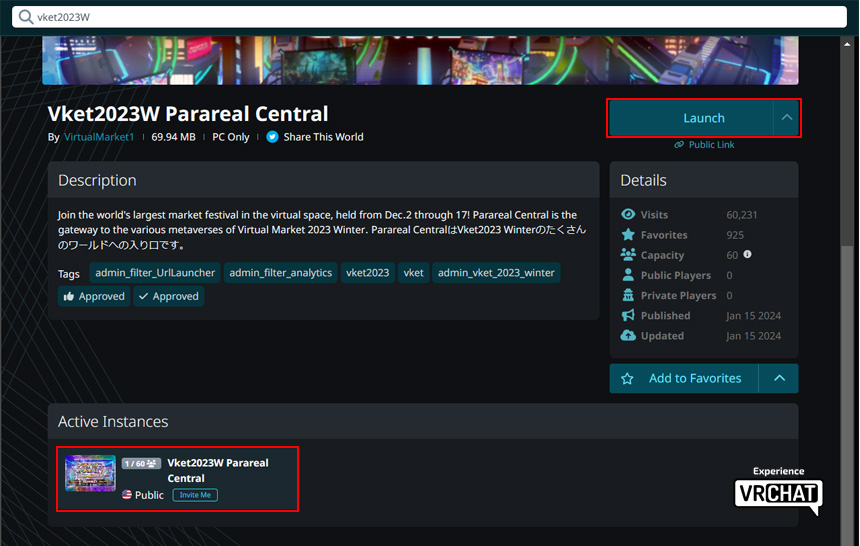
Here you can see all accessible instances at the bottom left, alongside the number of players inside.
Click the instance of your choice. Alternatively, you can choose to create your own instance with the Launch button on the right.
"Friends+" comes handy when you want to restrict the entrance to your friends or the friends of them in VRChat.
"Invite+" provides even stricter control, letting people in only if they are invited.
You will now see a window like below:
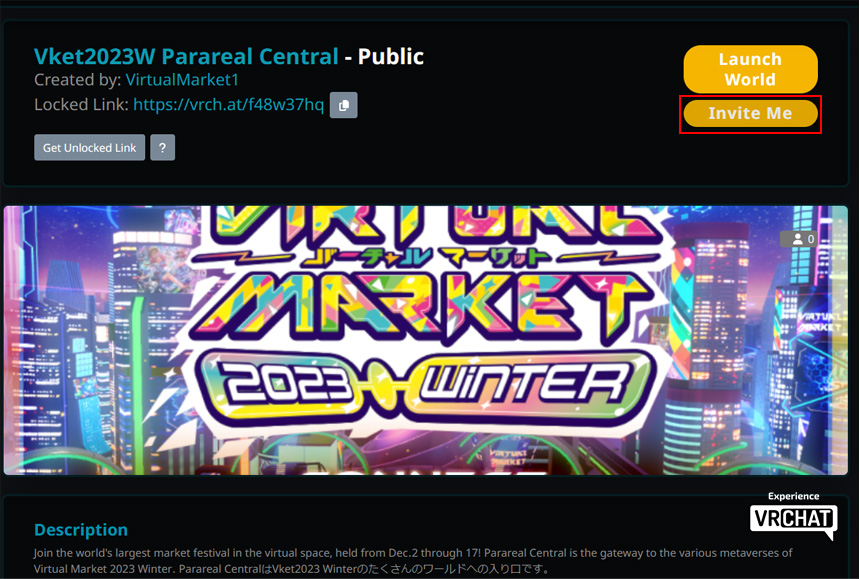
Click "Invite Me" to send the invitation for this instance in VRChat.
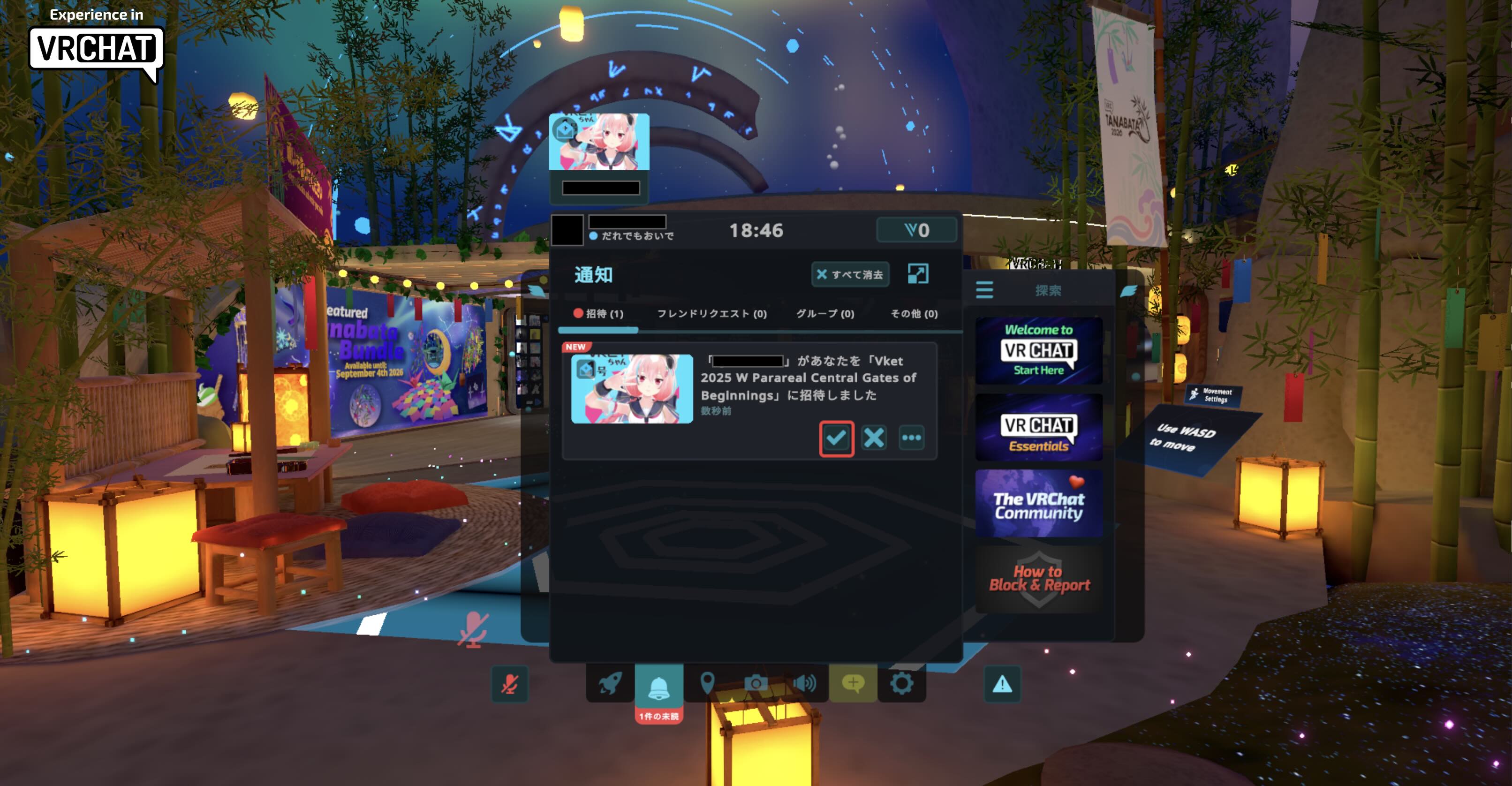
Inside the VRChat, you will find the invitation on the top left of the Quick Menu.
In desktop mode, you can open the Quick Menu by pressing Esc key.
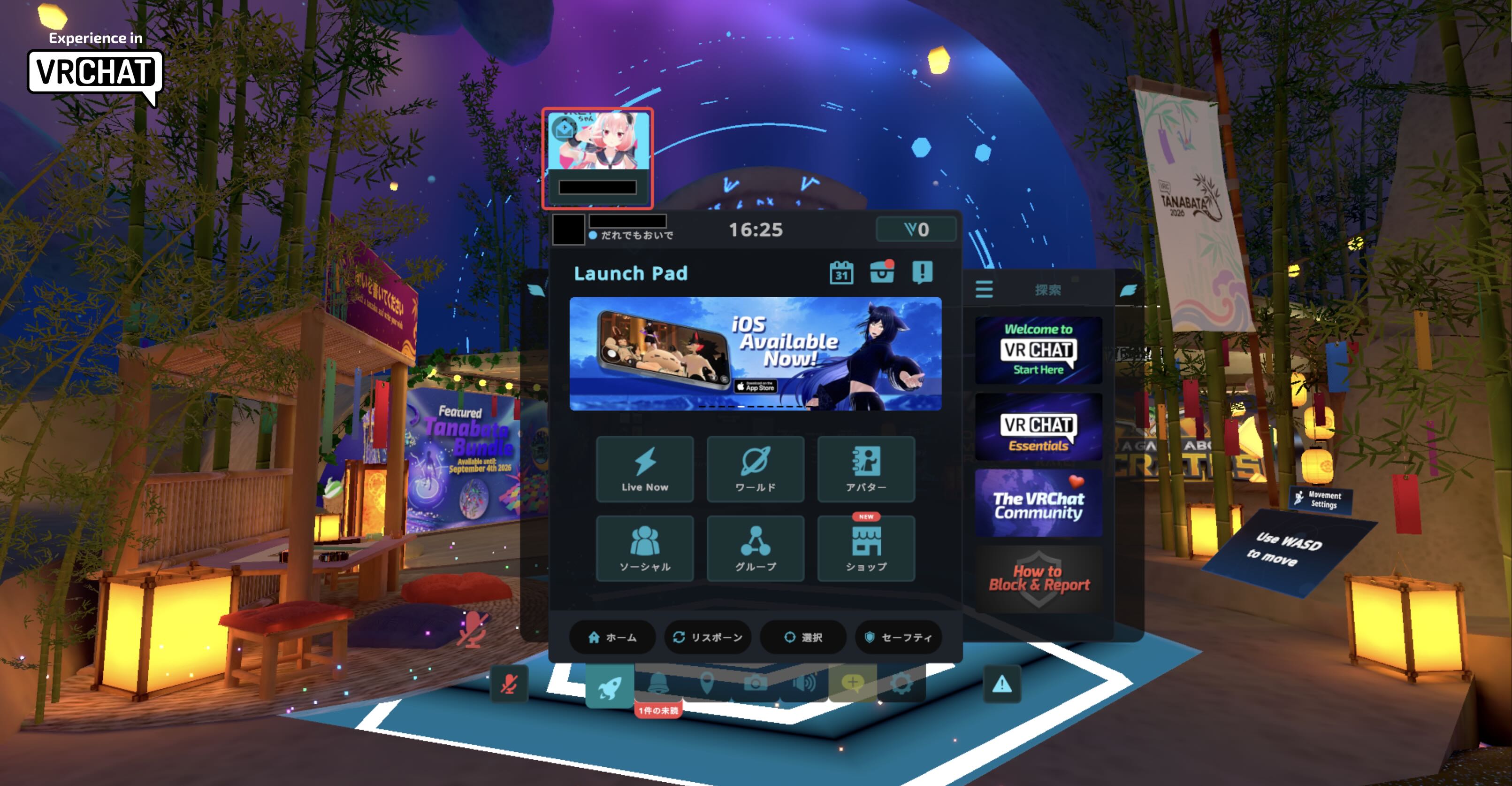
Click this invitation and press the checkmark… et voilà! You are now in the desired world instance!
- This event permits photographing and streaming by individuals and media. Please consent beforehand that you may unexpectedly appear in these photos and videos. If you want to avoid such appearances for sure, please use the private world of the VRChat or the Vket Cloud.
- Please do not visit the event in illegal, unlicensed and/or avatars against public order and morality.
- Please refrain from annoying or unwelcome behaviors.