How to Register as a Seller on Avatar Marketplace
The Avatar Marketplace is an official VRChat feature that allows creators to sell avatars they have created.
This page explains the application process to register as a seller in the Creator Economy, as well as how to register an avatar to a Listing for sale on the Avatar Marketplace.
The content on this page is current as of August 27, 2025. There could be changes and additions since then, so please also refer to the official VRChat documentation below.
- Creator Economy:
- Avatar Marketplace:
To sell avatars on the Avatar Marketplace, you must apply and register as an avatar seller in VRChat’s Creator Economy.
- To participate in the Creator Economy, you need to submit an application to VRChat, register with PayPal for payment processing, and apply to Tilia.
*This page does not cover how to create a PayPal account.
*Even if you are already registered in the Creator Economy for purposes other than selling avatars, you must submit an additional application to become an avatar seller.
There are certain requirements to become an avatar seller.
- Before applying, make sure you meet the following conditions.
- Please note that even if you meet the requirements, your application may still be rejected. If you do not meet them, your application is more likely to be denied.
- Account Criteria
- You have a VRChat account and not have been banned in the last 12 months.
- You have a PayPal account to pay out your earnings.
- Please check the PayPal documentation to see whether your country can receive payouts.
- You have a Discord account for communication purposes.
- You are at least 18 years old.
- Creator Experience
- You have a recent history of creating high-quality content for VRChat and/or other platforms, such as Roblox, Horizon Worlds, Unity Asset Store, Fortnite, Second Life, etc.
- You created two avatars in the last 12 months.
- The avatars use the latest Unity version.
- Content criteria
- You have experience creating avatars with a performance rank of Poor, Medium, Good, or Excellent.
- You're interested in publishing or creating avatars that comply with our avatar content guidelines.
- Your application includes the URLs of your avatars on VRChat.com or third-party storefronts.
Follow the steps below to apply to VRChat to become a Creator Economy seller.
For more details about the Creator Economy, please check the official documentation:
- Apply through the Seller Application form specified by VRChat.
*Please apply as an avatar creator when filling out the form.
- Seller Application form
- Follow the instructions in the form, confirm that you meet the requirements for avatar sellers, fill out the details, and submit your application.
- After submitting, you will receive an email from VRChat staff within 30 days notifying you of approval or rejection.
When checking your email, make sure it has not been sorted into your spam folder. - Once approved, you can begin your activities as a Creator Economy seller.
Tilia is the payment service provider for the VRChat Creator Economy.
- To apply, you must submit personal information and a photo ID such as a passport or driver’s license. Tilia will then conduct its own review process.
- You can apply to Tilia once your Creator Economy application has been approved.
For details, please check the official documentation:
- Log in to the official VRChat website and open "Marketplace" from the left menu.
- Open the "My Store" tab and click "Get Started with Tilia" to move to the Tilia website.
- Review the terms of service and enter your personal information as requested in the form.
- Wait for your Tilia to accept your information.
*This usually takes around 5 business days, but may rarely take up to 30 calendar days.
Once you are approved as an avatar seller, you can register avatars on the Marketplace.
- Marketplace registration requires uploading your avatar, creating an Avatar Product, and passing a review by VRChat. Please note that reviews may take several days.
- After this, you will create a Listing for sale and register your avatar.
For details, please check the official documentation:
- Upload the Avatar
- Uploading an avatar follows the same steps as usual.
- Only avatars set to "private" can be sold. If you want to sell an avatar currently set to "public," you must change its setting or upload it as a new avatar.
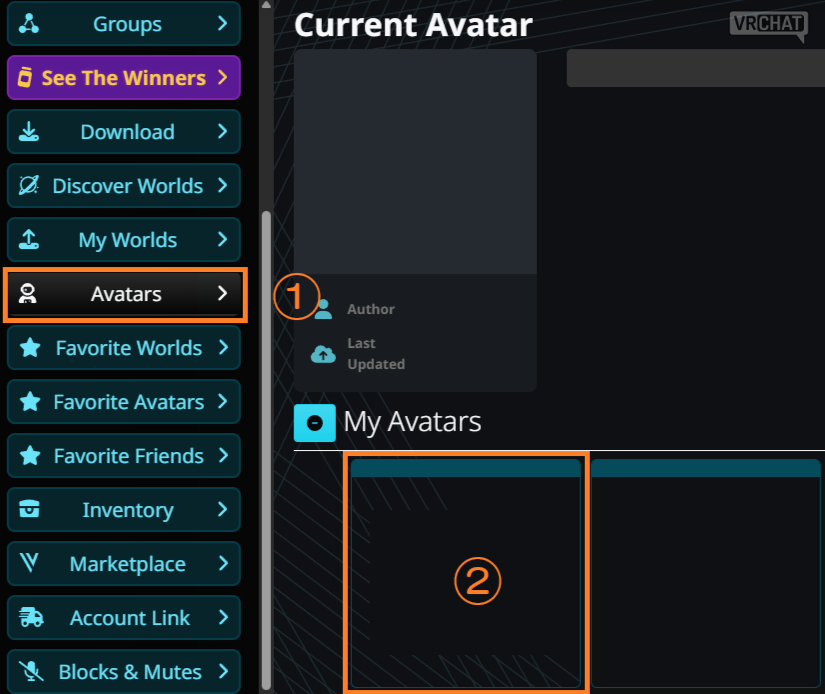
- After uploading, log in to the VRChat website, go to Avatars > My Avatars, find your uploaded avatar, and add details to it.
Avatar details give users additional information about your avatar. They help users find and buy your avatar product.
Open my Avatars and click the "✏️" icon to edit your avatar's details. Most details are optional and you can change them at any time.
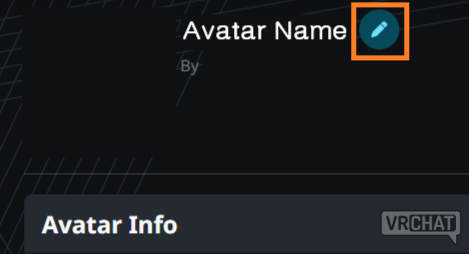
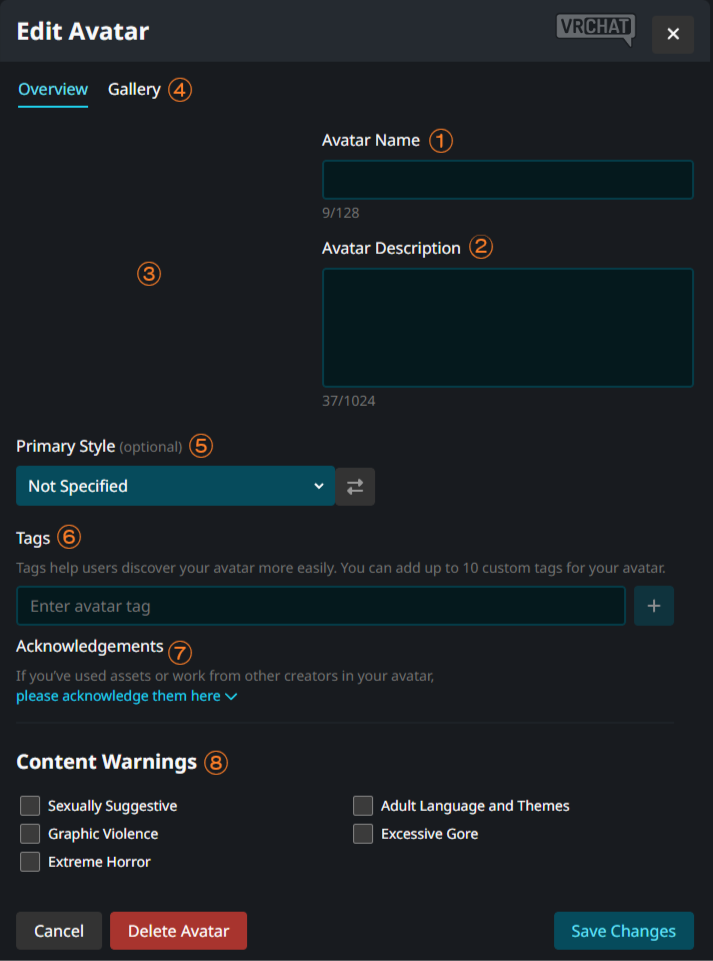
- Avatar Name: Up to 64 characters
- Avatar Description: Up to 256 characters
- Thumbnail: Between 64x64 and 2048x2048 px, 1:1 aspect ratio, up to 10 MB
- Gallery: Up to 6 images, up to 1MB each, exactly 1920x1080 recommended
- Primary Style, Secondary Style: Select one avatar style for each. You cannot select the same one.
See: https://creators.vrchat.com/economy/products/avatar/#avatar-styles - Tags: Up to 10 tags, up to 64 characters each
- Acknowledgements: Fill this in if there are co-creators, etc. (up to 300 characters)
- Content Warnings: Up to 5 content warnings
- Create an Avatar Product
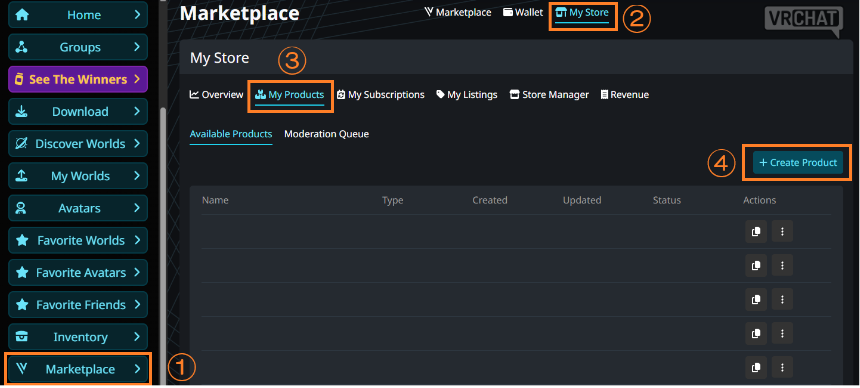
You can create avatar products on the VRChat website and submit them for review.- Open the VRChat website and go to Marketplace > My Store > My Products, and create a new Avatar Product.
Click "Create Product," select "Avatar Product," and then click "Next."
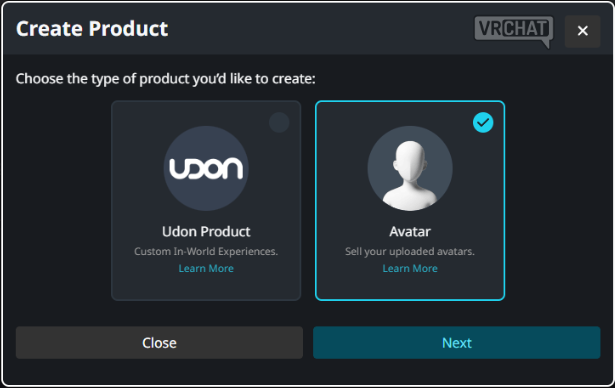
- Select one of your avatars, review its details, and click "Next."
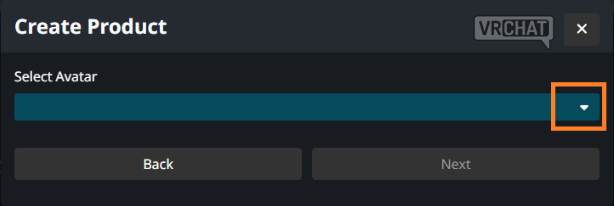
- You can only choose private avatars. If your avatar is public, change it to private in My Avatars.
- Make sure to configure your avatar's details, too.
Details give VRChat helpful information when reviewing your avatar. You can change all details later.- Avatar Name: Up to 64 characters
- Avatar Description: Up to 256 characters
- Thumbnail: Between 64x64 and 2048x2048 px, 1:1 aspect ratio, up to 10 MB
- Gallery: Up to 6 images, up to 1MB each, exactly 1920x1080 recommended
- Primary Style, Secondary Style: Select one avatar style for each. You cannot select the same one. See: https://creators.vrchat.com/economy/products/avatar/#avatar-styles
- Tags: Up to 10 tags, up to 64 characters each
- Acknowledgements: Fill this in if there are co-creators, etc. (up to 300 characters)
- Content Warnings: Up to 5 content warnings
- Ensure that your avatar and all details abide by the Creator Economy content guidelines.
- Review the terms of service requirements and content guidelines.
- Check your avatar's performance rank.
- Click the checkbox to confirm.
- Click "Submit for Review."
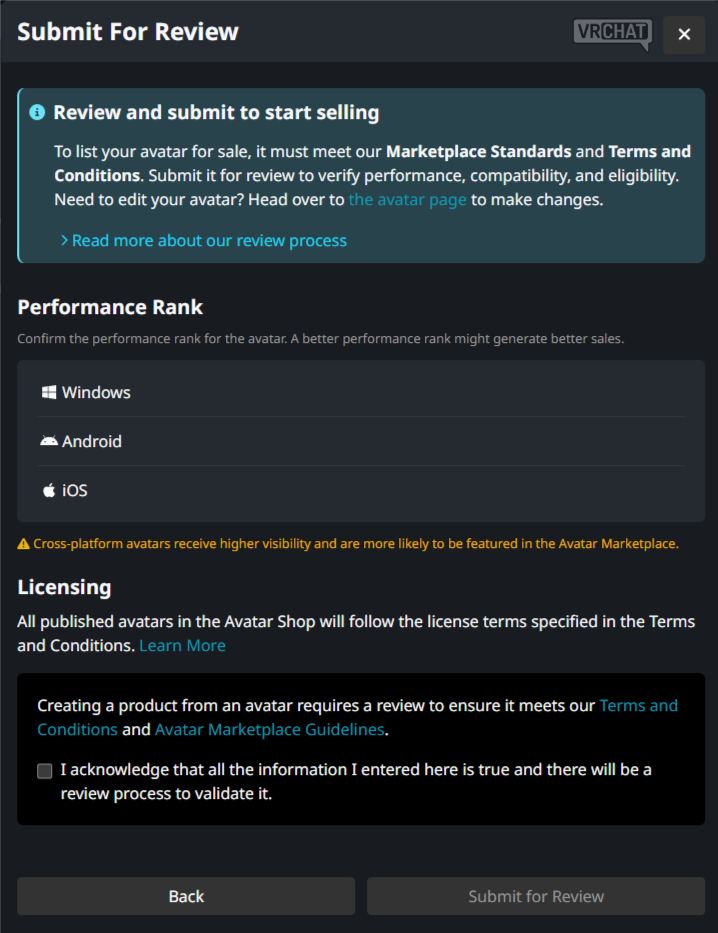
- Wait 1-2 working days for VRChat to review your avatar.
Once your avatar has been reviewed, you will receive an email and a notification on the VRChat website:- Approved: You can sell the product by adding it to a listing or subscription and publishing it.
- Rejected: Please view the rejection reason(s) from the email.
Once your avatar has been approved, you can create a Listing to sell it.
For details, please check the official documentation:
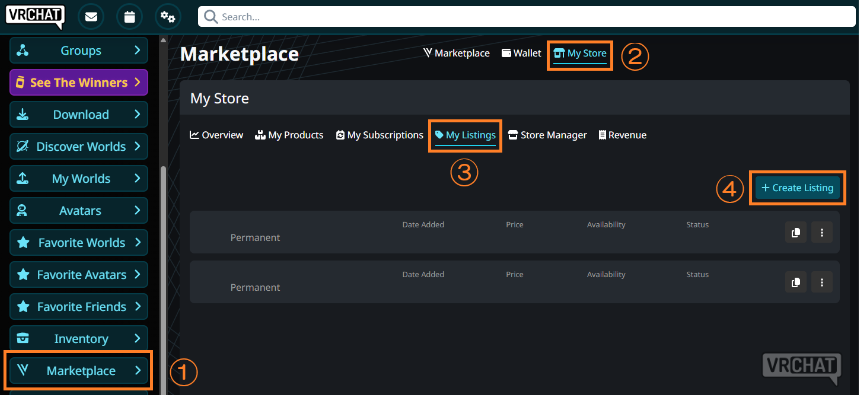
- Open the My Listings section of your Storefront on VRChat.com to create a listing. Click "Create Listing" to create your first listing.
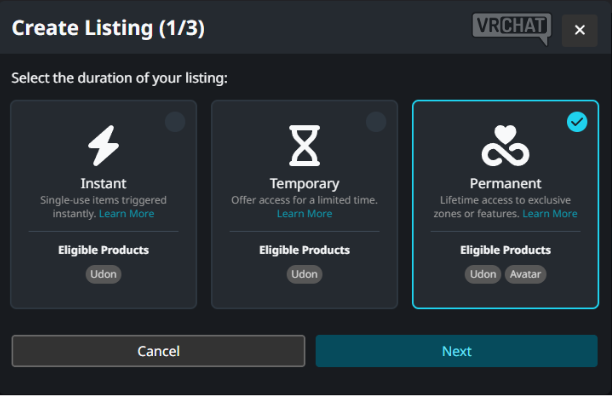
- In the duration type selection, choose Permanent and click "Next."
Permanent is used for products like avatars that can be used indefinitely once purchased.
- Enter the name, price, and details:
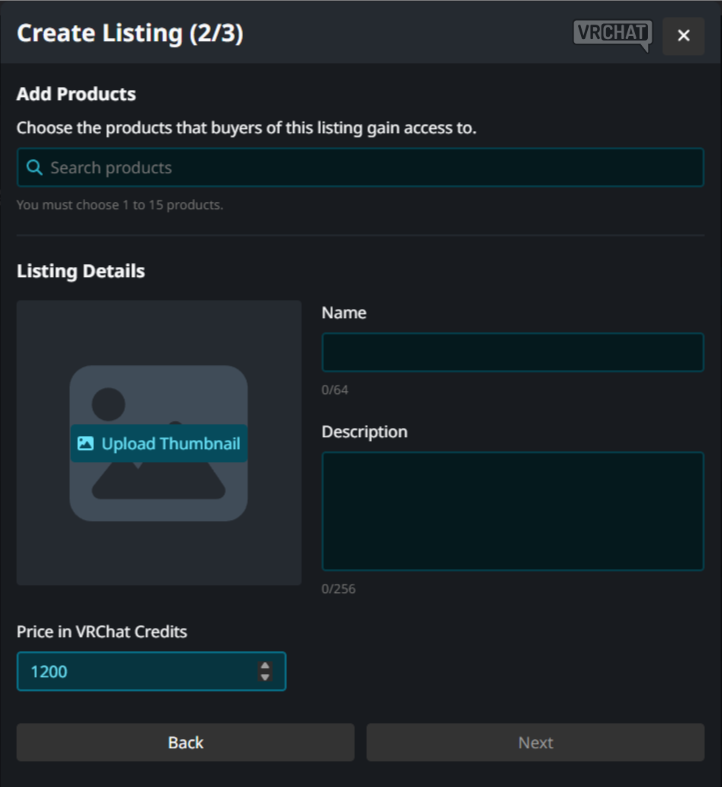
- Add Products: Select the avatar to be sold in this Listing from your registered Products.
- Name: The name of your listing.
- Description: The description of your listing.
- Thumbnails: The image representing your listing.
- Price: Choose the purchase price of your listing, \V (VRChat Credits) (1,200–100,000 \V).
If the Listing includes two or more different avatars, each must be set at least 1,200 \V (e.g., 2,400 \V or more for two).
For pricing rules, please also check the Content Guidelines: https://creators.vrchat.com/economy/guidelines/#avatars
*1,200 \V can be purchased for USD 9.99.
- Configure publishing settings:
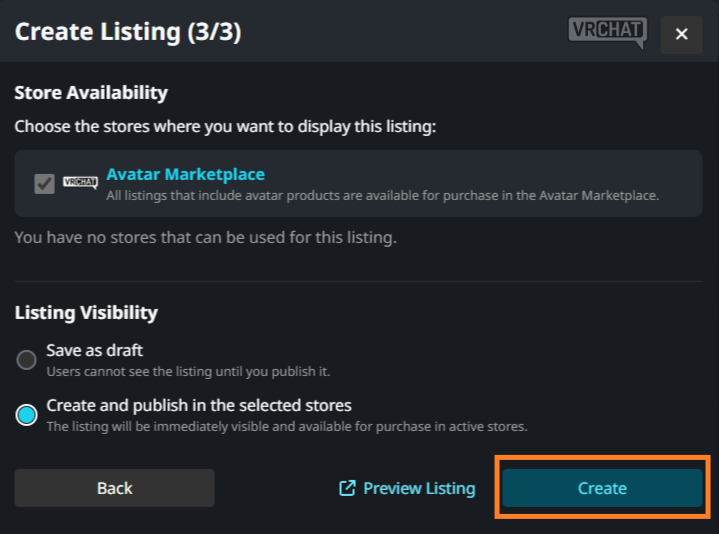
- Store Availability:If your listing contains avatar products, the avatar marketplace is automatically chosen. You can add the same listing to multiple world stores.
- Listing Visibility: Selecting "Save as Draft" will save it as a draft.
- Finally, click "Create" to complete the Listing. If you selected "Create and publish in the selected stores," it will immediately be available for sale in the Marketplace.
Congratulations! Your avatar can now be found and purchased by other users in the VRChat Avatar Marketplace.
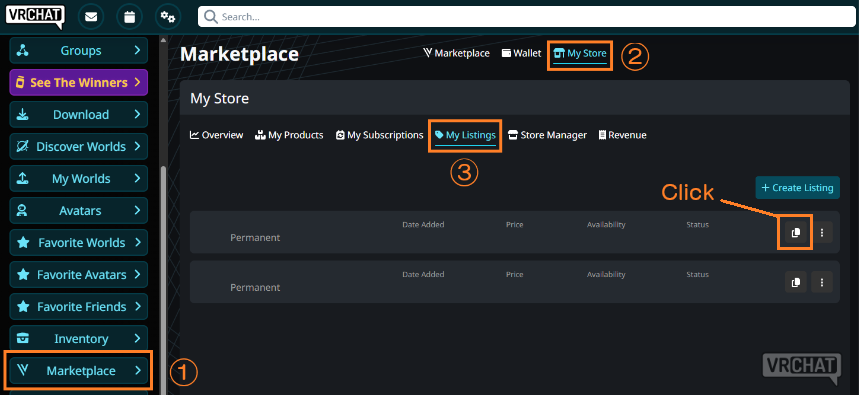
If you choose to use Avatar Marketplace in Vket2025 Winter Avatar Exhibition, you will need to obtain the Listing ID.
The Listing ID can be copied by navigating to Marketplace > My Store > My Listings and clicking the copy icon.