TOP › My Page TOP ›
Submission Workflow › Technical Guides / Submission Tips ›
VRChat Creator Companion Setup
VRChat Creator Companion Setup
Using VketTools requires the VRChat Creator Companion.
This page explains how to install the VRChat Creator Companion and Unity.
- Download VRChat Creator Companion
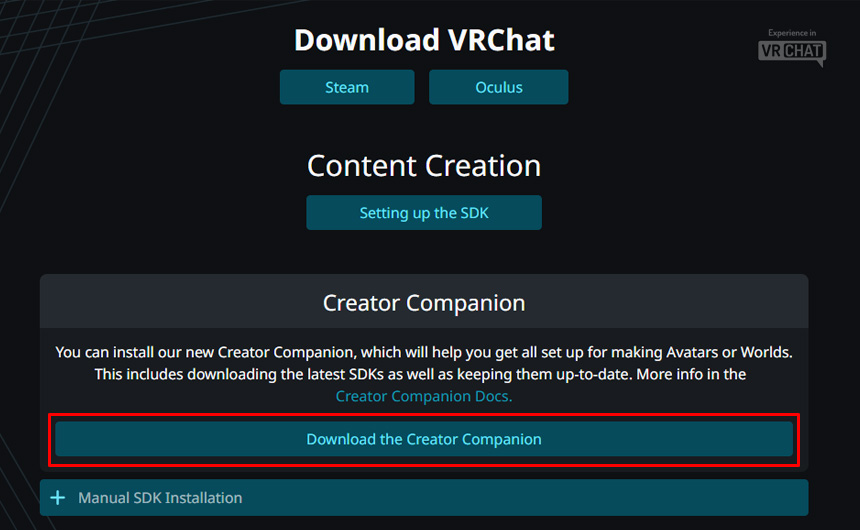
Download VRChat Creator Companion via the link below:
VRChat Creator Companion
- Install the VRChat Creator Companion by running the downloaded Creator Companion installer.
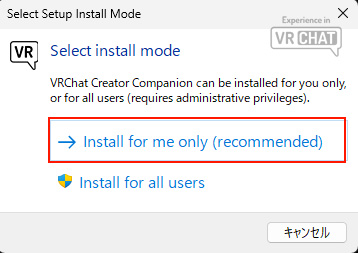
- In the "Select Setup Install Mode" window, select "Install for me only (recommended)".
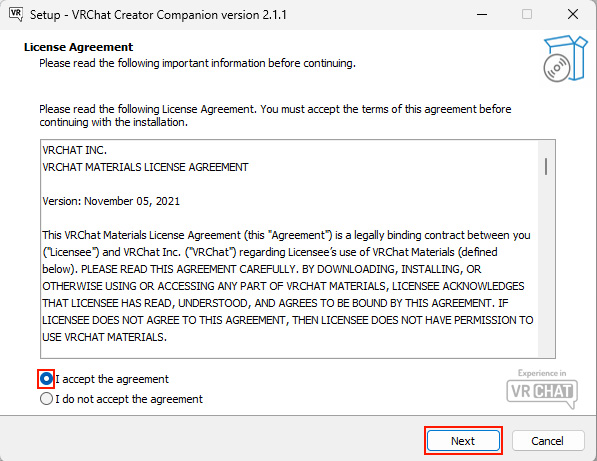
- Check "I accept the agreement" and press "Next".
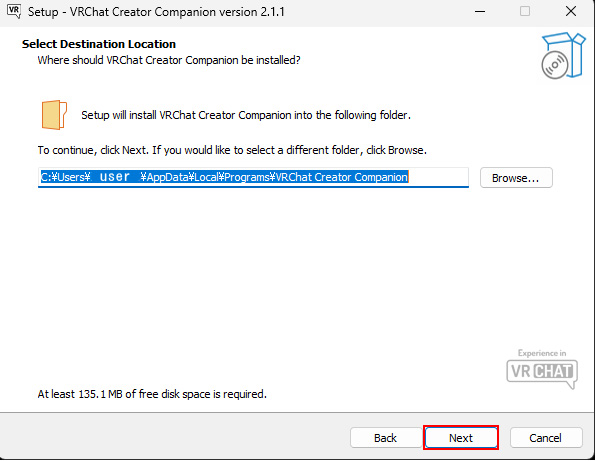
- Choose the installation location of your choice and press "Next" to proceed.
Wait until the installation is complete.
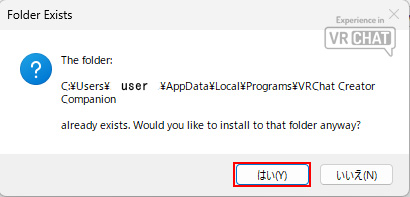
*If a "Folder Exists" popup appears, it means a Creator Companion folder already exists. In this case, either overwrite or directly delete the folder.
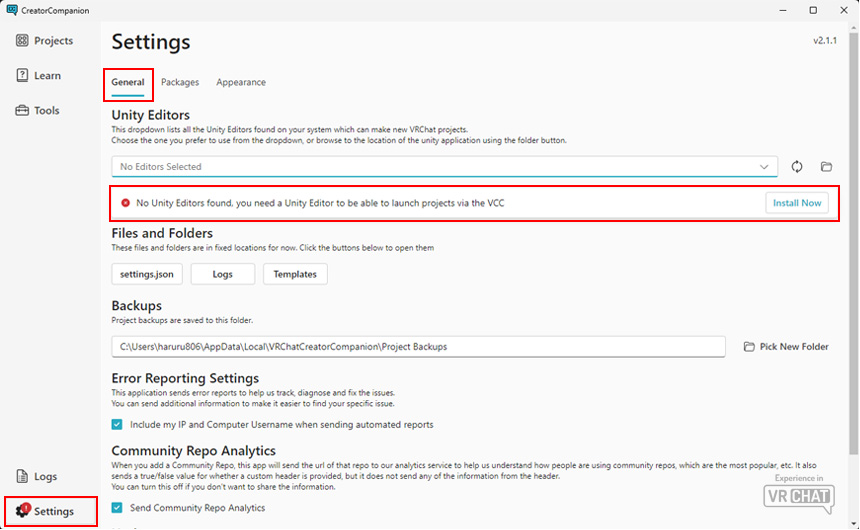
- Press "Settings" on the bottom left. Then, press "Install Now" where the notification "X" appears on the Unity Editors located in the General tab.
*If Unity Hub and Unity are not installed, a "!" notifier will appear in "Settings".
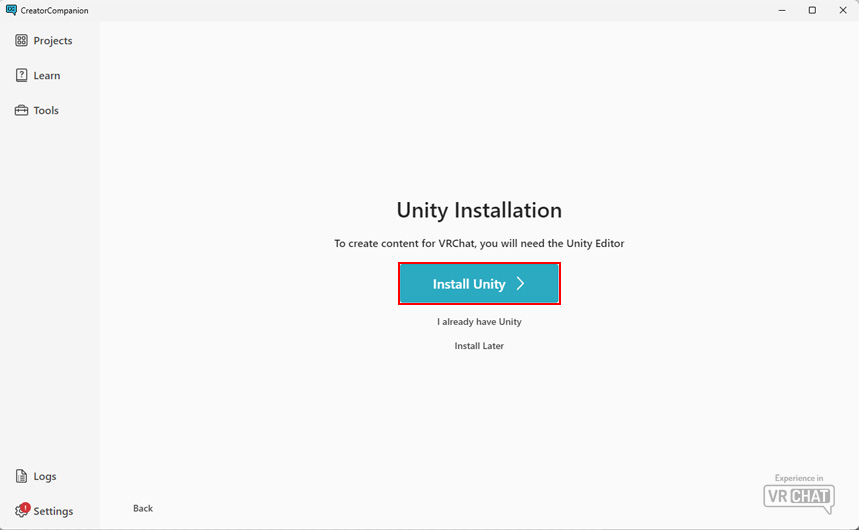
- Press "Install Unity".
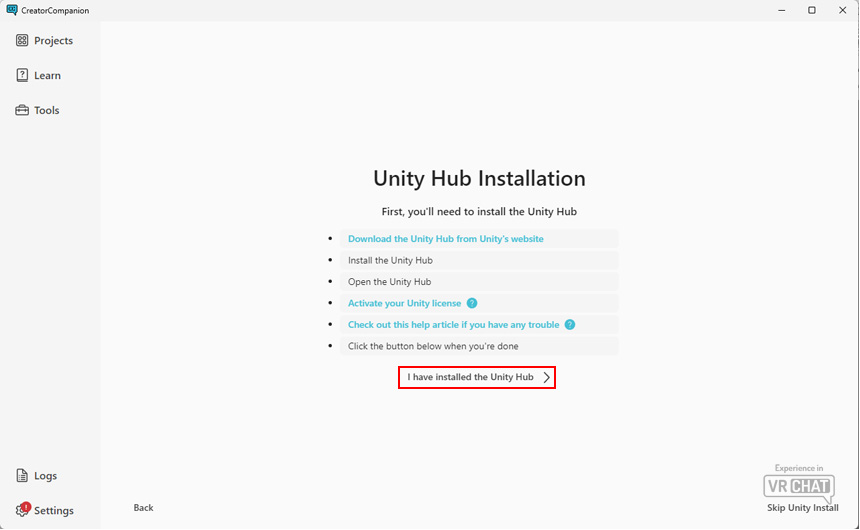
- The "Unity Hub Installation" page will open. Follow the instructions to install Unity Hub.
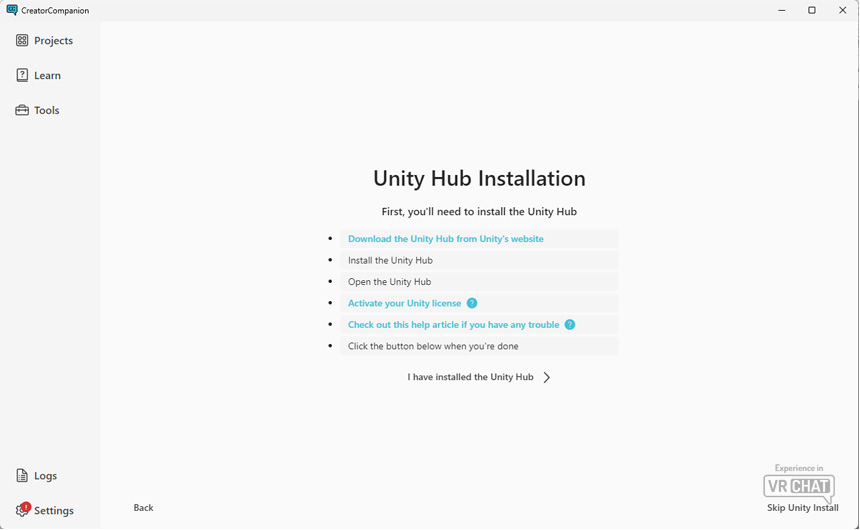
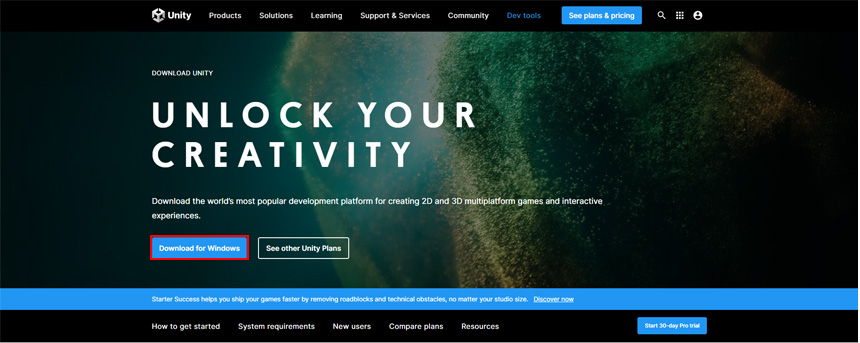
- On the page, press the link "Download the Unity Hub from Unity's website".
Download Unity Hub via the Unity webpage.
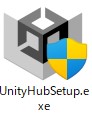
- Run the downloaded Unity Hub installer.
If the "Do you want to allow this app to make changes to your device?" window appears, press "Yes".
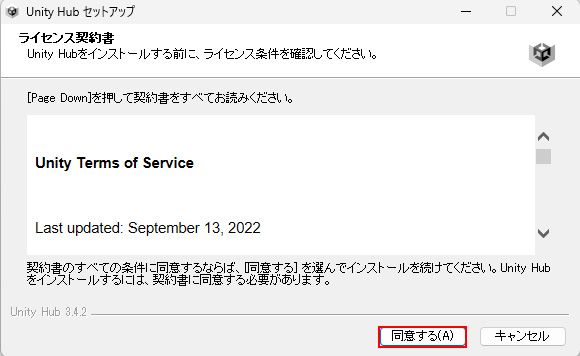
- The Unity Hub setup window will appear. Press "Agree" to accept the Terms of Service.
- Choose your preferred installation location. If the default location is fine, simply press "Install".
*For CJK keyboard users: Full-width characters may cause Unity errors, so avoid using them in the folder name.
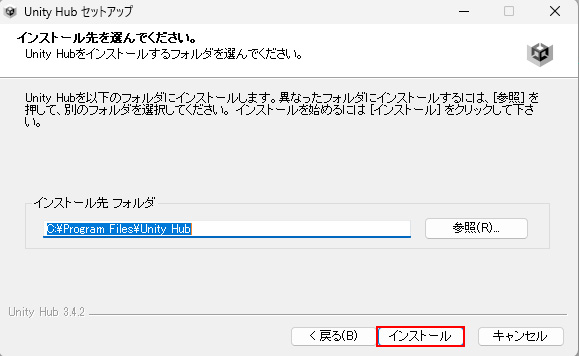
- Wait for the Unity Hub installation to complete. Close the window by pressing "Complete".
*After installation, Unity Hub will open automatically and ask you to sign in. If you do not have a Unity account, create one through the Unity website.
*If "Install Unity Editor" appears in Unity Hub, press "Skip installation" as the installation will be handled by the Creator Companion.
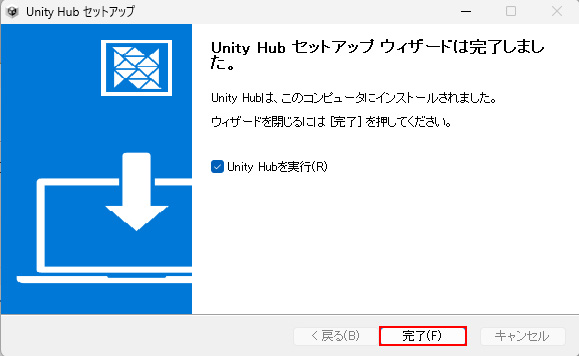
*If an error occurs, press "Cancel" and follow the instructions below:
*If Unity Hub/Unity was previously installed on the computer, back up your project data, then clean-install Unity Hub and Unity by uninstalling and deleting the following folders before reinstalling:
- C:\Program Files\Unity
- C:\Program Files\Unity Hub
- Open the Creator Companion screen and press "I have installed the Unity Hub".
*If the Creator Companion app is closed, reopen the app and select "Install Now" in the Unity Editors section of the Settings/General page.
- On the Unity Installation page, press "Install Unity 2022.3.22f1".
If the "Do you want to allow this app to make changes to your device?" window appears, press "Yes".
Wait for the screen to change, while installation is in process.

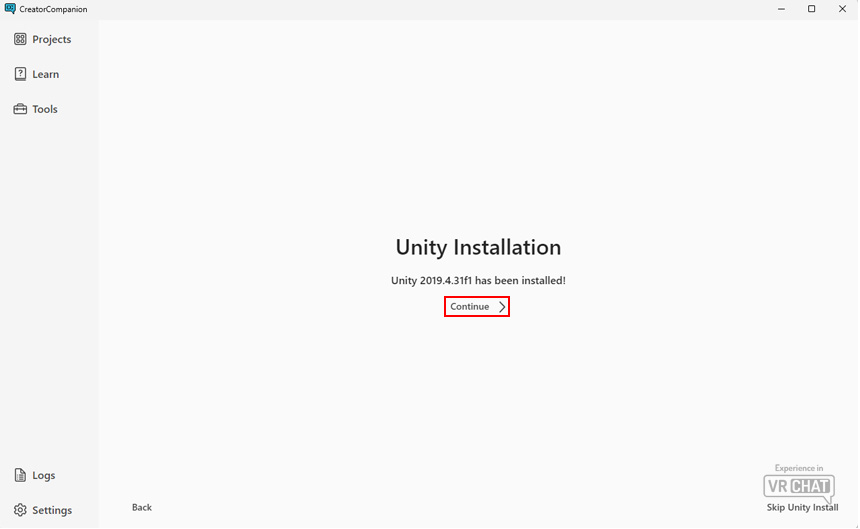
- If the Unity Installation page shows without error, press "Continue".
The Unity Editor edition required by VRChat is now installed.
- If you haven't completed license activation and sign in, you will see Unity Hub window opening up.
If this fails, open Unity Hub manually from the indicator on the bottom right.
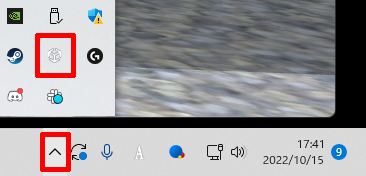
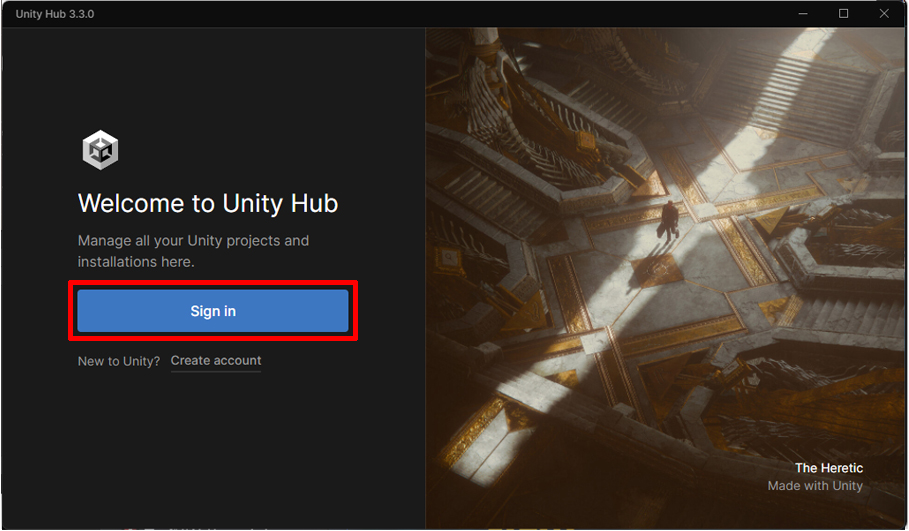
- Press Sign in.
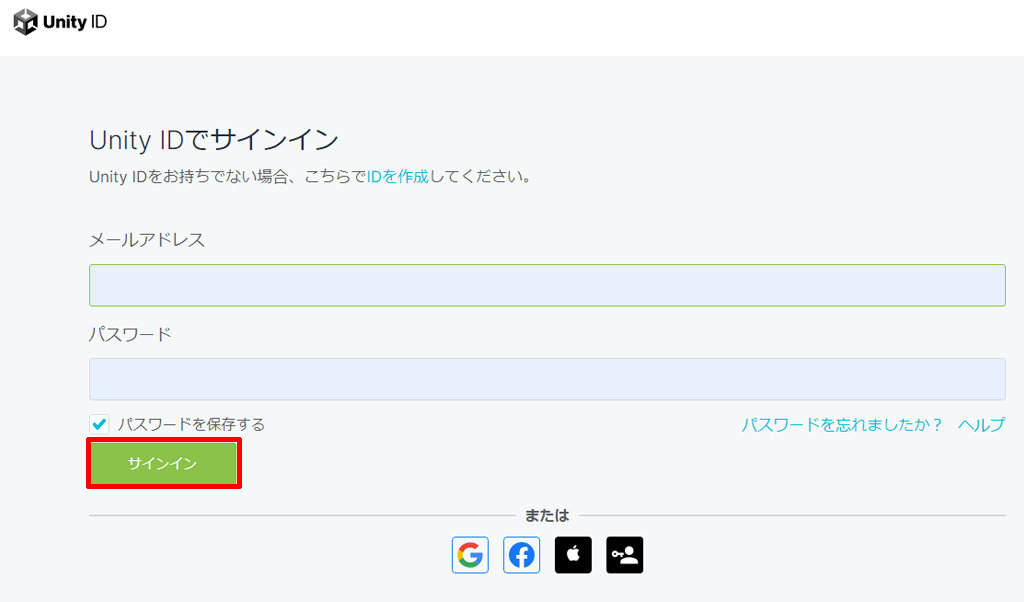
- The Unity Hub will open up the UnityID sign in page in your browser. Sign in to UnityID.
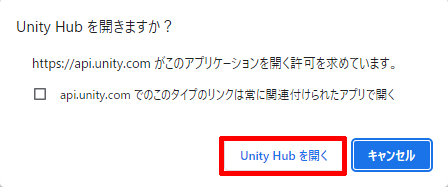
- Press "Open Unity Hub".
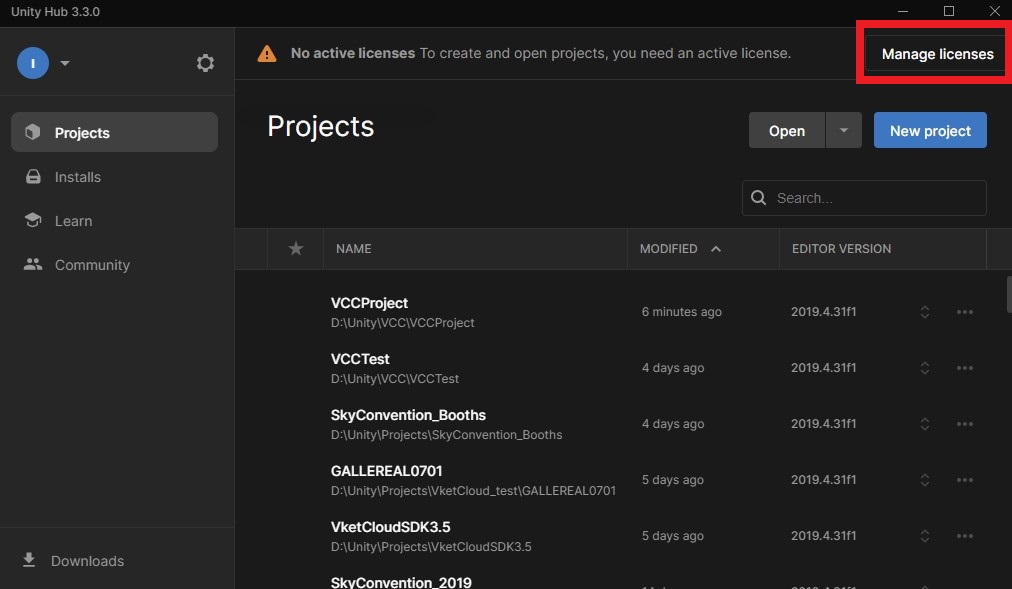
- If your Unity Hub does not have a Unity license activated, please open the License Management in Unity Hub.
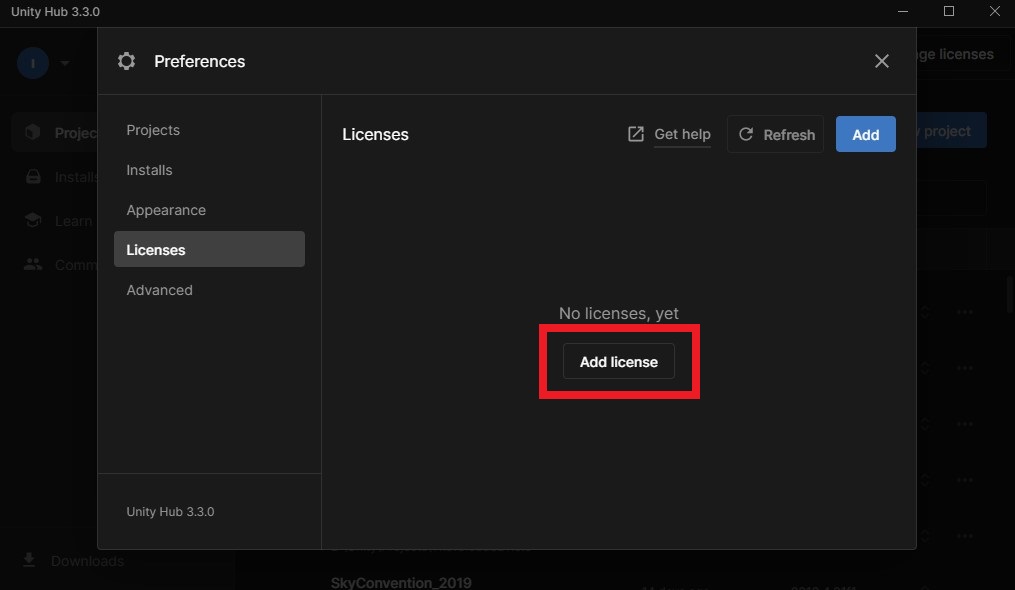
- Press Add License.
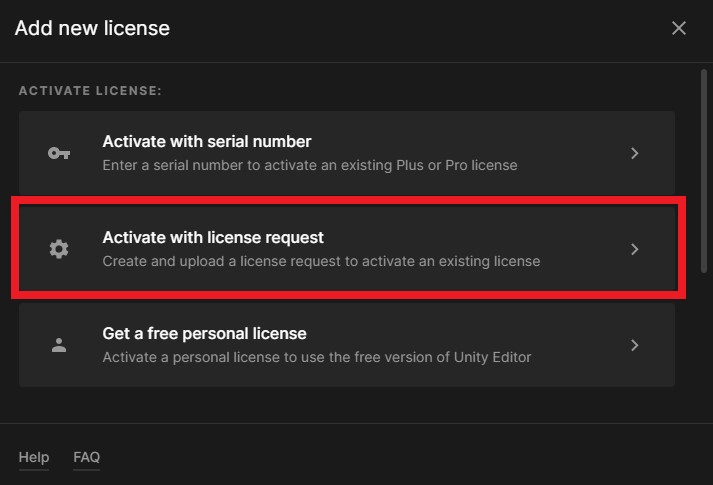
- Choose Activation by License Request.
- Press Create License Request in the first row.
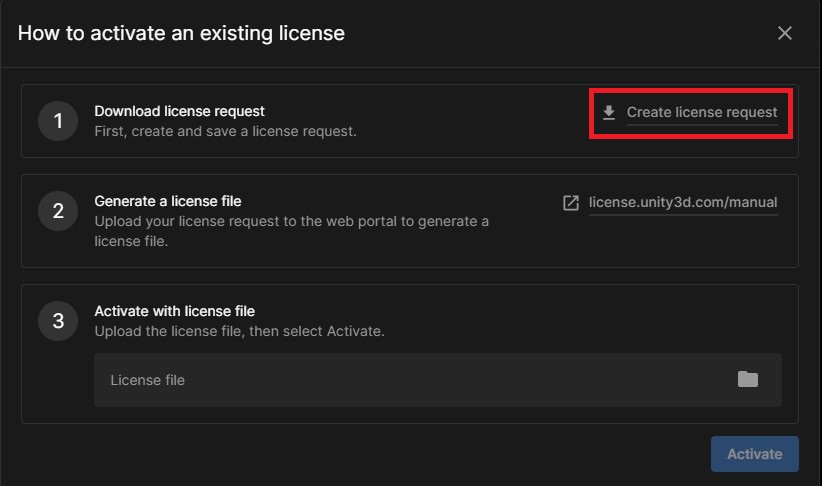
- Save the license information file, Unity_lic.alf, somewhere in your PC
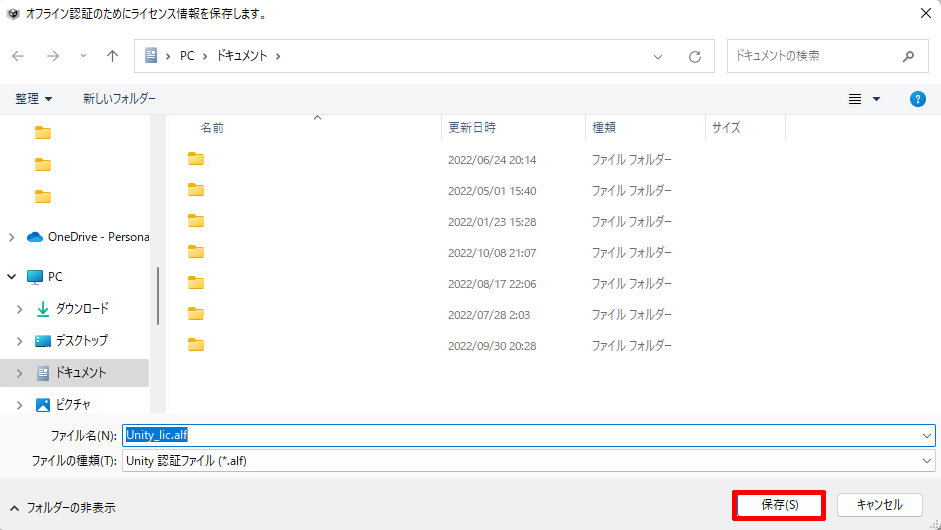
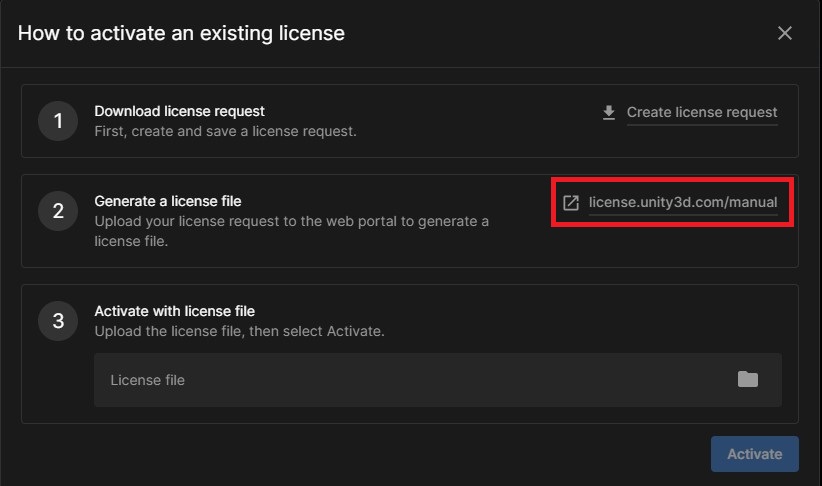
- Press license.unity3d.com/manual in the middle. This will launch Manual activation page in your browser.
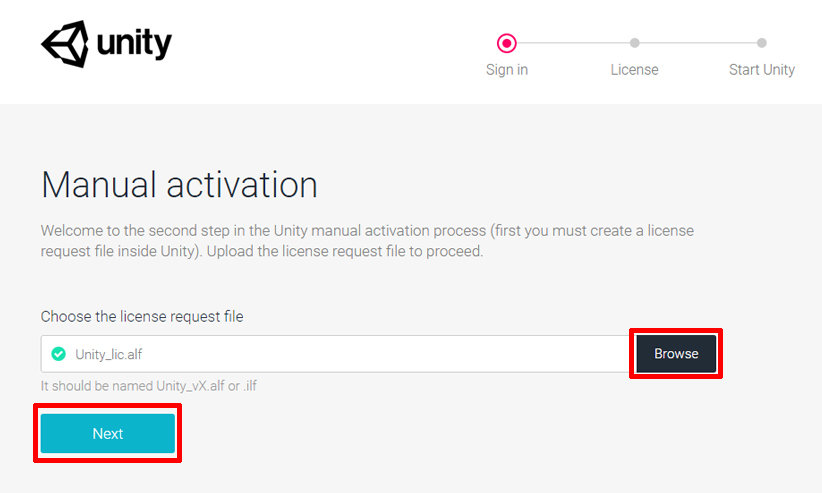
- Choose Browse and select the Unity_lic file. Press Next.
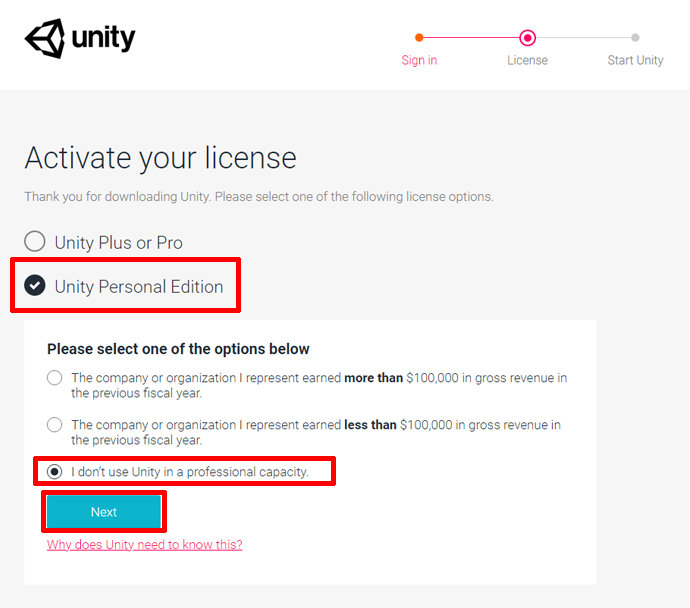
- Choose Unity Personal Edition and "I don't use Unity in a professional capacity". Press Next.
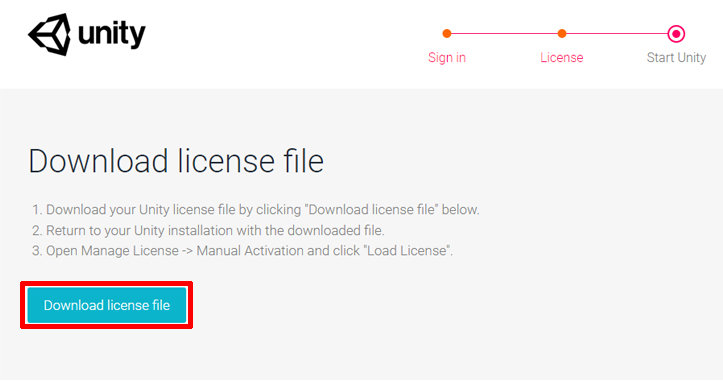
- Press Download license file. Download Unity_c2017.x.ulf file.
*By default it should be saved in your Download folder.
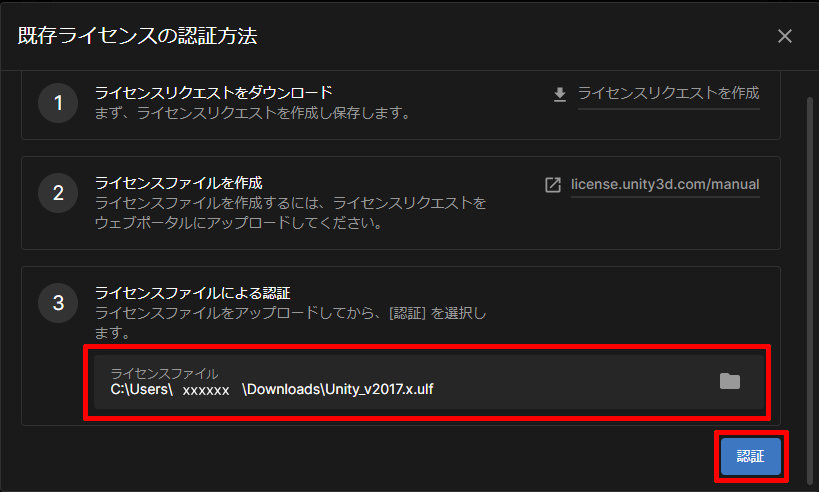
- Switch to the Unity Hub window and press the license file box at the bottom. Choose the ulf file you've just saved and press Activate.
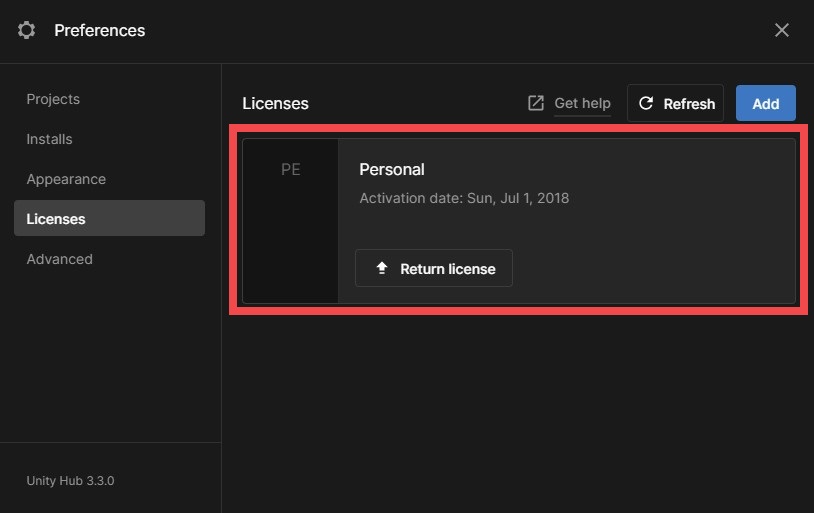
- Once the Personal License is added to the license window, press Close to close Unity Hub. Your license is now properly registered!
This completes the setup of VRChat Creator Companion and Unity.
Check the Official Guidelines
Before submitting, please make sure to review the Exhibition Guidelines and Submission Rules. For the submission steps, see the Submission Guide.
↑ Back to Top