TOP › My Page TOP ›
Submission Workflow › Vket Official Assets ›
VketAttachItem
VketAttachItem
This prefab contains a gimmick for letting items follow the player's body when enabled by interacting with a button, which position can be adjusted by a slider.
The item will return to the initial position once the player exits the exhibition.
Due to technical issues, the settings text for VketAttachItem will be shown in Japanese for the local ClientSim.
As the English settings will be shown on the preview world and in the final venues, we ask you to refer to the text shown on the actual worlds.
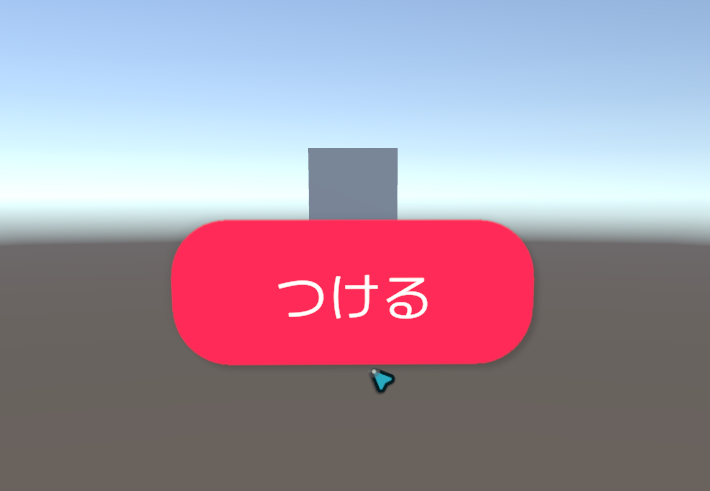
Selecting the つける (Attach) button on the Prefab will attach the designated item to the player's avatar.
*The UI's text will automatically switch between Japanese and English based on the language settings in each Virtual Market world.
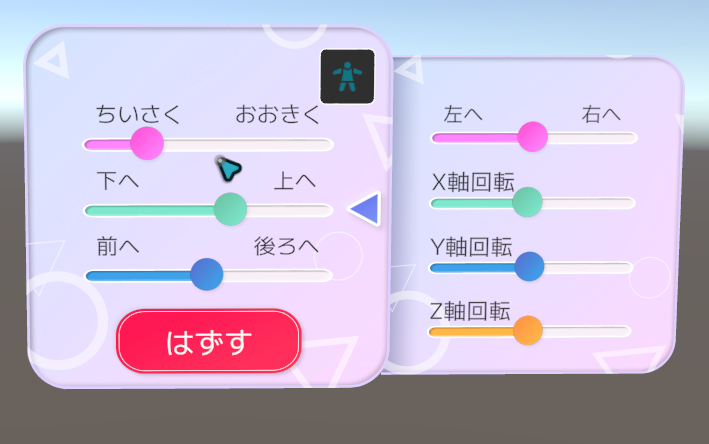
When an item is attached, a preview settings window will be shown at the position of the "Attach" button, where the player may adjust the item's scale and position.
Opening the wing on the right side will open the Sub-settings window, which includes settings for left/right position adjustment and rotation.
- Main UI
- Smaller / Bigger
- Lower / Higher
- Forward / Backward
- Sub-UI
- Left / Right
- X-Rotation
- Y-Rotation
- Z-Rotation
*Final text in the settings window may differ from image.
Clicking on the avatar mark shown on the top right will select another place on the avatar's body to attach the item.
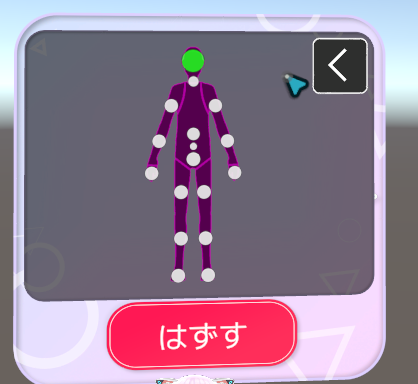
Selecting はずす(Detach) button or exiting the exhibition will detach the item and return it to the initial position.
Select the Prefab's "Generate and Configure Prefab" button in the VketTools' VketPrefab list.
Follow the instructions in VketTools to setup the Prefab.
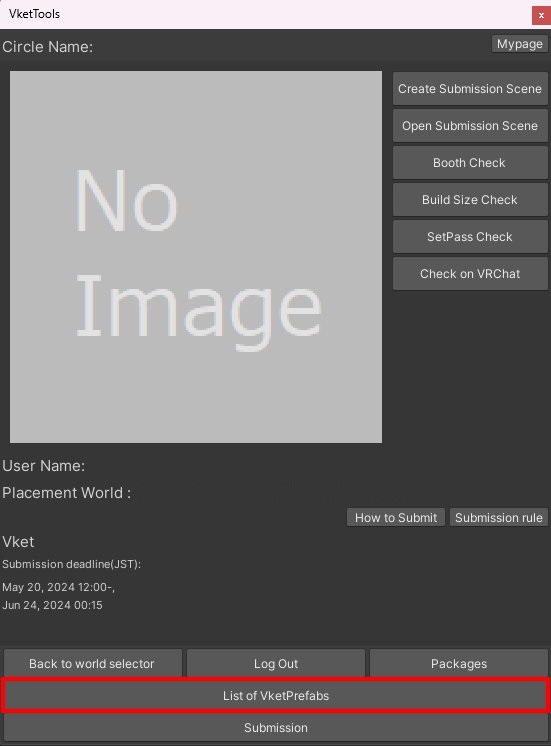
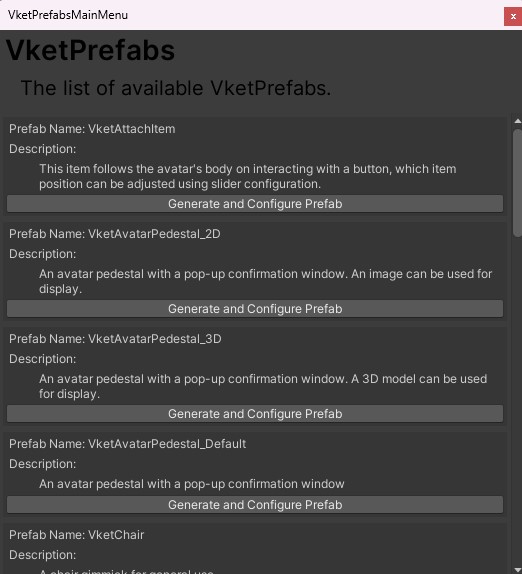
After adding a new Prefab to the scene, the setup window will be displayed.
If the window's closed without edits, you may select the added VketAttachItem object in the Hierarchy, and edit the settings through the Open Setting Window button on the Inspector.
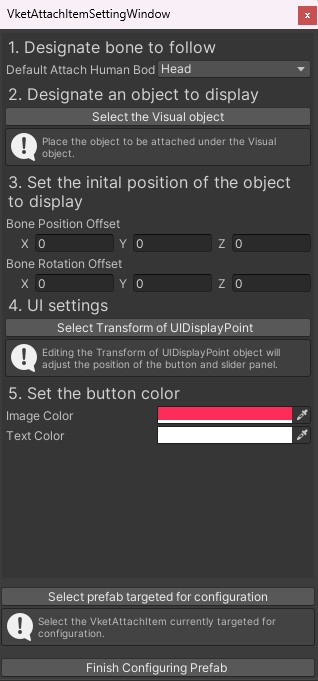
- Designate bone to follow
This setting designates a default avatar bone to attach the item.
Applicable bones are the following:- Hips
- Left Upper Leg
- Right Upper Leg
- Left Lower Leg
- Right Lower Leg
- Left Foot
- Right Foot
- Spine
- Chest
- Neck
- Head
- Left Upper Arm
- Right Upper Arm
- Left Lower Arm
- Right Lower Arm
- Left Hand
- Right Hand
- Designate an object to display
Place the object to be attached to the player under the Visual object in VketAttachItem prefab.
Please make sure to delete all colliders attached to the object.
*For functionality, unnecessary colliders in the displaying 3D object must be deleted. - Set the initial position of the object to display
The designated item will follow the bone's origin position.
If the position needs to be adjusted, edit the Bone Position Offset's X,Y,Z value, and the Bone Rotation Offset's X,Y,Z value for rotation adjustment. - UI settings
Editing the Transform of UIDisplayPoint object will adjust the position of the button and slider panel.
When attaching an item, the item's preview (visual of the player equipping the item) will be shown at the position of the UIDisplayPoint object.
Selecting "Select Transform of UIDisplayPoint" will select the UIDisplayPoint object under the VketAttachItem prefab in the Hierarchy.
Please adjust the position through the Transform value in Inspector, if the settings window overlaps with other objects in the exhibition. - Set the button color
Changes the Base and Text colors of the Attach button.
Text and Button Image cannot be edited.
↑ Back to Top