TOP › My Page TOP ›
Submission Workflow › Vket Official Assets ›
VketBGMFader
VketBGMFader
This is a prefab that can play audio, such as when a player enters the exhibition space.
When a sound source is set, it fades in to replace the world BGM.
The fade-in effect of the audio can be specified in the range from 0 to 1.0.
The audio is played locally, stops when the player leaves the booth, and the world BGM fades back in.
The fade can also be controlled via UdonEvent.
Please adjust the Volume of the AudioSource or the sound source file by referring to the sample sound source file packaged together.
The Vket staff may adjust the file if the sound is excessively louder than desirable.
- Location of Sample Audio: Assets > VketAssets > VketPrefabs > AudioVolumeSample
- Loudness value: -14LUFS(Ceiling is -3.0dB)
- Export setting: .ogg -128kbps
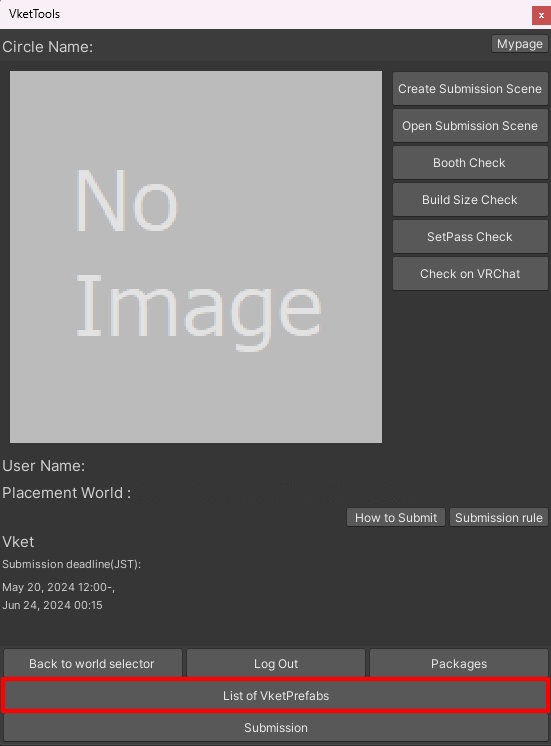
Select the Prefab's "Generate and Configure Prefab" button in the VketTools' VketPrefab list.
Follow the instructions in VketTools to setup the Prefab.

After adding a new Prefab to the scene, the setup window will be displayed.
If the window's closed without edits, you may select the added VketBGMFader object in the Hierarchy, and edit the settings through the Open Setting Window button on the Inspector.

- Designate fade-in time of the sound source
The time length for fade-in of the sound source can be designated here.
- Designate fade-out time of BGM
The time length for fade-out of BGM can be designated here.
- Designate fade-in volume of the sound source
The audio volume for fade-in of the sound source can be designated here.
- Designate fade-out volume of BGM
The audio volume for fade-out of BGM can be designated here.
- Enable checkbox to automatically fade audio when a player approaches the exhibition space
When On Booth Fading is enabled by checking, the designated audio will play automatically when the player enters the exhibition space. - Designate audio clip to play
The designated audio clip will fade-in in exchange of the World's BGM.
Allocate an Audio Clip to play in your exhibition.
To control the BGM using Udon, uncheck On Booth Fading, and while the player is inside the exhibition space, trigger the _StartFade() and _EndFade() methods from another UdonBehaviour using SendCustomEvent, etc.
- When
On Booth Fading is enabled, audio will automatically play when the player enters the exhibition space. - When
On Booth Fading is disabled, BGM will no longer switch automatically.

↑ Back to Top