TOP › My Page TOP ›
Submission Workflow › Vket Official Assets ›
VketChair
VketChair
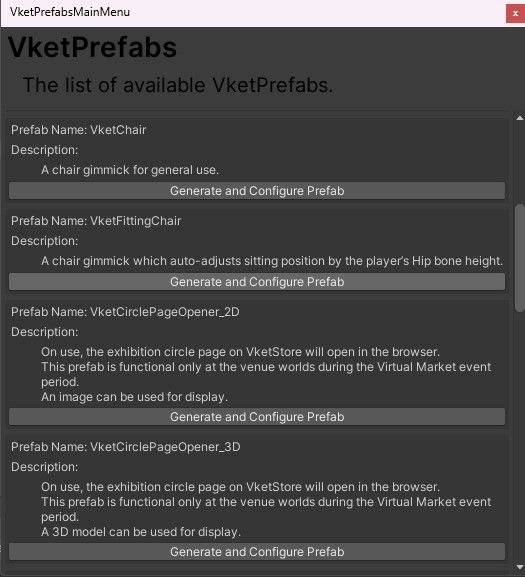
This prefab contains a chair gimmick for general use.
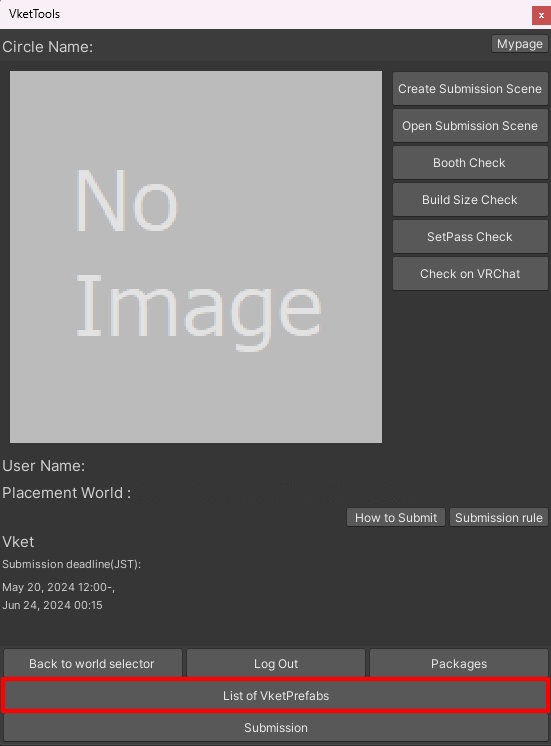
Select the Prefab's "Generate and Configure Prefab" button in the VketTools' VketPrefab list.
Follow the instructions in VketTools to setup the Prefab.
After adding a new Prefab to the scene, the setup window will be displayed.
If the window's closed without edits, you may select the added VketChair object in the Hierarchy, and edit the settings through the Open Setting Window button on the Inspector.

- Set a 3D model for display
Designate the 3D object to be placed under the
Visual object in VketChair prefab. - Delete colliders from the displaying 3D object
Selecting
Delete All Colliders at [Visual] will delete the colliders attached to the object under the Visual object.
*For functionality, unnecessary colliders in the displaying 3D object must be deleted. - Adjust sitting position
Adjust the sitting position and dismounting position by editing the
X,Y,Z values.
The X,Y,Z values in position are referred by the [EnterLocation] and [ExitLocation] objects.
[EnterLocation] is the object designating the position for entering and sitting on the chair.[ExitLocation] is the object designating the player's position after exiting the chair.
Adjust the VketChair Collider to the chair object, by altering the values of the Box Collider via the Inspector.
The collider's size and center position can be adjusted by changing value "Size" and "Center".
The collider will be the range where the player can interact with the chair.
↑ Back to Top