TOP › My Page TOP ›
Submission Workflow › Vket Official Assets ›
Vket Interact Trigger / Vket OnBooth Trigger
Vket Interact Trigger / Vket OnBooth Trigger
Vket Interact Trigger is an Udon Behaviour running an action on player interact.
Vket OnBooth Trigger is an Udon Behaviour running an action on player's entry/exit to the booth.
For usage reference, you may refer to “Vket Trigger Sample” scene located in the Assets > VketAssets > VketTriggerExamples.
Using these UdonBehaviours, one or more actions below can be triggered:
- SetGameObjectActive: Set the Active of an object to be True or False, or Toggle.
- SetAnimatorTrigger: Set the Trigger of Animator parameter.
- SetAnimatorBool: Set the Bool Animator parameter to be True or False, or Toggle.
- SetAnimatorInt: Set or make numeral operations on Int Animator parameter.
- SetAnimatorFloat: Set or make numeral operations on Float Animator parameter.
You may choose local or Sync, though the status may not be synced with players joining the world later.
Set the object and collider to which you want the Interact.
Here we’ll explain with the example of creating a Cube as a switch, and turn on the Is Trigger of the Box Collider.
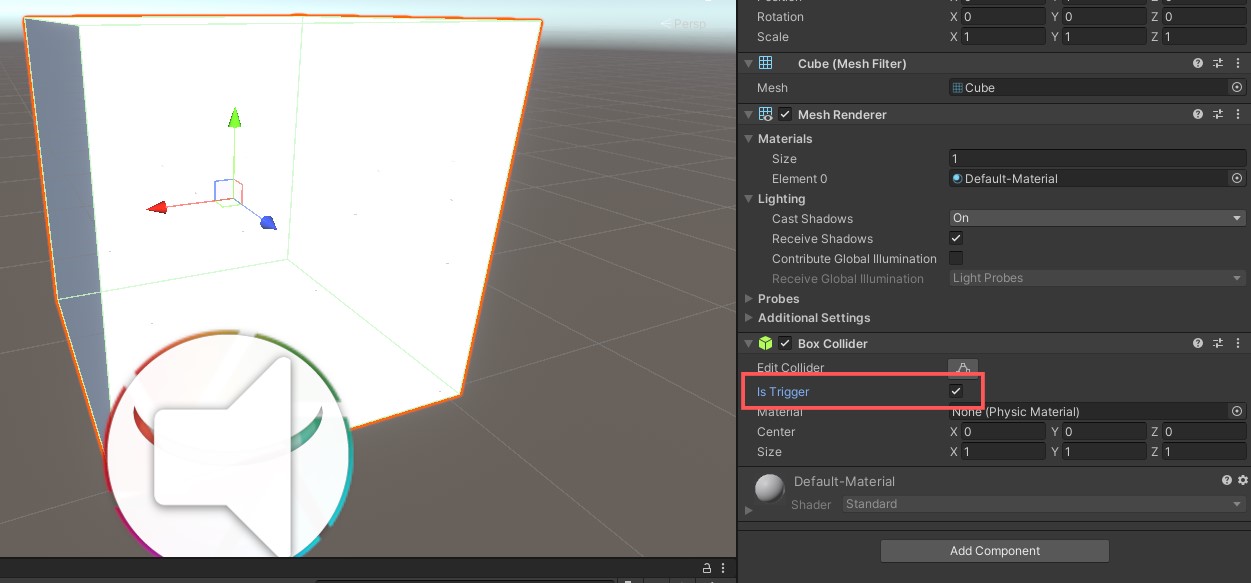
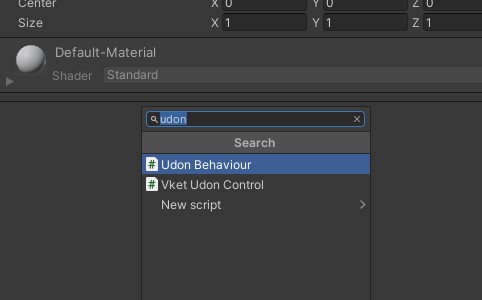
Select the Add Component button on the Inspector and add a Udon Behavior component.
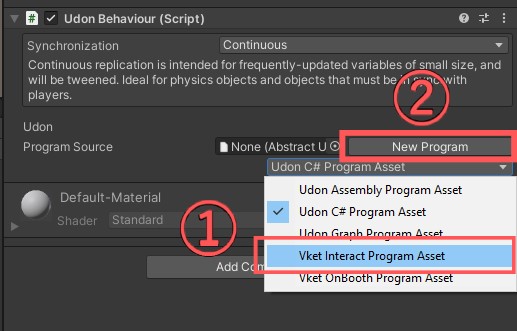
Select Vket Interact Program Asset from the dropdown menu of the added Udon Behaviour component, and click “New Program”.
You will see the setting window of On Interact.
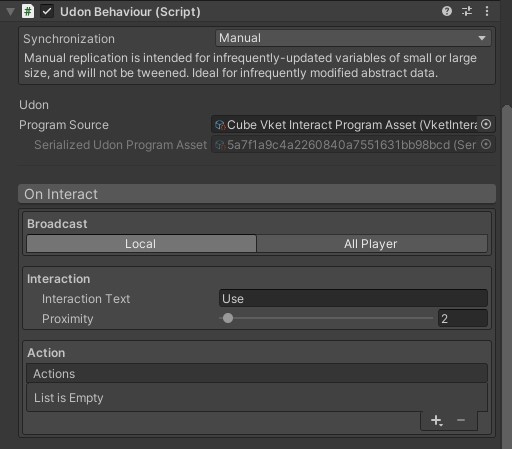
- Broadcast
You may choose local or synchronization (All Player), - Interaction
- Interaction Text
You may change the text that shows up when the player moves to Interact. - Proximity
You can adjust the distance from which the player can Interact. - Text Placement
Not used. Please leave it as "none".
- Action
You can set the Actions to be performed (to be explained later).
The generated "SerializedUdonProgramAsset" is located on Assets > SerializedUdonPrograms.
On the VketToolsmenu on the topbar, there is a tool named MoveSerializedUdonPrograms.
Using this tool, the SerializedUdonProgramAsset in use can be moved to the submission folder automatically.
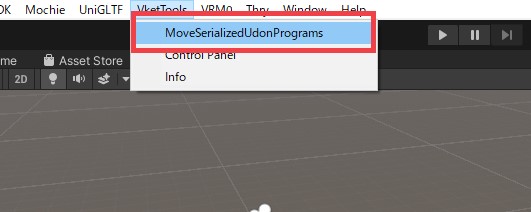
You can also manually move the file to the submission folder.
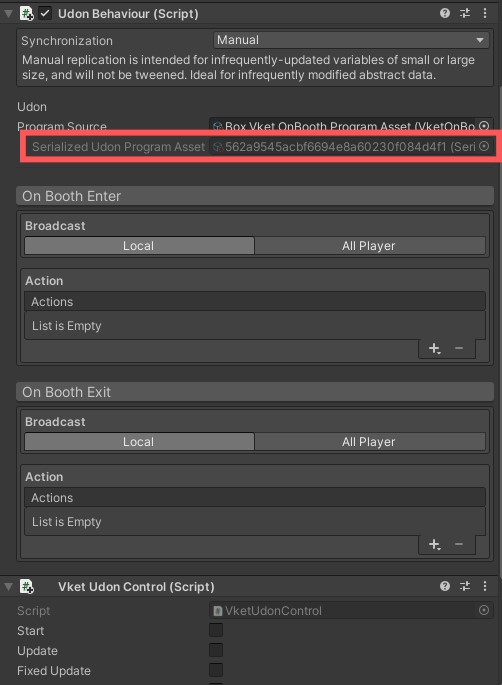
Inside Udon Behaviour (Script), you may find a .asset file with a long name in"Serialized Udon Program Asset" under Program Source.
By clicking this line, you can select generated SerializedUdonProgramAsset on the Asset window.
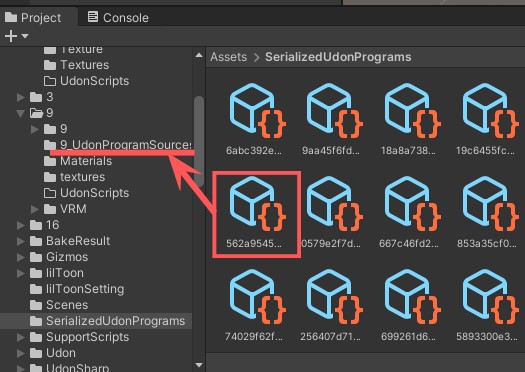
Drag and drop this file toAssets > [exhibitor ID] > [exhibitor ID]_UdonProgramSources folder.
In this way, the file will be packaged together upon submission.
Create an empty Game Object inside the Hierarchy.
Click on the Add Component button on the Inspector and add Udon Behavior component.
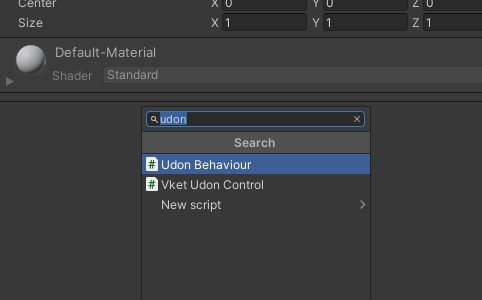
Select Vket OnBooth Program Asset from the dropdown menu of the added Udon Behaviour component, and click “New Program”.
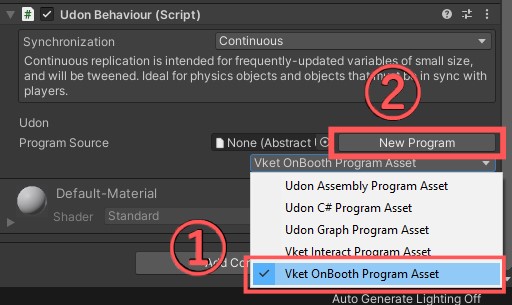
You will see setting windows of OnBoothEnter and OnBoothExit.
The Action in the OnBoothEnter will be performed upon player’s entry to the space, whereas the action in the OnBoothExit will be carried out when the player goes out of the space.
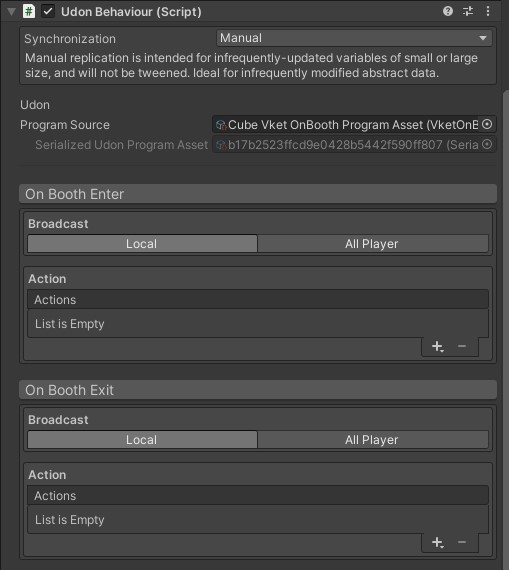
- Broadcast
You may choose local or synchronization (All Player), - Action
You can set the Actions to be performed (to be explained later).
The generated "SerializedUdonProgramAsset" is located on Assets > SerializedUdonPrograms.
Please move this file by following the same procedure as Vket Interact Trigger.
Click on “+” to select the actions you want to add.
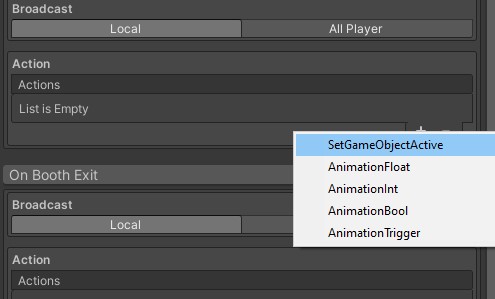
- SetGameObjectActive: Set the Active of an object to be True or False, or Toggle.
- Operation: Select from True, False, or Toggle.
- Receivers: Set the object to which it will be performed.
- SetAnimatorTrigger: Set the Trigger of Animator parameter.
- Parameter: Specify the animation parameter name.
- Receivers: Set the object to which it will be performed.
- SetAnimatorBool: Set the Bool Animator parameter to be True or False, or Toggle.
- Operation: Select from True, False or Toggle.
- Parameter: Specify the animation parameter name.
- Receivers: Set the object to which it will be performed.
- SetAnimatorInt: Set or make arithmetic operations on Int Animator parameter.
- Operation: Select the operation to be performed like set or numeral operations.
- Parameter: Specify the animation parameter name.
- Int Value: Set the value of the operation.
- Receivers: Set the object to which it will be performed.
- SetAnimatorFloat: Set or make arithmetic operations on Float Animator parameter.
- Operation: Select the operation to be performed like set or numeral operations.
- Parameter: Specify the animation parameter name.
- Float Value: Set the value of the operation.
- Receivers: Set the object to which it will be performed.
You will find a scene like the image below by opening VketTriggerExampleScene in Assets > VketAssets > VketTriggerExamples.
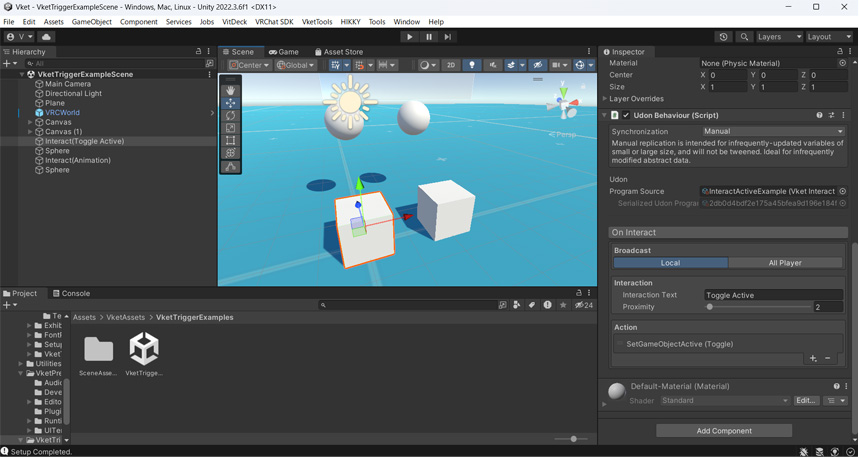
The cube on the left side is set with SetGameObjectActive(Toggle). When toggled, the sphere in the back will vanish and reappear.
The cube on the right side is set with Animation Trigger. When toggled, the sphere in the back will start the animation of vertical movement.
Please utilize this scene as an example to make use of these resources.
↑ Back to Top