TOP › My Page TOP ›
Submission Workflow › Vket Official Assets ›
VketUrlOpener
VketUrlOpener
A Prefab that adds a component allowing visitors to open a specified web page when interacted with.
This Prefab only works during the Virtual Market event period and within the venue world.
The web page URL must belong to a domain included in the approved list defined by Vket staff.
There are two types of Prefabs:
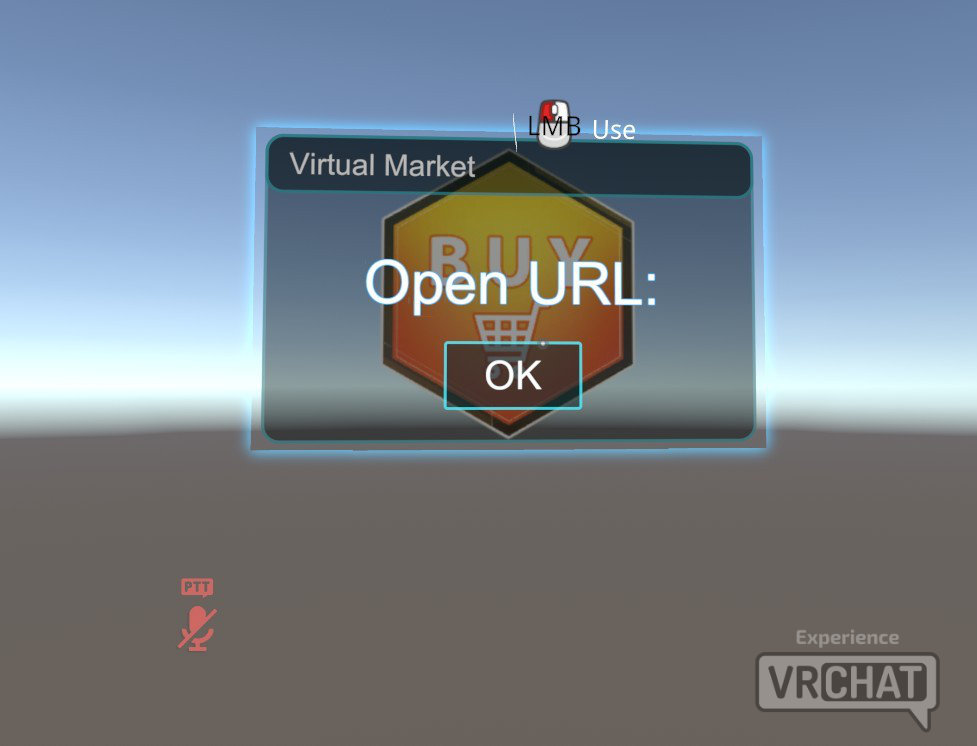
VketUrlOpener_2D — Allows you to set a specific image as its appearance.
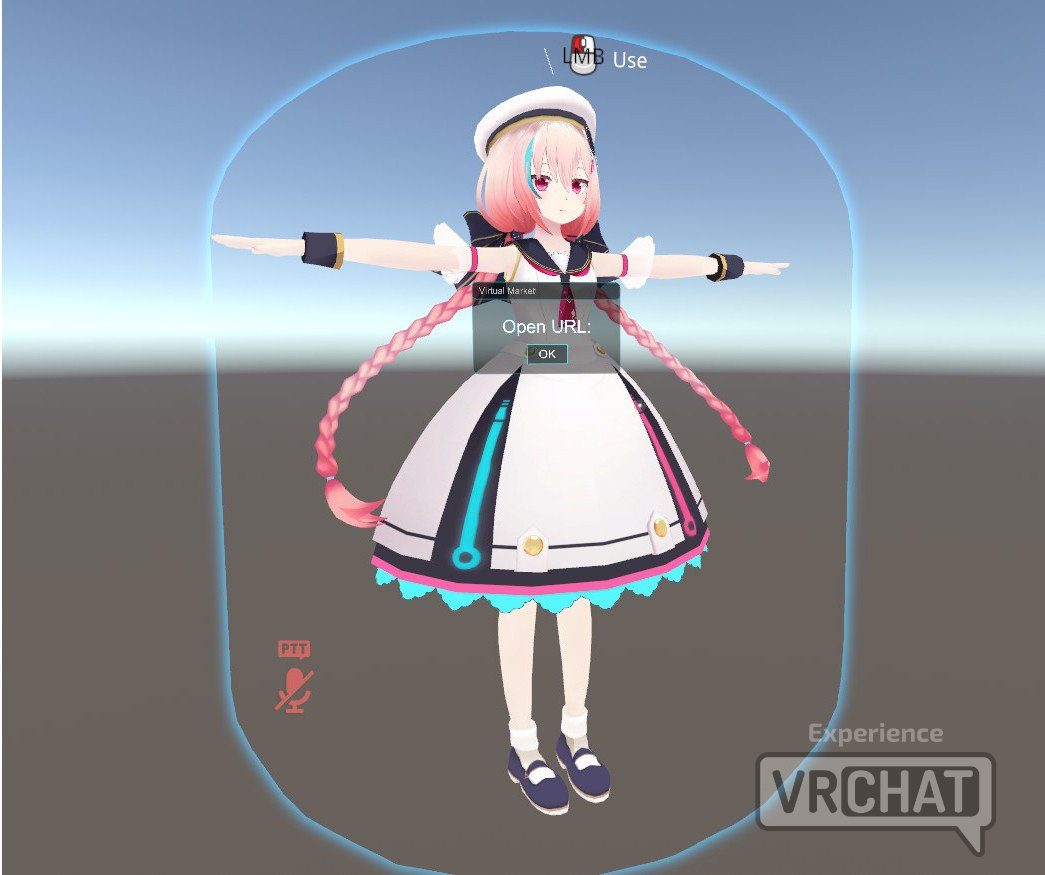
VketUrlOpener_3D — Allows you to set a specified 3D model as its appearance.
This page assumes you have already opened the submission scene.
For how to create a submission scene, see the Vket 2026 Winter Submission Guide.
- Click
Show Control Panel from VketTools in the Unity top menu to open VketTools.
*If the VketTools window displays "Please log in to VRChat SDK", log in to your VRChat account from the "VRChat SDK" window and try again.

- Click the
List of VketPrefabs button at the bottom of VketTools.
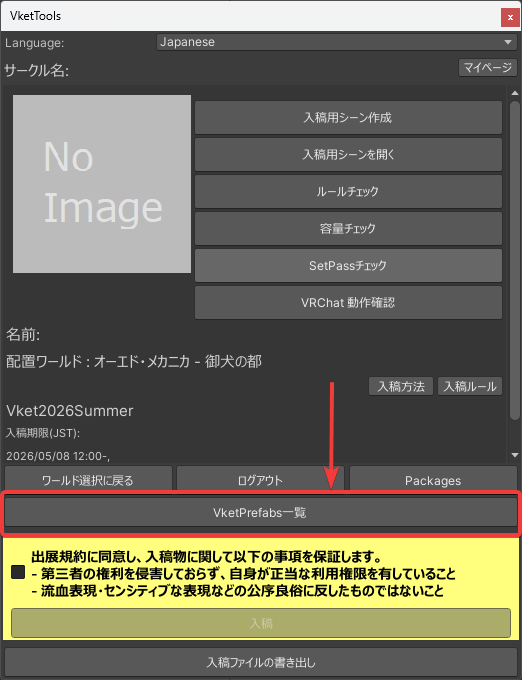
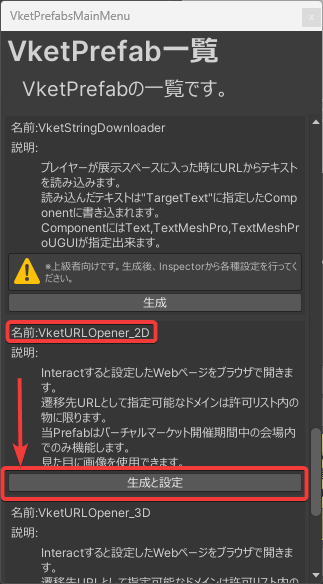
- Scroll down in the VketPrefabMainMenu window and click the
Generate and Configure Prefab button for the item labeled Prefab Name: VketUrlOpener_2D.
Once VketURLOpenerSettingWindow opens, configure each item from top to bottom.
If you accidentally close the settings window, select VketURLOpener_2D in the Hierarchy and click Open Setting Window in the Inspector to reopen it.
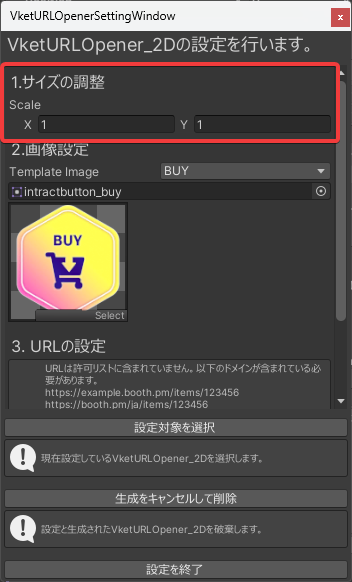
To change the size, adjust the Scale X:Y values as needed.
*Default: X:1, Y:1
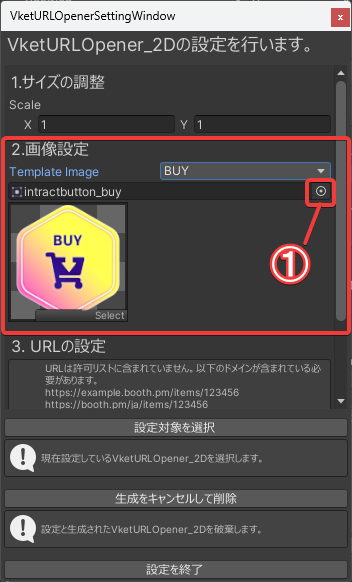
You can switch between three template images for "BUY," "FREE," and "CATALOG" from the pull-down menu next to Template Image.
To set a custom image, use one of the following methods:
- Click the button on the far right of the selection field (① in the image), and select the image file you want to use from the Select Sprite window.
- Drag and drop an image file from the Project window into the selection field
*To set a custom image, the Texture Type must be set to Sprite (2D and UI). For details on the configuration method, please refer to the official Unity documentation: Sprite (2D and UI).
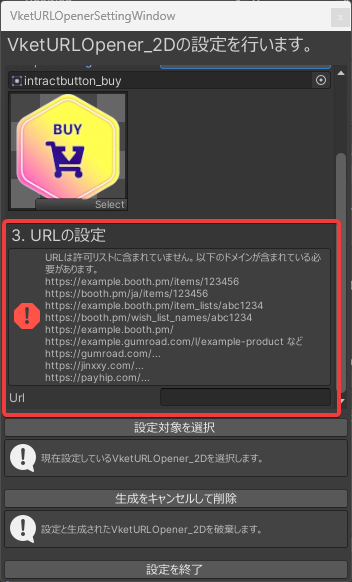
Enter the desired URL in the input field to the right of Url.
The currently approved domains are listed below.
*URLs with domains other than those listed below cannot be used.
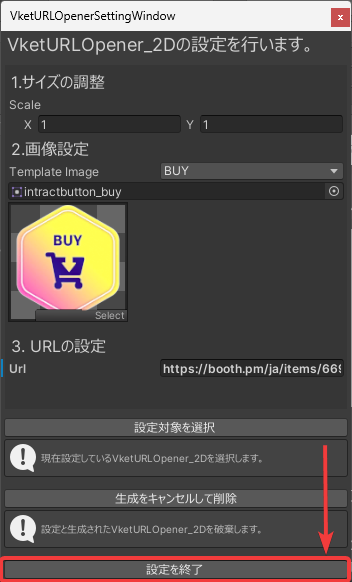
Once the settings are complete, click the Finish Prefab Configuration button at the bottom to close the VketURLOpenerSettingWindow.
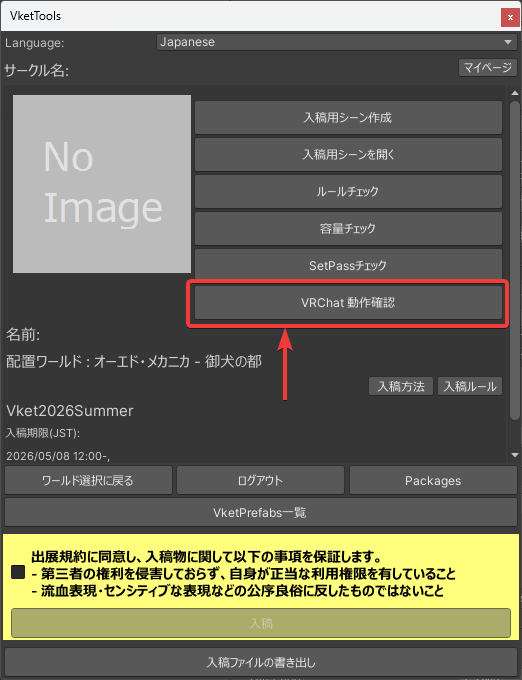
Click the Check in VRChat button in the VketTools window to automatically launch VRChat and enter the submission scene world.
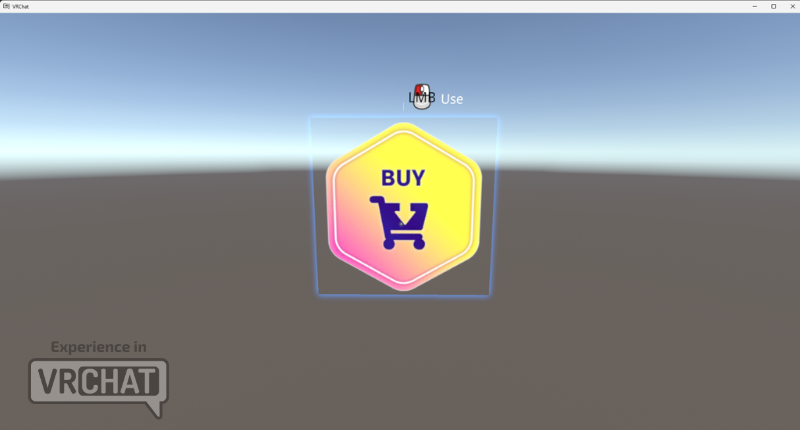
Approach the image object you configured and verify the following behaviors. If everything works as expected, the setup is complete.
- Hovering the cursor over it displays a blue interactable frame.
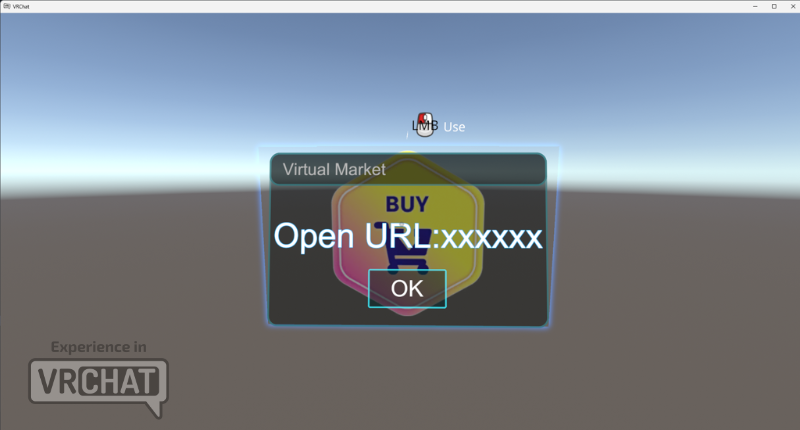
- Left-clicking while the blue frame is displayed shows an "Open URL:XXXXX" window.
- Interacting with the collider again while the "Open URL:XXXXX" window is displayed shows a "Web Page Opened!" message.
*This only works during the Virtual Market event period. It will not work in the Preview World.
In the submission scene, you can test using ClientSim.
For details on ClientSim, see the official VRChat documentation → https://clientsim.docs.vrchat.com/
This page assumes you have already opened the submission scene.
For how to create a submission scene, see the Vket 2026 Winter Submission Guide.
- Click
Show Control Panel from VketTools in the Unity top menu to open VketTools.
*If the VketTools window displays "Please log in to VRChat SDK", log in to your VRChat account from the "VRChat SDK" window and try again.
- Click the
List of VketPrefabs button at the bottom of VketTools.
- Scroll down in the VketPrefabMainMenu window and click the
Generate and Configure Prefab button for the item labeled Prefab Name: VketUrlOpener_3D.
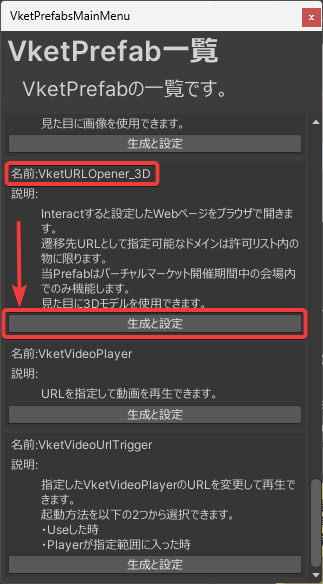
Once VketURLOpenerSettingWindow opens, configure each item from top to bottom.
If you accidentally close the settings window, select VketURLOpener_3D in the Hierarchy and click Open Setting Window in the Inspector to reopen it.
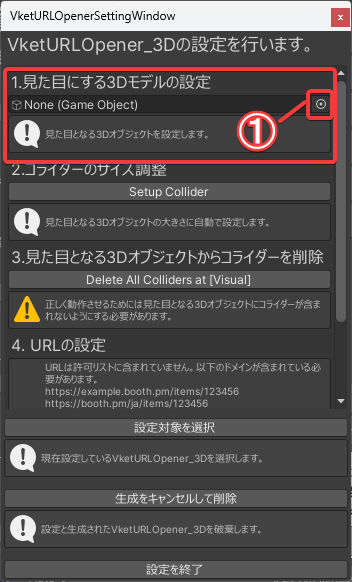
Set the 3D model to use as the appearance using one of the following methods:
- Click the button at the right end of the selection field (① in the image), select the desired object (3D model) from the Select Game Object window
- Drag and drop the desired object (3D model) from the Hierarchy into the selection field
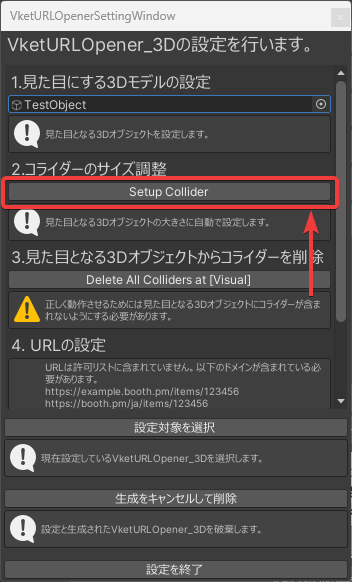
Click the Setup Collider button.
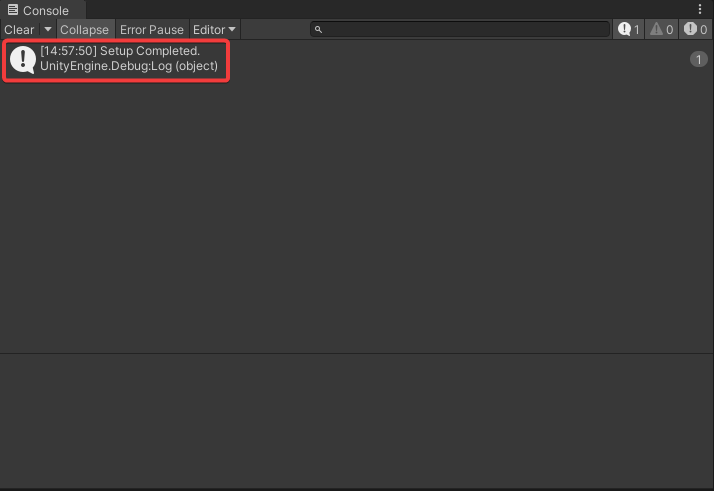
If Setup Completed appears in the Unity Console, the setup was successful.
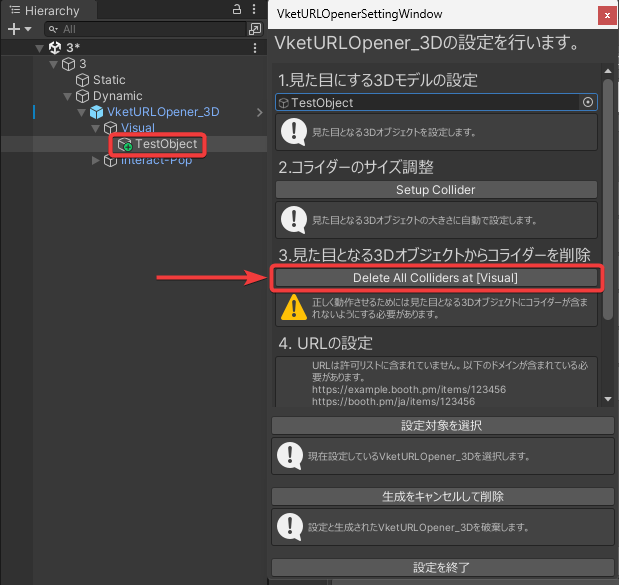
If the object used for the appearance contains collider settings, it may not function correctly.
Click the Delete All Colliders at [Visual] button to remove all colliders from the visual object.
*The visual object is located in the Hierarchy under: Submission ID > Dynamic > VketURLOpener_3D > Visual.
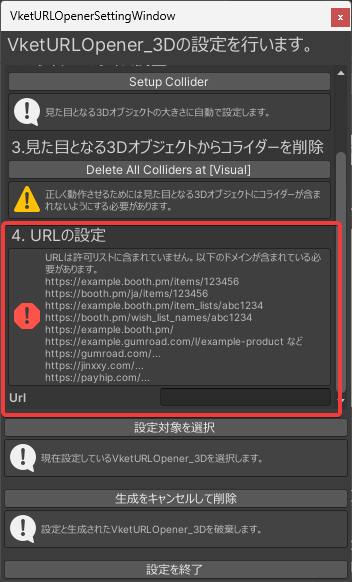
Enter the desired URL in the input field to the right of Url.
The currently allowed domains are listed below.
*URLs with domains other than those listed below cannot be used.
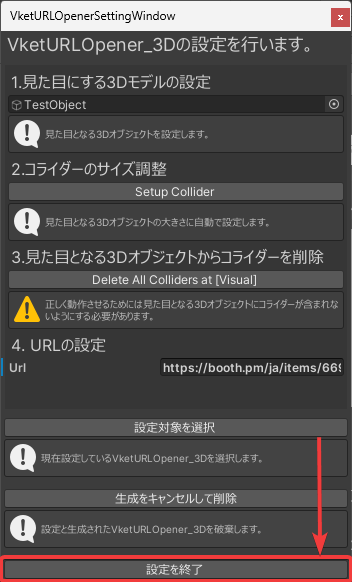
Once all settings are complete, click the Finish Prefab Configuration button at the bottom to close VketURLOpenerSettingWindow.
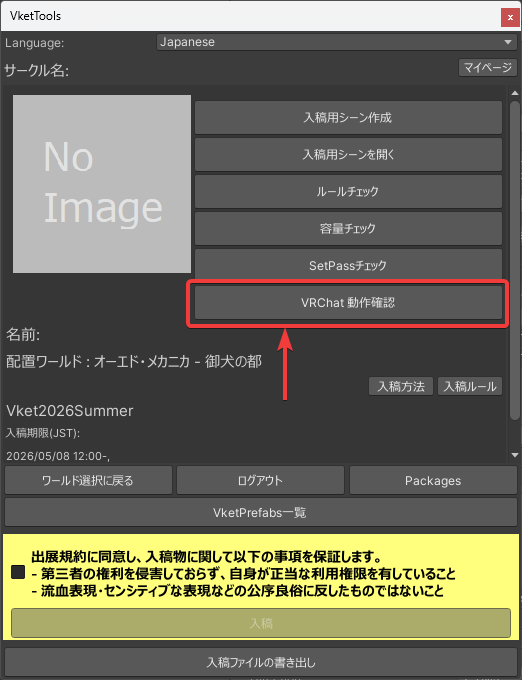
Click the Check in VRChat button in the VketTools window to automatically launch VRChat and enter the submission scene world.
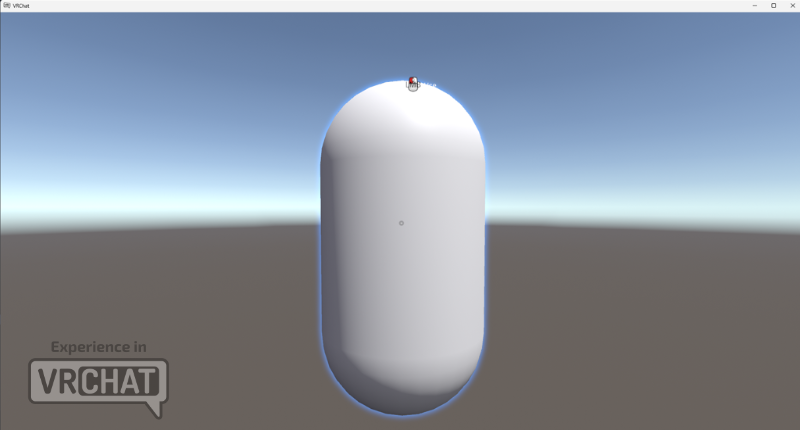
Approach the object you set up and check that the following behaviors are as intended. If so, the setup is complete.
- Hovering the cursor over it displays a blue interactable frame.
- Left-clicking while the blue frame is displayed shows a "Open URL:XXXXX" window.
- Interacting with the collider again while the "Open URL:XXXXX" window is displayed shows a "Web Page Opened!" message.
*This only works during the Virtual Market event period. It will not work in the Preview World.
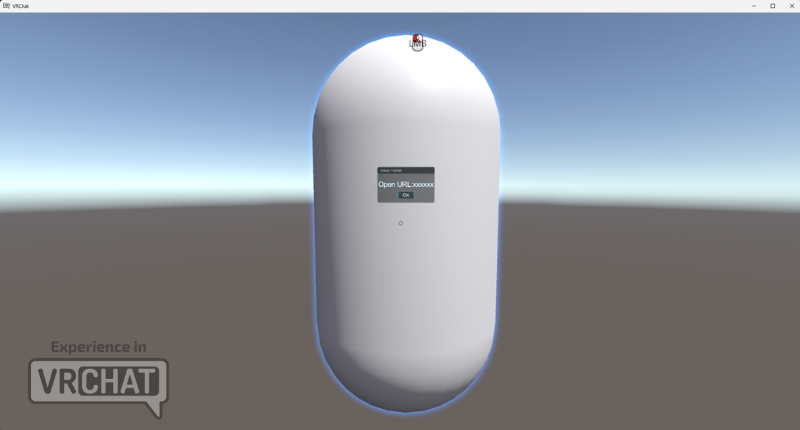
*In the submission scene, you can test using ClientSim.
For details on ClientSim, see the official VRChat documentation → https://clientsim.docs.vrchat.com/
- These prefabs will only function
within the venue during the Virtual Market event period. - The URL must match a domain from the Allowlist defined by Vket staff.
If domain does not match, an error will be displayed instead. - Image for 2D prefab must be set to
Sprite format in advance.
- Removing the Animator will break the component, and deleting anything under
Interact-Pop will prevent the popup window from appearing correctly.
↑ Back to Top