You must create a Vket Account to apply for an exhibition, submit your creation, or host your events in Vket.
Sign up can be done easily by linking your service accounts!
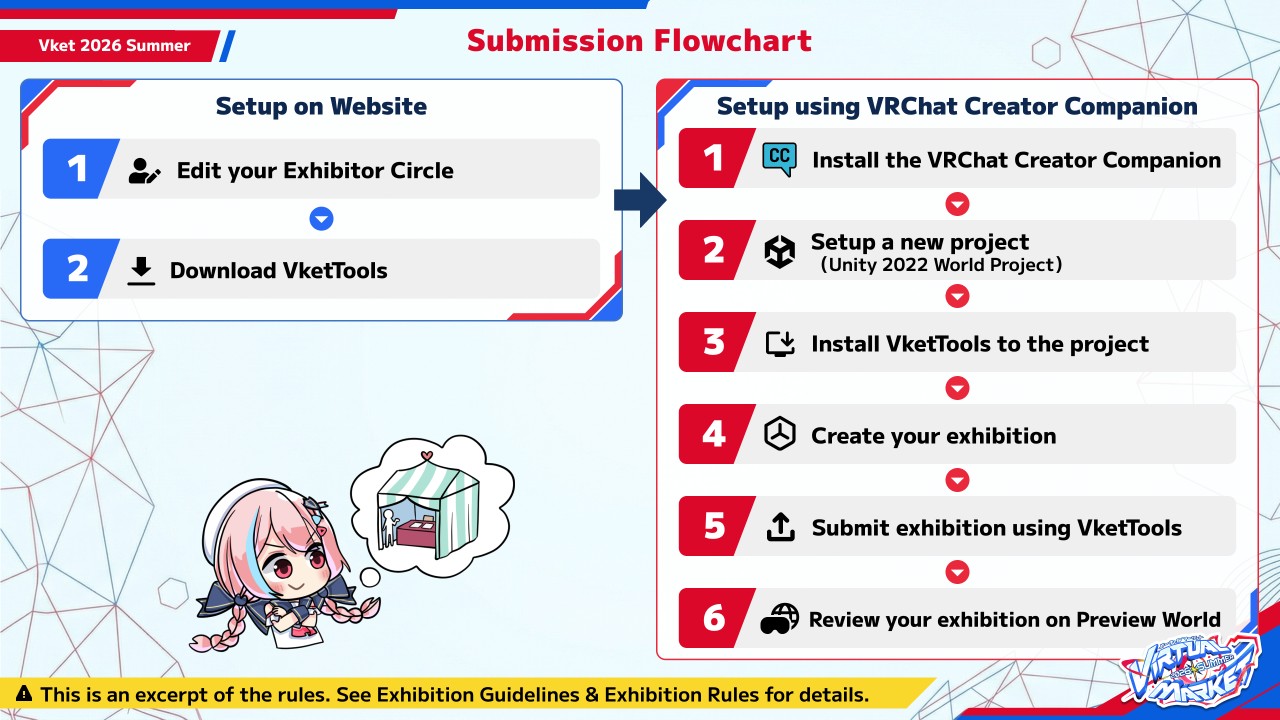
For Unity Submission (VketTools), the exhibitor needs to make an Exhibitor Circle Registration on Mypage beforehand. Then, using the VRChat Creator Companion, create a Unity project using the Unity 2022 World Project template and import necessary packages. This will setup the environment for your own Vket exhibition!
Also, we provide Submission Tips as a part of technical support.
Please also refer to the Reverse Index, which summarizes helpful information based on your objectives.
The Submission period starts from May 8, 2026 (Fri) 12:00 pm JST / 3:00 am UTC / May 7, 11:00 pm EDT and ends at June 15, 2026 (Mon) 11:59:59 pm JST / 2:59:59 pm UTC / 10:59:59 am EDT.
*Note: Circle registration is now required on applying for an exhibition! If you've already registered your exhibitor circle, feel free to skip this step.
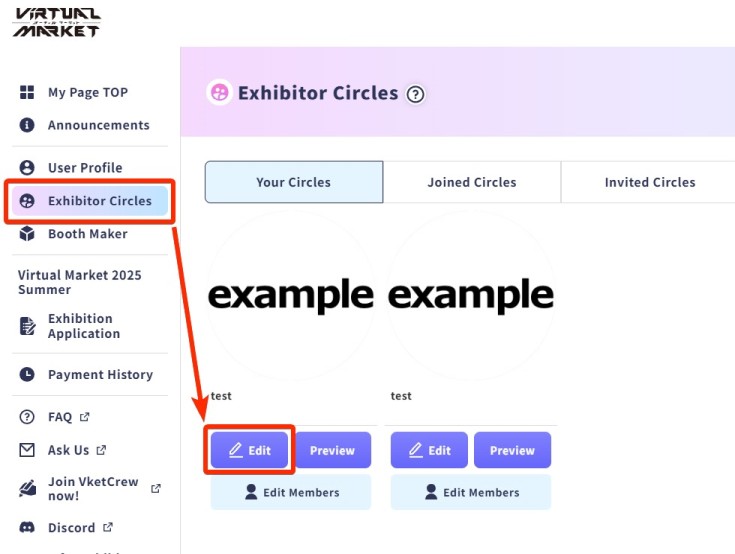
On the Vket website's "Mypage", which accessible via the top right corner of the website after login, you will find the "Edit" button in the "Manage Circle Information and Catalog" page.
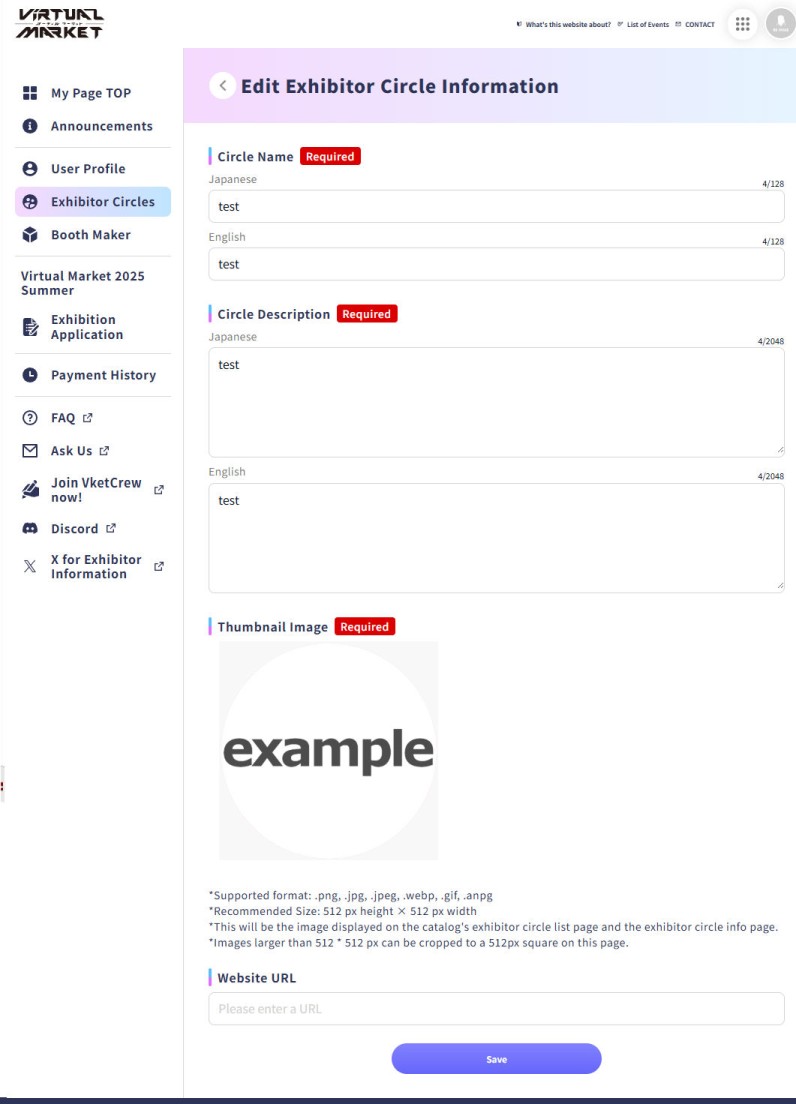
On the Edit Exhibitor Circle Information page, the exhibitor should input their exhibitor circle name and description.
The input text and contents will be displayed on the catalog page that will be released before the event opening.
To add members to your circle, please follow the steps below:
Click here to expand how to add circle members
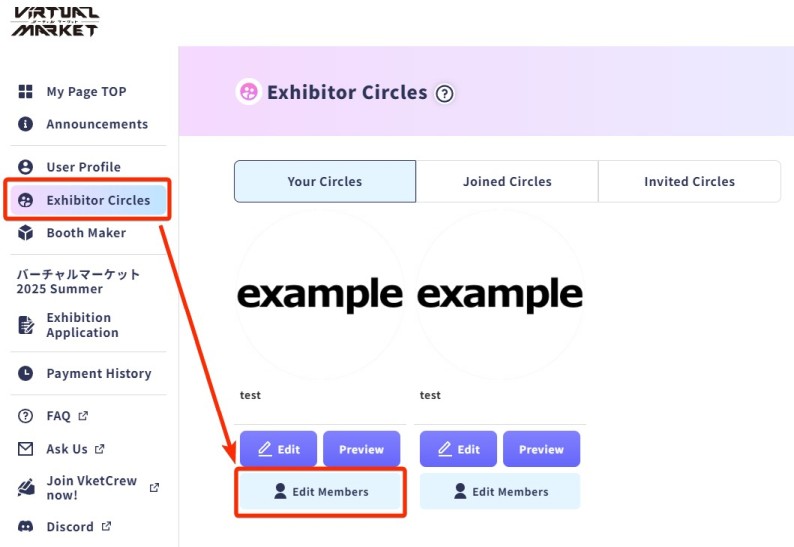
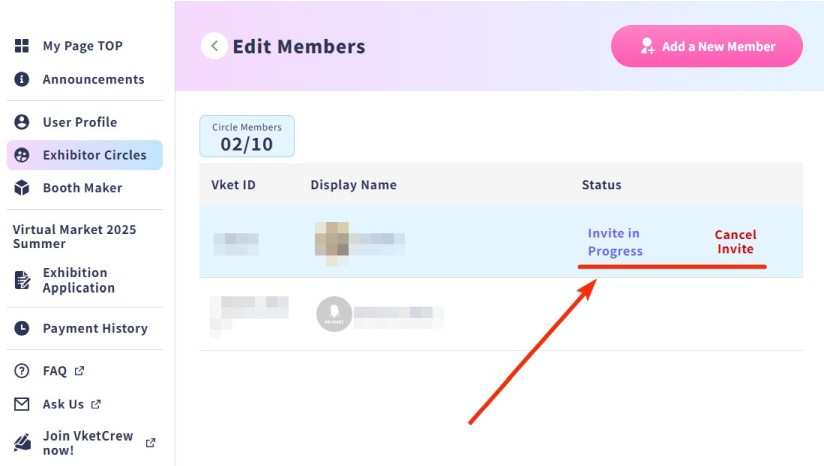
You can invite members from Edit Members on the Exhibitor Circles page.
At this time, the person being invited must have already created a Vket Account and logged in to their My Page.
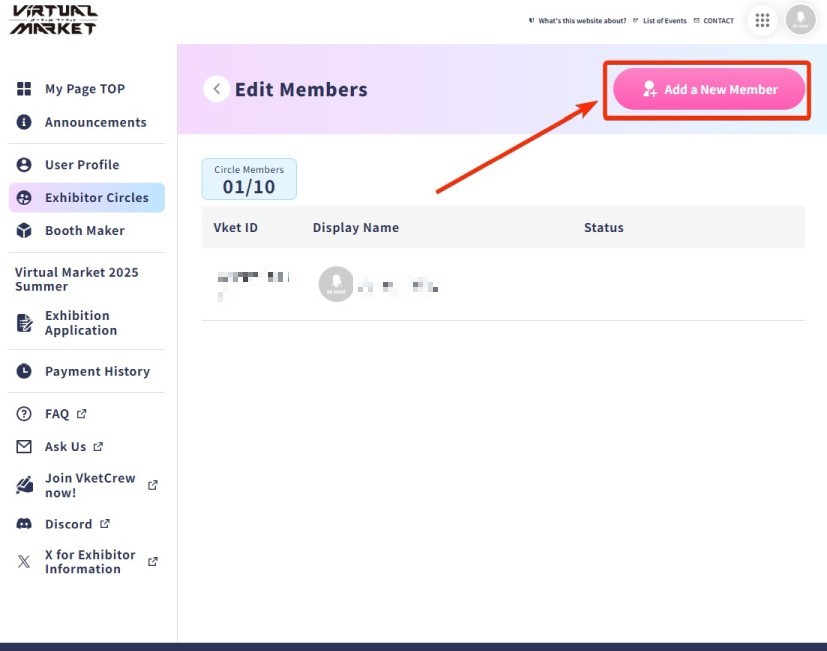
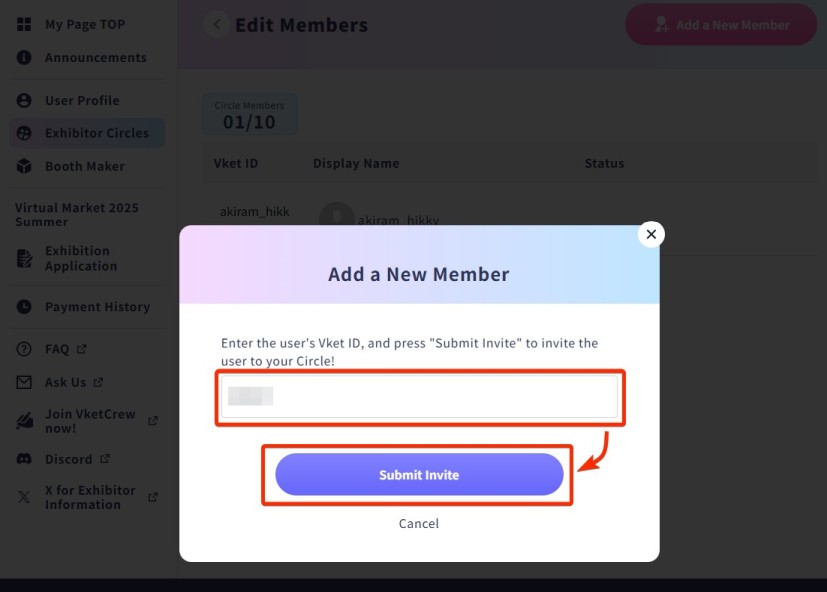
After clicking Add a new Member on the "Edit Members" page, enter the member's VketID and click Submit invite.
The member will be added to the member list in a "Pending Approval" status.
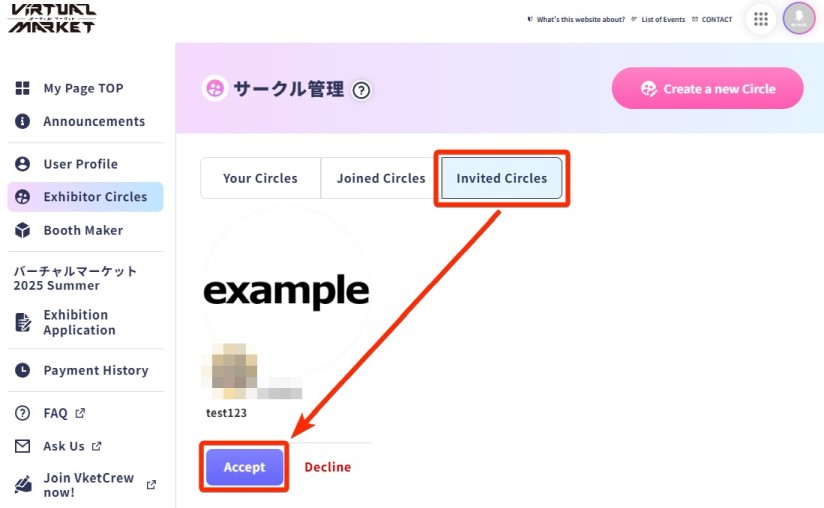
The invited member will see the newly displayed circle under Circle Management in the left-hand menu of their My Page.
*If you accidentally add a member, you can cancel or delete the invitation by clicking Cancel or Delete on the right side of the member you wish to remove on the "Circle Member Management" page.
The invited member can join the circle by opening the Circle Management > Invited Circles page and clicking Accept for the invited circle.
By doing so, the member's name will be listed in the catalog, and the member will be able to use VketTools functionalities other than submission.
Please utilize this feature when creating an exhibition space with multiple members!
Please verify that the invited member's VketID is correct. The VketID can be found on their Profile page.
If "Invitation sent successfully" is displayed but the invited circle is not shown in the list of joined circles, the invited member should try reloading the page or clearing their browser cache.
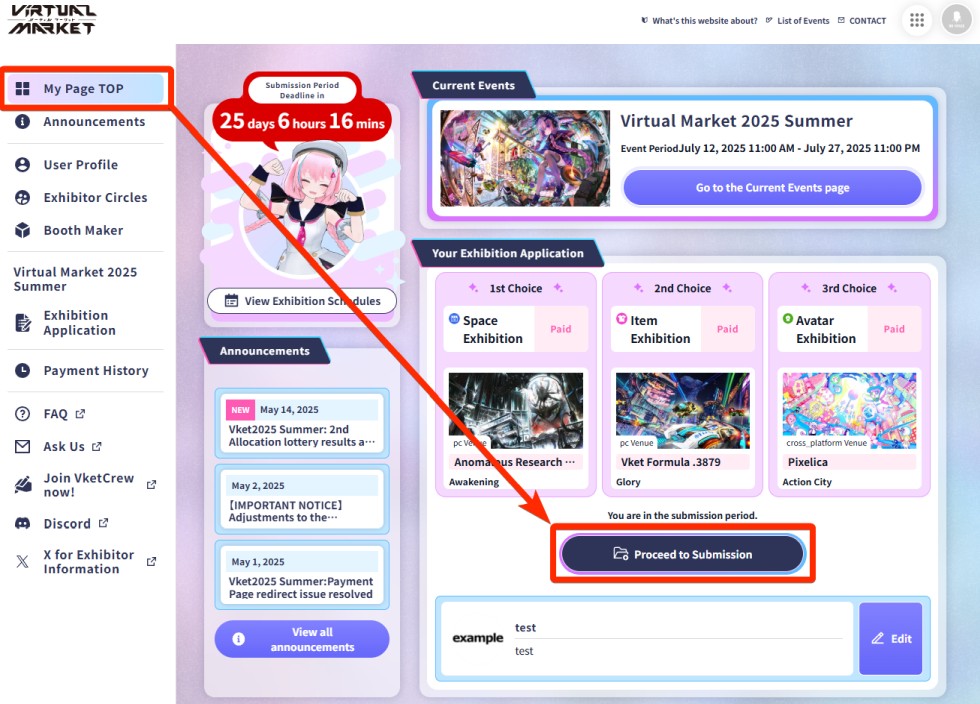
Once your circle information registration is complete, click the Proceed to Submission button from your My Page TOP.
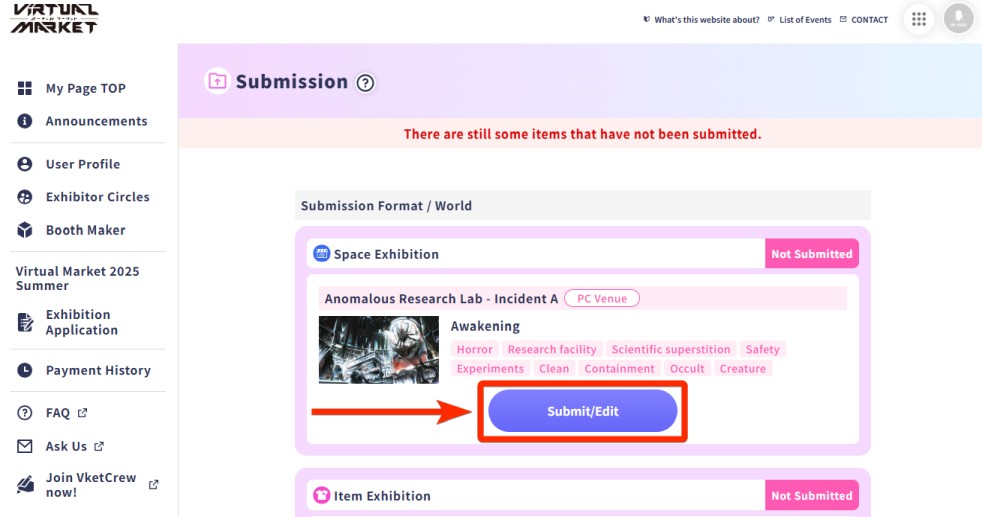
A list of worlds available for submission will open. Click the Submit/Edit button.
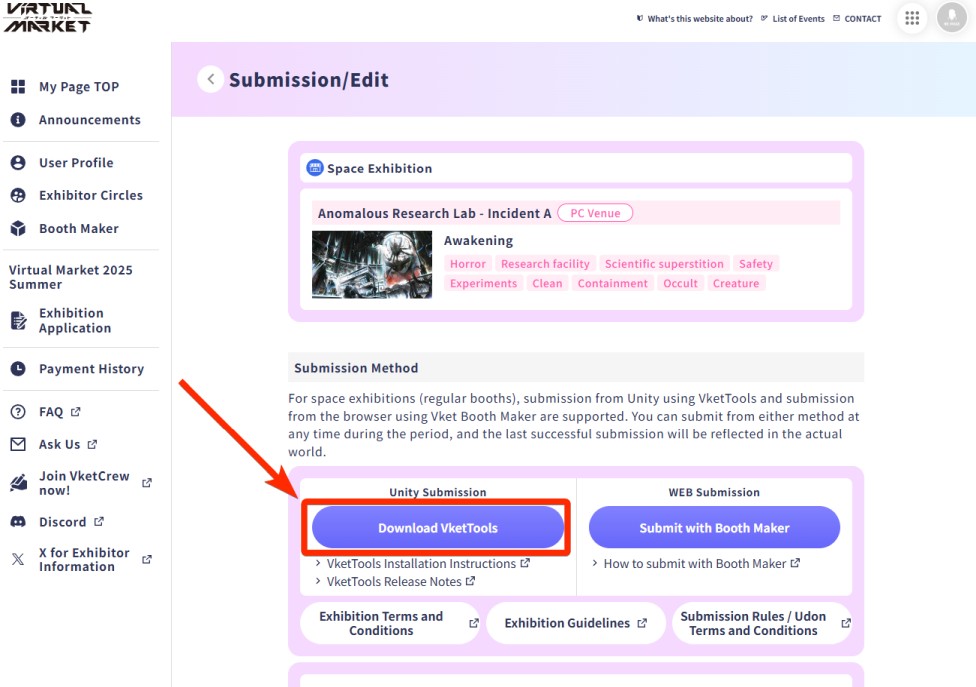
You will enter the submission screen for the selected world. Click Download VketTools to start downloading VketTools.
*You can also enter the Preview World from this screen.
Once you have download the tool, proceed to the VRChat Creator Companion.
VRChat Creator Companion is required to use VketTools.
Detailed instructions on how to install VRChat Creator Companion and Unity can be found on the following page. Please refer to it.
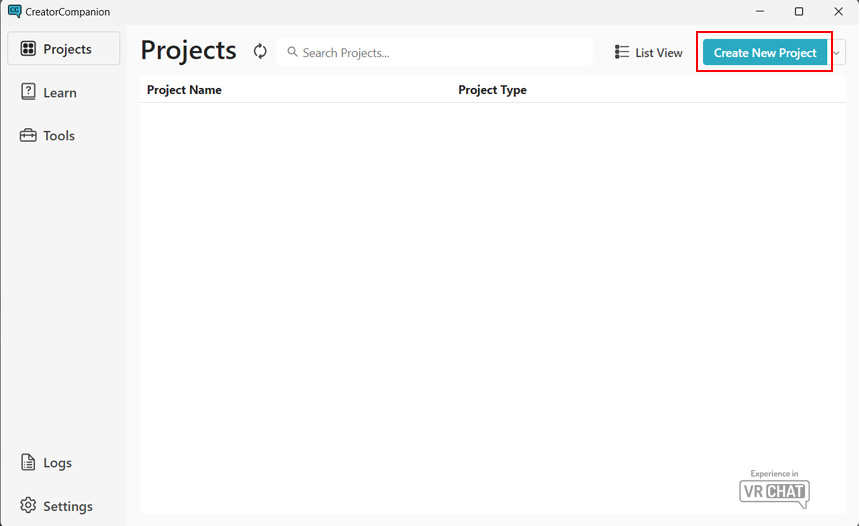
Press "Create New Project" in the "Projects" page.
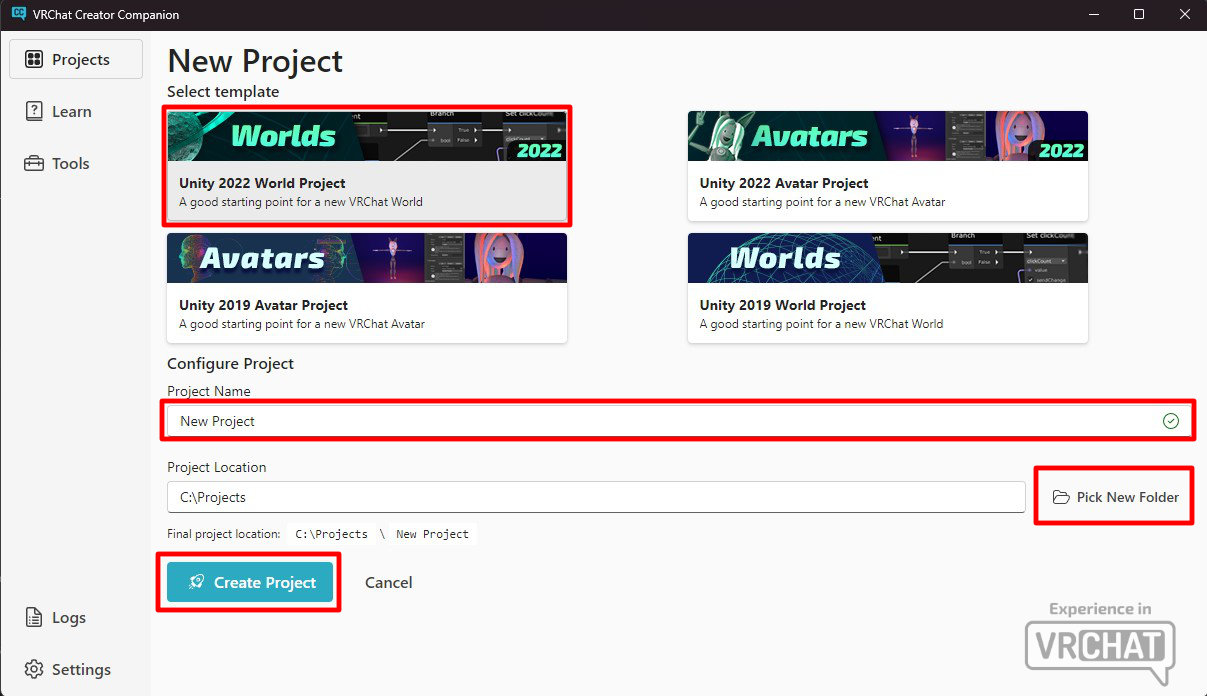
Select Unity 2022 World Project in the template, designate your project name and project location at your choice, and press "Create Project". *To avoid reference path errors, Please avoid using full-width characters such as Japanese characters, and spaces for Project Name and Project Location. It is recommended to write without spaces, or use underscores(_) instead.
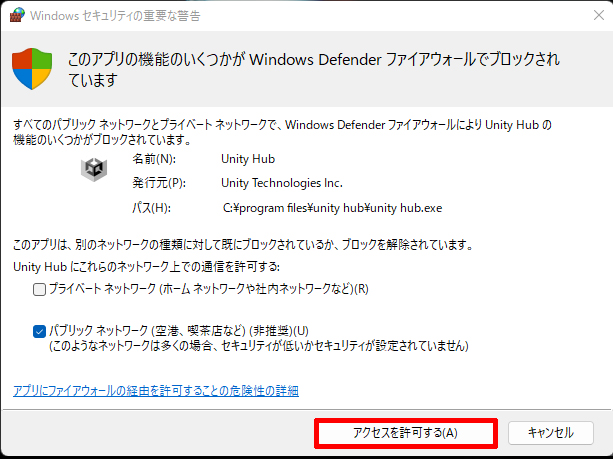
If the firewall alert appears, press "Allow Access".
Project packages will be automatically selected.
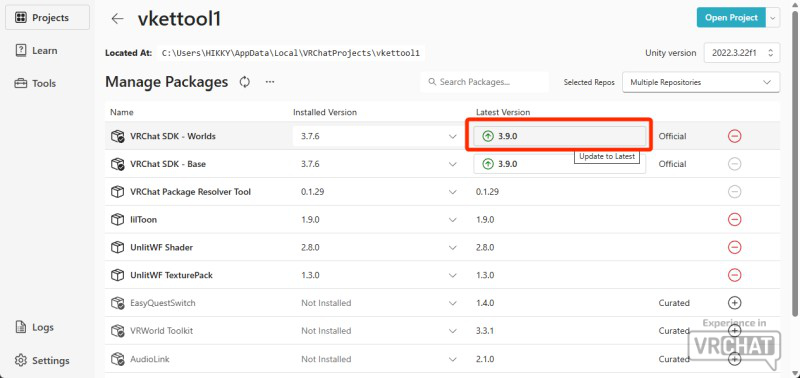
There may be an older version of the VRChat SDK installed. If so, click the area highlighted in red in the image below to update to the latest version.
*If nothing is shown in the red box, you can skip this step and proceed to step 6.
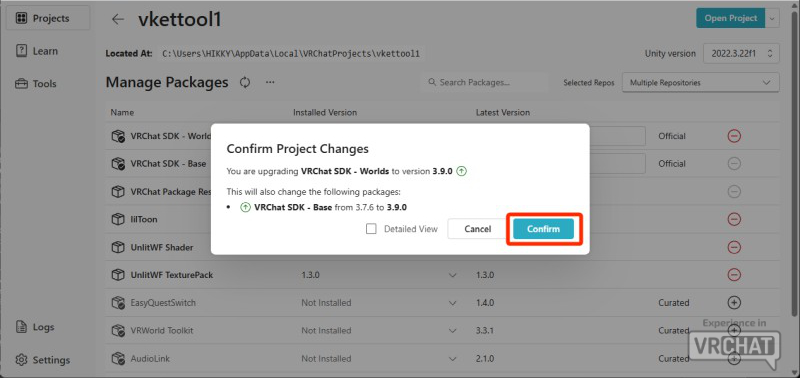
A confirmation dialog will appear — press Confirm.
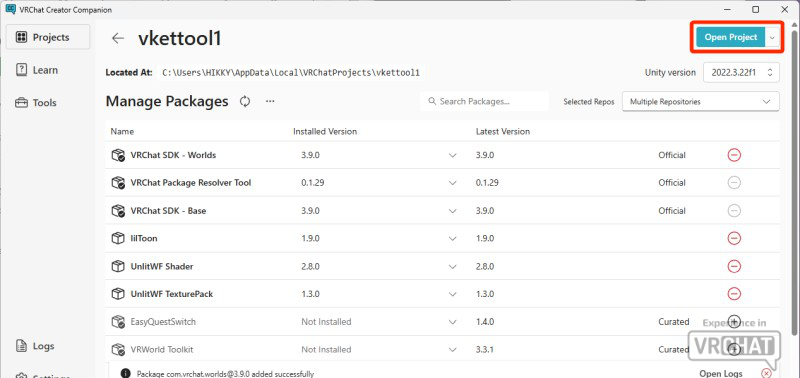
Once the update completes, press Open Project at the top right.
After loading, Unity will launch.
The "VketTools" is a package of essential tools and prefabs needed to create your exhibition for Vket.
Press Assets in the top bar and choose Import Package. Press Custom Package.
Choose VketTools-2026S.*.unitypackage that you've just downloaded and Open it.
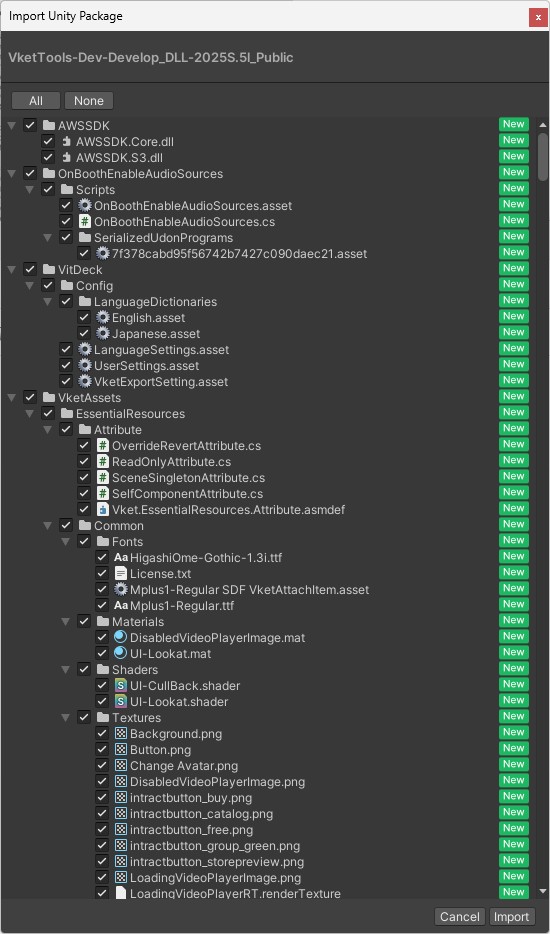
In the Import Unity Package window, press Import.
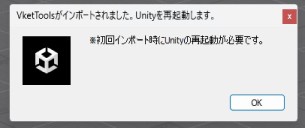
A message prompting you to restart Unity will appear, so click OK to automatically restart Unity.
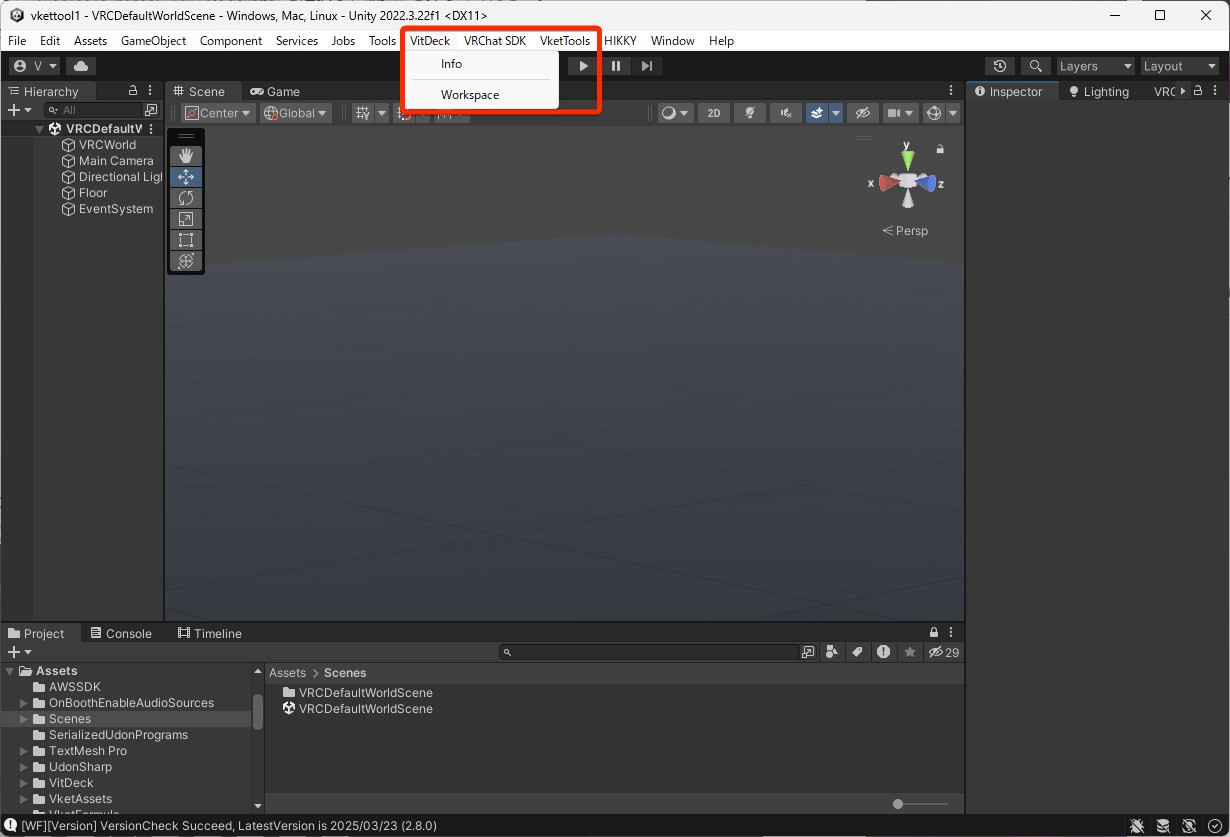
After the installation is complete, if you see VitDeck and VketTools in the top menu, the installation is complete.
Now that the project is ready, download the necessary assets and create the scene for creating your exhibition.
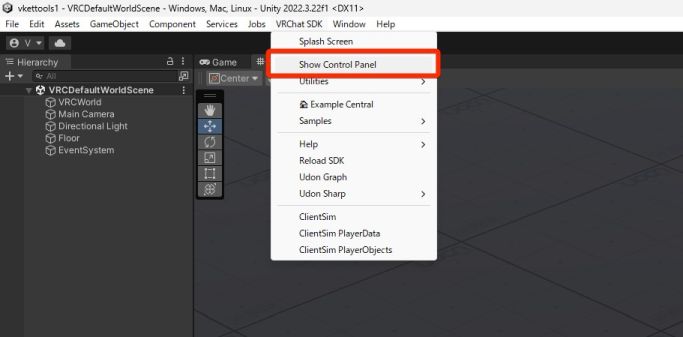
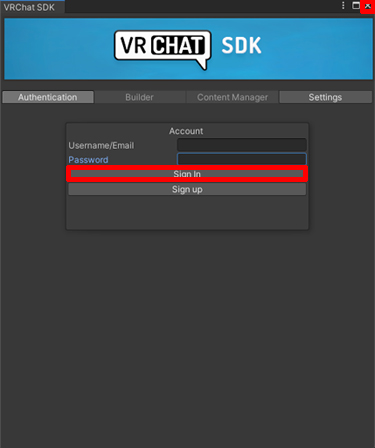
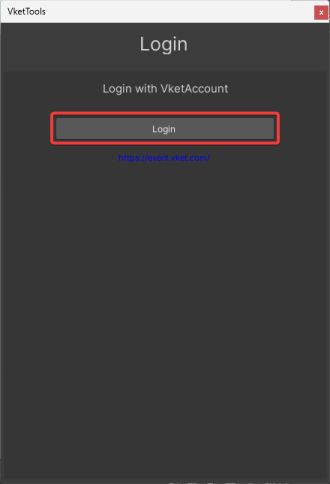
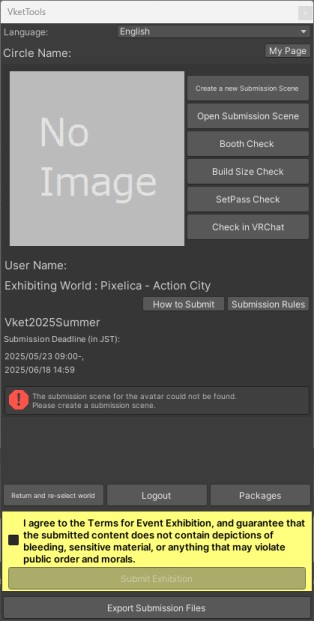
Open the VketTools/Show Control Panel from the Unity menu. Select the button that will indicate to open the Builder tab, and click on the Login button for the Vket account shown as below:
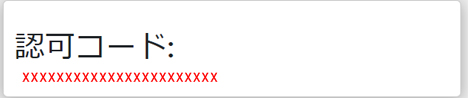
At first login, you will see a webpage with your authorization code. Copy this code to the clipboard.
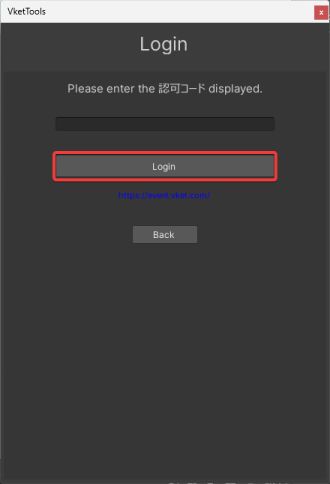
Paste the authorization code to the login window, and click login.
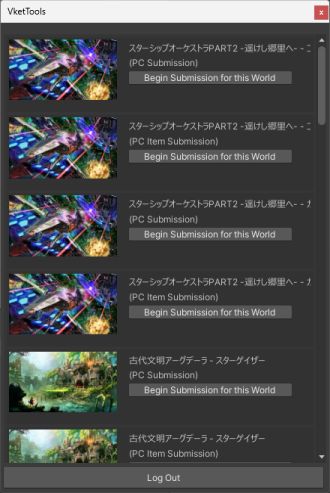
If the login is successful, the list of venue worlds will appear as below. Choose the world you will exhibit, and select "Begin Submission for this World".
If the Control Panel - VketTools - displays the mypage information, the setup is complete.
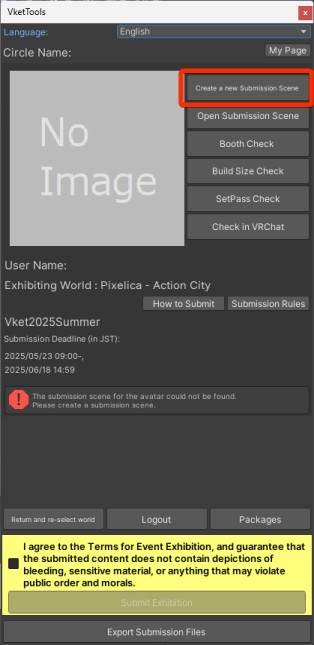
From VketTools' Control Panel, click on Create a new Submission Scene. If the VketTools window does not open, please check if it is displayed behind other Unity windows or if it is minimized.
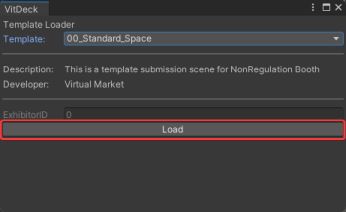
The VitDeck window will open, therefore select Load. *If the VitDeck window does not open, please check if it is displayed behind other Unity windows.
*This window may be closed when the loading is over.
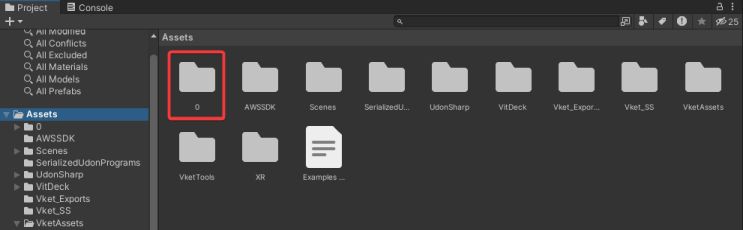
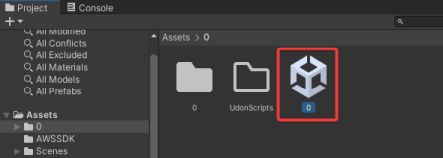
A folder and a scene file named by the exhibitor ID will be generated directly under the Assets folder.
*The exhibitor ID will be automatically allocated to each exhibitor circle.
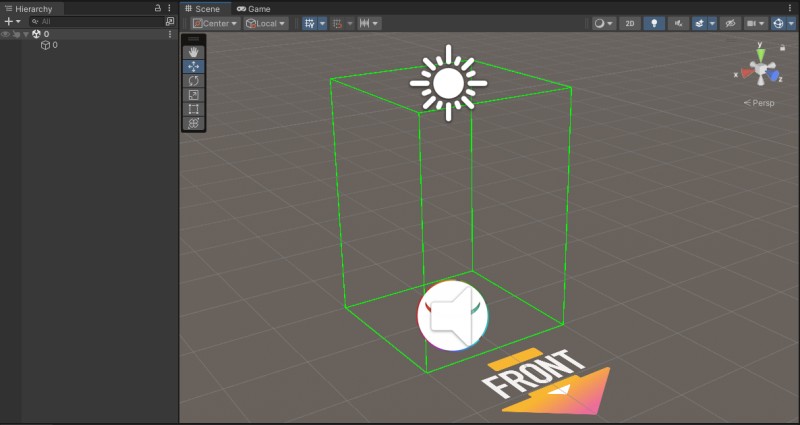
Double-click and open the generated scene file, as it will open the scene for submission.
Caution!
To avoid content conflicts, please separate the projects if you intend to exhibit in different platforms.
i.e. For PC exhibition and Quest exhibition, create two separate projects.
The Hierarchy of the submission scene is organized as shown below, following the Scene Hierarchy Format Specifications defined in the submission rules.
(Circle ID)
(Circle ID)
Place only the root object of your exhibition avatar as a direct child of the empty object named with your Circle ID.
The external link button will only function within the venue during the Virtual Market event period. It will not function in the submission tool preview or the preview world.If the external link field is left blank, a button linking to the exhibitor's catalog page will be displayed instead.
Avatar Marketplace Settings
Listing Name
Price (Credits)
Listing ID
Sets the Listing ID for an Avatar Marketplace product.
Please note that if the product is not published, only the shop owner will be able to open the product page.
Please check the following page for detailed rules regarding avatar submission:
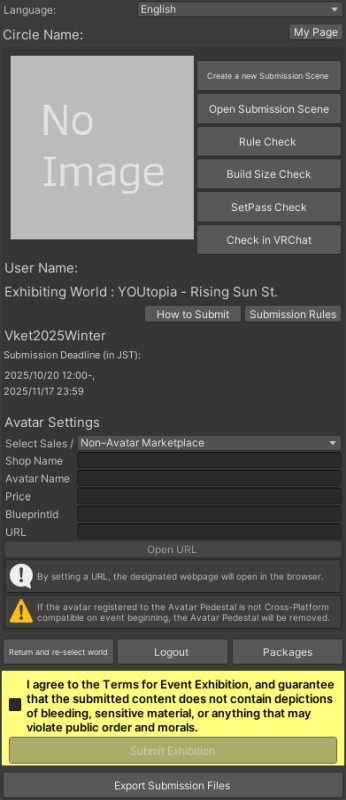
To ensure that your exhibit is within the limits defined in the submission rules while you are still working on it, please use the following buttons in VketTools:
Rule Check: Checks for compliance with submission rules, such as layer settings and the presence of prohibited components.
Build Size Check: Checks if the build size of the exhibit is within the limit.
SetPass Check: Checks the rendering load (SetPass Calls / Batches) of the exhibit.
Note that these checks are also performed automatically when you press the Submission button.
Each check has a different purpose, but if you are unsure, please press them in order from top to bottom to verify.
💡 For tips on reducing exhibit weight (optimization), please also refer to the Reverse Index.
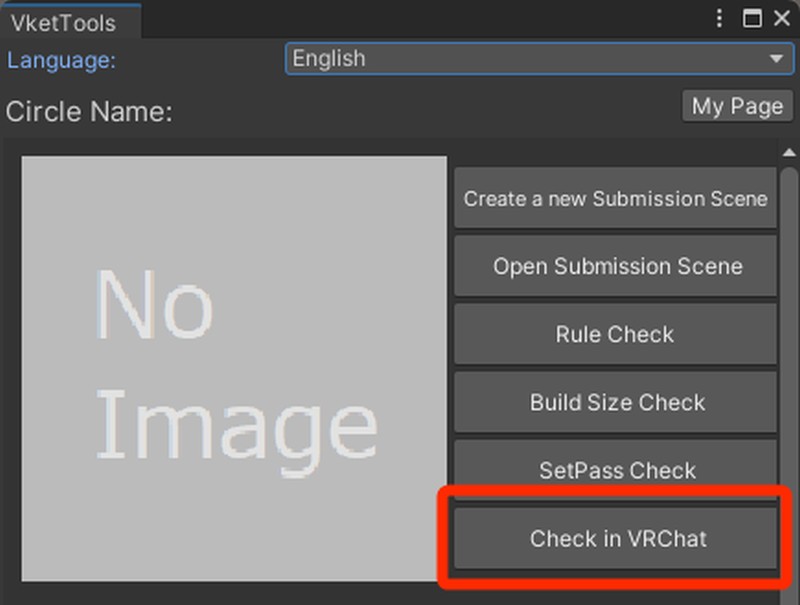
Pressing the Check in VRChat button in VketTools will launch VRChat and load the current scene as a world.
Click the Check in VRChat button in VketTools.
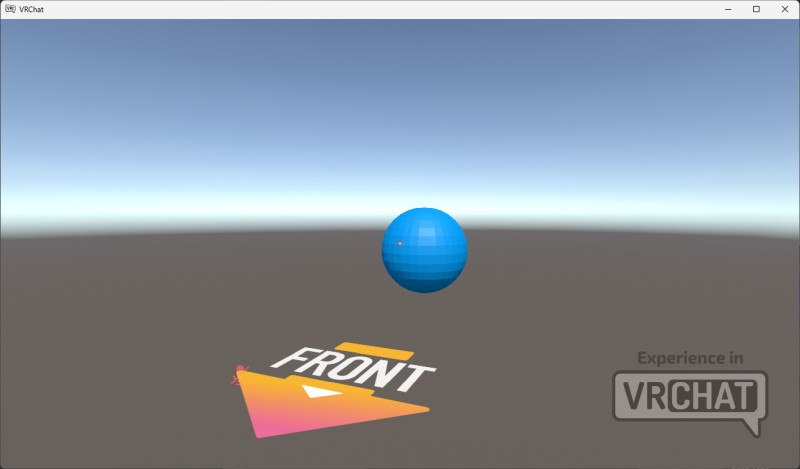
VRChat will launch and the submission scene will load as a world. Check that the appearance, effects, and any gimmicks work correctly.
Note: Some gimmicks may only function during the event period. Please check the specifications for each component.
After checking, close VRChat and return to Unity.
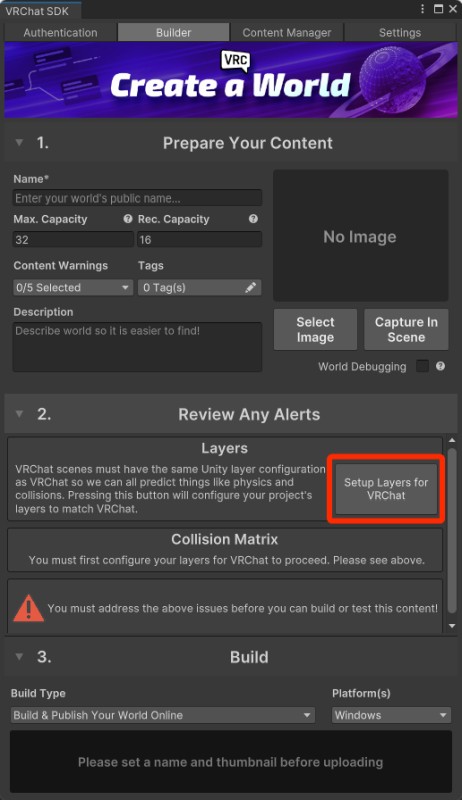
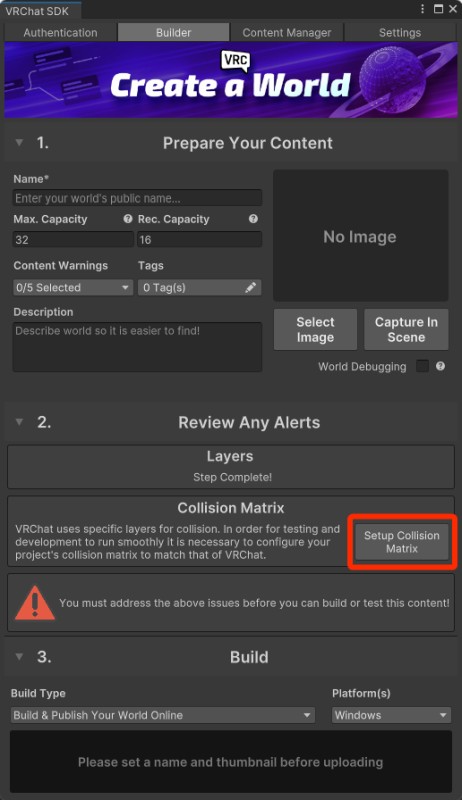
Note: If VRChat does not start, you may need to configure the VRChat SDK.
Use the Setup Layers for VRChat or Setup Collision Matrix buttons to perform the required setup.
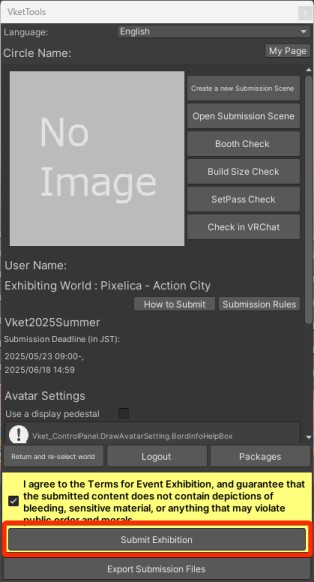
Clicking Submit Exhibition on the Control Panel will begin the submission process for the current Scene content.
Once the submission starts, various checks will be performed in eight steps, as shown below.
The VRChat client will be launched and build your Submission Scene into a world.
Please check if all the exhibit functions are working correctly.
After confirming everything, click on the OK button to continue the process.
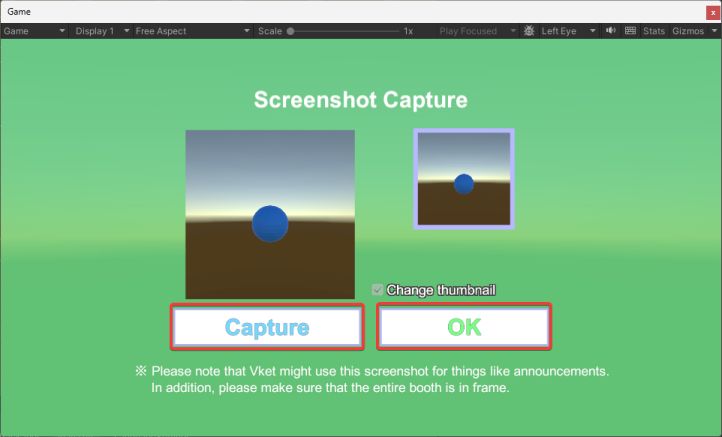
After the Rule Check and Build Size Check, the Screenshot Capture window will open. Please click the Capture button to take a screenshot.
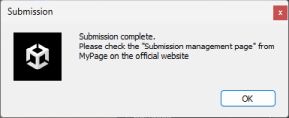
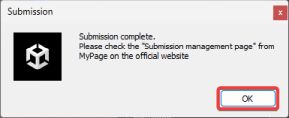
If you see Submission complete after clicking OK, your submission is completed successfully.
💡 If you have any trouble with submission or are concerned about submission rule restrictions, please also refer to the Reverse Index.
If you still have questions regarding the submission, please ask in the Vket Exhibitor Discord (https://vket.com/docs/channel).
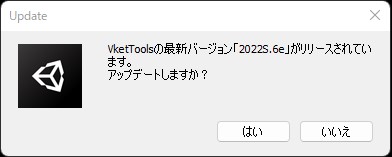
In case new versions of VketTools are released in the future for patches or other reasons, you'll be prompted to update with a dialog. Note that you can only submit with the latest version.
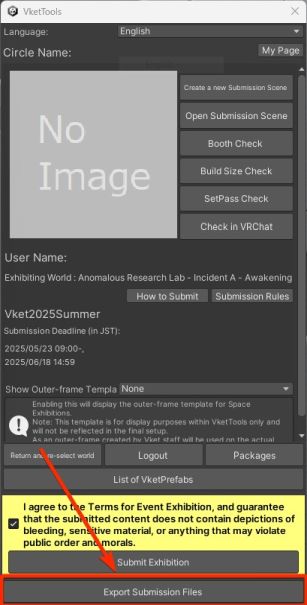
By clicking "Export Submission File" at the bottom of the VketTools Control Panel, you can output a .unitypackage file.
This feature is useful for sharing submission data between members.