TOP › My Page TOP ›
Submission Workflow › Vket 2026 Winter ›
Submission Rules › Space Exhibition (Cross-Platform Venue)
This page provides submission rules for Space Exhibitions (Cross-Platform Venue).
Please review this information when applying to exhibit or submitting materials.
- For Udon regulations, please refer to Udon Rules. The Udon regulations are the same as for Space Exhibitions.
- For detailed submission procedures, please refer to the Submission Guide.
- The contents of this page may change or be updated due to rule revisions or additions. Please review the information again before submitting your work.
- Cross-Platform Venues
- Casca-Acqua Falls (Aquagift Festival)
- Fallen Eden (Qliphoth)
- Space Exhibition (Cross-Platform Venue) applications will be accepted for the Cross-Platform Venues listed above.
- These concepts also have PC Venues, but only the worlds in parentheses are Cross-Platform Venues.
- A large number of exhibits will be set up in each venue. We aim to create a lively and enjoyable environment with a wide variety of exciting exhibits!
- Due to issues inherent to large-scale worlds, we have set rules for space creation.
- To maintain a comfortable environment for all visitors, avoid causing heavy loads on PC hardware
- Use standardized formats to make it easier for Vket to check individual exhibits
- Prevent fatal bugs such as instance crashes leading to VRChat crash, or returning to other worlds
- Before submission, make sure to check compliance with the submission rules. Please use the submission tool (hereinafter referred to as VketTools) provided by Vket.
- VketTools will be distributed on the "Submissions" page once the Submission Period begins.
- Modifying VketTools is prohibited by the Terms and Conditions. If a malicious modification is found, your exhibition may be canceled.
- If the submitted space does not comply with the submission rules, Vket may request resubmission or decline placement.
- Even if the space complies with the submission rules, if the space is deemed problematic such as heavy load, Vket may request resubmission.
- When submitting complex gimmicks or dynamically changing spaces, we cannot guarantee they will display properly.
- If an exhibit contains a significantly small amount of information, Vket may remove the exhibit after contacting the exhibitor following the end of the submission period.
This is a summary of the precautions for exhibiting. For details, please see the Exhibition Guidelines.
- If you wish to exhibit at the event, please read the Terms and Conditions for Vket Event Exhibition For Individuals carefully, especially "Article 2 Exhibitor Qualification" and "Article 3 Requirements for Submitted Material".
- Please also check the VRChat regulations such as the Terms of Service, Community Guidelines, and Creator Guidelines.
- VRChat has specifically announced that they "do not permit promotion, advertising, integration, or solicitation of unauthorized products or services like NFT or blockchain technology in VRChat". As such, exhibits that do not follow this policy are not permitted.
- All Virtual Market Exhibits are public and can be seen by many people. For example, avatars set on the pedestals are not permitted to appear nude due to animations, etc.
- Please refrain from using effects or displays that involve strong flashing lights or other displays that significantly affect vision, as this may create health issues, such as motion sickness, dizziness, or epileptic seizures.
- These submission rules are for Creator Exhibitions, which are open to individuals and exhibitor circles. They are not the rules for corporate exhibitions.
- Corporations or enterprises may be allowed to participate as "individuals" if they meet certain criteria (for example, if they are startups within one (1) year from their foundation).
- For corporate exhibitions, please contact us here.
- Multiple exhibitions are prohibited. It is not allowed for the same individual or circle to apply using multiple accounts.
- Additionally, exhibiting the same content in the same exhibition format or promoting it through multiple circles is not permitted. Even if the circle representatives are different, the same work must not be promoted in the same exhibition format across multiple circles.
- Only the circle owner can upload submissions.
- Circle members can also create and check exhibit data. In that case, please receive the VketTools from the owner.
- You may not use Mac for submitting your exhibit. Please use a Windows environment with Unity and VRChat Creator Companion installed.
- We recommend adding multilingual support for your exhibit and catalog entry, such as English and Japanese. Visitors to Virtual Market come from all over the world, with approximately half from Japan.
- You can support two languages using the official VketLanguageSwitcher Prefab. You can also ask for help with translation in the Vket Exhibitor Discord.
- *To join the Vket Exhibitor Discord, please refer to the Discord page.
- Creator Worlds, excluding Corporate Worlds, will be re-opened to the public indefinitely after the end of the event period. It is recommended that the Blueprint ID of the avatar pedestals be set to be the trial version.
- The worlds in Cross-Platform Venues are built twice: a Windows build for PC and an Android build for Mobile. Due to texture compression, the appearance of a submitted exhibit may differ slightly between the Windows build and the Android build.
- Small text in particular may be crushed by compression, so we recommend using the Text or Text Mesh Pro components.
- We also recommend checking your exhibit on an actual device whenever possible.
- Some gimmicks may not work, or may behave differently, in the Android build.
- Many visitors who play VRChat on Mobile come to Cross-Platform Venues. Please avoid a state where your main exhibit can only be used on the PC version of VRChat or only on SteamVR.
- Only when the Android build size of the world exceeds 100MB and uploading becomes difficult, Vket may adjust the compression settings of exhibits, with notice to the exhibitor.
- If an avatar set on an avatar pedestal is still not Cross-Platform compatible by the event period, the avatar pedestal may be removed.
- Exhibits cannot be submitted from Vket Booth Maker.
Please note that the submission rules for Space Exhibitions (Cross-Platform Venue) differ from the Space Exhibition submission rules in some places. The main differences are as follows.
- The main exhibit must be usable in Mobile environments.
- Submission from Vket Booth Maker is not available.
- The build size must be within 5.00MB for the Windows build and 3.00MB for the Android build.
- There are restrictions on the shaders that can be used. Shaders that use _CameraDepthTexture cannot be used.
- Up to 1 Camera can be used, and up to 1 RenderTexture with a size of up to 1024 x 1024.
- Avatars set on avatar pedestals must be Cross-Platform compatible.
- The DirectionalMode when light baking is Non-Directional in the world specifications.
All other regulations are the same as the Space Exhibition submission rules.
Please note that work performed in environments other than the following will not be supported:
- Create the Space Exhibition using Unity 2022.3.22f1.
- Create the exhibit Project using the VRChat Creator Companion (VCC).
- Project template must be selected to Unity2022WorldProject.
- Use the latest version of VRChat SDK at the time of submission.
- Please note that beta versions of the VRChat SDK are not supported.
- Use VketTools for submission.
- All assets used in the space should be placed under the
Circle ID folder (e.g. 184) created directly under the Assets folder by VketTools. - Create the space on the
Circle ID scene found in the above folder. - Do not include the following files in the folder above.
- Textures containing elements that violate public decency (including depictions of sexual organs).
- Only half-width alphanumeric characters, -(hyphen), _(underscore), (half-width space), .(Dot), and () (parentheses) can be used for file & folder names.
- All files included in the Project should follow the above rule.
- If the file path contains a "User" folder, the project may not function correctly. Please create a new project in a location such as the root of the C: drive.
- All file paths should fit within 128 characters under "Assets/" in Unity.
- The mesh should be in such a format that can be used in Unity by default, such as ".fbx".
- ".blend" files cannot be read by default.
- Be sure to extract the Textures and Materials of the mesh.
- Total file size capacity under the submission folder must be within 100.00MB
- All objects included in the space should be arranged and set according to the following regulations.
- Every object should be a child of the
Circle ID object. - Objects should be placed under the objects named Static and Dynamic, which are the children of the aforementioned parent object.
- Object Tag must not be EditorOnly.
- Objects must use layers other than UserLayer28-31.
- Objects with the below property should be placed under the "Static" object.
- Fixed object with unchanging mesh
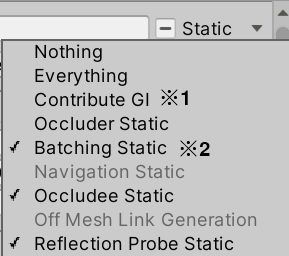
- All objects inside the "Static" object should have the Static settings defined below.
- *1 If Contribute GI is enabled, certain shaders may not respond correctly to baked lighting, which could result in unintended visual effects. Please keep this in mind.
- *2 If Batching Static is enabled, some shaders may not render correctly. Please be aware of this.
- If you are unsure about the settings, it is recommended to place the objects under the "Dynamic" hierarchy instead.
| Static setting | Regulation |
|---|
| Contribute GI | Unrestricted *1 |
| Occluder Static | Disabled |
| Batching Static | Unrestricted *2 |
| Occludee Static | Enabled |
| Reflection Probe Static | Unrestricted |
- Objects with one of the below properties should be placed under the "Dynamic" object.
- Objects with animations, including all changes like Enable/Disable as well as movement and rotation.
- Objects that can be Pickup
- Objects with ParticleSystem
- Objects with AudioSource
- Objects with Rigidbody
- Objects with UdonBehaviour
- Objects controlled by UdonBehaviour like movement or Active switch
- Any other objects that may move or be subject to controls
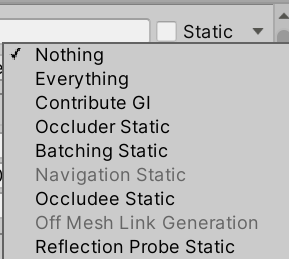
- All objects inside the "Dynamic" object should have the Static settings defined below.
| Static setting | Regulation |
|---|
| Contribute GI | Disabled |
| Occluder Static | Disabled |
| Batching Static | Disabled |
| Occludee Static | Disabled |
| Reflection Probe Static | Disabled |
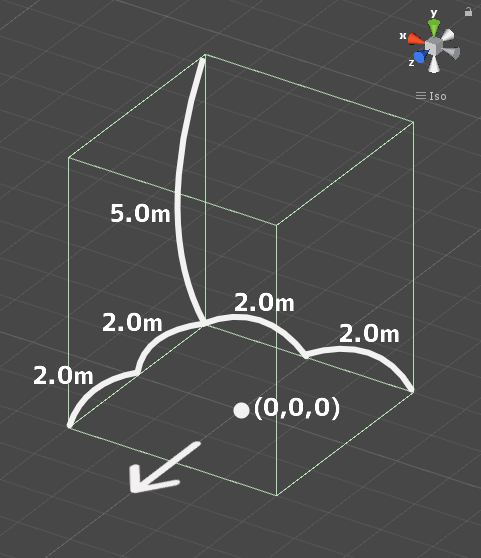
- Your exhibit must be contained within the boundary of 4m wide x 4m deep x 5m high
- ±2m in the XZ direction and 5m in the Y direction with respect to the origin
- Z axis + direction (the direction of the blue arrow in Unity) is the front
- No limit on the number of textures
- However, atlasing (texture integration) is strongly recommended.
- One large size (4k) sheet is preferable to multiple small size (1k-2k) sheets.
- Keep the AssetBundle build size within the values in the table below.
- This is the file size when building the exhibit with only VRC_World in place
| Build Platform | Build size |
|---|
| Windows | Within 5.00MB |
| Android | Within 3.00MB |
- SetPassCalls and Batches should be lower than the following values to reduce the drawing load.
- Run-time SetPassCalls reference value 20
- Run-time Batches reference value 30
- The total size of lightmap images should not exceed 512x512 (Total 262,144 pixels)
- Among the objects with Contribute GI checked (except those with ScalesInLightmap value of 0), those with overlapping lightmaps are recommended to be fixed.
- Upon placement, the exhibit may be rotated on the Y-axis.
- Upon placement, the coordinates will be different from the origin.
- .asset files generated by optimization tools such as NDMF or AAO cannot be used, as specifications of the placement process prevent them from displaying correctly.
- There are restrictions on the shaders that can be used in Cross-Platform Venues. Please refer to the sheet below.
- Shader list for Cross-Platform Venues
- Shaders listed in the AllowList of the sheet above can be used freely.
- Shaders listed in the DenyList of the sheet above cannot be used.
- Shaders not listed in the sheet above can also be used, but when you do, be sure to check on an actual device that there are no rendering problems in Mobile environments such as Quest.
- The shaders listed below will be distributed by Vket along with VketTools, with some exceptions.
- UnlitWF Shader 2.14.0 *From VCC
- MToon v3.9
- UniUnlit in UniVRM-0.124.2_dd50
- Filamented Standard 1.4
- *When using UnlitWF Shader, please install its VPM package in VCC and make sure the version is matched.
- The above shaders do not need to be included in the submission folder.
- When you include a shader file in the submission folder, please follow the below restrictions.
- Global keywords like (shader_feature, multi_compile) cannot be used.
- Please use local keywords like (shader_feature_local, multi_compile_local) instead.
- Shaders that use _CameraDepthTexture cannot be used, in order to avoid problems when displaying the VR camera.
- Scripts inside the Editor folder should not be put inside the submission folder.
- When using the Poiyomi Shader, Lock the shader and submit the generated shader file only.
- The shader name must begin with "Custom/{Circle ID}/". (e.g. Custom/184/MyShader)
- When using Stencil, the number of Stencil buffers should not exceed 200.
- Udon Behaviour
- [10/16 Update] Not more than 30 per exhibit
- Those in the official prefabs count.
- See Udon Rules for detailed rules.
- VRC Object Sync
- Not more than 5 per exhibit
- Those in the official prefabs count.
- Allow Collision Ownership Transfer should be disabled.
- VRC Pickup
- Not more than 5 per exhibit
- Those in the official prefabs count.
- Some functions of objects containing this component are controlled by Udon. For details, please check the Controlled Components section.
- VRC Station
- Not more than 4 per exhibit
- VRC Ui Shape
- VRC Spatial Audio Source
- VRC Avatar Pedestal
- Can only be used as a part of official Prefabs.
- VRC Mirror Reflection
- Can only be used as a part of official Prefabs.
- Up to 1 per exhibit
- Object layer must be set to Water.
- Maximum Antialiasing cannot be set to X8.
- VRC Phys Bone
- The sum of VRC Phys Bone and VRC Phys Bone Colliders is 10 or less per exhibit
- Radius set to 2 or less
- Disable Allow Posing
- VRC Phys Bone Collider
- The sum of VRC Phys Bone and VRC Phys Bone Colliders is 10 or less per exhibit
- ShapeType must not be Plane.
- Do not stick out of the space.
- VRC Contact Sender
- The sum of VRC Contact Senders and Receivers is 10 or less per exhibit
- Do not stick out of the space.
- VRC Contact Receiver
- The sum of VRC Contact Senders and Receivers is 10 or less per exhibit
- Do not stick out of the space.
- VRC Aim Constraint
- VRC Lookat Constraint
- VRC Parent Constraint
- VRC Position Constraint
- VRC Rotation Constraint
- VRC Scale Constraint
- Box Collider / SphereCollider / CapsuleCollider / Mesh Collider
- Mesh Collider is not recommended. Make similar shapes with other Colliders as much as possible.
- Do not stick out of the space.
- Rigidbody
- Enable "Is Kinematic" on use.
- Cloth
- Character Controller
- Mesh Filter
- Mesh Renderer
- Do not stick out of the Bounds space.
- Mesh Renderer with 0 materials is prohibited.
- Changing Lightmap Parameters is prohibited.
- Skinned Mesh Renderer
- Do not stick out of the Bounds space.
- Disable Update When Offscreen.
- Skinned Mesh Renderer with 0 materials is prohibited.
- Sprite Renderer
- Sprite Mask
- Sorting Group
- Particle System
- Shape designated in the "Shape" module must not be MeshRenderer.
- Do not stick out of the space during playback.
- Trail Renderer / Line Renderer
- Do not stick out of the space during playback.
- Particle System Force Field
- Only Sphere or Box can be used as Shape.
- On use, adjust the End Range value within the space boundary.
- Light
- There is a limit to the settings. Use the values in the table below.
- Minimize the protrusion of lights from the space. If it sticks out, make it less than 2 meters (about 2 meters in front, back, up, down, left and right of each space will be allocated as a buffer area with other exhibits. Please keep the light effect inside this area.)
- Please note that even if it is within the specified range, we may ask you to change or remove it if the installation method interferes with the baking work of the entire world or strongly affects other exhibits.
- Light Probe Group / Light Probe Proxy Volume
- Do not stick out of the space.
- Reflection Probe
- Set Type to either Baked or Custom.
- Resolution is at maximum 128.
- Please note that exhibits will be rotated on the Y-axis when placed in the world, but the Reflection Probe will not be rotated and will maintain its orientation according to the world coordinates.
- Camera
- Not more than 1 per exhibit
- Set the component to Disabled in the initial state.
- Set to Enabled only when the local player is inside the Udon Update Range (description below).
- Be sure to specify RenderTexture for TargetTexture.
- Not more than 1 RenderTexture with a size of up to 1024 x 1024.
- This component is partially controlled by Udon. For details, please check the Controlled Components section.
- Flare Layer
- Skybox
- Projector
- Up to 1 per exhibit
- Objects that include Projector should be inactive in the initial state.
- Set to Active only when the local player is inside the Udon Update Range (description below).
- Post Process Volume
- Disable Is Global.
- Prohibited Effects: The below Effects cannot be used.
- Ambient Occlusion
- Screen Space Reflection
- Depth of Field
- Motion Blur
- Lens Distortion
Light setting value limit
Directional Light cannot be used.
| Type | Point or Spot | Area |
|---|
| Mode | Baked | (baked only) |
| Range | 0-7 | 0-7 |
| Width | - | 0-5 |
| Height | - | 0-5 |
| Radius | - | 0-2.5 |
| Intensity | 0-10 | 0-10 |
| Indirect Multiplier | 0-15 | 0-15 |
| Shadow Type | Soft Shadows or Hard Shadows | - |
| Cast Shadows | - | ON |
| Number limit | No limit | Not more than 3 per exhibit |
- Aim Constraint
- Look At Constraint
- Parent Constraint
- Position Constraint
- Rotation Constraint
- Scale Constraint
- Canvas
- Set Render Mode to World.
- Canvas Scaler
- Graphic Raycaster
- Canvas Group
- Grid Layout Group
- Horizontal Layout Group
- Vertical Layout Group
- Layout Element
- Content Size Fitter
- Canvas Renderer
- Text Mesh Pro / Text Mesh Pro UGUI
- Include FontAsset in the submission folder (standard items do not need to be included).
- Text
- Outline
- Shadow
- Image
- Raw Image
- Mask
- Rect Mask 2D
- Aspect Ratio Fitter
- PositionAsUV1
- Button
- Toggle
- Toggle Group
- Slider
- Scrollbar
- Scroll Rect
- Dropdown / TMP_Dropdown
- Input Field / TMP_Input Field
- Event Trigger
- Selectable
- Animator
- Not more than 50 per exhibit
- Disable Apply Root Motion.
- Culling Mode should be set to Cull Update Transforms or Cull Completely in principle. Avoid Always Animate unless absolutely necessary.
- AudioSource
- Not more than 10 per exhibit
- This component is partially controlled by Udon. For details, please check the Controlled Components section.
- Exhibitors cannot change the Enabled state of components.
- Adjust the Volume by referring to the official audio sample so that it does not become excessively loud.
- Specifications of the sound source:
- Base loudness value: -14LUFS, with Ceiling set to -3.0dB
- Export setting: .ogg -128kbps is recommended
- Audio Reverb Zone
- Adjust Max Distance so that the effect does not go outside the space.
- Cyan Trigger Asset
- Convert the Cyan Trigger Component to the Cyan Trigger Asset Component.
| Prefab | Available Components |
|---|
| VketAvatarPedestal | VRC Avatar Pedestal |
| VketMirror | VRC Mirror Reflection |
Other components provided by Vket
All Components other than the above "Available Components"
The range of ±3m on the X-axis, ±4m on the Z-axis, and +6m on the Y-axis with respect to the origin, that is an area of 6m width, 8m depth and 6m height, shall be defined as the Udon Update Range. The below Components shall be controlled by Vket based on this range.
- VRC Pickup
- If used outside the official Prefabs, the object location will be reset once the player goes outside the Udon Update Range.
- Camera
- It will be Disabled once the local player goes outside the Udon Update Range.
- AudioSource
- Set to Enabled when the local player enters the Udon Update Range, and set to Disabled when the local player leaves the Udon Update Range.
- Projector
- The Object with Projector attached will be turned not Active once the local player goes outside the Udon Update Range.
Please observe the following for avatars set in VRC Avatar Pedestal.
In Cross-Platform Venues, only Cross-Platform compatible avatars can be set in VRC Avatar Pedestal.
When you are going to load external data using VideoPlayer, ImageLoading, StringLoading, or other methods, please comply with the below policies.
If you are found to be in violation of them during or after the event, we may ask for modifications or take actions such as hiding the object or removing the exhibit.
- It is prohibited to load external data in violation of the Terms of Service, Community Guidelines and Creator Guidelines of VRChat.
- It is prohibited to load external data that leads to the promotion or advertising of products or services like NFT or blockchain technology.
- External data to be loaded must be secured so that only the exhibitor members may modify it, preventing unrelated persons from modifying it.
The following installation / specifications will be implemented in the venue world:
- World installation
- World specifications
- Avatar Scaling
- Light settings
- Realtime that illuminates the player, DirectionalLight of NoShadow
- CullingMask: Default, Player, PlayerLocal, Pickup, MirrorReflection, Item
- Rotation depends on the world.
- Baked DirectionalLight of NoShadow (a light with low intensity and directionality intended to replace ambient light)
- Additional Baked lights may be installed for world structures and exhibits.
- LightProbes will be installed on the world around the perimeter of each space. It can be referenced within the exhibit.
- A ReflectionProbe for the world will be installed. It can be referenced within the exhibit.
- CameraDepthTexture is not available in Cross-Platform Venues.
- The DirectionalMode when light baking is Non-Directional.
- Layer settings
- The Default and Environment layers are used for the general Renderer. They are used by world structures and exhibits.
- The Default layer is generally brighter because it is illuminated by the Directional Light that illuminates the player.
- Since the Environment layer is not illuminated by Realtime lights, we recommend using the Environment layer for meshes that are light baked.
- Use the Pickup layer for pickable objects (such as small objects that can be picked up).
- Water is used as a layer for Post Processing.
- Post Processing settings
- Use Bloom from Post Processing Stack V2.
- Navigation settings
If you cannot find an answer in the submission rules, please also check the Reverse Lookup List by Purpose.
↑ Back to Top