Enter with Smartphone / Web Browser
Select a venue world to visit via the World List in the “Access” page.
If a microphone is enabled on the PC, a popup for microphone permission will appear.
For multiplayer experience, please make sure to “Allow” this permission on the browser!
*If permission is blocked, other players will not appear on the world.
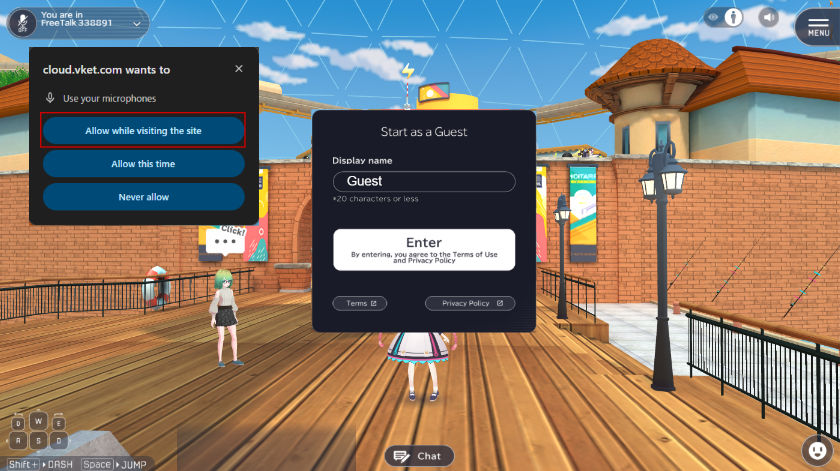
On entrance, click the “Enter” button after reading and confirming the Terms of Use and Privacy Policy.
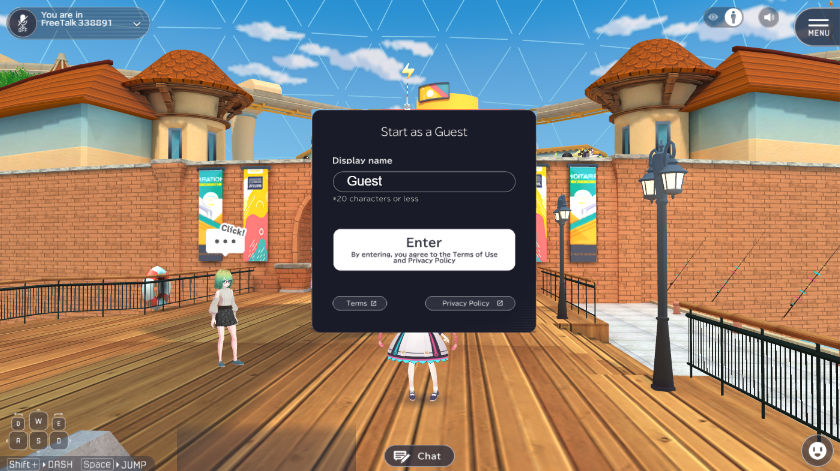
Once the loading is finished, you’re free to roam in the Metaverse!
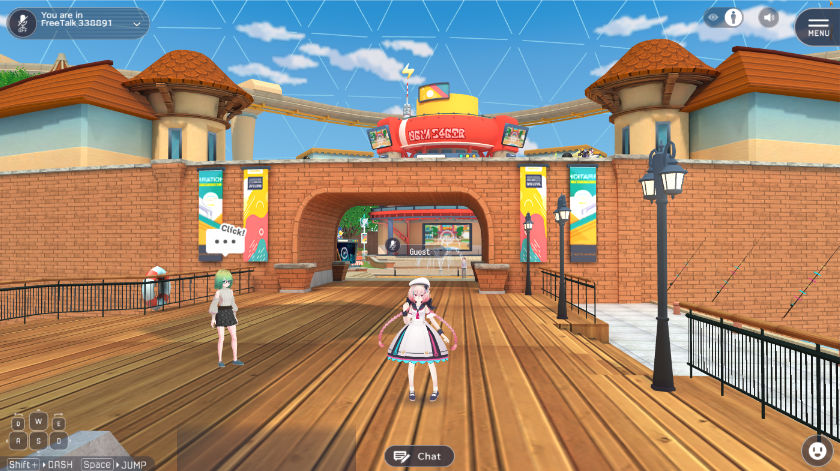
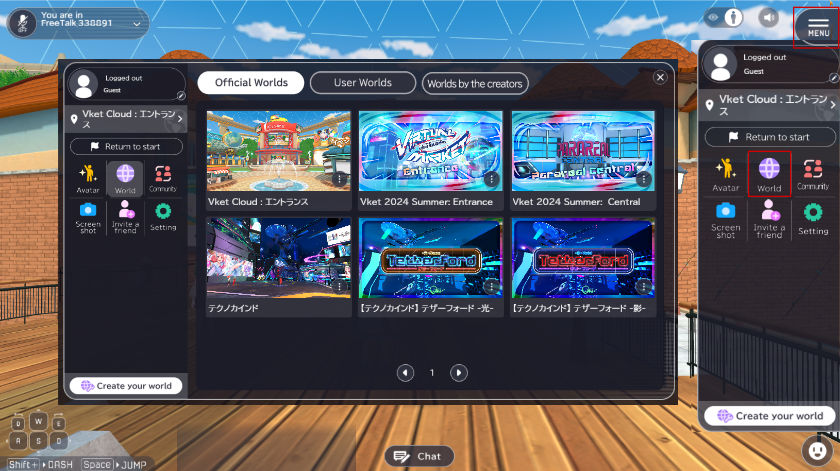
You may jump to other worlds in-game as well.
By selecting the “MENU” button on the top-right and selecting the “World” tab in the side-menu, the world list will open.
How to enter the same room
If you want to enter the same room with your friends, select the “Invite a friend“ button on the MENU.
After opening the page, share the room’s URL by copying the invitation link, or share it on other apps.
Anybody with the shared URL will be able to enter the same room on their browser.
*For full multiplayer experience, a microphone is needed to be installed beforehand. Also, the microphone needs to be permitted on the browser.
If multiplayer experience does not work on the browser, please try cache-clear or switching to other browsers.
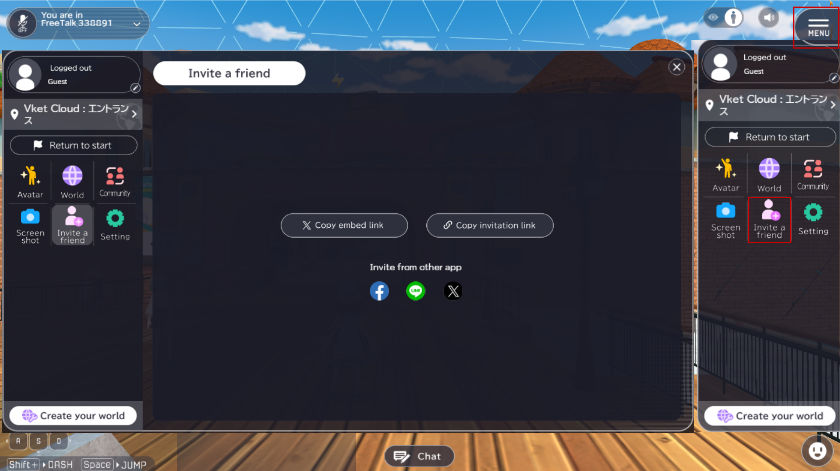
If the world does not load on clicking the shared URL, please try the room owner’s URL instead (as shown on the top URL bar in owner’s browser).
Move: WASD keys
Rotate Camera: Left click and drag
Zoom: Mousewheel
Move: Press the panel to control with the virtual joystick
Rotate Camera: Swipe
Zoom: Spread and pinch
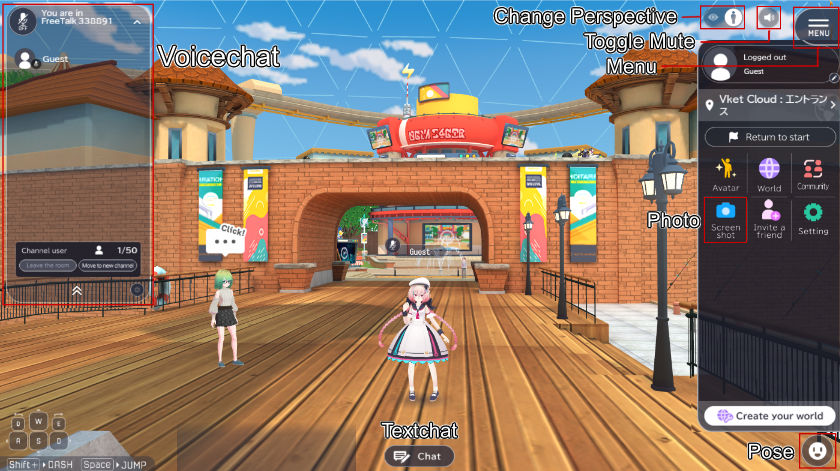
Furthermore, you may communicate with other visitors using Voice or Textchat. Select a pose in the “Pose” menu on the bottom right to let your avatar take a pose!
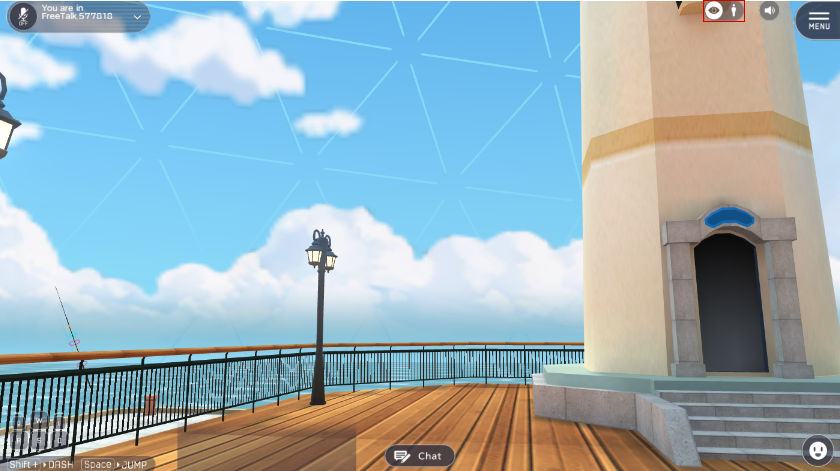
Also, by toggling View Point button next to the MENU on the top right, you can change the camera viewpoint.
You may look around the world by 3rd person perspective, or zoom in to the exhibits by first person perspective!
If you found something interesting, try taking a snapshot by selecting the camera in MENU.
MENU
The MENU page can be opened on the top right, which includes pages for Avatar, World, Settings, etc.
Here, you can do various tasks such as changing your avatar, visiting a different world, adjusting the sound volume… and more!
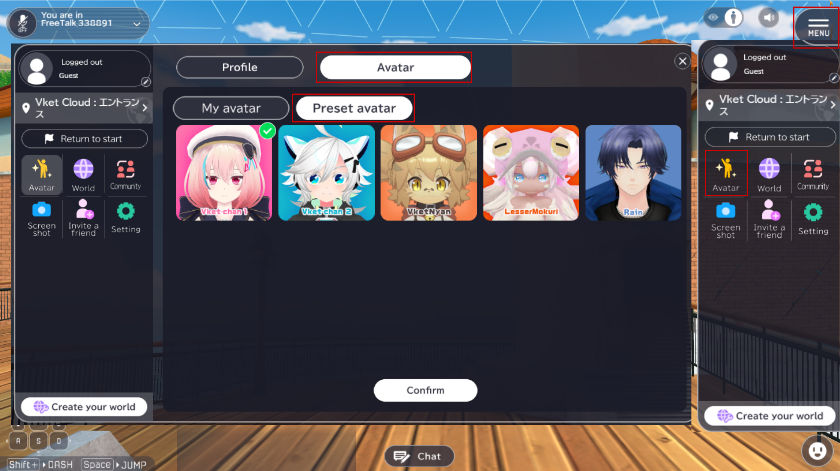
Choose your Avatar that will be displayed as yourself in the VR space. Please select the one you like, and enjoy the world with it! The “Display name” in the Profile tab allows you to change your name displayed to other users in the world.
Control instructions can also be checked in the Help tab located in the Settings page.
(It may take a longer time to load depending on your internet connectivity.)
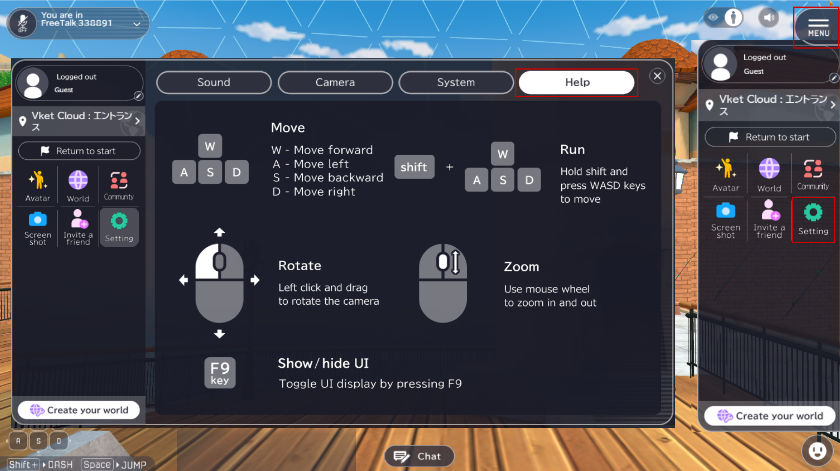
How to use my avatar
When you open Avatar in the settings windows, you will see two tabs: My avatar and Preset avatar.
Preset avatars are ready-made avatars provided from the world, available to everyone.
My avatars are owned by the player, which can only be used by the uploader/owner.
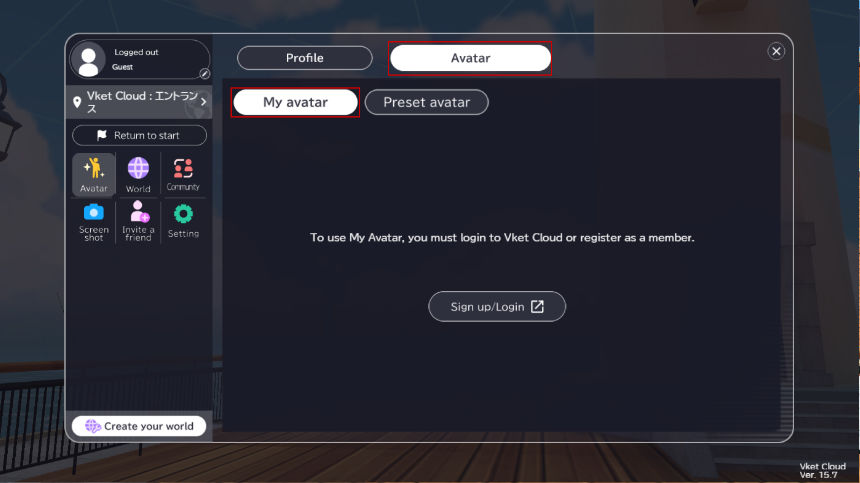
If you want to use your own avatar, or “My Avatar,” you will need to log in to Vket Account.
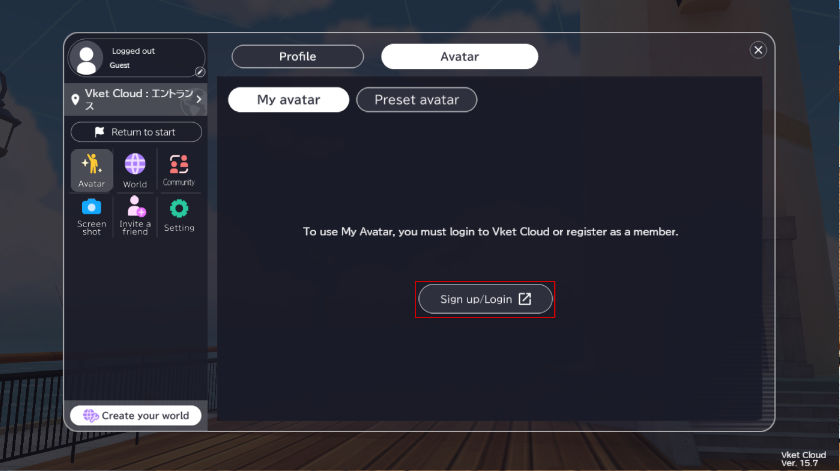
Select “Sign up” or “Login” to open another tab and proceed using your d ACCOUNT, Google, Microsoft, or Apple, LINE account.
(If an account doesn’t exist, the account service will guide you to create one!)
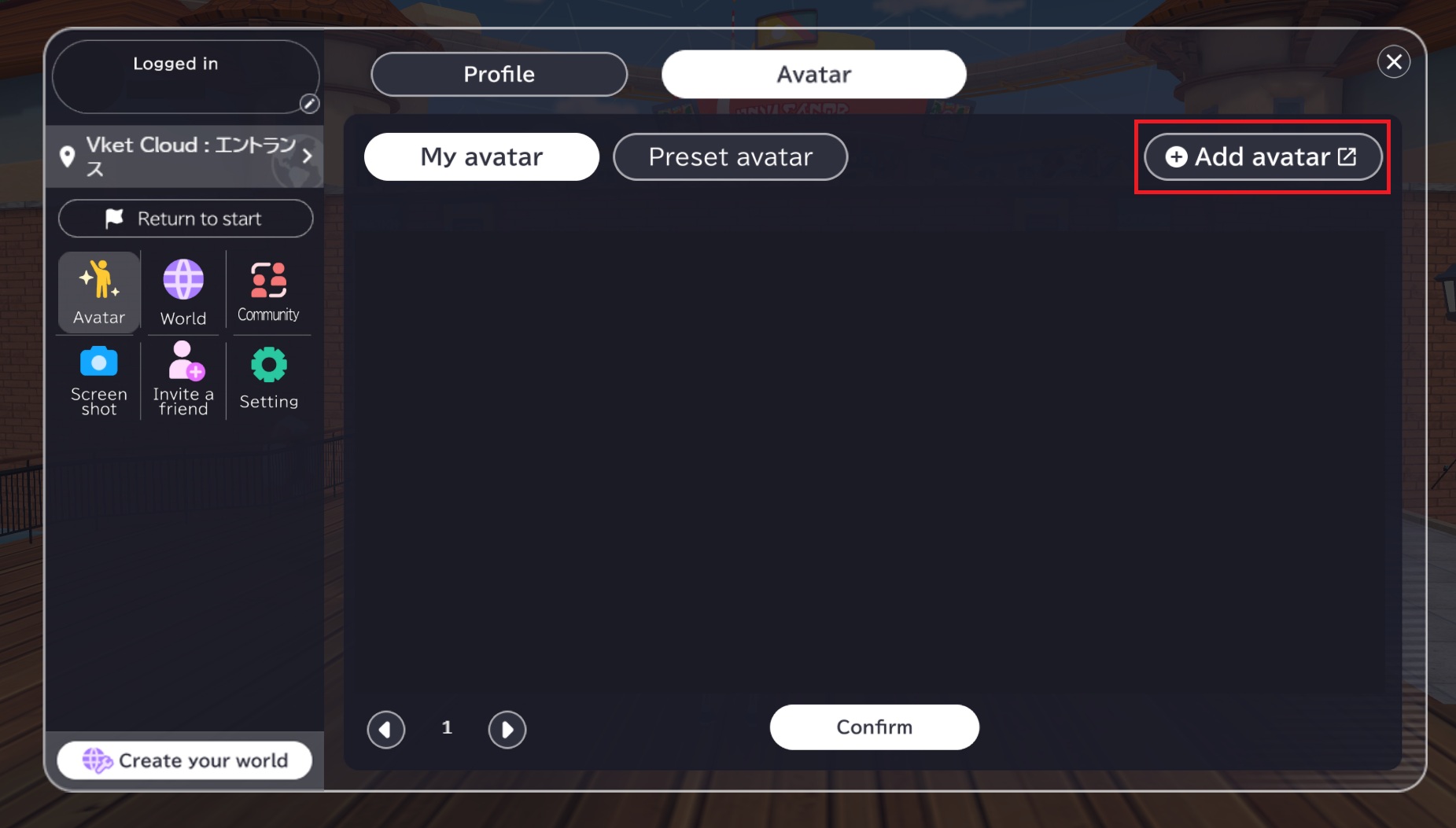
After login, upload your avatar data to Vket Cloud from the “Add Avatar” button.
Not only does Vket Cloud handle your avatar data, you can even create a new avatar using Avatar Maker within a few steps!
If you want to use your own avatar, prepare a VRM file in VRM0.x format, file size smaller than 30MB, and texture resolution in power of two (e.g. 512 * 512).
For a detailed guide on Vket Cloud, please refer to the page below:
https://medium.com/virtualmarket/experience-vket-cloud-how-to-enter-the-web-browser-based-metaverse-created-by-the-staff-of-vket-07d9eddabfde
Please use environments that are capable of using web browsers such as: Google Chrome, Mozilla Firefox, Safari, Microsoft Edge.
Apple iPhone
Use a device with the latest iOS version applied.
Compatible devices are as below:
https://support.apple.com/guide/iphone/iphe3fa5df43/ios
Android
Android 11 or later
RAM: 8GB or more
For Google Pixel series, Pixel 5 or later
*Due to heavy internet usage we recommend a flat-rate connection.
*We do not guarantee that the service will work on all models meeting the above specifications.
*Please note that the service may not be adequately run depending on the usage conditions of your device or the connection environment.
*If you experience heavy lag or significant frame rate drop, please check if your browser's "Hardware Acceleration" setting is activated.
- This event permits photographing and streaming by individuals and media. Please consent beforehand that you may unexpectedly appear in these photos and videos. If you want to avoid such appearances for sure, please use the private world of the VRChat or the Vket Cloud.
- Please do not visit the event in illegal, unlicensed and/or avatars against public order and morality.
- Please refrain from annoying or unwelcome behaviors.