You must create a Vket Account to apply for an exhibition, submit your creation, or host your events in Vket.
Sign up can be done easily by linking your service accounts!
Important Notes on Rendering Semi-Transparent Shaders
Many exhibits are using semi-transparent glass at the perimeter. However, designs in which the mesh is viewed through a semi-transparent layer are at a high risk of having rendering issues. This page explains how these rendering issues occur, using lilToon settings as one example, and outlines what to watch out for with semi-transparent rendering.
Warning
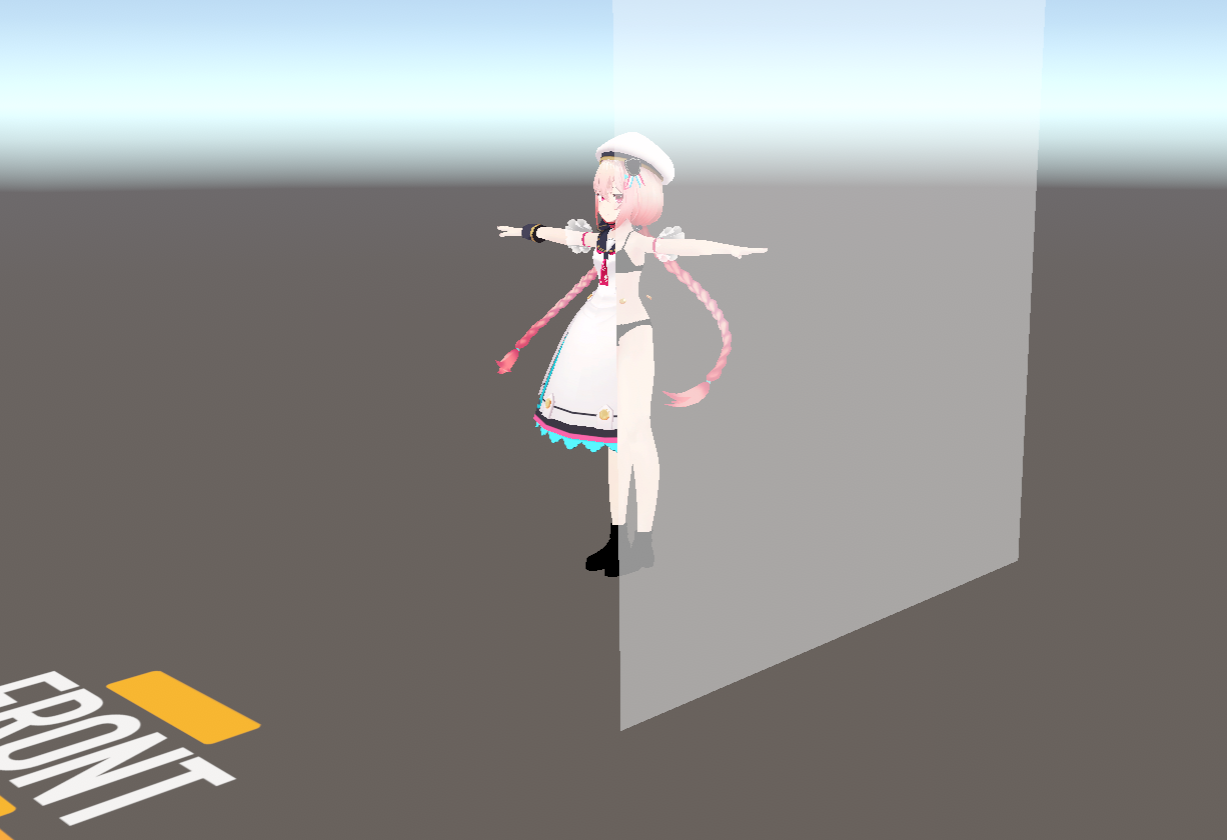
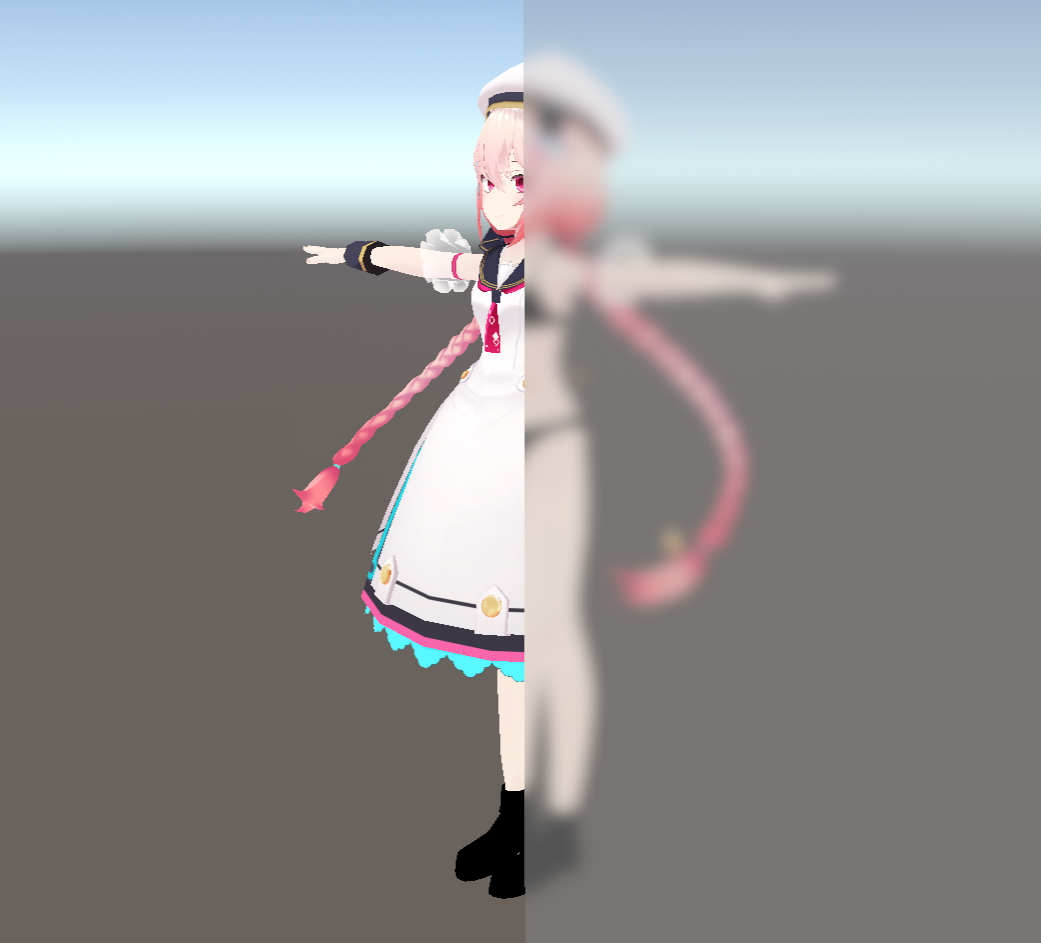
One of the biggest issues is when an avatar's clothing disappears through glass. This can occur for both exhibited avatars and visitors' avatars. If Vket staff detects this issue, the exhibit may be removed even during Vket. If you find your exhibit has this issue, please adjust your settings according to the information on this page. If this issue persists even after adjustment, please contact us on the Vket Exhibitor Discord.
This issue does not appear in the Unity Editor nor during the VRChat test check with "Build & Test." It only appears after the exhibit has been placed in the Vket world. A similar issue also occurs in which at first there appears to be no issue in the Preview World, but later a rendering issue occurs after other exhibitors' submissions are added to the Preview World.
Thus, the issue can go undetected even after checking in Unity or in the Preview World. While using proper settings can help prevent the issue from occurring, it can be difficult to notice if the settings are incorrect due to the issue not reliably occurring in the Preview World. After understanding why the issue occurs and how Unity's rendering process works, you can implement measures to reduce the risk of such issues before they appear.
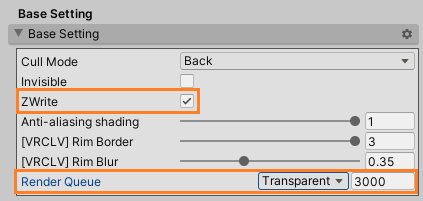
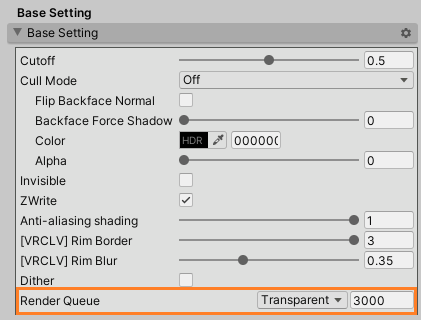
The key settings are the RenderQueue of the clothing, and the RenderQueue and ZWrite of the glass. RenderQueue is the value that determines the rendering order. Unity treats 2500 and below as "opaque" and 2501 and above as "transparent." Opaque objects are rendered starting with those closest to the camera (front-to-back). Transparent objects are rendered starting with those farthest from the camera (back-to-front).
Basic settings for glass material (lilToon)
Basic settings for clothing material (lilToon)
When RenderQueue values are the same between objects, the rendering order is determined by the distance between the camera (viewpoint) and the mesh origin. When walking around the exhibit, there are viewpoints where the glass is closer to the camera, and there are viewpoints where the clothing is closer to the camera. Therefore, if the RenderQueue values are the same, the rendering order can suddenly swap between objects.
ZWrite can cause "pixels to not render when they are farther away than areas that have already been rendered". So, when ZWrite is ON, "if the glass is rendered before the clothing, the clothing pixels behind the glass are skipped". This is exactly what happened in the screenshot at the top of this page.
For lilToon's Transparent rendering mode, the default RenderQueue is 2460 in an avatar project, but 3000 in a world project. This value also differs depending on whether you imported a material created in an avatar project into the submission project or created a new material within the submission project itself. To see which value is set, you need to check the Material Inspector.
If the RenderQueue was changed within your submission project, restoring the original value may resolve the issue. This solution is only for your own meshes placed in your exhibit. For visitors' avatars, please apply the solutions below as well.
If ZWrite is set to OFF, the clothing pixels will not be skipped even if the glass is rendered first. In this case, the clothing will be visible through the glass, but this is still better than the clothing not being rendered at all.
When the Standard shader's Rendering Mode is Transparent, ZWrite is disabled. This resolves the rendering issue through the same mechanism as Solution 2.
This is the most recommended approach. It also reduces the number of SetPassCalls. For smaller windows, removing the glass mesh is unlikely to impact the overall design of the exhibit. Please consider a "less is more" approach that reduces the number of elements.
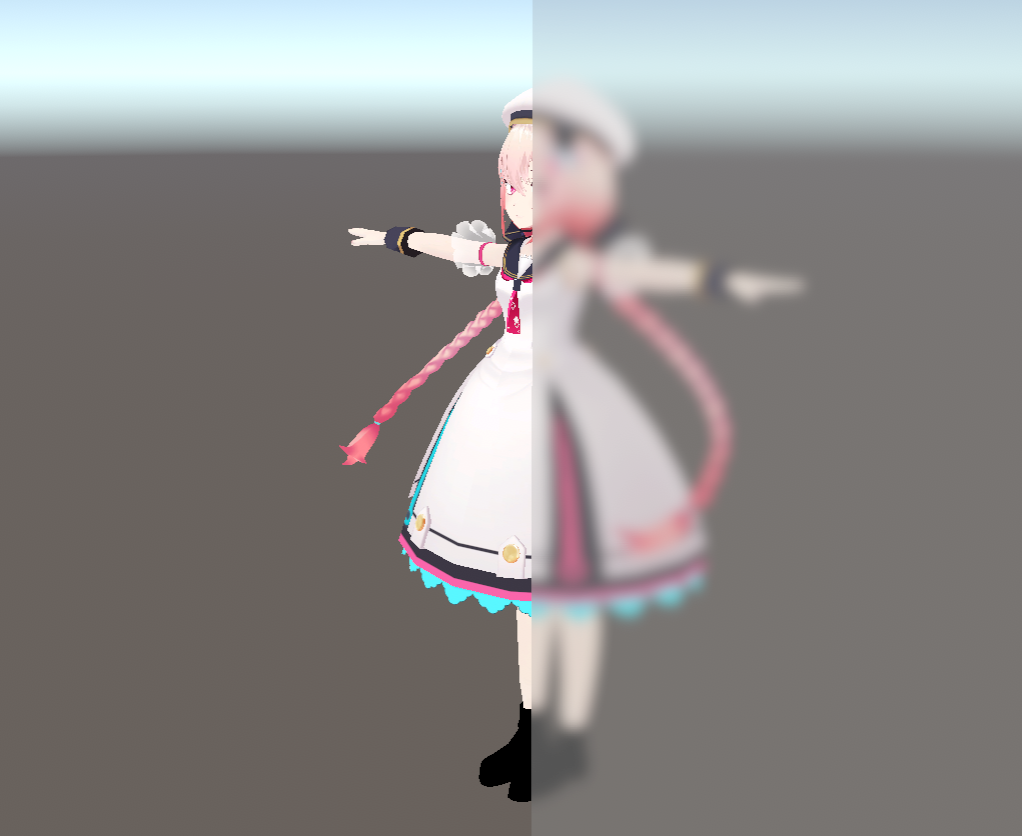
We have explained the mechanism behind lilToon's "Transparent" rendering mode, but "Refraction" and "Refraction Blur" cause rendering issues through a different mechanism. For example, the image below shows the VketChan model placed behind "frosted glass".
Refraction and Refraction Blur work by capturing the screen at the moment the shader runs (GrabPass), then processing that captured image before it is rendered.
This example shows the combination of "frosted glass (3000)" and "clothing (3001)". Setting them as "clothing (2950)" and "frosted glass (3000)" can resolve the issue.
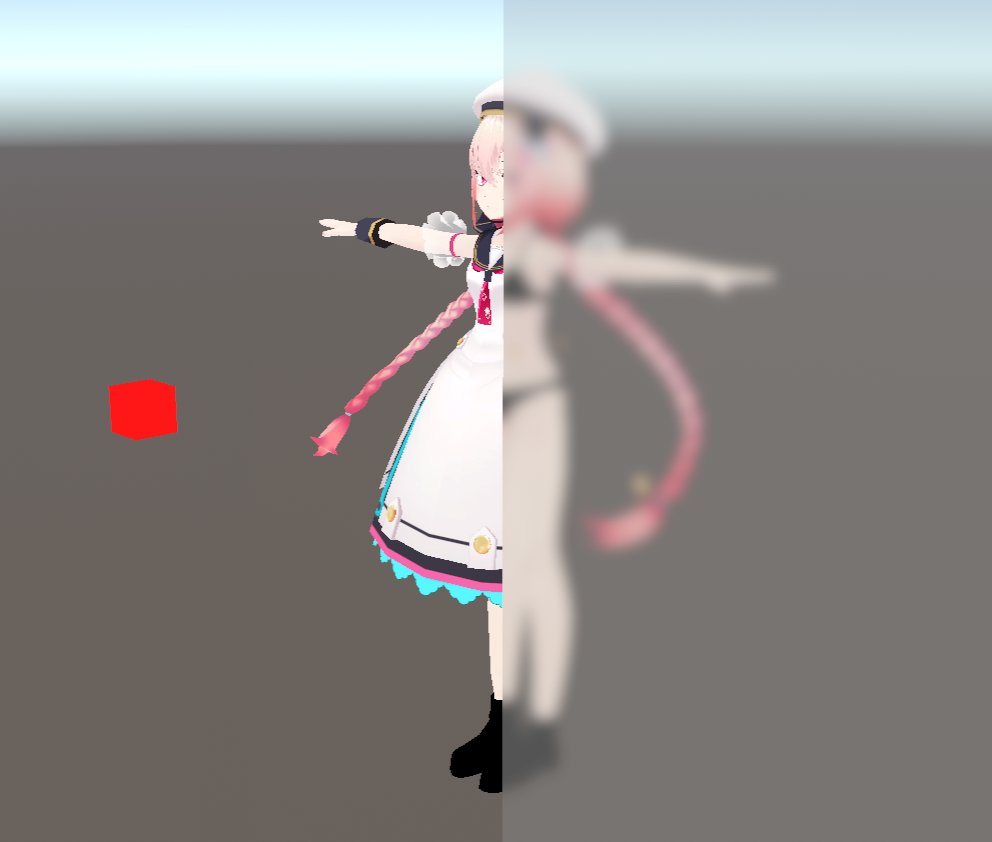
But, add a rendered red cube, and the issue is back even though the "clothing (2950)" and "frosted glass (3000)" settings have not been changed.
The red cube uses lilToon's "Refraction" with its RenderQueue set to 2900. Because the screen capture is "the screen taken at the moment the shader runs," the rendering occurred in the following order:
Avatar's base body (around 2000)
Screen capture for refraction (2900)
Red cube (2900)
Avatar's clothing (2950)
Frosted glass (3000)
A single red cube was placed intentionally for testing, but in the Vket world, many meshes are rendered at the same time, including exhibitions, objects placed in the world, and visitors' avatars. Objects rendering at the same time are outside of your control. In the end, simply adjusting the RenderQueue of the frosted glass may not resolve the issue.
Additionally, due to how these shaders work, it is not possible to view a Refraction or Refraction Blur surface through another Refraction or Refraction Blur surface. The example above is with the VketChan model, but the same can occur with visitors' avatars.
This is why rendering issues are so difficult to address. Even if there are no problems when testing the exhibition itself, the issue easily occurs due to the surrounding world or visitors. You have to consider the things you can't control in addition to your exhibit design.
By keeping the material in the standard Transparent rendering mode and setting its RenderQueue to 2460, you can help prevent the mesh from being overwritten and erased by Refraction and Refraction Blur shaders.
Because the screen is captured at the moment the shader runs, you could possibly use a shader that is not lilToon on the frosted glass. However, simply changing the shader can lead to more rendering issues, so we do not actively recommend this approach.
This is the most recommended approach. It also reduces the number of SetPassCalls. Having the standard Transparent rendering mode instead of Refraction or Refraction Blur already significantly reduces the risk of issues (Solution 1), but you can further prevent issues by not relying on viewing one mesh through another.
This page explains the issue of exhibit avatar clothing and visitors' avatar clothing disappearing, which is a major rendering issue for Vket. Just setting the RenderQueue to 2460 can cause another issue in which the semi-transparent object renders before the skybox, which interferes with the skybox rendering.
Ultimately for Vket, we recommend having the mindset that "semi-transparency is prone to problems, so avoid using it whenever possible" to reduce complications.