TOP › My Page TOP ›
Submission Workflow › Technical Guides / Submission Tips ›
How to Place a VRM Model in Your Space
How to Place a VRM Model in Your Space
For placing avatar models in your exhibition using Unity submission, FBX format is generally used for the data.
If the model you want to place is already in VRM format, you cannot place and submit it in your space as it is. Please follow the steps below to convert it before placing it in your space.
*For submitting VRM models for Vket exhibition using non-Unity Submission procedures such as Web submission, please refer to the submission guide of each submission procedure.
Availability of submission using VRM may vary among events, so please refer to the exhibition guideline for details.
Please operate the VRM conversion on a different Unity project than the project used for creating Vket exhibitions!
Firstly, download the UniVRM unitypackage from this page. The latest edition would be the best option.
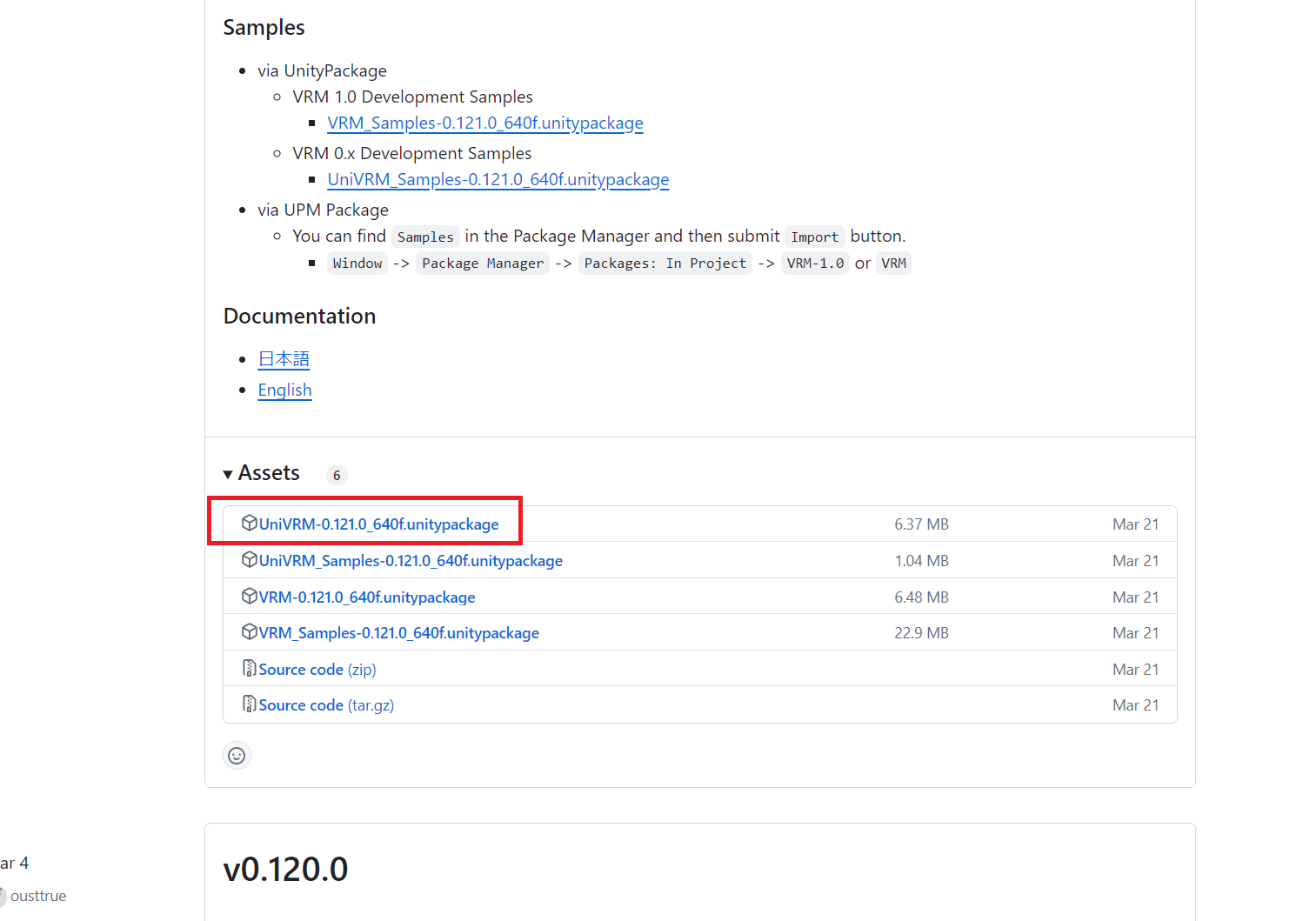
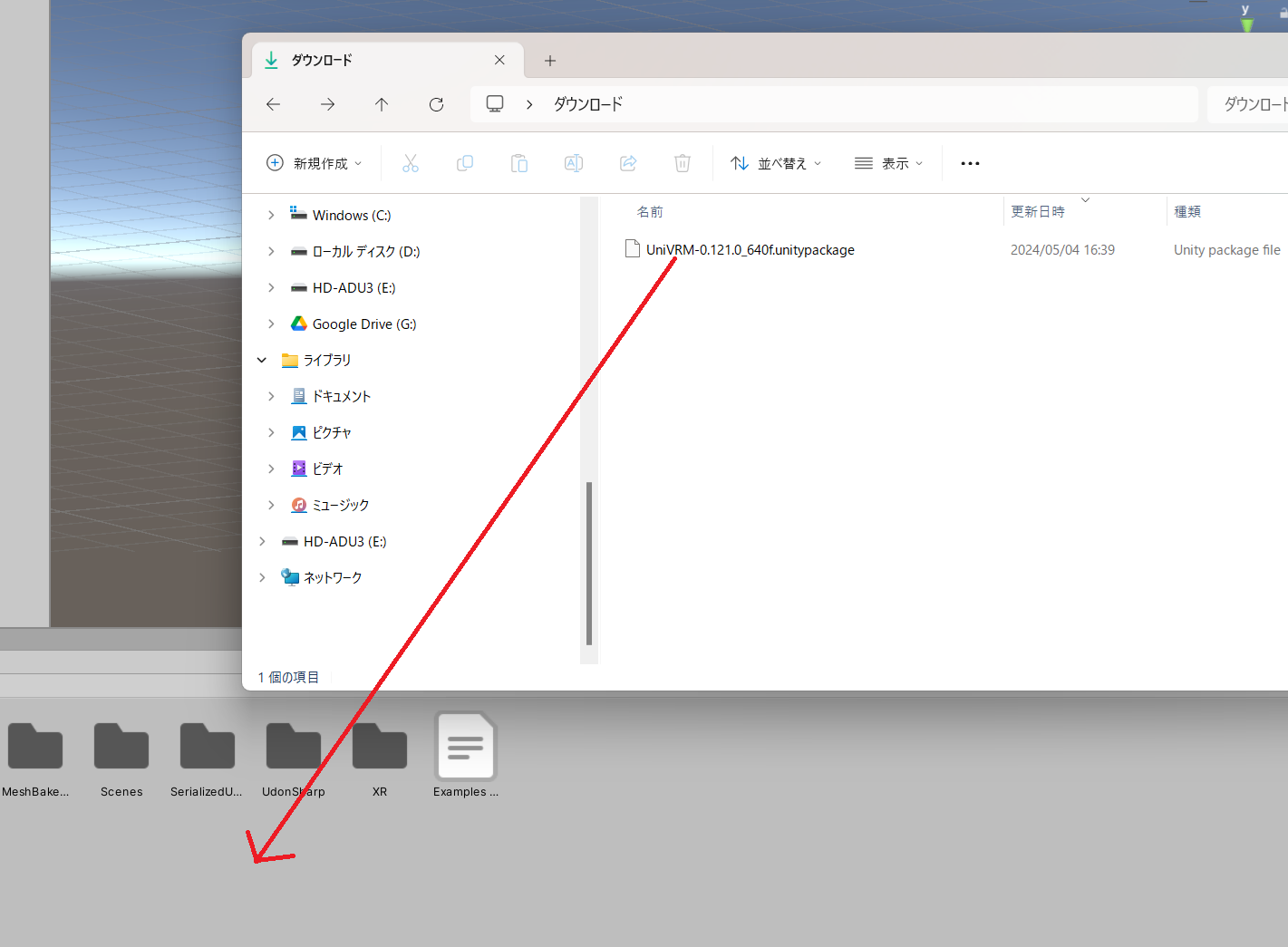
Open a Unity project, and drag & drop the downloaded UniVRM unitypackage to import.
*Please do not import UniVRM to the Unity project for creating Vket exhibitions. The files such as MToon shaders may conflict with files for submission!
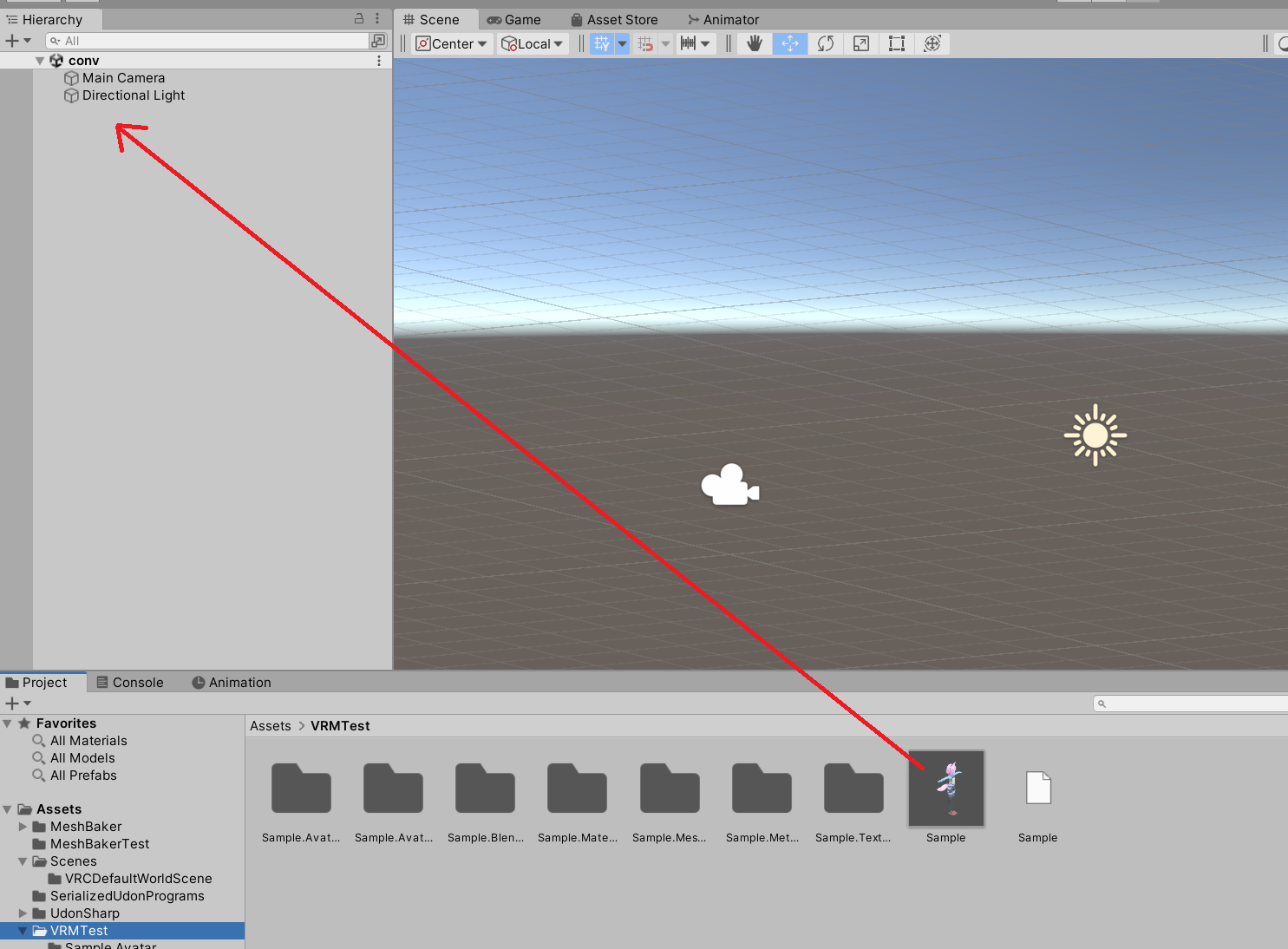
Drag and drop the VRM model file into Unity to import it.
The folders and files should be automatically created:
- VRM file name.Avatar folder
- VRM file name.AvatarDescription folder
- VRM file name.BlendShapes folder
- VRM file name.Materials folder
- VRM file name.Meshes folder
- VRM file name.MetaObject folder
- VRM file name.Textures folder
- VRM file name.vrm file (*the original file dragged and dropped)
- VRM file name.prefab file
Place the previously created VRM file name.prefab on the scene's Hierarchy.
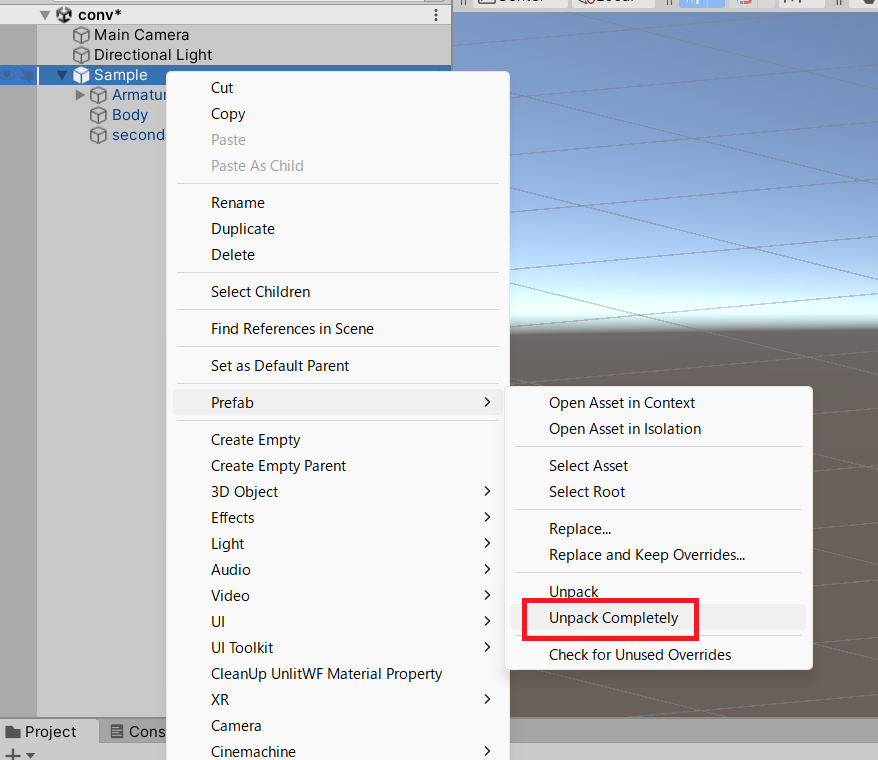
Right click on the model object placed on the scene, and select Prefab > Unpack Completely.
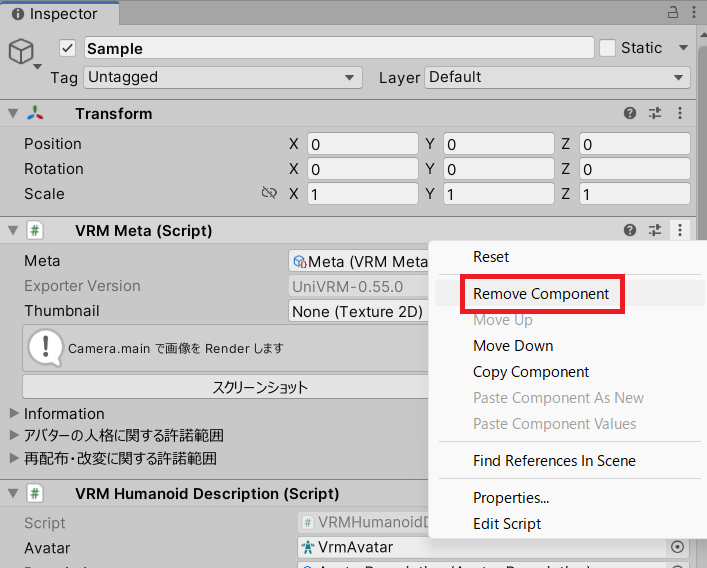
Select the objects Unpacked, and delete all components with names starting from “VRM” on the Inspector.
This will leave the Transform and Animator as a result.
*If you have added VRM Spring Bone Collider Group or other things under Armature, make sure to delete them as well!
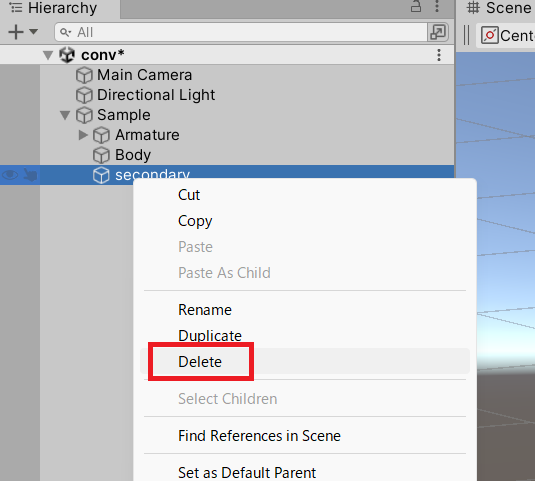
Open the object in the Hierarchy and delete “secondary” object.
Delete below folders and files created automatically at the step 1.
- VRM file name.AvatarDescription folder
- VRM file name.BlendShapes folder
- VRM file name.MetaObject folder
- VRM file name.vrm file
- VRM file name.prefab file
The folders below should remain as a result.
- VRM file name.Avatar folder
- VRM file name.Materials folder
- VRM file name.Meshes folder
- VRM file name.Textures folder
Drag and drop the model object on the scene to a folder to create a prefab.

In this example, a new Sample.prefab is created.
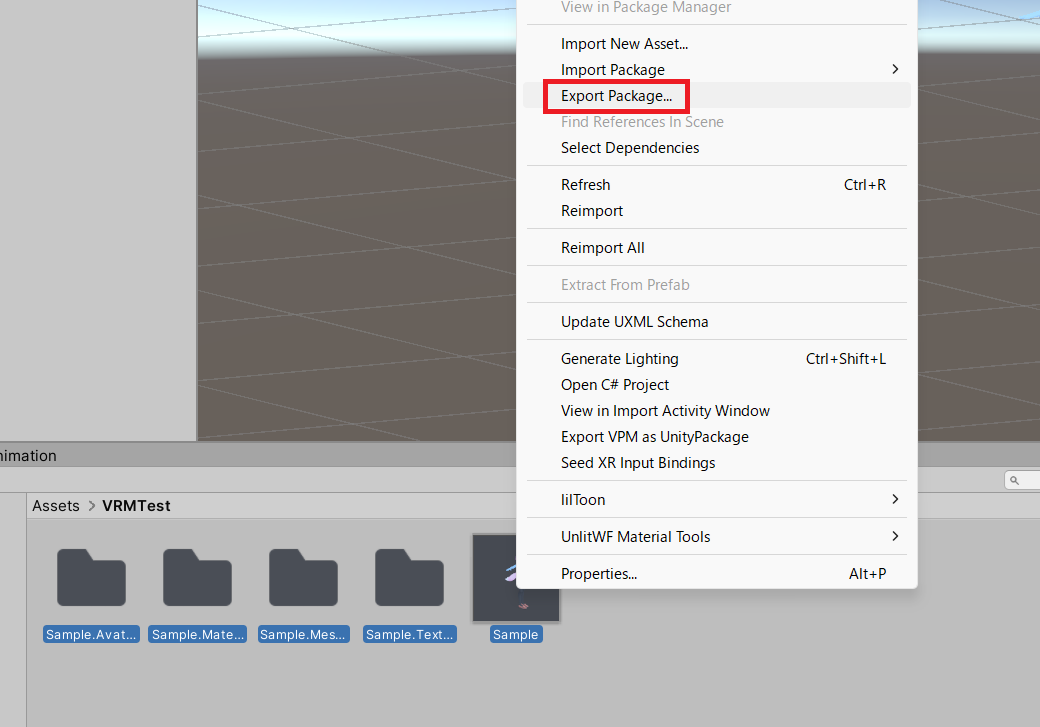
Select the remaining folders and this prefab, and select Export Package... from the right click menu.
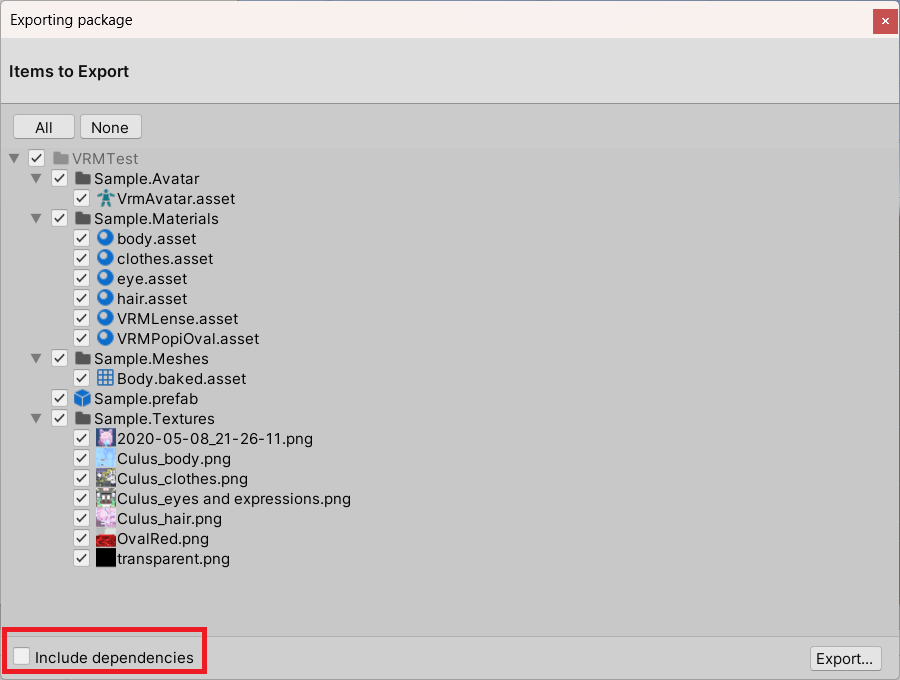
On export, please make sure to uncheck Include dependencies.
A window for selecting the unitypackage filename and location will popup, so save the file at a location of your choice.
Import the created unitypackage to the Unity project for creating a Vket Unity submission.
Please make sure to move the imported files under the submission folder.
Place the created prefab to the scene by drag & drop, and adjust the position, scale, and other settings for submission.
Check the Official Guidelines
Before submitting, please make sure to review the Exhibition Guidelines and Submission Rules. For the submission steps, see the Submission Guide.
↑ Back to Top