TOP › My Page TOP ›
Submission Workflow › Vket Official Assets ›
VketAvatarPedestal
VketAvatarPedestal
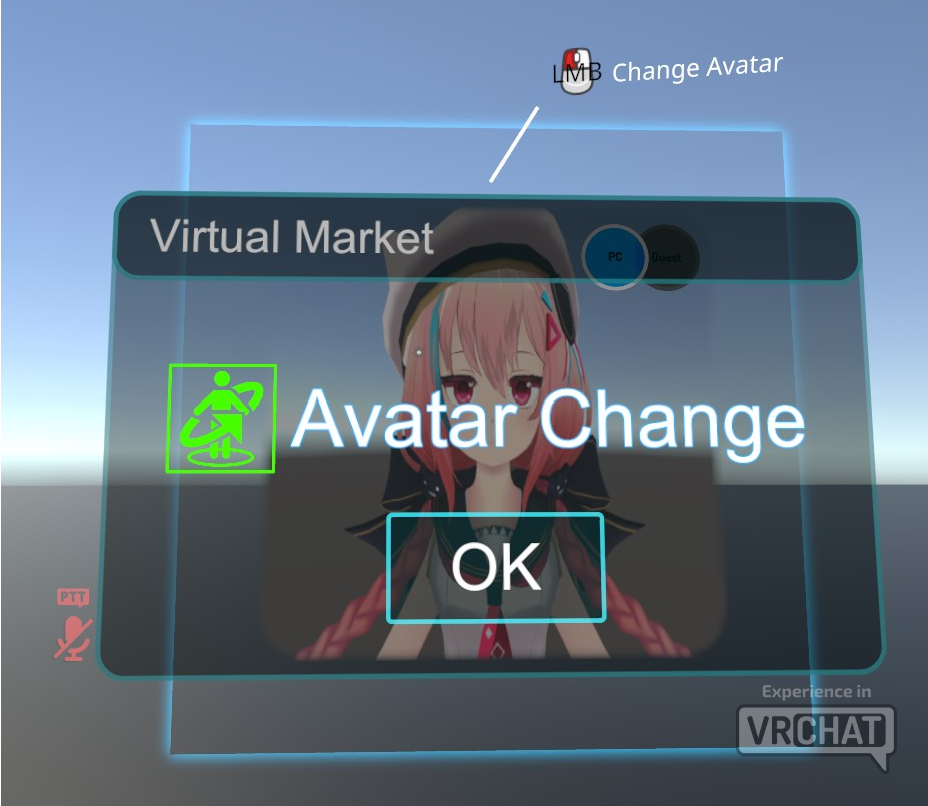
This is an avatar pedestal that displays a confirmation window when interacted with.
After the confirmation window appears, you can change into the configured avatar by interacting with the collider again.
VketAvatarPedestal provides three types of Prefabs, so please use them according to your preference.
- VketAvatarPedestal_Default: Displays the configured thumbnail image as-is, same as the default VRChat SDK avatar pedestal
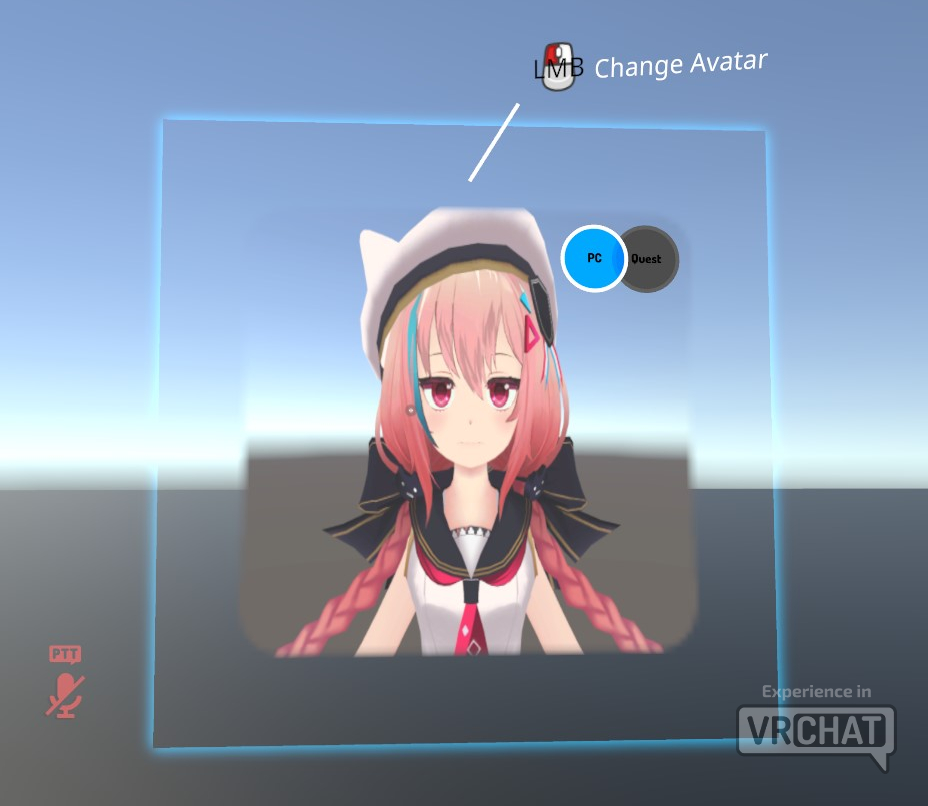
- VketAvatarPedestal_2D: Allows you to set any 2D image as the appearance
- VketAvatarPedestal_3D: Allows you to set any 3D model as the appearance
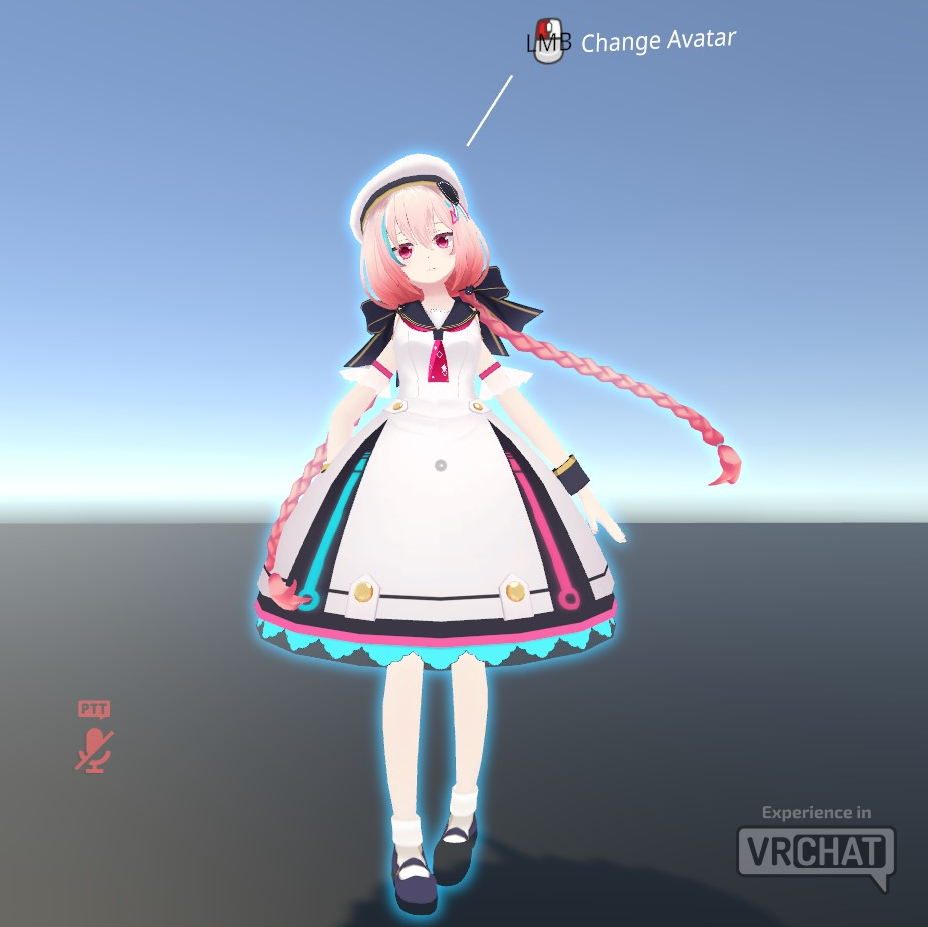
The setup methods for each are explained below.
*This page assumes you have already opened the submission scene.
*For how to create a submission scene, see the Vket 2026 Winter Submission Guide.
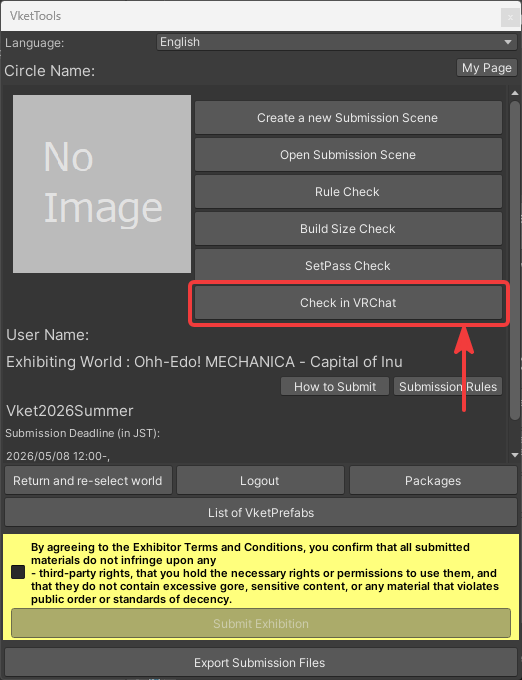
- Click
Show Control Panel from VketTools in the Unity top menu to open VketTools.
*If the VketTools window displays "Please log in to VRChat SDK", log in to your VRChat account from the "VRChat SDK" window and try again.

- Click the
List of VketPrefabs button at the bottom of VketTools.
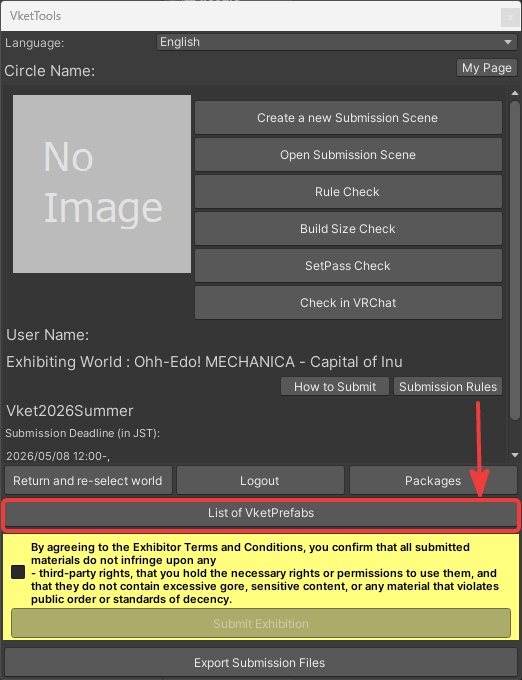
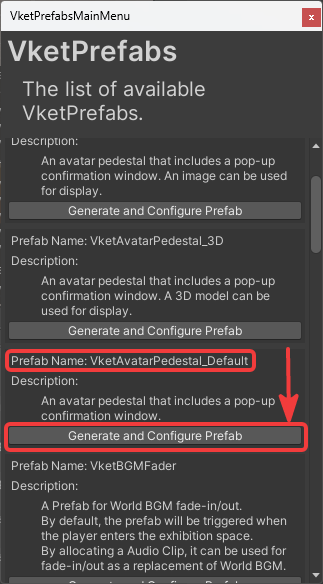
- Scroll down in the VketPrefabMainMenu window and click the
Generate and Configure Prefab button for the item labeled Prefab Name: VketAvatarPedestal_Default.
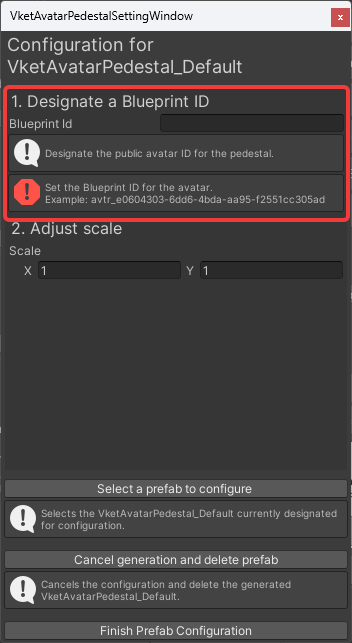
- Enter the Blueprint ID in the input field next to "Blueprint id" in the
1. Designate a Blueprint ID section of the VketAvatarPedestalSettingsWindow.
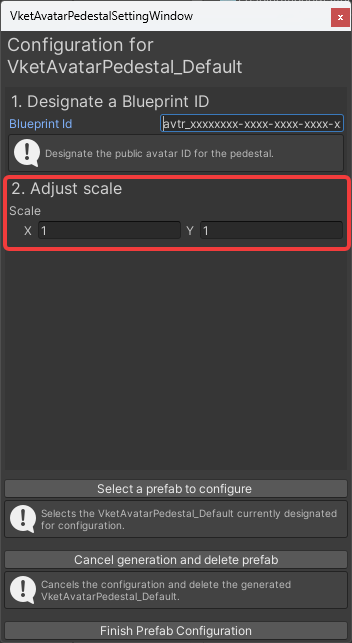
- If you want to change the size, you can adjust it in the
2. Adjust scale section by changing the Scale X:Y values.
*The default values are X:1 Y:1.
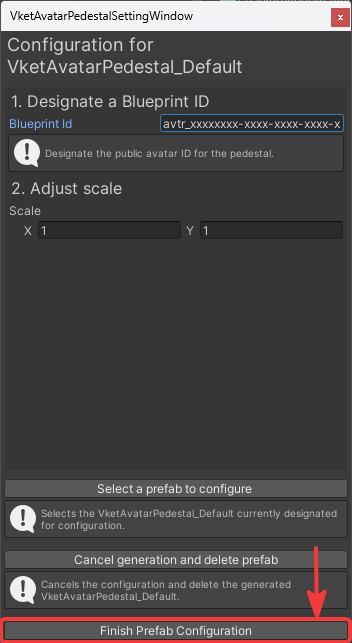
- Click the
Finish Prefab Configuration button at the bottom to close the VketAvatarPedestalSettingsWindow.
- Click the
Check in VRChat button in the VketTools window to automatically launch VRChat and enter the submission scene world.
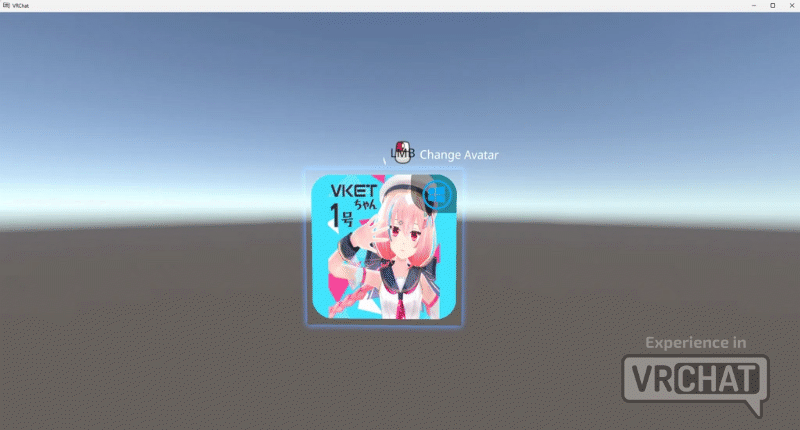
Approach the configured pedestal and verify the following behaviors to confirm the setup is complete:
・The thumbnail image matches the configured avatar
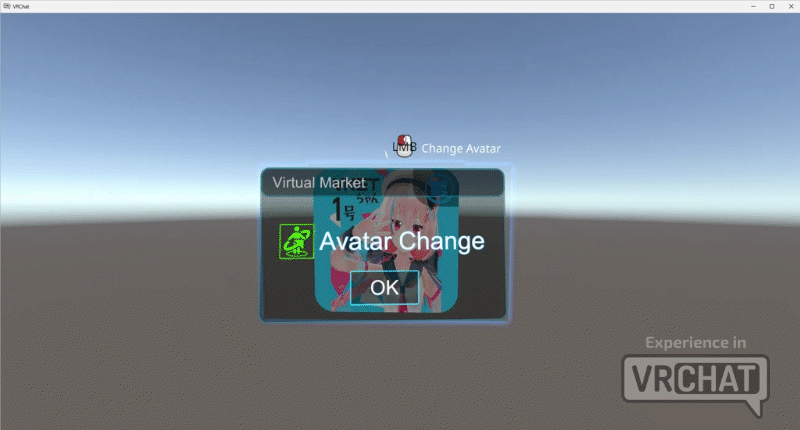
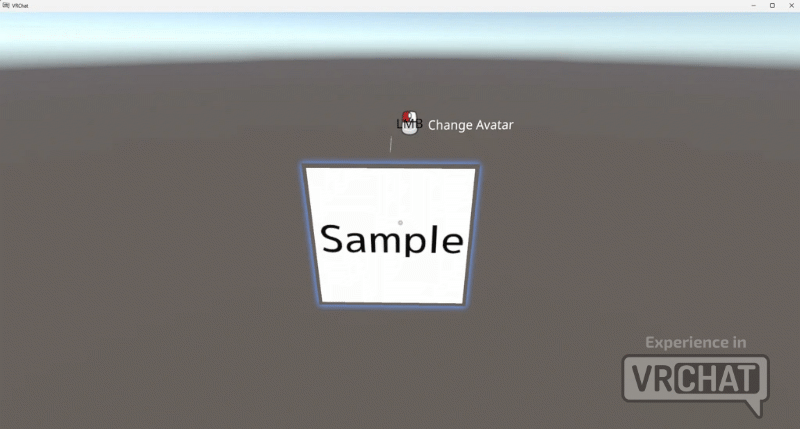
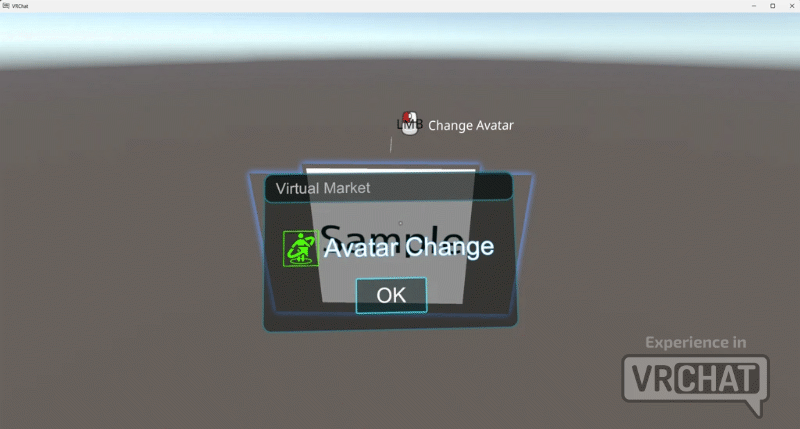
・A blue interactable outline is displayed around the thumbnail image, and left-clicking in this state displays a window labeled "AvatarChange"
・While the "AvatarChange" window is displayed, interacting with the pedestal again changes into the configured avatar
💡 *Please note that the VRChat launched here is a test client, so avatars uploaded by other users cannot be loaded even if they are set to Public.
(Only Public avatars uploaded by yourself can be loaded.)
*This page assumes you have already opened the submission scene.
*For how to create a submission scene, see the Vket 2026 Winter Submission Guide.
- Click
Show Control Panel from VketTools in the Unity top menu to open VketTools.
*If the VketTools window displays "Please log in to VRChat SDK", log in to your VRChat account from the "VRChat SDK" window and try again.
- Click the
List of VketPrefabs button at the bottom of VketTools.
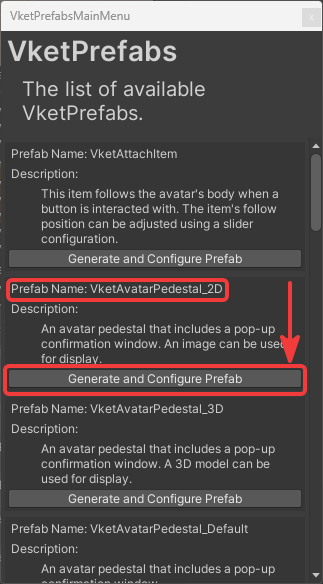
- Scroll down in the VketPrefabMainMenu window and click the
Generate and Configure Prefab button for the item labeled Prefab Name: VketAvatarPedestal_2D.
- Enter the Blueprint ID in the input field next to "Blueprint id" in the
1. Designate a Blueprint ID section of the VketAvatarPedestalSettingsWindow.
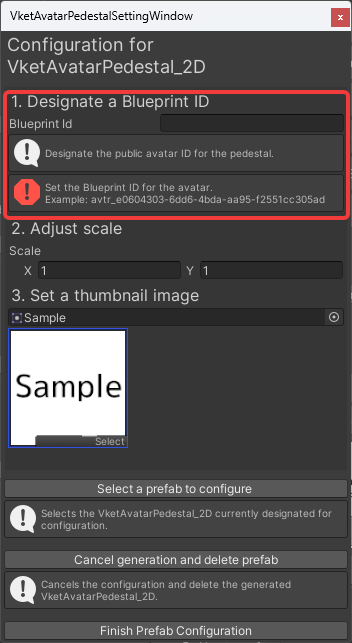
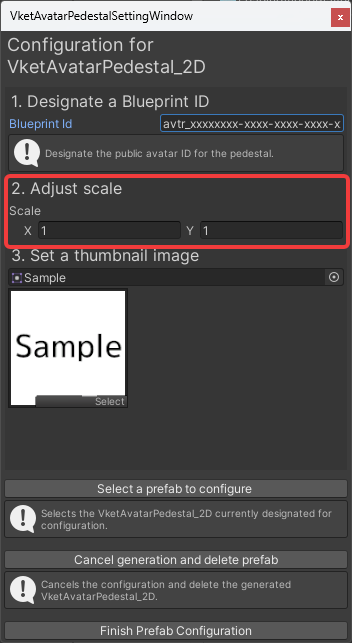
- If you want to change the size, you can adjust it in the
2. Adjust scale section by changing the Scale X:Y values.
*The default values are X:1 Y:1.
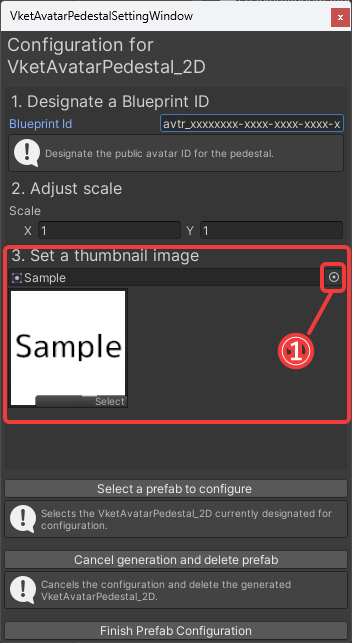
- If you would like to change the image, you can do so in
3. Set a thumbnail image using one of the following two methods:
- Click the button on the far right of the selection field, select the image file you want to use from the Select Sprite window that appears, and click the X button in the upper right corner, or double-click the image you want to use.
- Drag and drop the image file you want to set as the image from the Assets folder in the Project window, etc., into the selection field.
*The default image is the text "Sample".
*For any image, the Texture Type must be set to Sprite (2D and UI).
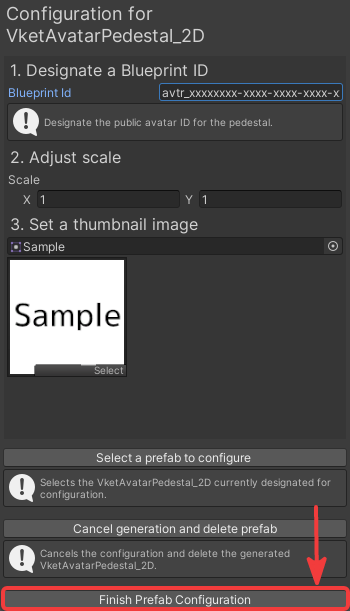
- Click the
Finish Prefab Configuration button at the bottom to close the VketAvatarPedestalSettingsWindow.
- Click the
Check in VRChat button in the VketTools window to automatically launch VRChat and enter the submission scene world.
Approach the configured pedestal and verify the following behaviors to confirm the setup is complete:
・If you changed the thumbnail to a different image, the chosen image is displayed
・A blue interactable outline is displayed around the thumbnail image, and left-clicking in this state displays a window labeled "AvatarChange"
・While the "AvatarChange" window is displayed, interacting with the collider again changes into the configured avatar
💡 *Please note that the VRChat launched here is a test client, so avatars uploaded by other users cannot be loaded even if they are set to Public.
(Only Public avatars uploaded by yourself can be loaded.)
*This page assumes you have already opened the submission scene.
*For how to create a submission scene, see the Vket 2026 Winter Submission Guide.
- Click
Show Control Panel from VketTools in the Unity top menu to open VketTools.
*If the VketTools window displays "Please log in to VRChat SDK", log in to your VRChat account from the "VRChat SDK" window and try again.
- Click the
List of VketPrefabs button at the bottom of VketTools.
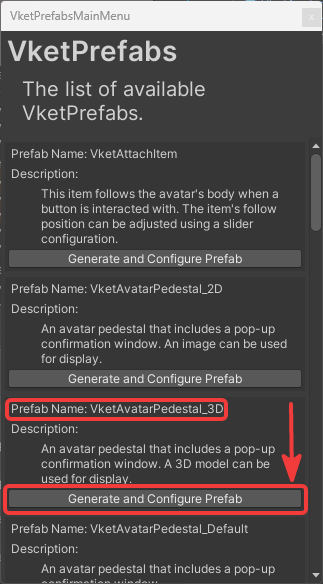
- Scroll down in the VketPrefabMainMenu window and click the
Generate and Configure Prefab button for the item labeled Prefab Name: VketAvatarPedestal_3D.
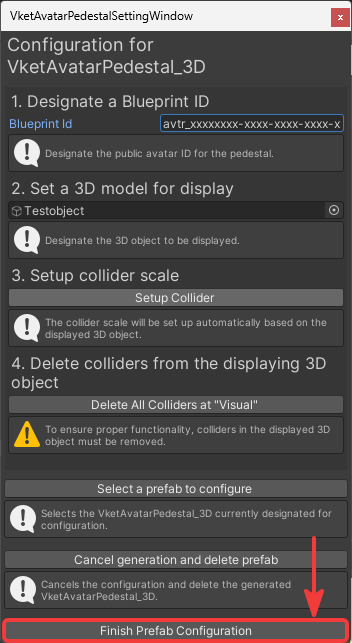
- In the VketAvatarPedestalSettingsWindow, enter the Blueprint ID in the input field next to "Blueprint id" under the "1. Designate a Blueprint ID" section.
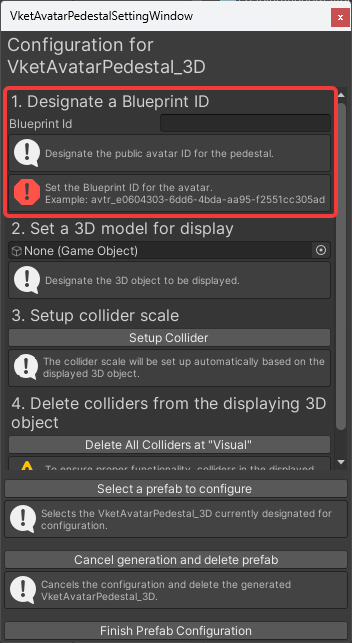
- Under the "2. Set a 3D model for display" section, you can set the desired 3D model using one of the following two methods:
- Click the button at the right end of the selection field, select the desired object (3D model) from the Select Game Object window that appears, and click the ☓ button in the upper right corner, or double-click the desired object (3D model).
- Drag and drop the desired object (3D model) from the Hierarchy into the selection field.
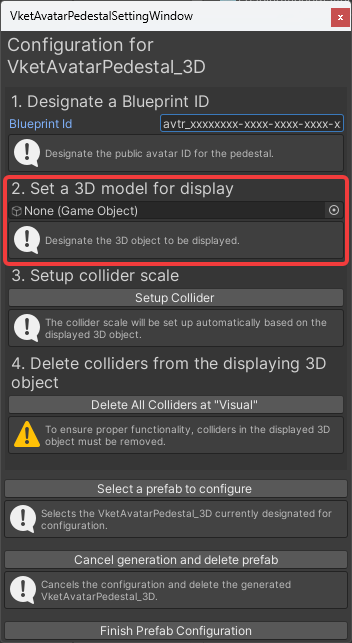
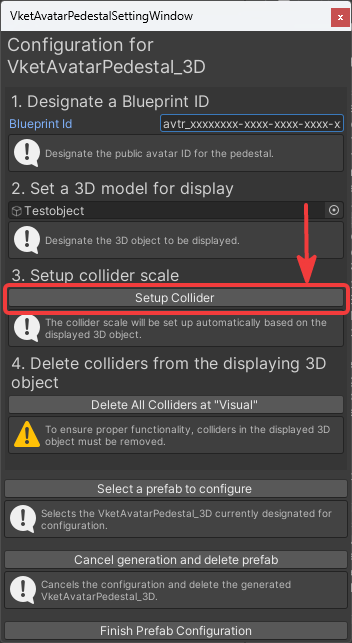
- Click the "Setup Collider" button under the "3. Setup collider scale" section.
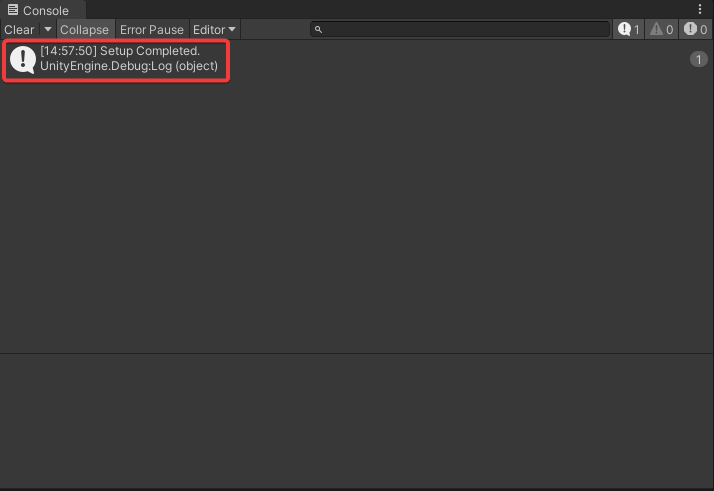
If "Setup Completed" is displayed in the Unity Console, setup is complete.
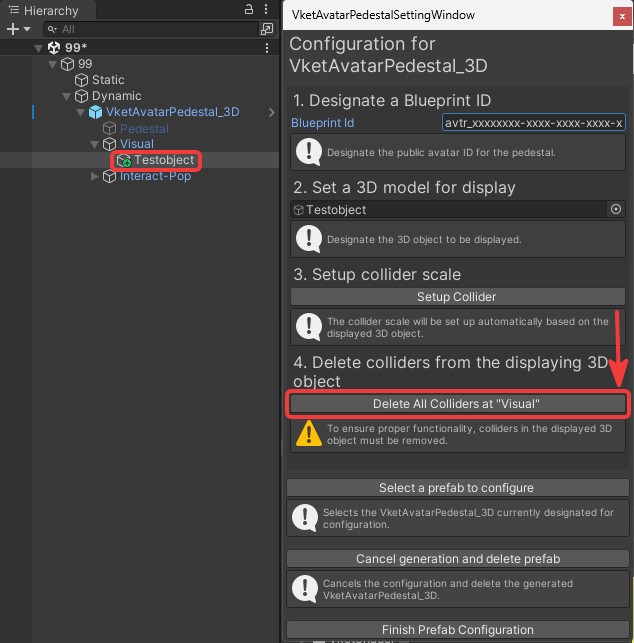
- If the object set as the appearance contains collider settings, it may not function correctly.
To prevent this, click the "Delete All Colliders at Visual" button under the "4. Delete colliders from the displaying 3D object" section to remove the collider settings from the object.
- The object set as the appearance is located under Submission ID > Dynamic > VketAvatarPedestal_3D > Visual in the Hierarchy.
- Click the
Finish Prefab Configuration button at the bottom to close the VketAvatarPedestalSettingsWindow.
- Click the
Check in VRChat button in the VketTools window to automatically launch VRChat and enter the submission scene world.
Approach the configured pedestal and verify the following behaviors to confirm the setup is complete:
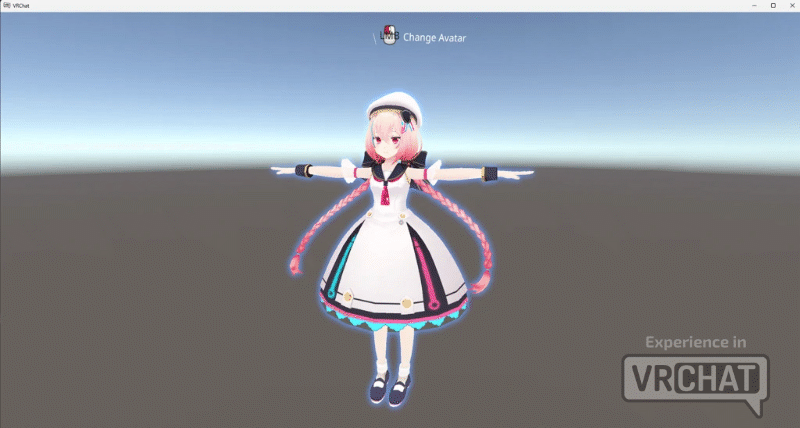
・The configured 3D model is displayed.
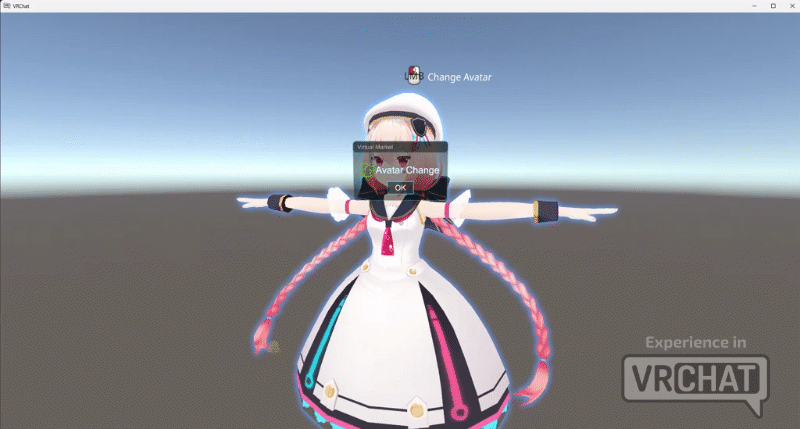
・A blue interactive outline is displayed around the configured 3D model, and left-clicking in this state displays a window labeled "AvatarChange".
・While the "AvatarChange" window is displayed, interacting with the pedestal again changes your avatar into the configured one.
💡 * Please note that the VRChat launched here is a test client, so avatars uploaded by other users cannot be loaded even if they are set to Public.
(Only Public avatars that you have uploaded yourself can be loaded.)
* Please note that if the configured object contains a SkinnedMeshRenderer, the blue interactive outline will not conform to the shape of the 3D model.
(You can convert it to a MeshRenderer by using SkinnedMeshBaker. For details, see SkinnedMeshBaker (SkinnedMesh to static MeshRenderer converter))
It is also possible not to place the 3D model inside Visual, such as when you want to use a Static object as the avatar model.
In that case, the Capsule Collider frame will be displayed as the Interact frame.
By default, the confirmation window is displayed at the eye level of the player who interacted with the pedestal.
If you want to display it at a fixed location regardless of eye level, select VketAvatarPedestal_3D, uncheck Auto-adjust in the Inspector, and adjust by moving the Position of Interact-Pop in the Prefab in the Y direction.
↑ Back to Top