TOP › My Page TOP ›
Submission Workflow › Vket Official Assets ›
VketVideoPlayer
VketVideoPlayer
This is a video player Prefab.
You can set it up to play a video when a play button is pressed, when a visitor enters the exhibition space, or when a visitor enters a designated area within the exhibition space.
Starting with Vket 2026 Winter, only one video player (VketVideoCore) is placed in the world and shared between exhibits. The VketVideoController placed in each exhibit sends playback requests to it.
Video playback is not synced with other visitors (local playback). Playback stops when the visitor leaves the space.
Placement limit: Only one VketVideoPlayer can be used per space.
Videos must come from a URL. You cannot submit a custom video file for use.
This page assumes you have already opened the submission scene.
For how to create a submission scene, see the Vket 2026 Winter Submission Guide.
- Click
Show Control Panel from VketTools in the Unity top menu to open VketTools.
*If the VketTools window displays "Please log in to VRChat SDK", log in to your VRChat account from the "VRChat SDK" window and try again.

- Click the
List of VketPrefabs button at the bottom of VketTools.
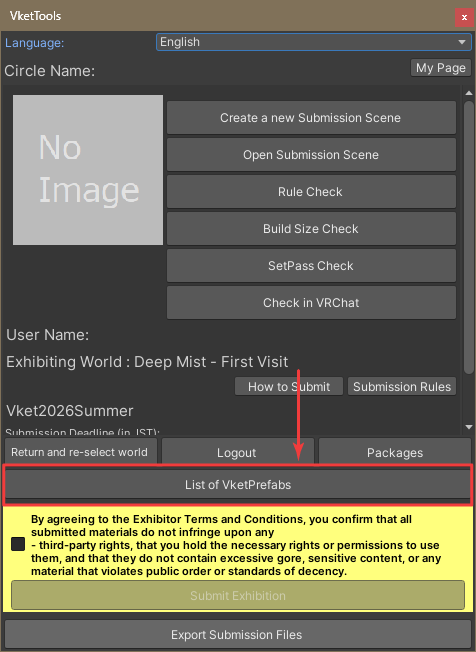
- Scroll down in the VketPrefabMainMenu window and click the
Generate and Configure Prefab button for the item labeled Prefab Name: VketVideoPlayer.
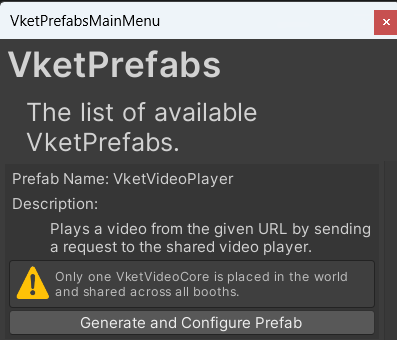
Once the settings window opens, configure each item from top to bottom.
If you accidentally close the settings window, select VketVideoPlayer in the Hierarchy and click Open Setting Window in the Inspector to reopen it.
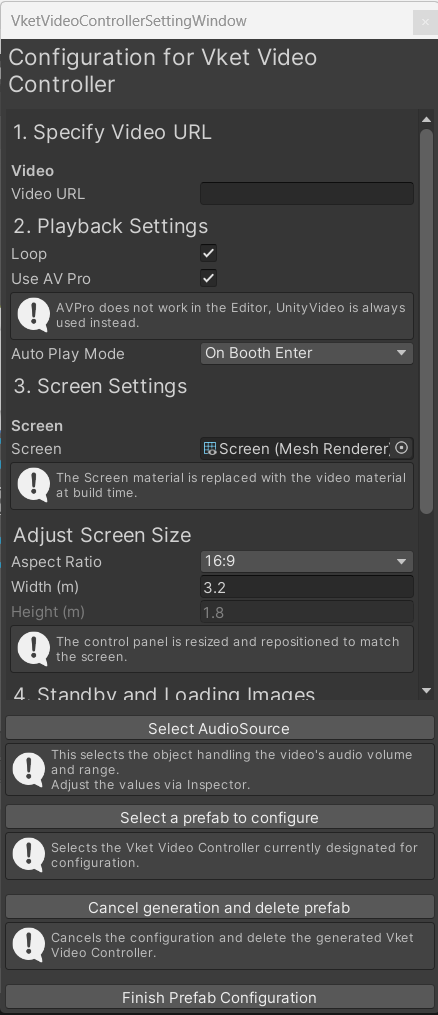
Enter the URL of the video you want to play in Video URL.
*Due to VRChat's specifications, videos hosted on sites other than approved ones (such as YouTube) will not play by default (visitors can change the "Allow Untrusted URLs" setting). Please enter a URL from an approved site such as YouTube. If you enter a URL that is not approved, a warning will be displayed below the input field.
*See here for the list of approved sites.
*If the URL starts with http://, the video will not play on Android. Please enter an https:// URL.
Loop
Plays the video in a loop. Enabled by default.Use AVPro
Plays the video with AVProVideoPlayer. Enabled by default.
*AVPro does not work in the Unity Editor, so videos are always played with UnityVideo in the Editor.Auto Play Mode
Select the condition for auto play.- OnBoothEnter: Plays automatically when a visitor enters the exhibition space (default).
- OnAreaEnter: Plays automatically when a visitor's head enters a designated auto-play area.
- Disabled: Does not play automatically. The video plays only from the play button.
If you select OnAreaEnter, click the Add Auto-Play Area button at the bottom of the settings window. A trigger BoxCollider is created under VketVideoPlayer and added to the auto-play areas. Adjust the size of the BoxCollider in the Inspector.
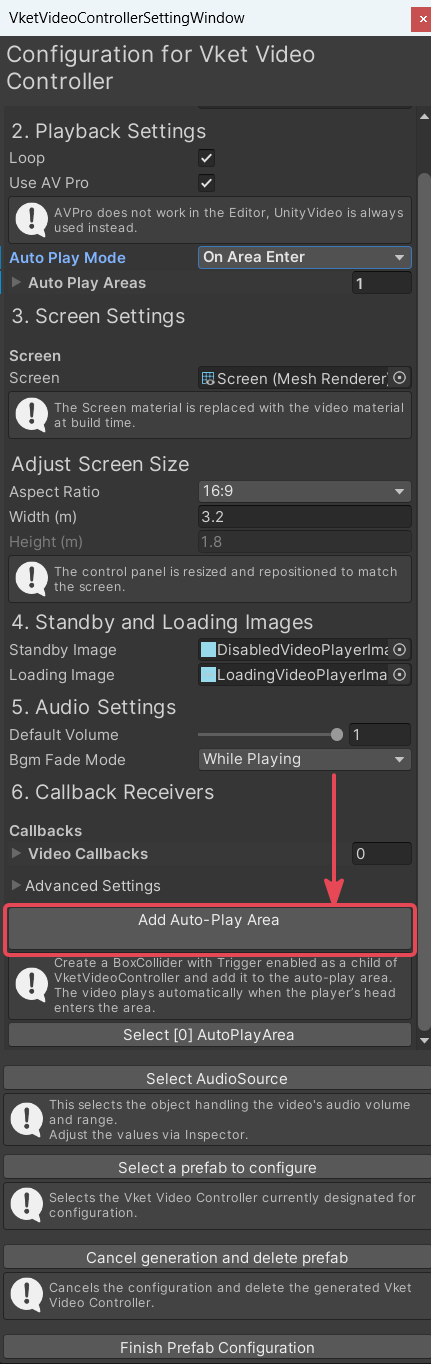
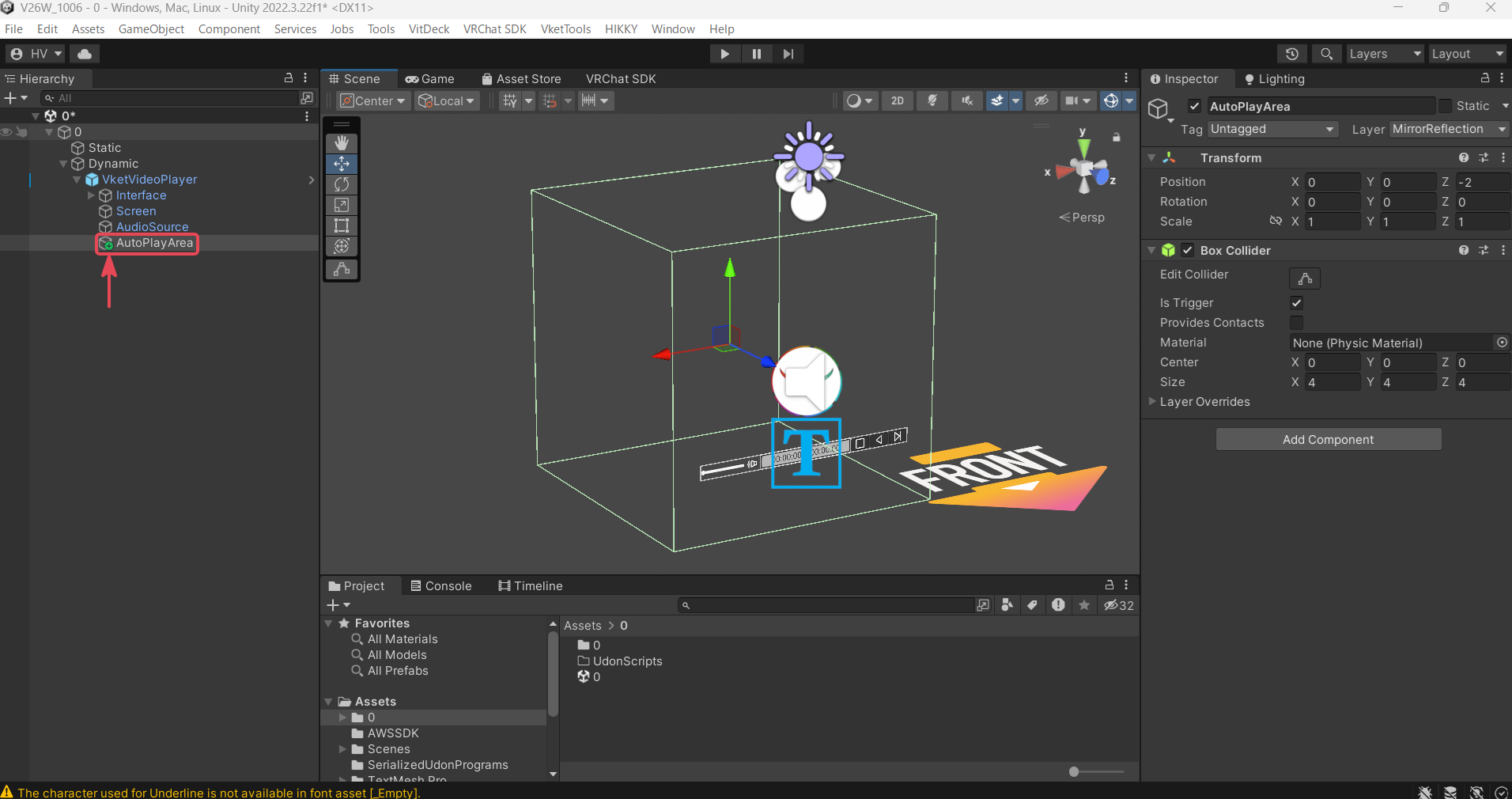
*If you use a MeshCollider as an auto-play area, enable Convex. Entry cannot be detected accurately with a non-convex MeshCollider.
Make sure that the Screen that displays the video is set. The build will fail if Screen is not set.
*The material of Screen is replaced with the video material at build time.
In Adjust Screen Size, adjust Aspect Ratio, Width (m) and Height (m) to match the video you want to play. The control panel is resized and repositioned to match the screen.
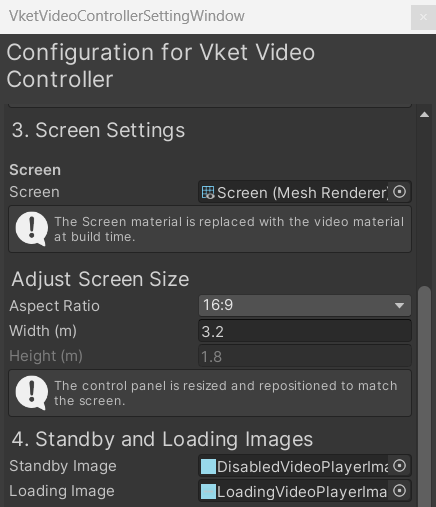
Standby Image: The image displayed while no video is playing.Loading Image: The image displayed while the video is loading.
Select an image with the button at the right end of the field, or drag & drop an image file from the Project window onto the field.
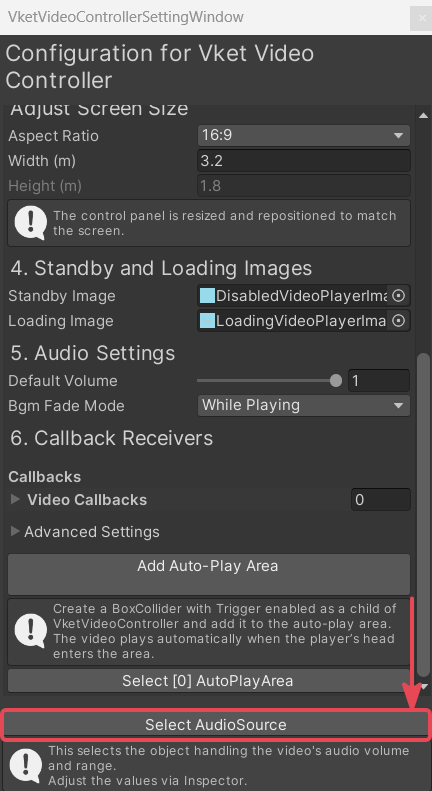
Default Volume
Sets the initial volume in the range of 0 to 1.Bgm Fade Mode
Select the condition for lowering the world BGM while the video is playing.- WhilePlaying: Always lowers the world BGM while the video is playing (default).
- WhilePlayingAndNear: Lowers the world BGM only while the video is playing and the visitor's head is within the
Max Distance of the AudioSource. - Disabled: Does not lower the world BGM.
To adjust the volume and range of the video's audio, click the Select AudioSource button at the bottom of the settings window, and adjust the selected AudioSource via Inspector.
The following events are sent to the UdonBehaviours registered in Video Callbacks according to the state of the video. Use this to run your own gimmicks in sync with video playback.
_onVideoReady: When the video has finished loading_onVideoStart: When the video starts playing_onVideoPlay: When the video resumes after being paused_onVideoPause: When the video is paused_onVideoEnd: When the video has played to the end_onVideoLoop: When the video loops
Implement a CustomEvent (function) with the same name as the event in the receiving Udon.
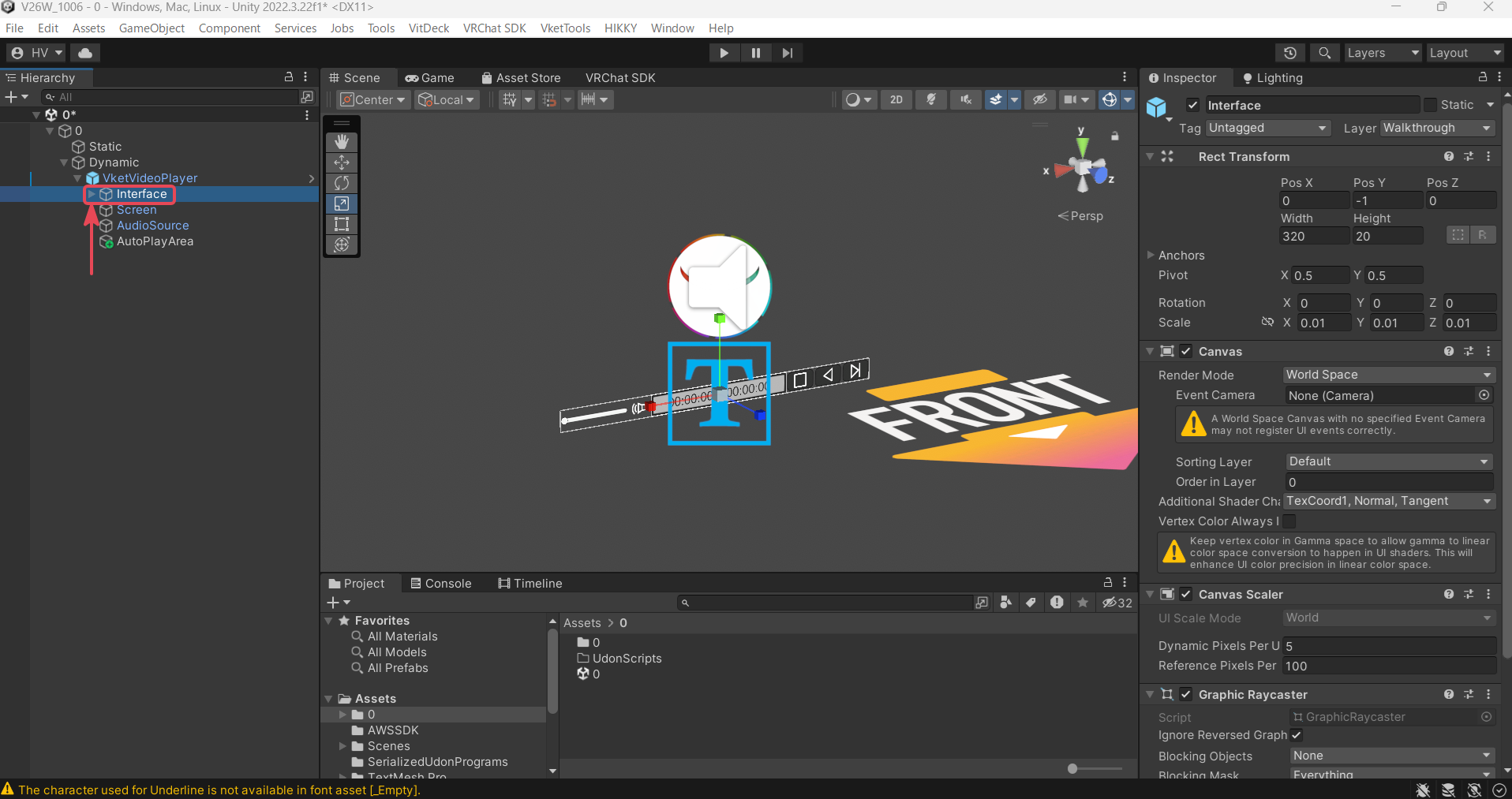
If you do not need the control panel, such as the play button and the volume slider, delete the Interface object inside VketVideoPlayer.
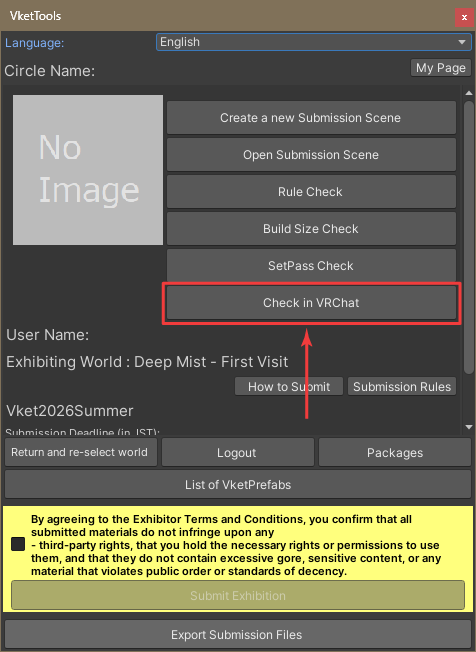
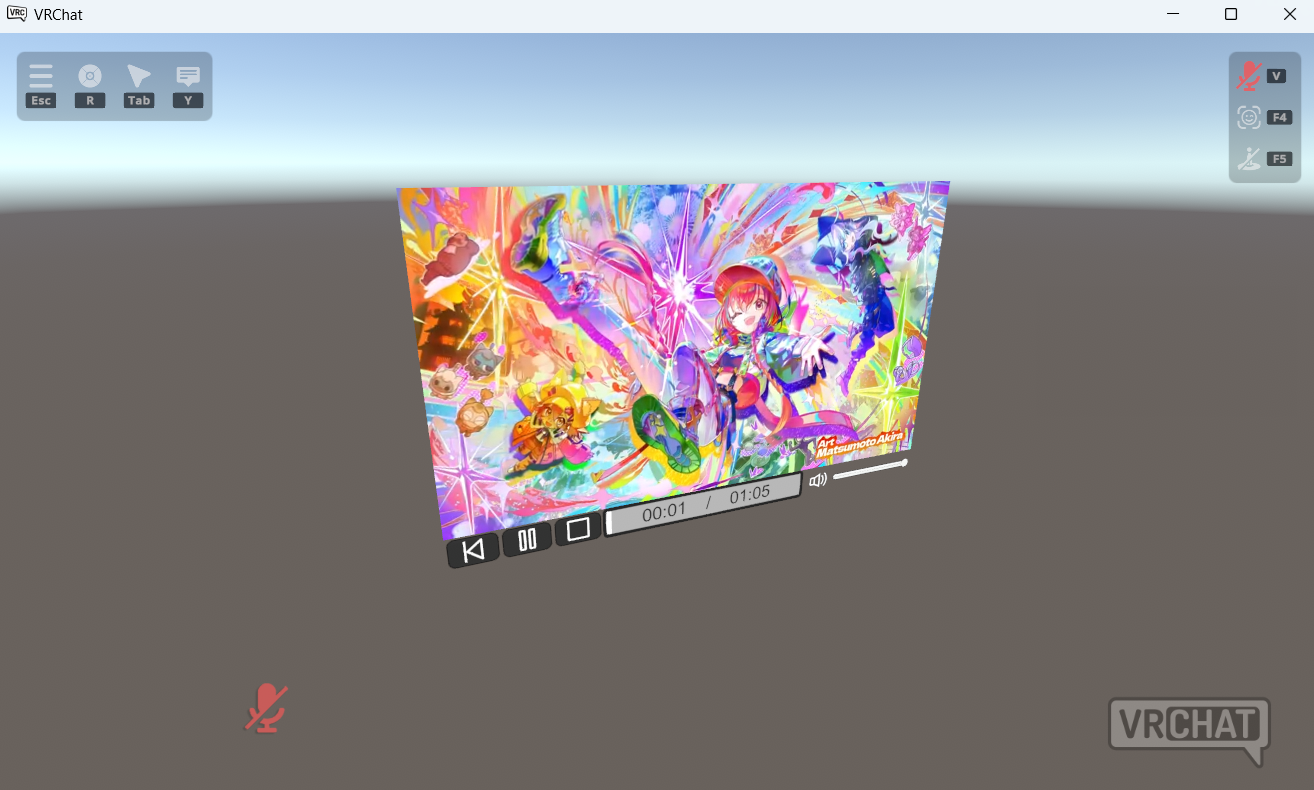
Click the Check in VRChat button in the VketTools window to automatically launch VRChat and enter the submission scene world.
Approach the video player you set up and check that each setting works as intended.
If everything is behaving as intended, the setup is complete.
By using VketVideoUrlTrigger, you can place multiple switches separate from the control panel included in the VketVideoPlayer Prefab, each with a different video URL assigned.
For details, see: VketVideoUrlTrigger
↑ Back to Top