Submission Rules: Avatar Exhibition
This page contains the submission rules for avatar exhibitions.
Please review this information when applying for an exhibition or submitting materials.
- Cross-Platform Venue
- Avatar Exhibitions will be open on the Cross-Platform Venue.
Submission Rules for Cross-Platform venues are similar as PC, but has the following differences:
- Exhibition must be available on Mobile environments
- Maximum build size is 5MB for Windows build, 3MB for Android build
- Avatars registered to pedestal must be Quest compatible
- World Specification - Light Settings: Directional Mode is set to Non-Directional
- Shaders have restrictions for Cross-Platform compatibility
- A large number of spaces will be set up at each venue. We would like to have many gorgeous spaces lined up in a lively and fun venue.
- Meanwhile, to deal with the problems inherent to large-scale worlds, we will set rules for space creation.
- To maintain a comfortable playing environment for visitors by avoiding high load on the PC
- Avoid inconsistent formats that will cause difficulties for the organizers to check and manage the data
- Avoid fatal bugs such as instance crush resulting in VRChat crash or returning to other world
- Before submission, make sure to check the compliance with the submission rules. Please use the submission tool (hereinafter referred to as VketTools) provided by the organizer.
- Please note that if the submitted space does not comply with the submission rules, the organizers may request a resubmission.
- Even if the space complies with the submission rules, if the space is deemed problematic such as taking up a high load, the organizers may request a resubmission.
- In the case of spaces with a significantly small amount of information, the exhibitor may be asked to confirm after the submission period, and the space may be removed only if the confirmation cannot be obtained.
- Cross-Platform Venue Worlds will go through two separate builds for PC and Quest. Due to texture compression issues, the submitted space may look a bit different in PC build and Quest build.
- In particular, smaller texts may become illegible by the compression. We recommend to use Text or TextMeshPro components.
- Checking appearance on real devices are strongly recommended.
- On Android build, some gimmicks may not function or have different behavior.
- The Cross-Platform Venue Worlds are expected to be visited by many players on mobile environments. Please avoid such a situation that your main exhibit is available only on PC-platform VRChat or on SteamVR.
- On the occasion of the world’s Android build capacity exceeding 100MB and uploading becomes unavailable, the development team may readjust the submitted data’s compression settings with the consent of the exhibitor.
- Avatar Exhibitions will be displayed in the format below:
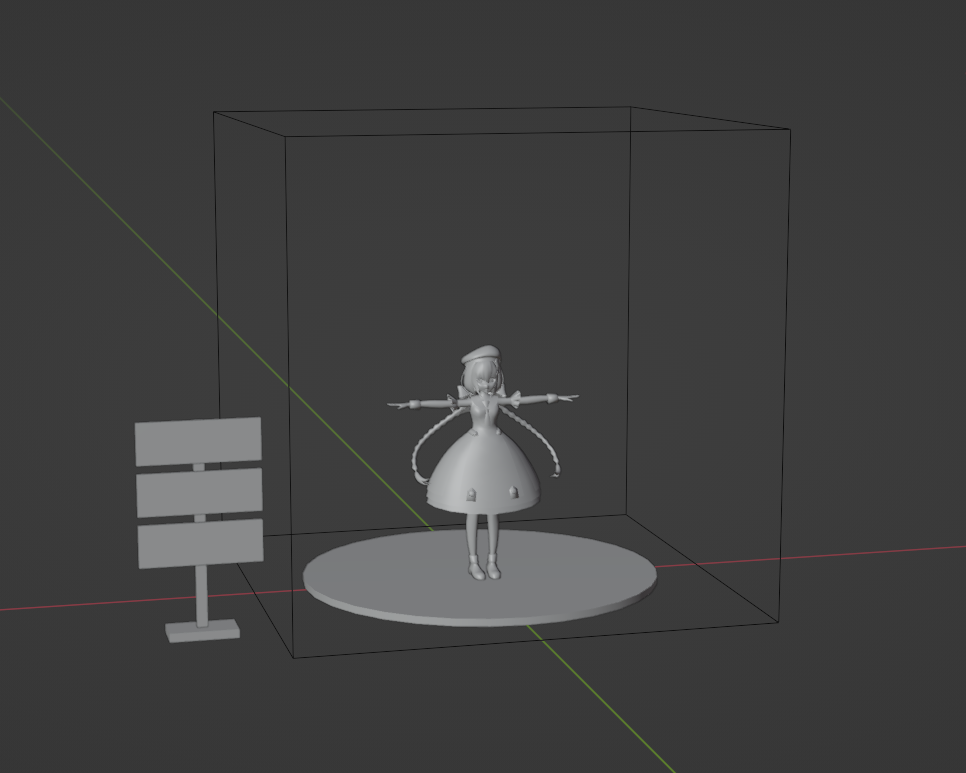
- Avatar Pedestal
- The submitted item can be placed on the pedestal object provided by the development team.
If a pedestal is not needed for display, it can be omitted on submission. - The design of the pedestal will be available for preview in the Preview World after submission.
- Avatar Information Board
- A board displaying product information and an avatar pedestal will be placed near the submitted item.
- Each information board can display the following details:
- Shop Name
- Avatar Name
- Price
- Avatar Pedestal (Cross-Platform support required)
- External link button to the exhibitor's catalog page or product sales page
- Up to three information boards can be registered.
- The external link button can only direct to product pages on the following services:
- The settings for these features can be configured on VketTools.
- Create space exhibition using Unity editor Ver2022.3.22f1.
- Create the exhibition Project using the VRChat Creator Companion (VCC).
- Project template must be selected to Unity2022WorldProject.
- Use the latest version of VRChat SDK and Udon at the time of submission.
- Use VketTools for submission.
- All assets used in the space should be placed under the exhibitor ID folder (e.g. 184) created directly under the Assets folder by VketTools.
- Create the space on the exhibitor ID scene found in the above folder.
- Only half-width alphanumeric characters,-(hyphen), _ (underscore), (half-width space), .(Dot), and () (parentheses) can be used for file & folder names.
- All files included in the Project should follow the above rule.
- All file paths should fit within 128 characters under "Assets /" in Unity.
- The mesh should be in such a format that can be used in Unity by default, such as ".fbx".
- ".blend" files cannot be read by default.
- Be sure to extract the Textures and Materials of the mesh.
- Total file size capacity under the submission folder must be within 100.00MB
- All objects included in the space should be arranged and set according to the following regulations.
- Every object should be children of the exhibitor ID object.
- Objects should be placed under the objects named Static and Dynamic, which are the children of the aforementioned parent object.
- Object Tag must not be EditorOnly.
- Objects with the below property should be placed under the "Static" object.
Fixed object with unchanging mesh
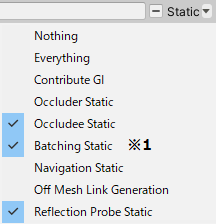
- All objects inside the "Static" object should have the Static settings defined below.
| Static setting | Regulation |
|---|
| Contribute GI | Unrestricted. The layer should be sent to Environment when Contribute GI is Enabled. |
| Occluder Static | Disabled |
| Batching Static | Unrestricted |
| Occludee Static | Enabled |
| Reflection Probe Static | Unrestricted |
- Objects with one of the below properties should be placed under the "Dynamic" object.
- Objects with animations, including all changes like Enable/Disable as well as movement and rotation.
- Objects that can be Pickup
- Objects with ParticleSystem
- Objects with AudioSource
- Objects with Rigidbody
- Objects with UdonBehaviour
- Objects controlled by UdonBehaviour like movement or Active switch
- Any other objects that may move or be subject to controls
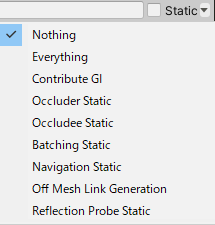
- All objects inside the "Dynamic" object should have the Static settings defined below.
| Static setting | Regulation |
|---|
| Contribute GI | Disabled |
| Occluder Static | Disabled |
| Occludee Static | Disabled |
| Batching Static | Disabled |
| Navigation Static | Disabled |
| Off Mesh Link Generation | Disabled |
| Reflection Probe Static | Disabled |
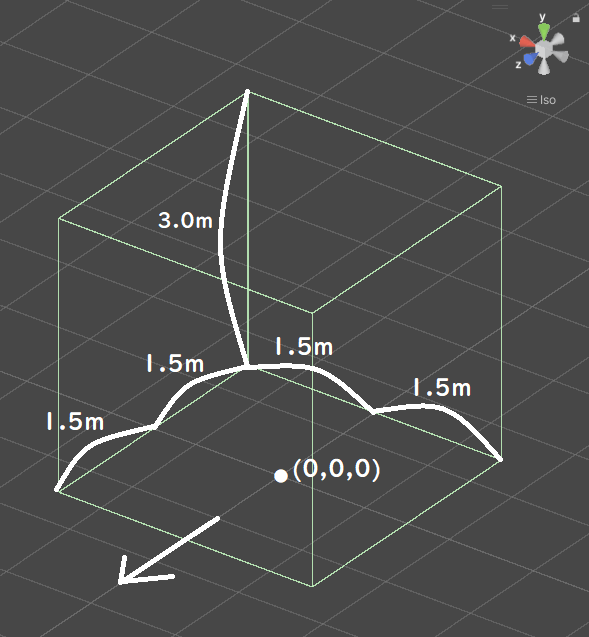
- Your exhibition must be contained within the boundary of 3m wide x 3m deep x 3m high
- ± 1.5m in the XZ direction and 3m in the Y direction with respect to the origin
- Z axis + direction (the direction of the blue arrow in Unity) is the front
- No limit on the number of textures
- However, atlasing (texture integration) is strongly recommended.
- One large size (4k) sheet is preferable to multiple small size (1k-2k) sheets.
- AssetBundle build size must meet the following size.
- This is the file size when building the space with only VRC_World in place
| Build Platform | Build Size |
|---|
| Windows | Under 5.00MB |
| Android | Under 3.00MB |
- SetPassCalls and Batches should be lower than the following values to reduce the drawing load.
- Run-time SetPassCalls reference value 20
- Run-time Batches estimated reference value 30
- Upon placement, the space may be rotated on the Y-axis.
- Upon placement, the coordinates will be different from the origin.
- In Cross-Platform Venues, shader availability has restrictions in order to maintain Cross-Platform compatibility.
CrossPlatform Shader Allow/DenyList- Shaders listed on the AllowList are able to be used without restriction.
- Shaders listed on the DenyList cannot be used.
- Although shaders not listed on AllowList/DenyList can still be used, render appearance check on Mobile environments such as Quest is strongly advised.
- The shaders listed below will be distributed by the Vket staff along with VketTools.
*UnlitWFShader and lilToon will be distributed using VRM Packages
- Manmaru Shader MnMrShader3_1_2
- Unity-chan Toon Shader 2.0.9
- UnlitWF Shader 2.8.1
- MToon v3.9
- UniUnlit in UniVRM-0.128.3_b045
- Filamented Standard 1.3
- The above shaders do not need to be included in the submission folder.
- If you use the above shader with a different version or a modified script, be sure to use a duplicate and include it in the submission folder.
- When you want to include and use shaders other than those listed above, please follow the below restrictions.
- Global keywords like (shader_feature, multi_compile) cannot be used. Please use local keywords like (shader_feature_local, multi_compile_local) instead.
- Shaders with _CameraDepthTexture cannot be used to avoid issues of VR camera display.
- Scripts inside the Editor folder should not be put inside the submission folder.
- When using the PoiyomiToonShader, Lock the shader and submit the generated shader file only.
- The name of the shader should not be identical to any of the built-in shaders of Unity.
- When using Stencil, keep the number of Stencil buffer to be not more than 200.
- Mesh Filter
- Mesh Renderer
- Do not stick out of the Bounds space.
- For objects with ContributeGI checked, set the Layer allocation to Environment.
- ContributeGI can only be used in the Environment Layer.
- Mesh Renderer with 0 materials is prohibited.
- Changing Lightmap Parameters is prohibited.
- Skinned Mesh Renderer
- Do not stick out of the Bounds space.
- Disable Update When Offscreen.
- Skinned Mesh Renderer with 0 materials is prohibited.
- Particle System
- Shape designated in "Shape" module must be other than MeshRenderer.
- Do not stick out of the space during playback.
- Light
- There is a limit to the settings. Use the values in the table below.
- Minimize the protrusion of lights from the space. If it sticks out, make it less than 2 meters (about 2 meters in front, back, up, down, left and right of each space will be allocated as a buffer area with other spaces. Please keep the light effect inside this area.)
- Please note that even if it is within the specified range, we may ask you to change or remove it if the installation method interferes with the baking work of the entire world or strongly affects other spaces.
- Light Probe Group / Light Probe Proxy Volume
- Do not stick out of the space.
- Reflection Probe
- Set Type to either Baked or Custom.
- Resolution is at maximum 128.
- Please note that even if the placed exhibition is rotated on world placement, the Reflection Probe will not rotate and will maintain its orientation based on the world coordinate system.
Light setting value limit
Directional Light cannot be used.
| Type | Point or Spot | Area |
|---|
| Mode | Baked | (baked only) |
| Range | 0~7 | 0~7 |
| Width | - | 0~5 |
| Height | - | 0~5 |
| Radius | - | 0~2.5 |
| Intensity | 0~10 | 0~10 |
| Indirect Multiplier | 0~15 | 0~15 |
| Shadow Type | Soft Shadows or Hard Shadows | - |
| Cast Shadows | - | ON |
| Number limit | No limit | Up to 3 per space |
- Box Collider / SphereCollider / CapsuleCollider / Mesh Collider
- Mesh Collider is not recommended. Make similar shapes with other Colliders as much as possible.
- Do not stick out of the space.
- Animator
- Not more than 10 per space
- Disable Apply Root Motion.
- Culling Mode should be set to Cull Update Transforms or Cull Completely in principle. Avoid Always Animate unless absolutely necessary.
All Components other than the above available Components
Please observe the following for avatars set in VRC_Avatar Pedestal, in accordance with VRChat's guideline.
Also, VRC_Avatar Pedestal components in Cross-Platform Worlds can only be valid when the set avatar is compatible in Cross-Platform environments.
- The performance rank is not Very poor.
- The avatar is compliant to the Terms of Services and Community Guidelines of VRChat
The following installation / specifications will be implemented in the venue world:
- World installation
- World specifications
- Avatar Scaling
- Light settings
- Default, Player, PlayerLocal, Pickup, MirrorReflection, Realtime that illuminates the layer, DirectionalLight of NoShadow
- The angle of DirectionalLight depends on the world.
- Baked light with Shadow for world structures and booth exhibitions that illuminate the Environment layer
- LightProbes will be installed at 24 locations on the outer circumference of each space.
- A Reflection Probe for the world will be installed.
- Directional Mode is set to Non-Directional.
- Layer settings
- Default layer is used for objects that do not check ContributeGI (avatar model, etc.).
- The Pickup layer is used for objects that do not check ContributeGI (such as small models with pick up).
- The Environment layer is used for World structures and space exhibits that have ContributeGI checked.
- Water is used as a layer for Post Processing.
- Post Processing settings
- Use Bloom from Post Processing Stack V2.
- Navigation settings