Submission Rules: Item Exhibition
This page contains the submission rules for item exhibitions.
Please review this information when applying for an exhibition or submitting materials.
- PC Venues
- Anomalous Research Lab - Incident A
- Vket Formula .3879
- Hypothetical Garden Exoplant
- The Alter Vista Midnight
- Item Exhibitions will be open on each PC Venues listed above.
- A large number of spaces will be set up at each venue. We would like to have many gorgeous spaces lined up in a lively and fun venue.
- Meanwhile, to deal with the problems inherent to large-scale worlds, we will set rules for space creation.
- To maintain a comfortable playing environment for visitors by avoiding high load on the PC
- Avoid inconsistent formats that will cause difficulties for the organizers to check and manage the data
- Avoid fatal bugs such as instance crush resulting in VRChat crash or returning to other world
- Before submission, make sure to check the compliance with the submission rules. Please use the submission tool (hereinafter referred to as VketTools) provided by the organizer.
- Please note that if the submitted space does not comply with the submission rules, the organizers may request a resubmission.
- Even if the space complies with the submission rules, if the space is deemed problematic such as taking up a high load, the organizers may request a resubmission.
- In the case of spaces with a significantly small amount of information, the exhibitor may be asked to confirm after the submission period, and the space may be removed only if the confirmation cannot be obtained.
- Item Exhibitions will be displayed in the format below:
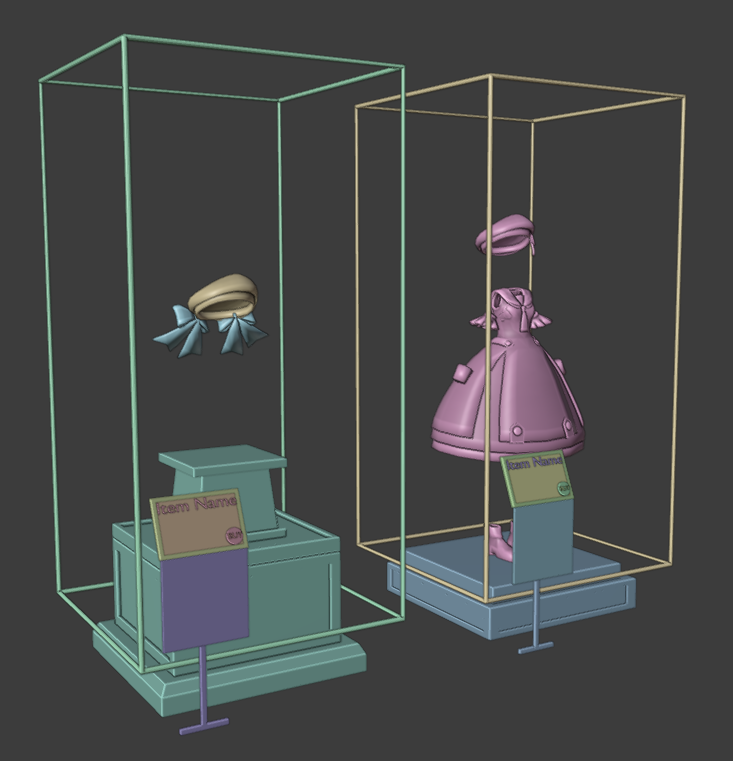
- Item Pedestal
- The submitted item will be placed on the pedestal object provided by the development team. If you desire to display a smaller item, an alternative pedestal is available.
- The design of pedestal will be able for preview at the Preview World after submission.
- Item Pickup
- The item can be designated whether to allow Pickup or not.
- The Pickup gimmick will be implemented by the development team on placement. The Pickup position will synchronize, and reset to the original position when idle at a certain period of time.
- Avatar Pedestal
- Avatar Pedestals are installable on items.
- If an item has an avatar pedestal, Pickup gimmicks cannot be designated.
- Caption Board
- A board for showing the product name and price will be displayed with the item.
- On interacting with the board, your circle webpage or the product's webpage will open.
- As the product's webpage, you may allocate product URLs only from websites below:
- Description Image
- As an option, a 1:1 square image can be added as an description.
- The image will be placed under the Caption Board.
- The image size will be in calculation for the build size, which must be fulfilled on submission.
- The settings for this gimmick will be editable on VketTools.
- Changed the open webpage button to allow opening either the exhibitor's catalog page or product pages on BOOTH, Gumroad, Jinxxy, or Payhip.
- Removed ArxCharacterShaders (AXCS) from the distributed shaders
- Changed UnliWFShader and lilToon to be imported using VPM packages
- Updated the version of distributed shaders
- Changed the Post Processing layer from Layer22 to the Water layer
- Create space exhibition using Unity editor Ver2022.3.22f1.
- Create the exhibition Project using the VRChat Creator Companion (VCC).
- Project template must be selected to Unity2022WorldProject.
- Use the latest version of VRChat SDK and Udon at the time of submission.
- Use VketTools for submission.
- All assets used in the space should be placed under the exhibitor ID folder (e.g. 184) created directly under the Assets folder by VketTools.
- Create the space on the exhibitor ID scene found in the above folder.
- Only half-width alphanumeric characters,-(hyphen), _ (underscore), (half-width space), .(Dot), and () (parentheses) can be used for file & folder names.
- All files included in the Project should follow the above rule.
- All file paths should fit within 128 characters under "Assets /" in Unity.
- The mesh should be in such a format that can be used in Unity by default, such as ".fbx".
- ".blend" files cannot be read by default.
- Be sure to extract the Textures and Materials of the mesh.
- Total file size capacity under the submission folder must be within 20.00MB
- All objects included in the item should be arranged and set according to the following regulations.
- Every object should be children of the exhibitor ID object.
- Object Tag must not be EditorOnly.
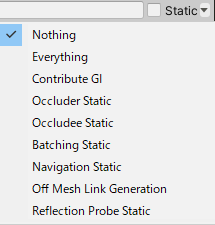
All objects inside the "Static" object should have the Static settings defined below.
| Static setting | Regulation |
|---|
| Contribute GI | Disabled |
| Occluder Static | Disabled |
| Occludee Static | Disabled |
| Batching Static | Disabled |
| Reflection Probe Static | Disabled |
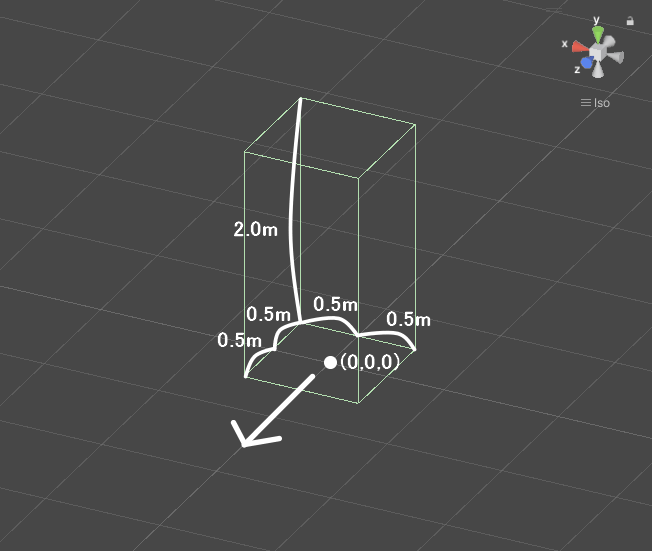
- Your item must be contained within the boundary of 1m wide x 1m deep x 2m high
- ± 0.5m in the XZ direction and 2m in the Y direction with respect to the origin
- Z axis + direction (the direction of the blue arrow in Unity) is the front
- No limit on the number of textures
- However, atlasing (texture integration) is strongly recommended.
- One large size (4k) sheet is preferable to multiple small size (1k-2k) sheets.
- AssetBundle build size within 3.00MB
- This is the file size when building the space with only VRC_World in place
- SetPassCalls and Batches should be lower than the following values to reduce the drawing load.
- Run-time SetPassCalls reference value 6
- Run-time Batches estimated reference value 10
- Upon placement, the space may be rotated on the Y-axis.
- Upon placement, the coordinates will be different from the origin.
- The shaders listed below will be distributed by the Vket staff along with VketTools.
*UnlitWFShader and lilToon will be distributed using VRM Packages
- Manmaru Shader MnMrShader3_1_2
- Unity-chan Toon Shader 2.0.9
- UnlitWF Shader 2.8.1
- MToon v3.9
- UniUnlit in UniVRM-0.128.3_b045
- SunaoShader 1.6.2
- Silent’s Cel Shading Shader v1.11
- Mochie’s Unity Shaders v1.58.1
- lilToon 1.9.0
- Filamented Standard 1.3
- The above shaders do not need to be included in the submission folder.
- If you use the above shader with a different version or a modified script, be sure to use a duplicate and include it in the submission folder.
- When you want to include and use shaders other than those listed above, please follow the below restrictions.
- Global keywords like (shader_feature, multi_compile) cannot be used. Please use local keywords like (shader_feature_local, multi_compile_local) instead.
- Shaders with _CameraDepthTexture cannot be used to avoid issues of VR camera display.
- Scripts inside the Editor folder should not be put inside the submission folder.
- When using the PoiyomiToonShader, Lock the shader and submit the generated shader file only.
- The name of the shader should not be identical to any of the built-in shaders of Unity.
- When using Stencil, keep the number of Stencil buffer to be not more than 200.
- Mesh Filter
- Mesh Renderer
- Do not stick out of the Bounds space.
- Mesh Renderer with 0 materials is prohibited.
- Skinned Mesh Renderer
- Do not stick out of the Bounds space.
- Disable Update When Offscreen.
- Skinned Mesh Renderer with 0 materials is prohibited.
All Components other than the above available Components
The following installation / specifications will be implemented in the venue world:
- World installation
- World specifications
- Avatar Scaling
- Light settings
- Default, Player, PlayerLocal, Pickup, MirrorReflection, Realtime that illuminates the layer, DirectionalLight of NoShadow
- The angle of DirectionalLight depends on the world.
- Baked light with Shadow for world structures and booth exhibitions that illuminate the Environment layer
- LightProbes will be installed at 24 locations on the outer circumference of each space.
- A Reflection Probe for the world will be installed.
- Directional Mode is set to Directional.
- Layer settings
- Default layer is used for objects that do not check ContributeGI (avatar model, etc.).
- The Pickup layer is used for objects that do not check ContributeGI (such as small models with pick up).
- The Environment layer is used for World structures and space exhibits that have ContributeGI checked.
- Water is used as a layer for Post Processing.
- Post Processing settings
- Use Bloom from Post Processing Stack V2.
- Navigation settings