TOP › My Page TOP ›
Submission Workflow › Vket 2026 Winter ›
Submission Rules › Item Exhibition
Submission Rules: Item Exhibition
This page provides submission rules for Item Exhibitions.
Please review this information when applying to exhibit or submitting materials.
- For detailed submission procedures, please refer to the Submission Guide.
- The contents of this page may change or be updated due to rule revisions or additions. Please review the information again before submitting your work.
- PC Venues
- World End: Librarium
- The Zoocadiaverse
- Murder4 in Vket
- Item Exhibitions will be available at select PC Venues listed above.
- A large number of exhibits will be set up in each venue. We aim to create a lively and enjoyable environment with a wide variety of exciting exhibits!
- Due to issues inherent to large-scale worlds, we have set rules for space creation.
- To maintain a comfortable environment for all visitors, avoid causing heavy loads on PC hardware
- Use standardized formats to make it easier for Vket to check individual exhibits
- Prevent fatal bugs such as instance crashes leading to VRChat crash, or returning to other worlds
- Before submission, make sure to check compliance with the submission rules. Please use the submission tool (hereinafter referred to as VketTools) provided by Vket.
- VketTools will be distributed on the "Submissions" page once the Submission Period begins.
- Modifying VketTools is prohibited by the Terms and Conditions. If a malicious modification is found, your exhibition may be canceled.
- If the submitted space does not comply with the submission rules, Vket may request resubmission or decline placement.
- Even if the space complies with the submission rules, if the space is deemed problematic such as heavy load, Vket may request resubmission.
- If an exhibit contains a significantly small amount of information, Vket may remove the exhibit after contacting the exhibitor following the end of the submission period.
This is a summary of the precautions for exhibiting. For details, please see the Exhibition Guidelines.
- If you wish to exhibit at the event, please read the Terms and Conditions for Vket Event Exhibition For Individuals carefully, especially "Article 2 Exhibitor Qualification" and "Article 3 Requirements for Submitted Material".
- Please also check the VRChat regulations such as the Terms of Service, Community Guidelines, and Creator Guidelines.
- VRChat has specifically announced that they "do not permit promotion, advertising, integration, or solicitation of unauthorized products or services like NFT or blockchain technology in VRChat". As such, exhibits that do not follow this policy are not permitted.
- All Virtual Market Exhibits are public and can be seen by many people. For example, avatars set on the pedestals are not permitted to appear nude due to animations, etc.
- Please refrain from using effects or displays that involve strong flashing lights or other displays that significantly affect vision, as this may create health issues, such as motion sickness, dizziness, or epileptic seizures.
- These submission rules are for Creator Exhibitions, which are open to individuals and exhibitor circles. They are not the rules for corporate exhibitions.
- Corporations or enterprises may be allowed to participate as "individuals" if they meet certain criteria (for example, if they are startups within one (1) year from their foundation).
- For corporate exhibitions, please contact us here.
- Multiple exhibitions are prohibited. It is not allowed for the same individual or circle to apply using multiple accounts.
- Additionally, exhibiting the same content in the same exhibition format or promoting it through multiple circles is not permitted. Even if the circle representatives are different, the same work must not be promoted in the same exhibition format across multiple circles.
- Only the circle owner can upload submissions.
- Circle members can also create and check exhibit data. In that case, please receive the VketTools from the owner.
- You may not use Mac for submitting your exhibit. Please use a Windows environment with Unity and VRChat Creator Companion installed.
- We recommend adding multilingual support for your exhibit and catalog entry, such as English and Japanese. Visitors to Virtual Market come from all over the world, with approximately half from Japan.
- You can support two languages using the official VketLanguageSwitcher Prefab. You can also ask for help with translation in the Vket Exhibitor Discord.
- *To join the Vket Exhibitor Discord, please refer to the Discord page.
- Creator Worlds, excluding Corporate Worlds, will be re-opened to the public indefinitely after the end of the event period. It is recommended that the Blueprint ID of the avatar pedestals be set to be the trial version.
- In an Item Exhibition, one item can be displayed per space.
- In addition to the item, the following are displayed in the space. Each of them is configured in VketTools.
- Item Pedestal
- The item is placed on top of the item pedestal. You can choose from 2 types of pedestals with different heights.
- The design of the pedestal differs depending on the exhibition world. Please check it in the Preview World.
- Item name (JP/EN)
- You can set the item name in both Japanese and English.
- Up to 20 full-width characters / 40 half-width characters.
- Sample avatar
- As an option, you can set a sample avatar pedestal.
- By setting the Blueprint ID of an avatar, visitors will be able to change into that avatar.
- For the avatars that can be set, please refer to the Pedestal Avatar Regulations described below.
- Product page link
- As an option, you can set a link to the sales webpage of the item or to its Avatar Marketplace product page.
- Only one link can be set. You cannot register multiple sales webpages, nor set both a sales webpage and an Avatar Marketplace product page.
- As the sales webpage, you may allocate product URLs only from the websites below:
- To set an Avatar Marketplace product page, enter the Listing ID of the product.
- Please note that if the Avatar Marketplace product is not published, no one other than the shop owner can open the product page.
- Description images (2 images)
- Two images with a 1:1 aspect ratio are displayed behind the item.
- You must set 2 images when submitting.
- The resolution of each image must be 1024x1024.
- Transparent images can be used.
- We recommend using images in JPEG or PNG format.
- The image file size is not included in the build size limit described below.
Please note that work performed in environments other than the following will not be supported:
- Create the Item Exhibition using Unity 2022.3.22f1.
- Create the exhibit Project using the VRChat Creator Companion (VCC).
- Project template must be selected to Unity2022WorldProject.
- Use the latest version of VRChat SDK at the time of submission.
- Please note that beta versions of the VRChat SDK are not supported.
- Use VketTools for submission.
- All assets used in the space should be placed under the
Circle ID folder (e.g. 184) created directly under the Assets folder by VketTools. - Create the space on the
Circle ID scene found in the above folder. - Do not include the following files in the folder above.
- Textures containing elements that violate public decency (including depictions of sexual organs).
- Only half-width alphanumeric characters, -(hyphen), _(underscore), (half-width space), .(Dot), and () (parentheses) can be used for file & folder names.
- All files included in the Project should follow the above rule.
- If the file path contains a "User" folder, the project may not function correctly. Please create a new project in a location such as the root of the C: drive.
- All file paths should fit within 128 characters under "Assets/" in Unity.
- The mesh should be in such a format that can be used in Unity by default, such as ".fbx".
- ".blend" files cannot be read by default.
- Be sure to extract the Textures and Materials of the mesh.
- Total file size capacity under the submission folder must be within 20.00MB
- All objects included in the space should be arranged and set according to the following regulations.
- Every object should be a child of the
Circle ID object. - Object Tag must not be EditorOnly.
- Objects must use layers other than UserLayer28-31.
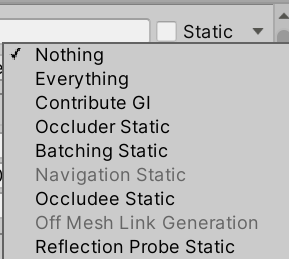
All objects should have the Static settings defined below.
| Static setting | Regulation |
|---|
| Contribute GI | Disabled |
| Occluder Static | Disabled |
| Batching Static | Disabled |
| Occludee Static | Disabled |
| Reflection Probe Static | Disabled |
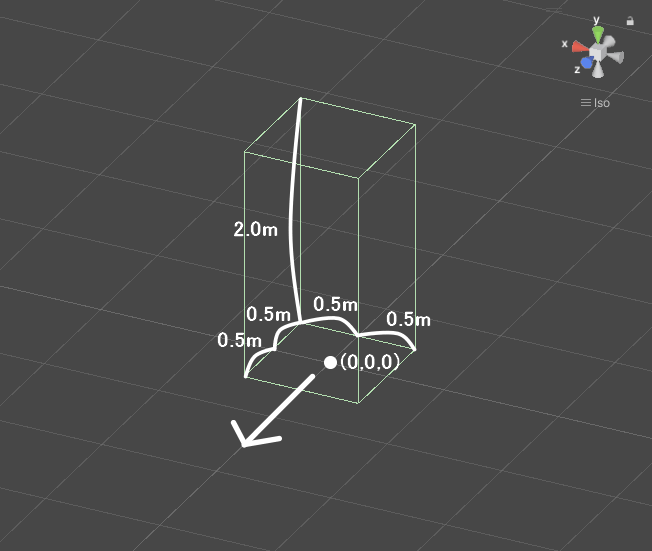
- Your exhibit must be contained within the boundary of 1m wide x 1m deep x 2m high
- ±0.5m in the XZ direction and 2m in the Y direction with respect to the origin
- Z axis + direction (the direction of the blue arrow in Unity) is the front
- No limit on the number of textures
- However, atlasing (texture integration) is strongly recommended.
- One large size (4k) sheet is preferable to multiple small size (1k-2k) sheets.
- AssetBundle build size within 3.00MB
- This is the file size when building the exhibit with only VRC_World in place
- SetPassCalls and Batches should be lower than the following values to reduce the drawing load.
- Run-time SetPassCalls reference value 6
- Run-time Batches reference value 10
- Upon placement, the exhibit may be rotated on the Y-axis.
- Upon placement, the coordinates will be different from the origin.
- .asset files generated by optimization tools such as NDMF or AAO cannot be used, as specifications of the placement process prevent them from displaying correctly.
- You can set whether to allow Pickup of the item in VketTools when submitting.
- The position of a picked-up item is synchronized, and it returns to its original position after a certain period of time once released.
- The shaders listed below will be distributed by Vket along with VketTools.
- UnlitWF Shader 2.14.0 *From VCC
- MToon v3.9
- UniUnlit in UniVRM-0.124.2_dd50
- Mochie’s Unity Shaders v1.74.1
- lilToon 2.3.4 *From VCC
- Filamented Standard 1.4
- *When using UnlitWF Shader or lilToon, please install their VPM packages in VCC and make sure the versions are matched.
- The above shaders do not need to be included in the submission folder.
- When you include a shader file in the submission folder, please follow the below restrictions.
- Global keywords like (shader_feature, multi_compile) cannot be used.
- Please use local keywords like (shader_feature_local, multi_compile_local) instead.
- Scripts inside the Editor folder should not be put inside the submission folder.
- When using the Poiyomi Shader, Lock the shader and submit the generated shader file only.
- The shader name must begin with "Custom/{Circle ID}/". (e.g. Custom/184/MyShader)
- When using Stencil, the number of Stencil buffers should not exceed 200.
- Mesh Filter
- Mesh Renderer
- Do not stick out of the Bounds space.
- Mesh Renderer with 0 materials is prohibited.
- Skinned Mesh Renderer
- Do not stick out of the Bounds space.
- Disable Update When Offscreen.
- Skinned Mesh Renderer with 0 materials is prohibited.
- VRC Phys Bone
- The sum of VRC Phys Bone and VRC Phys Bone Colliders is 10 or less per exhibit
- Radius set to 2 or less
- Disable Allow Posing
- VRC Phys Bone Collider
- The sum of VRC Phys Bone and VRC Phys Bone Colliders is 10 or less per exhibit
- ShapeType must not be Plane.
- Do not stick out of the space.
All Components other than the above "Available Components"
Please observe the following for avatars placed on the avatar pedestal.
The following installation / specifications will be implemented in the venue world:
- World installation
- World specifications
- Avatar Scaling
- Light settings
- Realtime that illuminates the player, DirectionalLight of NoShadow
- CullingMask: Default, Player, PlayerLocal, Pickup, MirrorReflection, Item
- Rotation depends on the world.
- Baked DirectionalLight of NoShadow (a light with low intensity and directionality intended to replace ambient light)
- Additional Baked lights may be installed for world structures and exhibits.
- LightProbes will be installed on the world around the perimeter of each space. It can be referenced within the exhibit.
- A Reflection Probe for the world will be installed. It can be referenced within the exhibit.
- A CameraDepthTexture for the ScreenCamera is generated. It can be referenced within the exhibit.
- The Directional Mode when light baking is Directional.
- Layer settings
- The Default and Environment layers are used for the general Renderer. They are used by world structures and exhibits.
- The Default layer is generally brighter because it is illuminated by the Directional Light that illuminates the player.
- Since the Environment layer is not illuminated by Realtime lights, we recommend using the Environment layer for meshes that are light baked.
- Use the Pickup layer for pickable objects (such as small objects that can be picked up).
- Water is used as a layer for Post Processing.
- Post Processing settings
- Use Bloom from Post Processing Stack V2.
- Navigation settings
- The exhibition format for Item Exhibitions has been completely renewed.
- Items are now placed on top of the item pedestal regardless of the height of the pedestal.
- Item Pickup and the avatar pedestal can now be set at the same time.
- Two description images are now displayed, and setting 2 images is now required.
- An Avatar Marketplace product page can now be set as the product page link.
- A limit of 20 full-width characters / 40 half-width characters has been added to the item name.
- The display of item prices has been discontinued.
- The whole section was rewritten along with the renewal of the exhibition format.
- The following restriction for files in the submission folder has been added:
- Textures containing elements that violate public decency (including depictions of sexual organs).
- Regarding optimization tools, the following restriction has been added:
- .asset files generated by optimization tools such as NDMF or AAO cannot be used, as specifications of the placement process prevent them from displaying correctly.
- Added the following about Item Pickup
- You can set whether to allow Pickup of the item in VketTools when submitting.
- The position of a picked-up item is synchronized, and it returns to its original position after a certain period of time once released.
- Versions of the distributed shaders have been updated
- The following restrictions have been removed:
- If you use the above shader with a different version or a modified script, be sure to make a duplicate of the shader and include it in the submission folder.
- The name of the shader should not be identical to any of the built-in shaders of Unity.
- Changed the following wording:
- Before: When you want to include and use shaders other than those listed above, please follow the below restrictions.
- After: When you include a shader file in the submission folder, please follow the below restrictions.
- The following restriction has been added:
- The shader name must begin with "Custom/{Circle ID}/". (e.g. Custom/184/MyShader)
- Changed the limit on VRC Phys Bone and VRC Phys Bone Collider from a total of 5 to a total of 10
If you cannot find an answer in the submission rules, please also check the Reverse Lookup List by Purpose.
↑ Back to Top