TOP › My Page TOP ›
Submission Workflow › Technical Guides / Submission Tips ›
How to Use Atlas Tool
"Texture atlas tool complete inside Unity" is sold by Mitamura Naya on BOOTH.
This is a tool for generating texture atlas. This webpage explains how to combine materials using texture atlas. The following information is for Unity 2022.3.6f1 (as of May 8, 2024).
"Texture atlas tool complete inside Unity" (NOT FREE)
Texture atlas tool complete inside Unity
The tool to make texture atlas is "アトラス化する奴(ver.2.5.1)" ("Atlas tool(ver.2.5.1)"). Below explains how to use it based on ver.2.5.1.
- A. Combine multiple textures into one and reflect the changed UVs to the original mesh
- By default, the UV1 (original) is changed and UV2 (added one) is simply preserved from the original mesh
- UV2 editing is supported from ver. 2.4.0. Press the button labeled "1---" to show the checkboxes for UV1-UV4, and check UV2.
- Combine the textures into one without changing the mesh. (Useful for combining a mask texture rather than main texture etc.)
- Combine multiple meshes into one. (Sold separately as 『メッシュを結合する奴』(or "Mesh combiner"))
- Combine materials. (Material must be set after making texture atlas.)
- It is a good practice to take a backup of the GameObject before combining them. It changes the Mesh property value of MeshRenderer / SkinnedMeshRenderer.
- FBX etc.(Mesh and Texture) does not change anything before combining. This tool will output a new combined file.
Duplicate your GameObject first before Atlasing. In this example, we will apply the atlas to the original (pre-duplication) GameObject.
You may also keep the original GameObject as a backup and process the duplicated one instead. Please adjust the following steps accordingly.
If you don't need a backup, you can skip duplicating.
The Hierarchy looks like this. BoothWall is the original object and BoothWall (1) is the duplicated one.

Open the tool from the menu: Naya_Tools -> Utility -> アトラス化するやつ (Atlas tool).
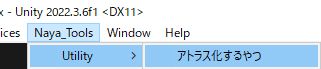
You will see the below window.
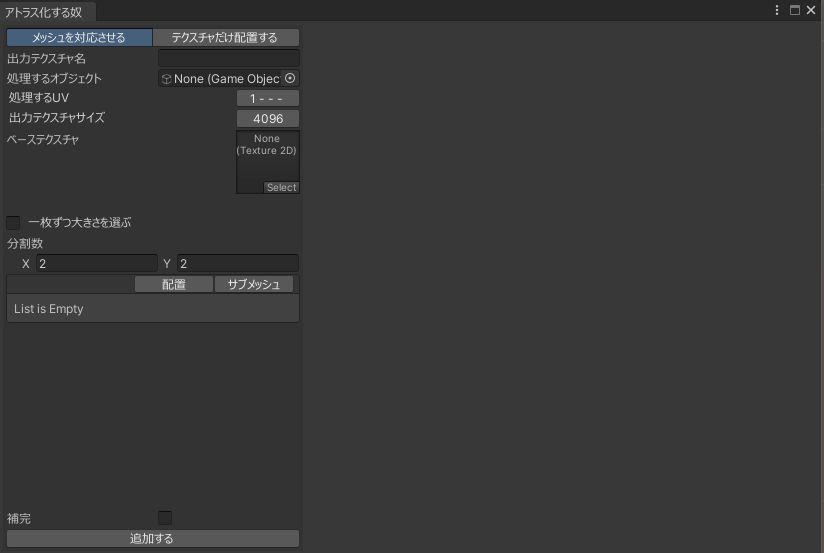
Name the output texture file appropriately and specify the original (pre-duplication) object as the object to process. You don't need to specify the base texture initially.
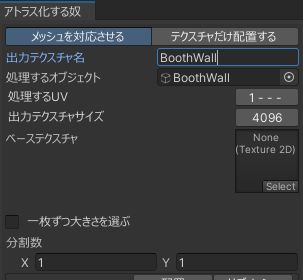
Adjust the value of Divisions. It is good to use it together with Adjust sizes separately.
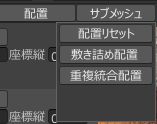
If all textures can be the same size, you can also use the auto-arrangement functions from the 配置 (Arrange) button at the top of the material list, such as 敷き詰め配置 (arranges them evenly in the same size) and 重複統合配置 (places identical textures in the same cell).
The screen below is the result after textures lined up.
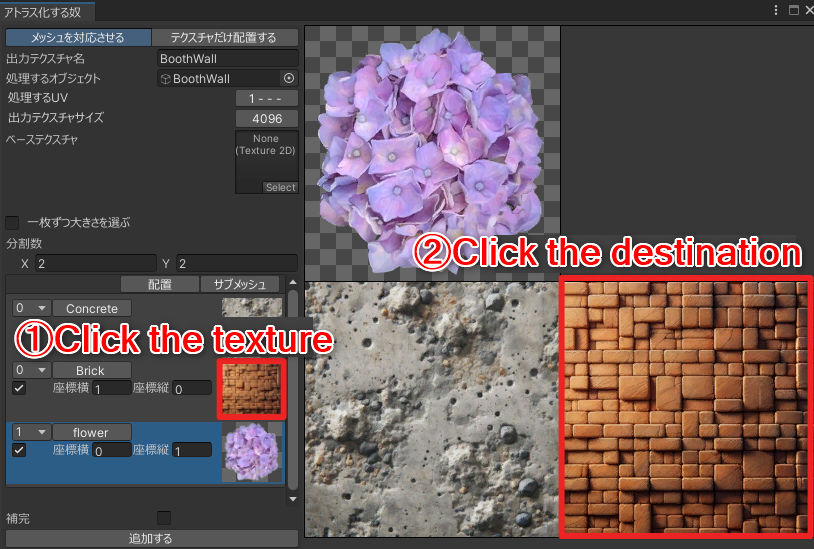
The texture that has the same pull-down numbers on the left side will be output as the same submesh. Therefore, set the same number for each texture that you plan to use as the same material.
You can also assign them automatically based on conditions from the menu in the サブメッシュ (Submesh) button at the top of the material list.
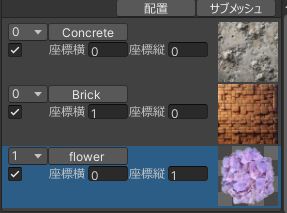
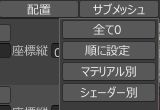
In this procedure example, we organize them into two materials, opaque (Opaque) and translucent (Cutout), and have set 0 for opaque and 1 for translucent.
For materials with no texture attached
Also, if no texture is applied to the material (e.g., only the material color is applied), a single color of the material color may be placed.
Click the "Add" button and the tool will process the image according to the settings. The process takes about ten seconds to several dozen seconds.
Texture is output to Assets / Naya_Tools / Utility / atlas.
Mesh file is output to Assets / Naya_Tools / Utility / Meshs
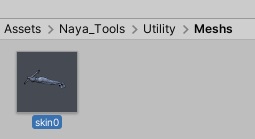
These generated files are needed for submission. Move them to your submission folder. The processed GameObject's Mesh property is changed to the generated mesh file.
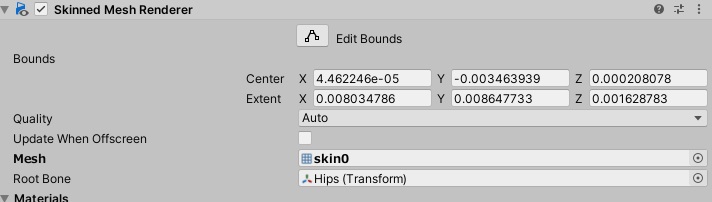
The value of Materials is not changed by the tool. The material and mesh don't match after processing because the mesh files are organized as specified in step A-5.
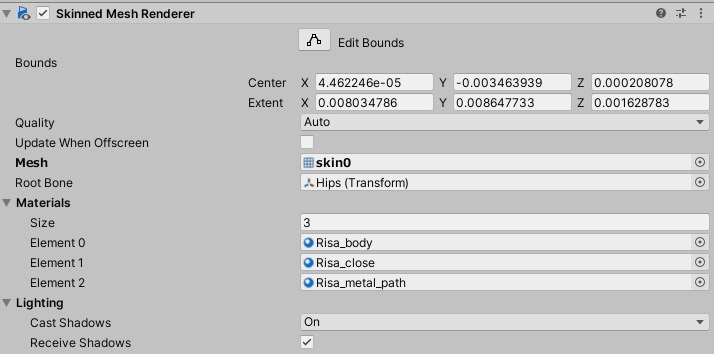
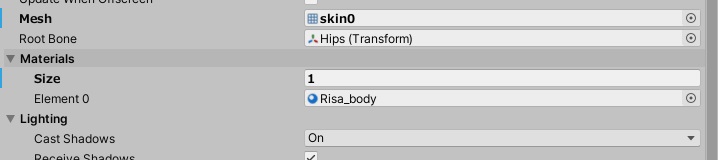
Change the size and set the material again. Better to duplicate the original material and set the atlas material.
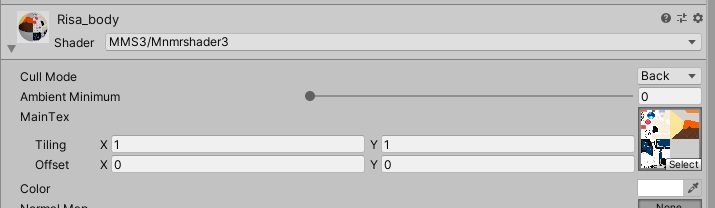
Specify the atlas texture for the material after making an atlas. The UVs on the mesh are already converted, so once you specify the atlas texture it should match the UVs on the mesh and the texture, and it should look correct.
That's all!
Check the Official Guidelines
Before submitting, please make sure to review the Exhibition Guidelines and Submission Rules. For the submission steps, see the Submission Guide.
↑ Back to Top