TOP › My Page TOP ›
Submission Workflow › Technical Guides / Submission Tips ›
How to Use MeshBaker
How to Use MeshBaker
Mesh Baker is a Unity asset that atlases textures and combines meshes, sold at the AssetStore by Ian Deane.
When submitting Vket exhibitions on Unity, the exhibitor must be aware of reducing SetPassCalls and Batches for optimized performance. The Mesh Baker is a useful tool to optimize performance on Unity.
In this article, we will go over how you can use Mesh Baker to reduce rendering costs. Information is based on Unity 2022.3.22f1 (as of October 2024).
A free version with limitations and a paid version without limitations ($86.9) are available.
Mesh Baker can be used for the following purposes.
- Merging textures
Merges multiple textures into one, and reflects the changed UVs on the original mesh.
Reducing the number of Materials reduces SetPassCalls. - Merging meshes
When meshes are separated even though they use the same Material, merging them into one mesh reduces SetPassCalls and Batches.
When merging Skinned Mesh Renderers, any deformation of the armature (position, rotation, scale) will be reverted.
For example, this applies when you have posed an avatar.
SkinnedMeshBaker can convert a Skinned Mesh Renderer into a Mesh Renderer with the pose fixed, so please use it together with Mesh Baker.
Most of the features used for Vket submissions are also available in the Free version.
The limitations are as follows.
- There are restrictions on the Shaders that can be used when merging textures.
- For some Shaders, Mesh Baker cannot recognize the internal property names of the textures, so they cannot be used.
Unity-Chan Toon Shader (UTS2) is one of them. - In that case, you can temporarily change the Shader to the Standard Shader, merge the textures, and then change the Shader back.
However, if you have set textures other than the main texture and the normal map (such as mask textures), they cannot be merged.
- When merging meshes, the result cannot be saved as an asset file, and it will be contained in the Scene (.unity file).
- This limits moving the merged result between Scenes, for example when you merge in a Scene different from the one used for submission.
Mesh Baker merging procedure is mainly divided into two parts.
- A. Texture atlasing and Material merging
- Atlasing (packs multiple texture into a single texture)
- Exporting the atlased result into a Material
- The process will be handled by the TextureBaker
- B. Mesh merging
- Merging multiple meshes and exporting as a single mesh
- If the textures are atlased beforehand, uses the result and reconfigures the UV of the mesh
It's possible to perform A→B, or even just B.
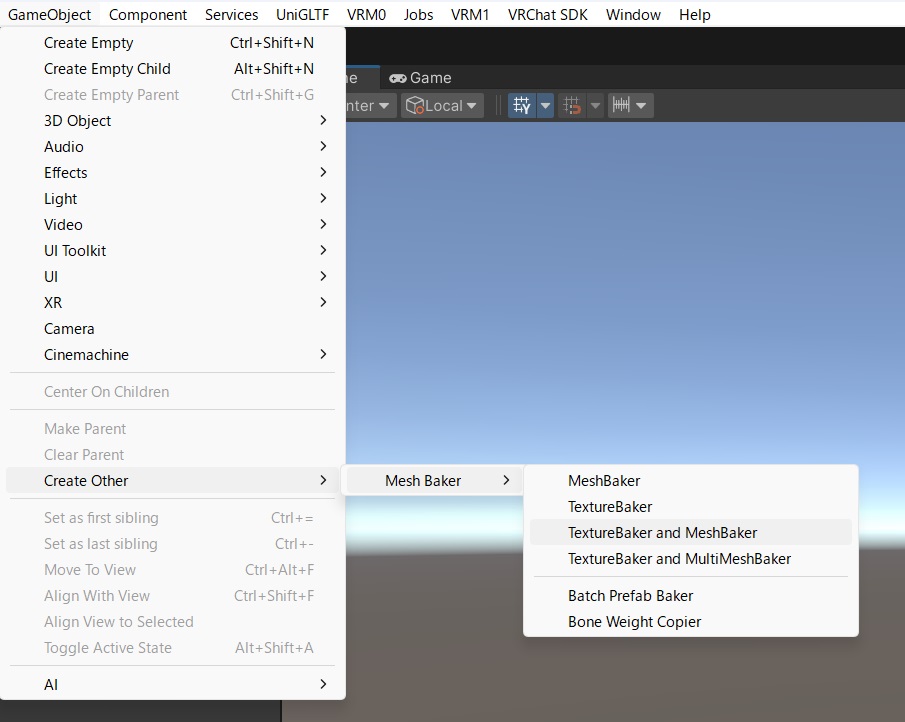
This creates the objects that perform the atlasing and the objects for the Mesh merging.
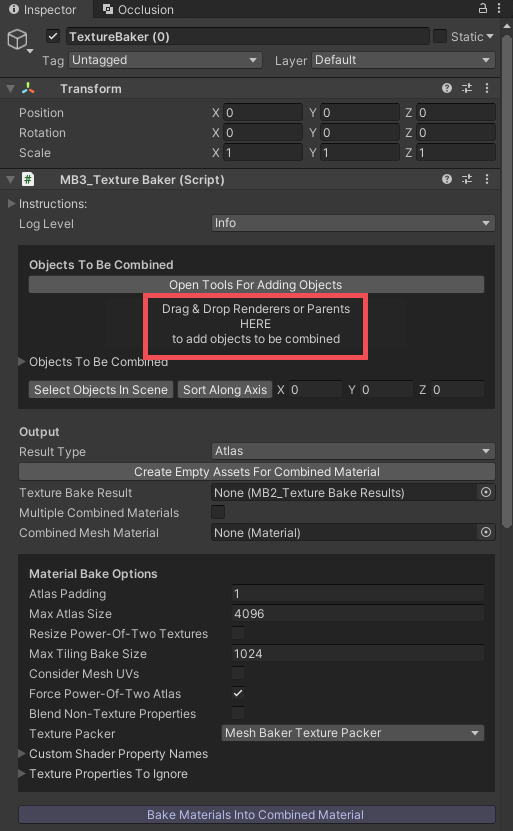
Drag and Drop into the red-marked area. Added objects can be viewed from Objects To Be Combined. You can also select Open Tools For Adding Objects to add object.
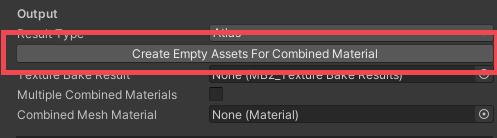
This opens a dialogue for saving the .asset file. Set the file name for the Baked result to be saved under.
The Baked result will be saved inside the same folder, so it is recommended to make a temporary folder for storing the results.
Check Multiple Combined Materials and click Build Source To Combined Mapping From Objects To Be Combined to select the Materials to be merged.
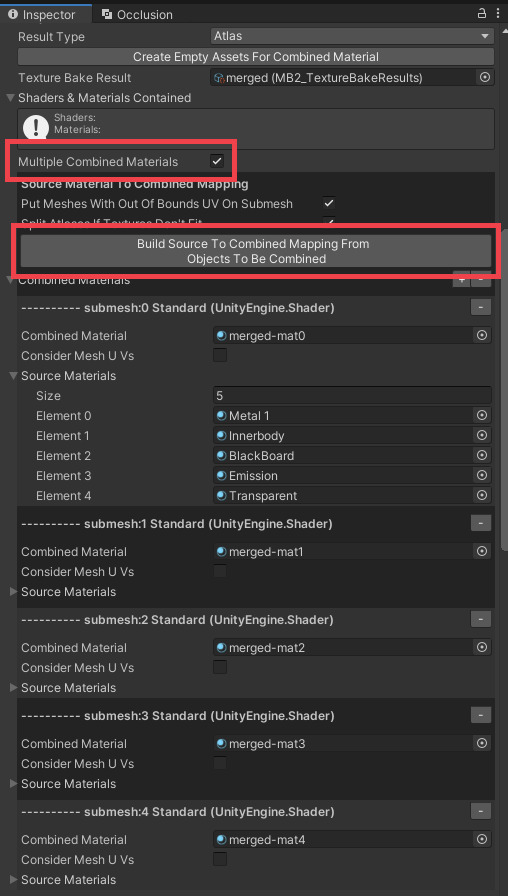
"Combined Material(the result from merging)" and "Source Materials(the materials that get merged)" will be listed up for each of the submesh.
You can change what Materials gets merged by editing "Source Materials". We advise merging the same types of Shaders.
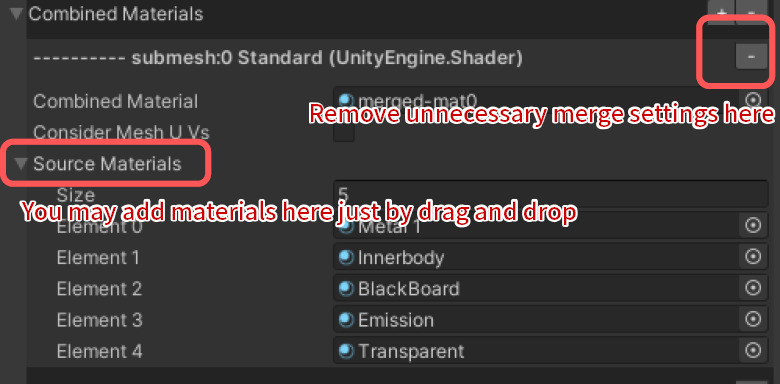
For this example, we'll merge the same Shaders like below.
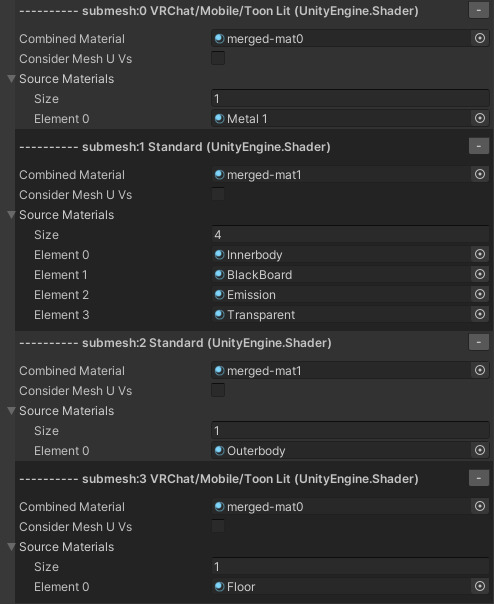
Click on Bake Materials Into Combined Material to begin atlasing and merging.
At this point, copies of the textures and the Materials will be stored in the specified folder.
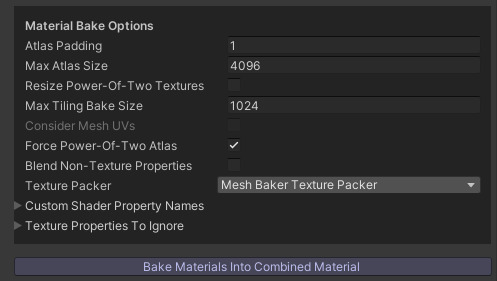
If the error The free version of Mesh Baker only works with Diffuse and Bumped Diffuse Shaders. appears on the console at this step, you are trying to merge Materials using a Shader that Mesh Baker Free cannot merge.
Change the Shader to the Standard Shader temporarily, merge the textures, and then change the Shader back.
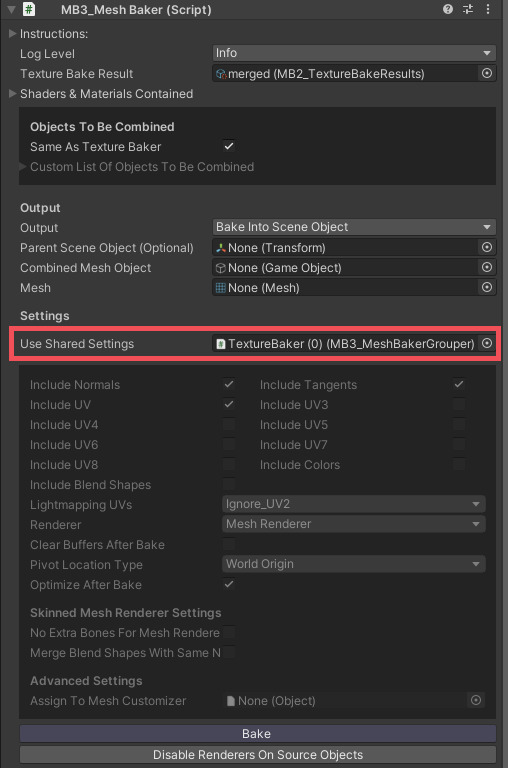
The Object "MeshBaker" exists as a child of "TextureBaker." You will use MeshBaker for merging Meshes, but the export settings will have to be done on MeshBakerGrouper inside TextureBaker.
As shown below, step B-4 is performed on the object set in Use Shared Settings. If you clear the value of Use Shared Settings, the disabled settings below will be enabled and you can configure them individually.
If you only want to do Mesh merging, start from step B-1.
If you've used the TextureBaker in the previous step, skip to B-3.
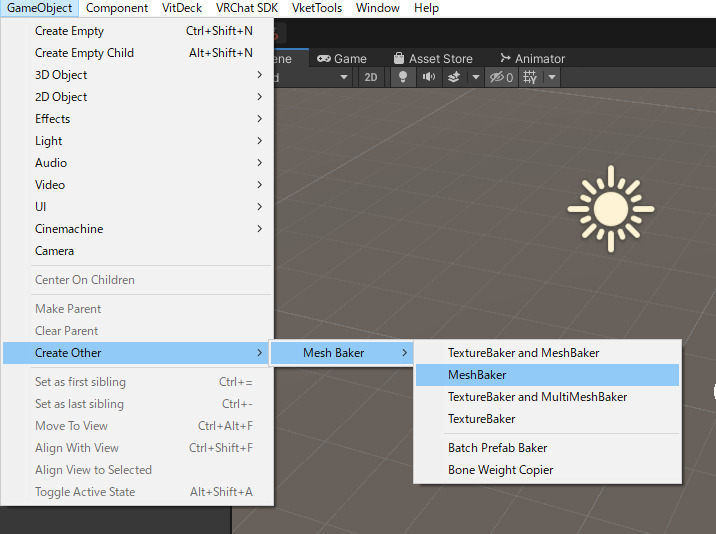
If you don't want the texture atlased, and only want to merge the Mesh, Create the MeshBaker from GameObject
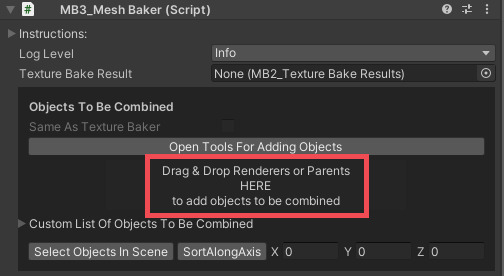
Drag & Drop into the red marked area. Added objects could be checked from Custom List Of Objects To Be Combined.
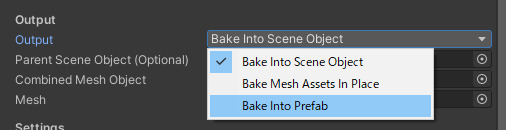
You can only choose Output Into Scene Object for Free version. If using the paid version, we recommend using the Bake Into Prefab to save the mesh info as proper file data.
If using Output Into Scene Object, specify an object in the Hierarchy as the Combined Mesh Object.
Having nothing specified will create a new Object in Hierarchy so it's fine to leave it as it is.
If you are using Bake Into Prefab, set the Prefab file from the Project window into Combined Mesh Prefab.
An .asset file containing the mesh data will also be generated in that folder.
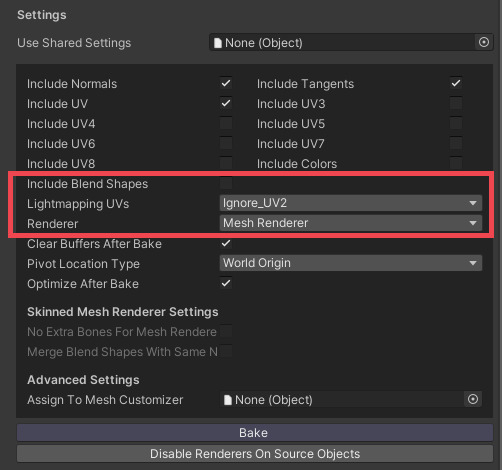
You can select the output to be either "Mesh Renderer" or "Skinned Mesh Renderer" in Renderer. The bones tied to "Skinned Mesh Renderer" will stay the same as the pre-merged Mesh's Armature.
Shapekeys could be copied by enabling Include Blend Shapes and setting output to Skinned Mesh Renderer. However, the key's names will be changed to prevent overlaps, so you would have to reconfigure Animations.
Lightmapping UVs needs to be configured when merging Light Bake-targeted(Lightmap Static) Meshes.
- Meshes not intended for Light Bake
- Ignore_UV2 is fine. UV2 will not be copied to the merged Mesh.
- Meshes intended for Light Bake, which uses Generate Lightmap UVs to generate UV2
- Select Generate_new_UV2_layout. Mesh Baker will auto-generate a new UV2.
- Meshes intended for Light Bake, which has its own UV2
- Select Copy_UV2_unchanged_to_separate_rects. UV2 resembling the pre-merge Mesh should be generated.
Hit Bake to output the merged Mesh to the specified target file location using the specified settings.
You can still use the original Mesh if you decide you want to change some settings and re-merge.
Even after merging textures and meshes, the original objects remain in the Scene. If they remain when you submit, they will overlap with the merged ones, so please delete them.
The original texture and Material files also remain in the asset folder, so delete them as needed.
Check the Official Guidelines
Before submitting, please make sure to review the Exhibition Guidelines and Submission Rules. For the submission steps, see the Submission Guide.
↑ Back to Top